Exporting Certificates and Keys
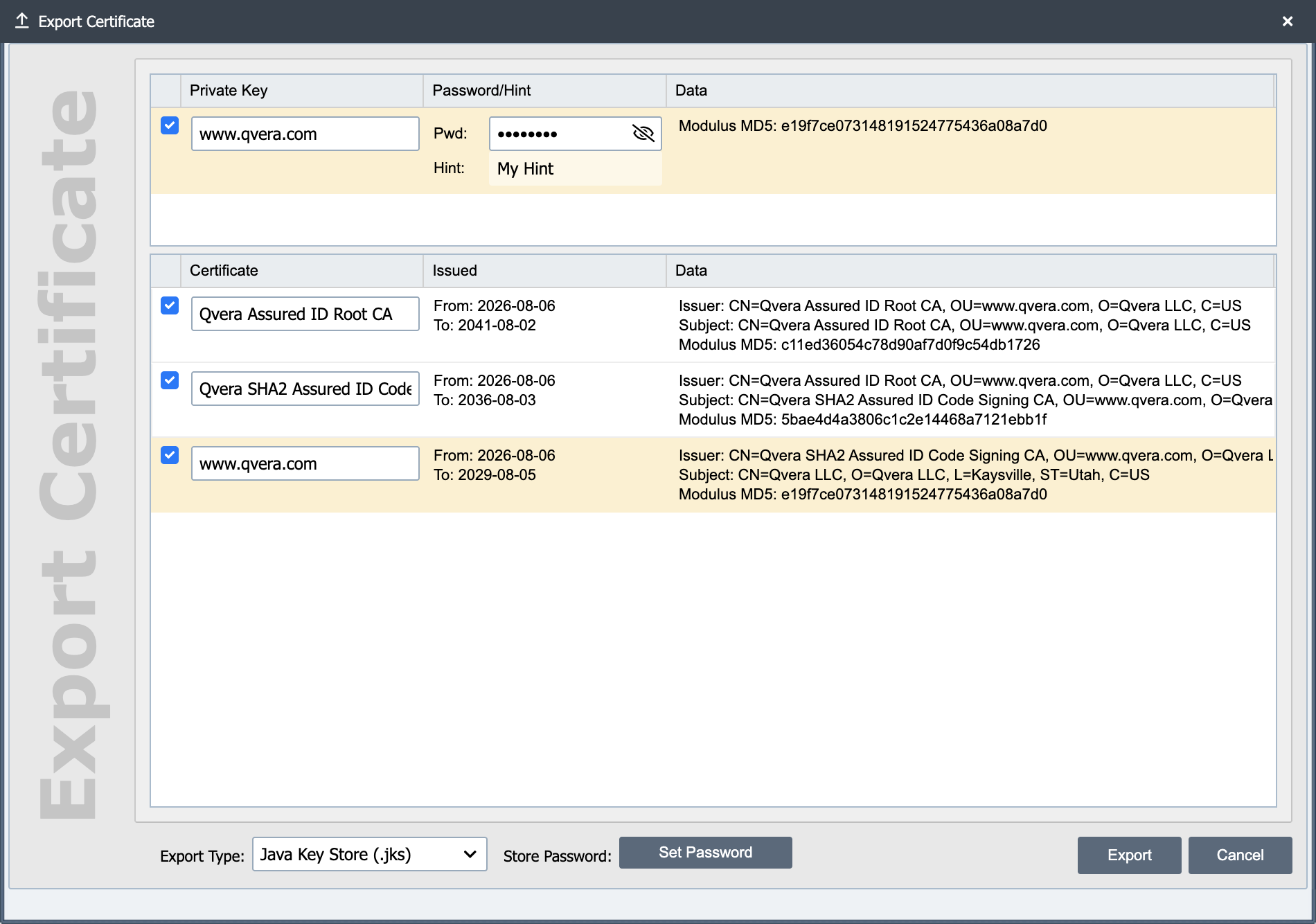
QIE has the ability to export keys and certificates into a few standard formats. If you need to send a public certificate to a 3rd party, you can select the 'Export' button at the top of the page. QIE then presents with a list of certificates in QIE that you can export. Select all of the certificates that you would like to export and then select the 'Export' button. This generates a new file that you can send to 3rd parties.
You are also able to export private keys via the export dialog. This is done so that you can move a key to another QIE installation that you control.
Never send a private key to a third party
Vendors and trading partners only need your public certificate. If someone asks you to send your private key, they are asking for the wrong thing. Send the public certificate instead. Anyone in possession of your private key can impersonate your server, decrypt traffic encrypted to your public certificate, and sign data as you.
Exporting a Public Key
Select a key on the certificates page and use the Export Key button to write out its public half. Three formats are offered:
Public SSH Authorized Key File: The single-line OpenSSH format, for a trading partner who authenticates your SFTP connection by key.
Public SSH2 Format: The same public key in the SSH2 format that Tectia and several commercial SFTP servers expect.
JWK Public Keyfile: A JSON Web Key, for an identity provider that verifies a JWT you signed. Choose the key use, algorithm, and key id on the dialog that follows.
RSA, ECDSA on the P-256, P-384, and P-521 curves, and ed25519 keys export in all three formats. An ed448 key exports as a JWK only, because OpenSSH does not implement the ssh-ed448 format. An ECDSA key on any other curve exports in none of the three, and the export reports an error rather than writing a file that names the wrong curve.