EC2 Security Group
Each VPC needs a security group that defines the firewall rules for allowing traffic into and out of the VPC. This guide allows all traffic from the public IP address of your current workstation to access the VPC resources on any port. For your organization you may need to refine this to a list of specific ports or services that are explicitly allowed as opposed to opening it up to everything.
Please note that if you are going to publish an endpoint that other systems use to send data to QIE, the port configured in QIE must be opened in the security group for the organization that is sending.
Update Security Group
Navigate to the EC2 services management page. Select the 'Security Groups' under the 'Network & Security' menu on the left side of the page.
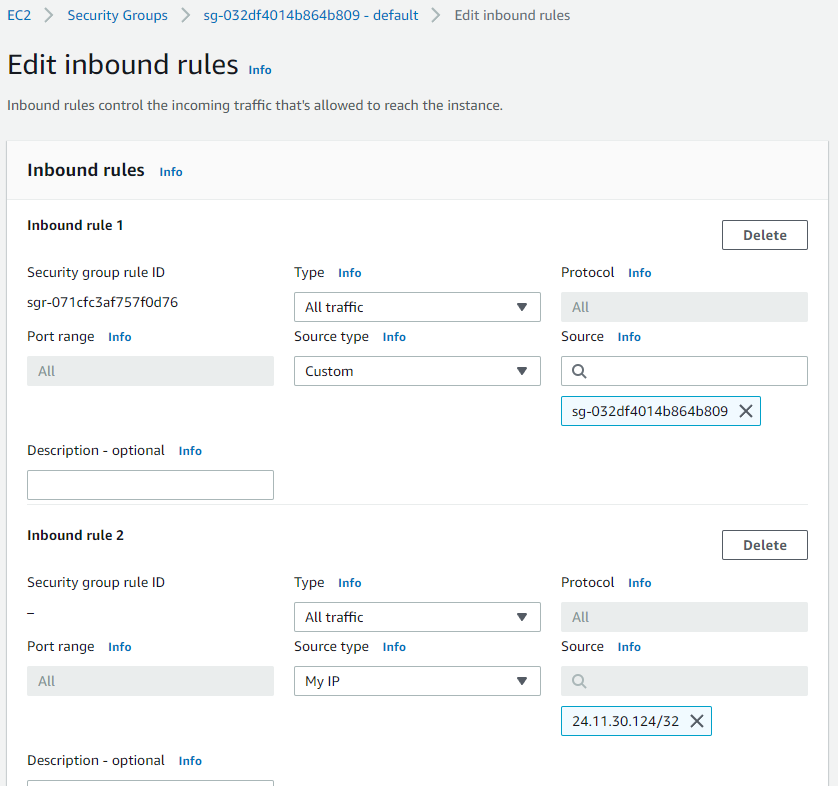
You should see a 'default' security group already generated for the 'qie-ecs-vpc' VPC in this list. Find the correct security group by looking at the 'VPC ID' column of the grid. Select the correct default group and then select the 'Edit inbound rules' at the bottom of the detail page under the 'Inbound rules' tab.
There is already a rule for 'All traffic' for the local security group. Leave this rule and click on 'Add rule'.
Change the 'Type' to 'All traffic' and the 'Source type' to 'My IP'. This allows all traffic from your public IP address to any resource found in the VPC.
Now add a second rule to allow SSH access from anywhere to the VPC. This is needed when creating the new VM to get files onto the EFS, and it is temporary: remove it as soon as the files are copied, as Add Files to EFS describes.
Click on 'Add rule'. Change the 'Type' to 'SSH' and the 'Source type' to 'Anywhere-IPv4'. This allows SSH connections from any address to any resource found in the VPC. Click on the 'Save rules' at the bottom of the page.
Note
When opening listeners for new channels inside of QIE, you must edit this security group.