Using the Code Wizard
In the previous exercise, built-in mapping functions were introduced. Each of the built-in mapping functions automatically resolve to JavaScript code. These built-in mapping functions can be customized allowing more complex logic to be added to the basic function (e.g. surrounding a function with a condition).
Note
A best practice before customizing your mappings is to always start with the built-in function and then modify them as needed using the Code Wizard. This reduces the syntax errors and speeds up your interface development.
To assist the user in the Java Script Editor window, QIE has a Code Wizard. The Code Wizard lists and describes basic helper functions and Published Mapping functions that can be used in QIE. The Code Wizard also allows you to insert a template for the described function. Using the Code Wizard can improve channel-development time and reduce script errors.
This chapter introduces the user to the Code Wizard and describes, step by step, how to add conditional logic to a mapping function. This next section enhances the mapping function from step 6 above, to check if the PID-2 field exists before mapping the value.
Adding Conditional Logic in a Mapping Function
Step 1: Convert built-in mappings to custom scripts
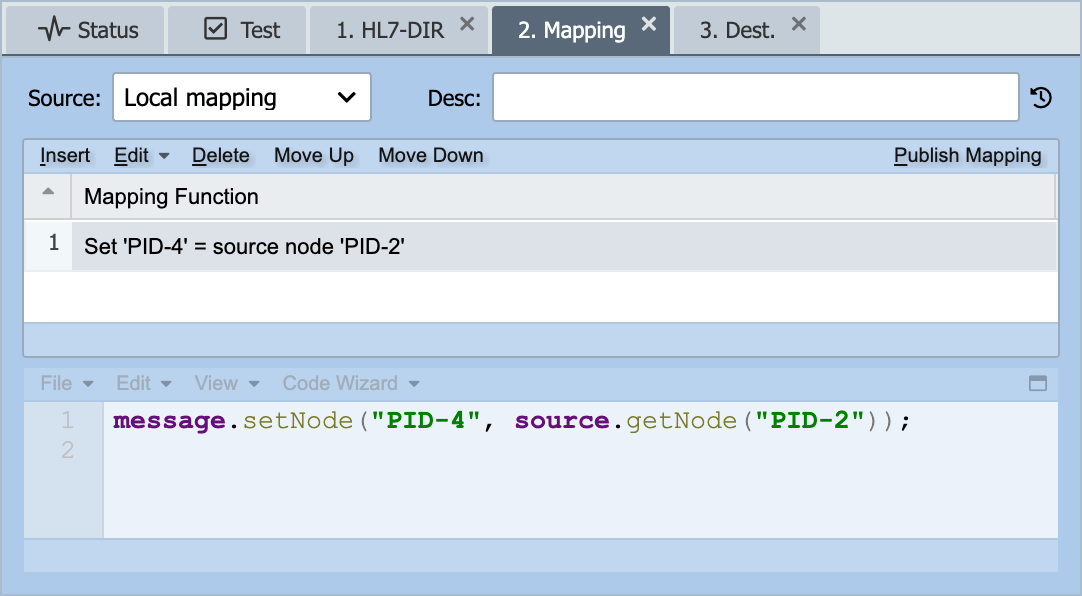
Navigate back to the mapping function performed in step 6 of the previous chapter and double click on the mapping function to edit it.
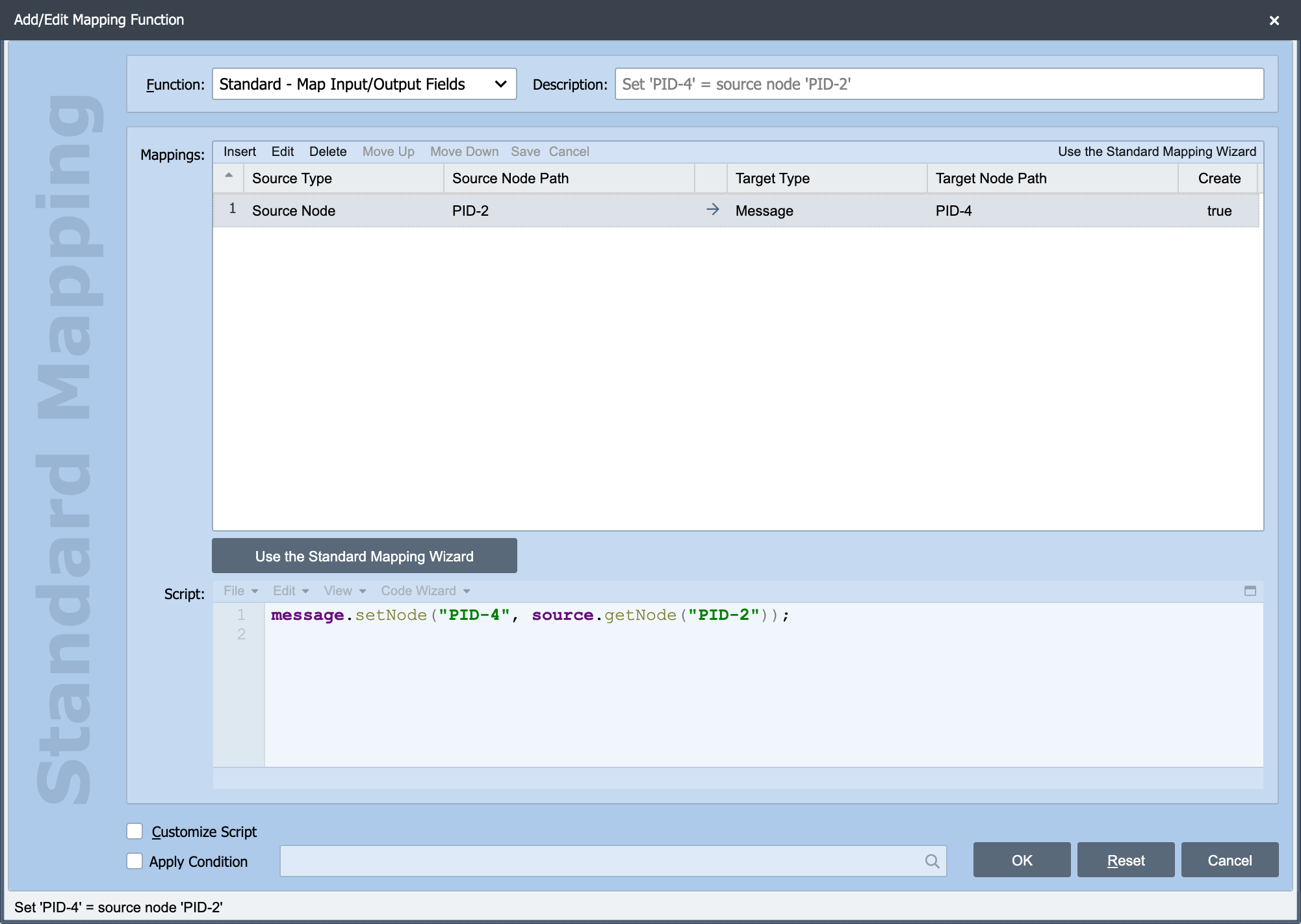
Click on the Customize Script check box in the lower left-hand corner of the built-in mapping function window.
Step 2: Wrap code using Surround With…
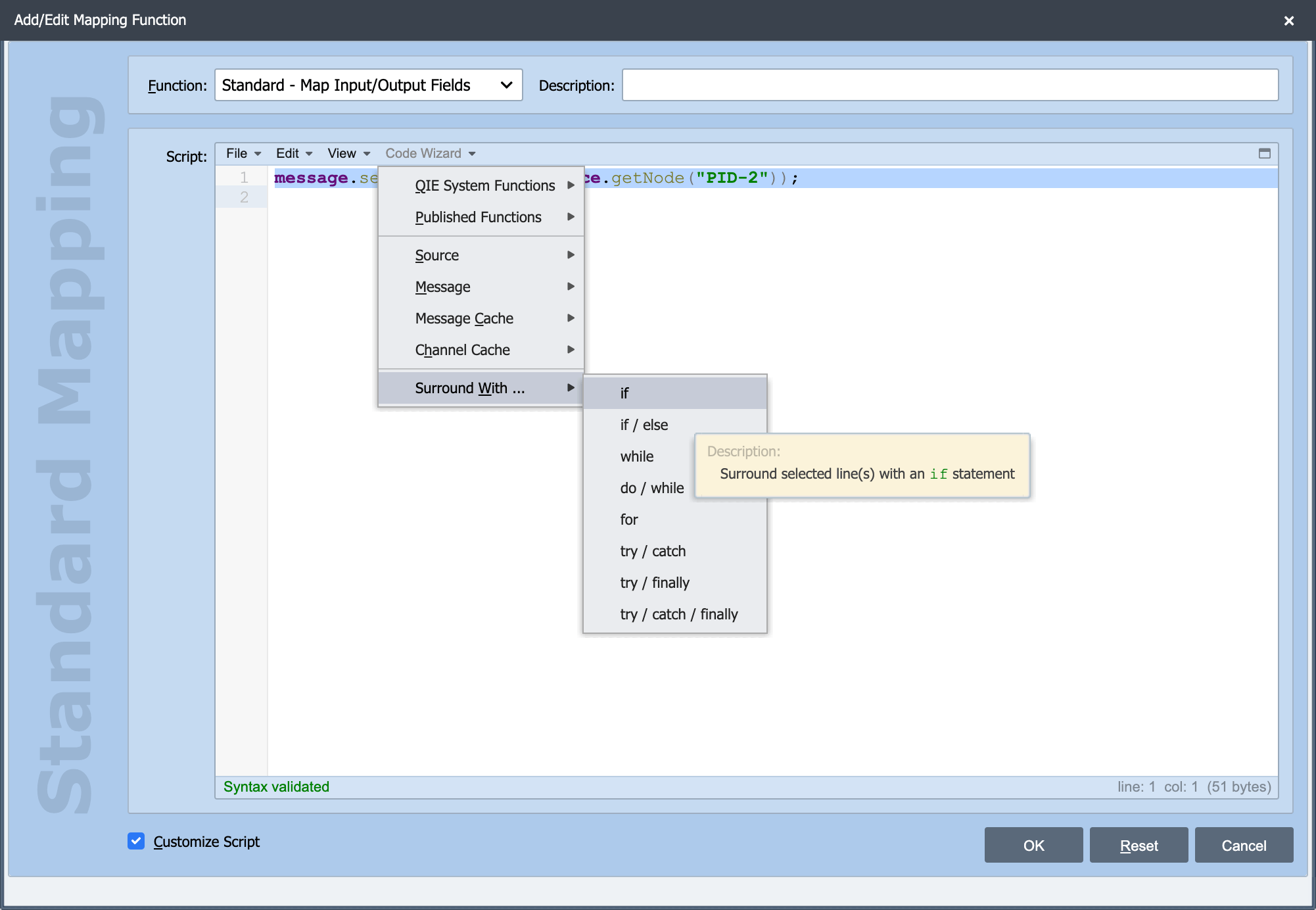
Highlight the code. Then, from the Code Wizard, go to Surround With… -> if. A description of the function displays as the mouse hovers over the menu item. Once the menu item is selected, the code snippet is inserted into your script. In this case, click the menu item and QIE surrounds the highlighted code with a JavaScript if statement. Next, add the condition to the 'if statement'.
Step 3: Replacing todo's
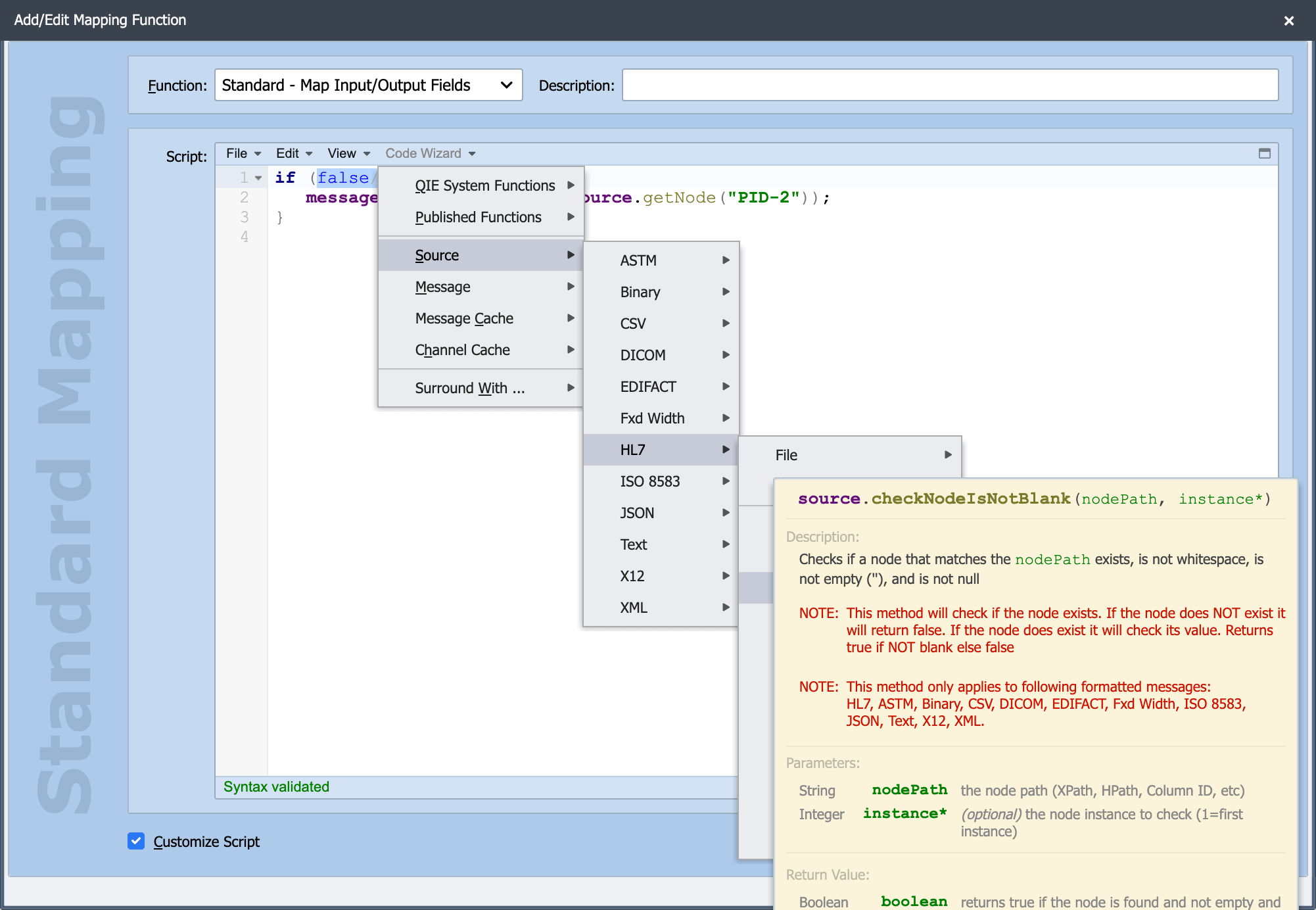
Highlight the 'false/*todo*/' code, then from the Code Wizard menu, go to Source -> Check Node Is Not Blank. Note that the description has the correct JavaScript syntax, lists the expected parameters, and displays the return type.
Step 4: Optional parameters
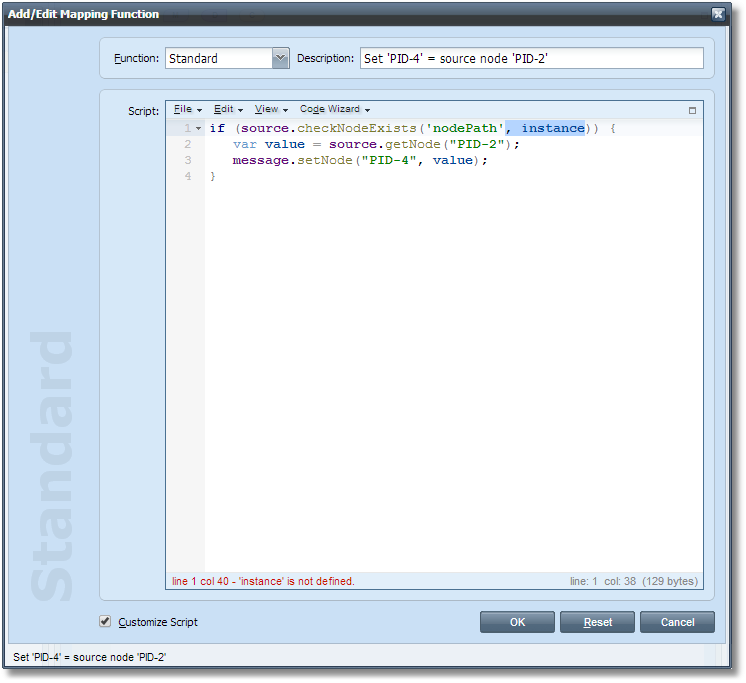
Highlight ', instance'. Press the delete key to remove it for now. The optional 'instance' parameter refers to the instance (or occurrence number) of a segment within a message. If this parameter is not provided it refers to the first segment found in the message that matches the nodePath. Note that the code inserted by the Code Wizard includes the optional parameters. It is up to you to decide if you need them.
Step 5: Using the Node Path Lookup in Custom Scripts
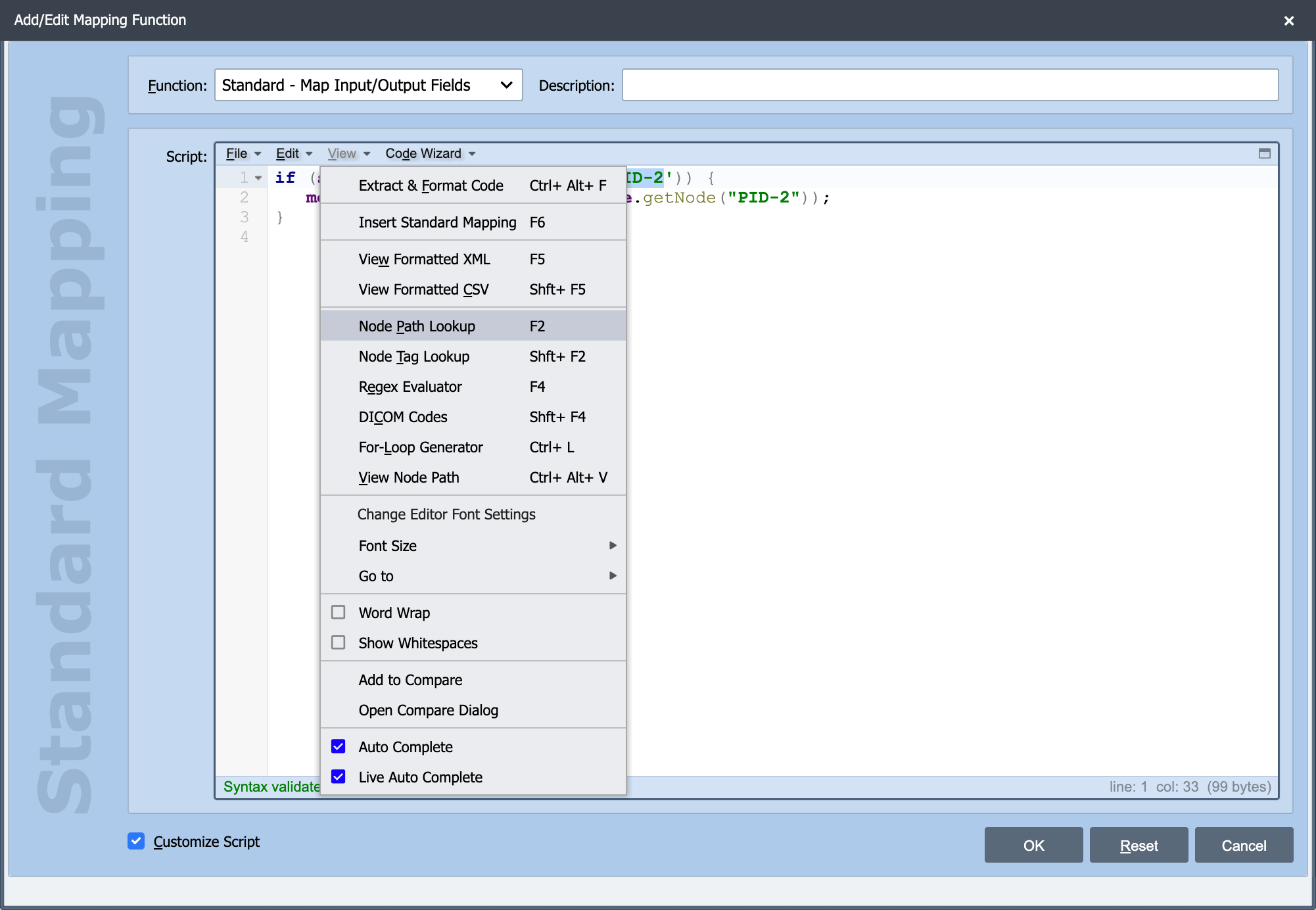
Now the nodePath needs to be populated with the PID-2 field from the source. To do this, highlight the nodePath parameter, excluding the single quotes, from the checkNodeIsNotBlank('nodePath') function. From the View menu, select the Node Path Lookup menu item. This displays a dialog with the sample messages previously loaded. Place the cursor in the PID-2 field (the field containing the internal id number of 54664). Note that the node path for this field is shown in the status bar of this window. Select OK to return that nodePath to the script.
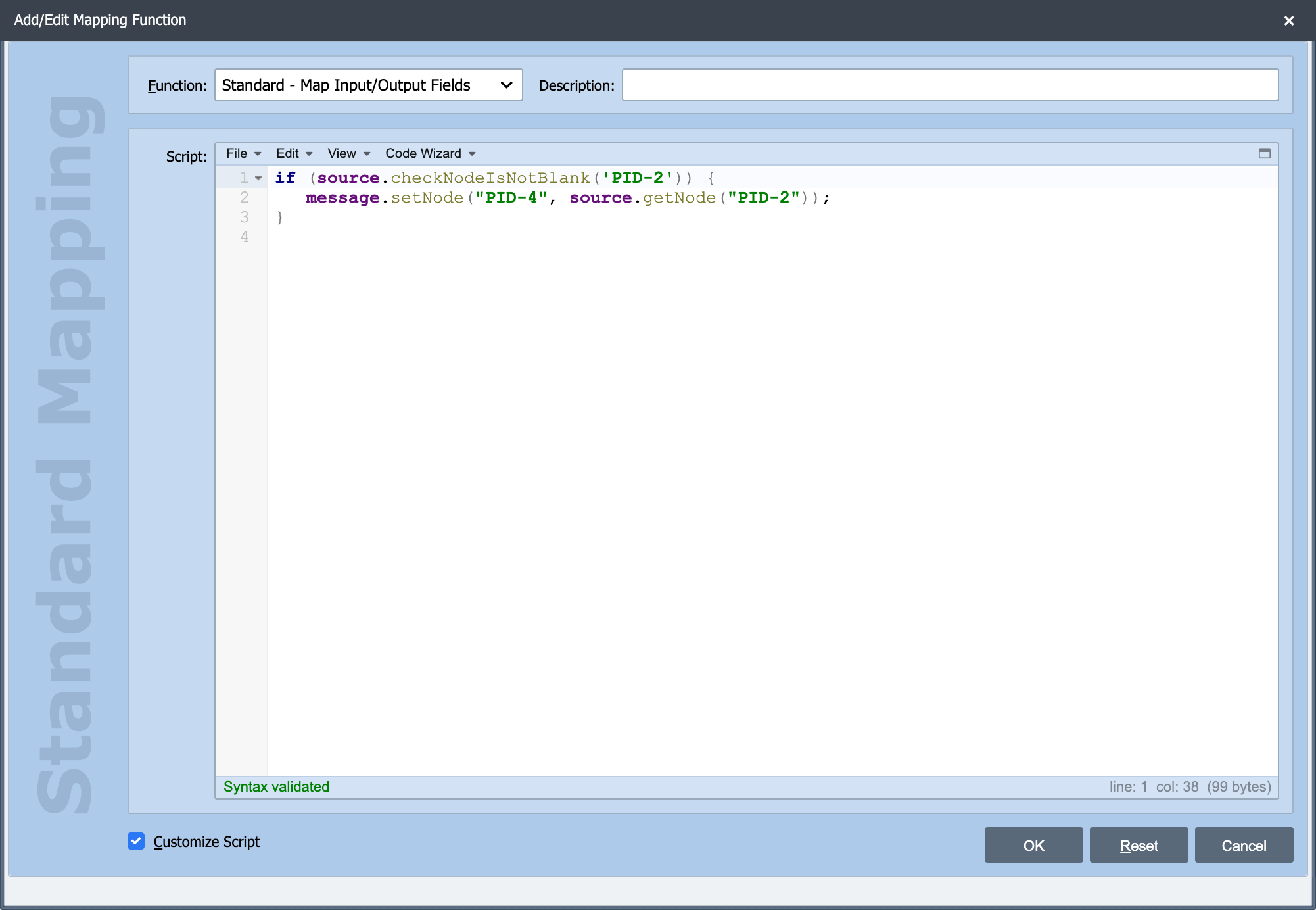
Congratulations! You have successfully added logic to copy the value from PID-2 only when data exists. To test the changes, refer to Step 8 in the previous example. Now you can review the other functions within the QIE Code Wizard.