DICOM Basics
This chapter introduces the DICOM concepts and node-path syntax you use in the rest of the tutorial. After completing the chapter you should understand how DICOM tags identify data within a message, how to write a node path that selects a tag, and how to use the DICOM Tag/UID Data Dictionary built into QIE.
DICOM Tags
DICOM (Digital Imaging and Communications in Medicine) is the standard for storing and exchanging medical imaging information. Every piece of information in a DICOM message is identified by a unique tag composed of two parts:
- Group: a 4-character hexadecimal number representing a broad category of information (Patient Information, Study Information, Image Pixel Data, and so on).
- Element: a 4-character hexadecimal number identifying the specific data element within that group.
The DICOM standard writes a tag as (Group,Element). For example, the tag for the patient ID is (0010,0020):
0010is the group number, representing Patient Information.0020is the element number, representing Patient ID.
DICOM Tags as QIE Node Paths
In QIE, a DICOM tag is referenced as a node path in the form {Group},{Element} (without parentheses) with an optional leading forward slash. The two forms are equivalent:
Either expression returns the value of the patient ID from the source DICOM message.
The ? character may be used as a wildcard for any hexadecimal digit. For example, 00??,0100 matches every tag whose Group starts with 00 and whose Element is 0100.
For the full reference, including the predicate functions (contains, starts-with, ends-with, equals) and the complete table of commonly-referenced tags. See DICOM - Node Path Syntax in the Reference Manual.
Step 1: Open the DICOM Tag/UID Data Dictionary
QIE ships with a built-in dictionary of DICOM tags, UIDs, Command Field Codes, and Status Codes. Reference it whenever you need to find the tag for a specific data element.
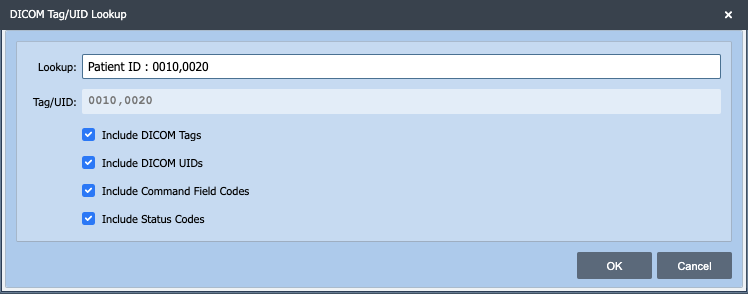
Open the Custom Script editor in any mapping function, then select View -> DICOM Codes from the editor menu. You can also press the keyboard shortcut for the DICOM Codes dialog from within the Custom Script window.
Note
The hotkey is F4 when only the DICOM Codes feature is available on the View menu, and Shift+F4 when the Regex Evaluator is also present. Hover over the menu item to see which hotkey applies in your editor.
Step 2: Look up a tag by name
In the DICOM Codes dialog, switch to the DICOM Tags tab if it is not already selected. Type part of a tag name into the filter (for example, patient) to narrow the list.
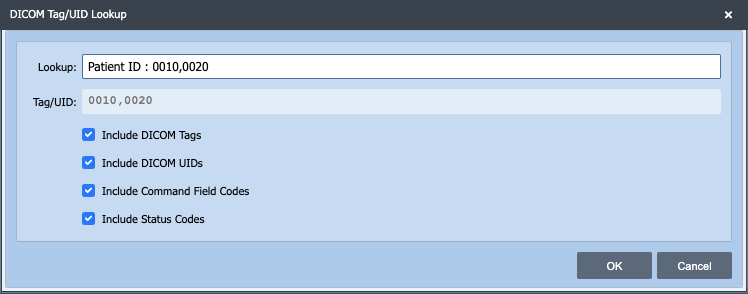
Each row shows the tag number, the tag name, and the value representation (VR), the data type used for that tag.
Step 3: Copy a tag into your script
Select the row you want and click the copy or insert button to paste the tag (in Group,Element format) into your custom script at the cursor location. You can also type the tag manually if you already know it.
What You Should Know Before the Next Chapter
- DICOM tags use a
Group,Elementhexadecimal format. - In QIE, you reference a tag as a node path (
0010,0020or/0010,0020). - The
?character is a wildcard for any single hexadecimal digit. - The DICOM Tag/UID Data Dictionary is accessible from the Custom Script editor's View menu, and is the quickest way to find the tag for a value you want to read or set.