JSON Basics
Syntax Conventions
All message formats have rules known as syntax that define the message structure. The syntax includes specific characters that need to be placed appropriately for the program to interpret and execute the commands. The following items briefly describe these conventions and how they are used with JSON objects.
| Syntax Conventions | Description |
|---|---|
| Keys | While "keys" are not a syntax convention it is worth mentioning that keys or elements consist of two parts a key name, and a value. The value can be one of 6 data types. Each key of an object can consist of one or more objects and/or arrays as its value and can be nested in any order. The sample 'person' object below contains a phoneNumbers key. The value of the phoneNumbers key is a data type of Array containing multiple phone numbers. Each phone number array is an object containing key names of usage and number. |
| Case sensitivity | JSON key names are case sensitive. A key name of Birthdate would not be the same as birthdate |
| {} | Open and close braces define the beginning and ending of an object. An object consists of keys. Each key can also include more objects within itself. Keys can be referred to as elements, key/value pairs, properties or nodes. For example, a person object can have keys like firstName and lastName. In QIE the firstName value is accessed using a node path. |
| " | Double quotes are used to surround key names. In addition, if the value of the key is of type String then double quotes (or single quotes) are used to indicate the value is of type String. |
| : | The colon is used to separate the key name from the value. For example the key fristName with a value of John would look like "firstName":"John". The value can be one of 6 Data Types (See table below for the different data types.) |
| , | The comma is used to separate multiple keys and array elements. For example, a JSON person object can contain a key for firstName and lastName and the comma would separate the two keys. Note the last key in the object does not have a comma. |
| [ ] | The square brackets are used to hold a list or an array of values. For example, a JSON person object could contain an array of one or more phone numbers. |
| Whitespace | Can be used between keys and values. Whitespace between keys and values is ignored by the parser. |
Data Types
JSON values are type specific. The table below contains the valid data types.
| Type | Description |
|---|---|
| Number | JSON has only one type of number. It can be written with or without decimals or using scientific (exponential) notation (i.e. 34.00, 34, 123e5, and 123e-5 are all valid JSON numbers) |
| String | JSON strings are written with quotes. You can use single or double quotes. The String can contain quotes, if they do not match the quotes surrounding the string (i.e. "Qvera", 'Qvera', "She's amazing") |
| Boolean | JSON booleans can only have two values: true or false. |
| Object | JSON Objects are a special data type that allows any number of keys. Each of the keys of the object are written as key:value pairs, separated by commas (i.e. var problem = {"icd9":"780.51", "description":"Insomnia with sleep apnea, unspecified"} ) |
| Array | JSON arrays are used for a list of similar key values. For example, a person may have one or more email addresses, phone numbers or children. |
| null | JSON null is a special key value that represents "nothing". If a key's value is set to null, it means that it does not have a value. |
Using JSON Node Paths in QIE
Concept
A Node Path is a query string used to locate nodes or data elements in a message. The node path syntax varies depending on the message format. The following section discusses the expected node path syntax for JSON.
JSON node paths can be used with getNode, getAllNodes, and other QIE functions that accept a nodePath parameter. See How Node Paths Resolve for behavior details and the Node Path Lookup Dialog to build and validate them interactively against a sample message.
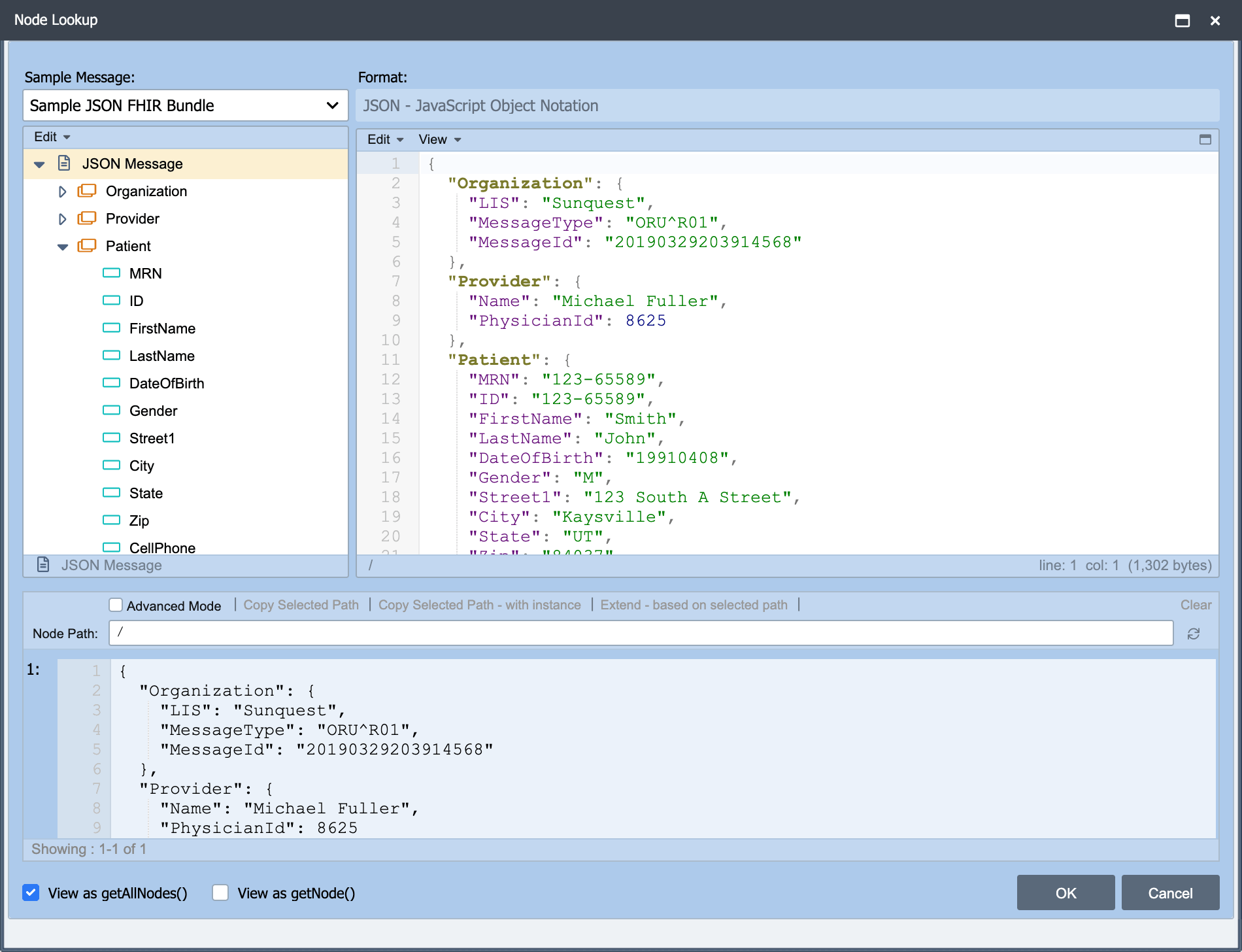
Node Path Lookup Dialog
Node paths can either be manually entered or entered using the Node Path Lookup Dialog. The Node Path Lookup Dialog can be accessed from the View menu of the Script Editor. It can also be accessed using the hot-key F2.
The Node Path Dialog uses the Sample Messages which have been associated with the Channel. The desired node path can be selected by either selecting the associated node from the message model tree view on the left or by clicking or positioning the cursor in the desired field of the sample message.
Root Node Path (/)
In QIE the Root Node Path, a single forward slash (/), is used to select or to set the contents of the entire message. The root node path applies universally to all message formats.
Example JSON Message
The examples below use this JSON message:
{
   "firstName": "Don",
   "lastName": "Bassett",
   "deathIndicator": "",
   "birthDate": "06/15/2001",
   "address": {
      "streetAddress": "375 5th Avenue",
      "city": "New York",
      "state": "NY",
      "postalCode": "10021-3100"
   },
   "phoneNumbers": [
      {
         "usage": "home",
         "number": "212 555-1234"
      },
      {
         "usage": "office",
         "number": "646 555-4567"
      },
      {
         "usage": "mobile",
         "number": "123 456-7890"
      }
   ]
}
Example JSON Node Paths
| JSON Node Path (JSONPath) | Description |
|---|---|
/ |
Returns the entire JSON message. |
/firstName |
Returns the value: Don. |
/address |
Returns the entire address object:"address": { "streetAddress": "375 5th Avenue", "city": "New York", "state": "NY", "postalCode": "10021-3100" } |
/address/streetAddress |
Returns the value of streetAddress: 375 5th Avenue. |
/phoneNumbers |
Returns the entire value (array) of the phoneNumbers key:[ { "usage": "home", "number": "212 555-1234" }, { "usage": "office", "number": "646 555-4567" }, { "usage": "mobile", "number": "123 456-7890" } ] |
/phoneNumbers/[1] |
Returns the 1st phone number object:{ "usage": "home", "number": "212 555-1234" } |
/phoneNumbers/[2] |
Returns the 2nd phone number object:{ "usage": "office", "number": "646 555-4567" } |
/phoneNumbers/[1]/number |
Returns the value of the first phone number in the phoneNumbers key array: 212 555-1234. |
/phoneNumbers/[usage="home"] |
Selects the entire home phone object:{ "usage": "home", "number": "212 555-1234" } |
/phoneNumbers/[usage="home"]/number |
Selects the home phone number from the object that has a usage of home: 212 555-1234. |
Filter Predicates
In addition to the [key=value] array filter shown above, JSON node paths support four XPath-like predicate functions for matching repeating objects. The same predicate functions are used in HL7, X12, and DICOM node paths. See Filter Operators and Predicates for full signatures.
Each predicate takes the form predicate(node, value, caseSensitive). The caseSensitive argument is optional and defaults to false (case-insensitive matching). Pass true to force a case-sensitive comparison.
The examples below use the JSON sample message shown above.
| Function | Example | Returns |
|---|---|---|
contains |
/phoneNumbers/[contains(usage, 'om')]/number |
The number of the first phone whose usage contains om (matches home): 212 555-1234 |
starts-with |
/phoneNumbers/[starts-with(number, '212')]/usage |
The usage of the first phone whose number starts with 212: home |
ends-with |
/phoneNumbers/[ends-with(number, '4567')]/usage |
The usage of the first phone whose number ends with 4567: office |
equals |
/phoneNumbers/[equals(usage, 'OFFICE')]/number |
The number of the first phone whose usage equals OFFICE (case-insensitive default matches office): 646 555-4567 |
For nested JSON structures, the predicate body may also use XPath-style relative references such as ../<name> to access a sibling field of the parent context, or ..//<name> to match any descendant of the parent context. For example, /customfields/id[contains(../id,'14')] would match each id whose parent's id contains '14'.
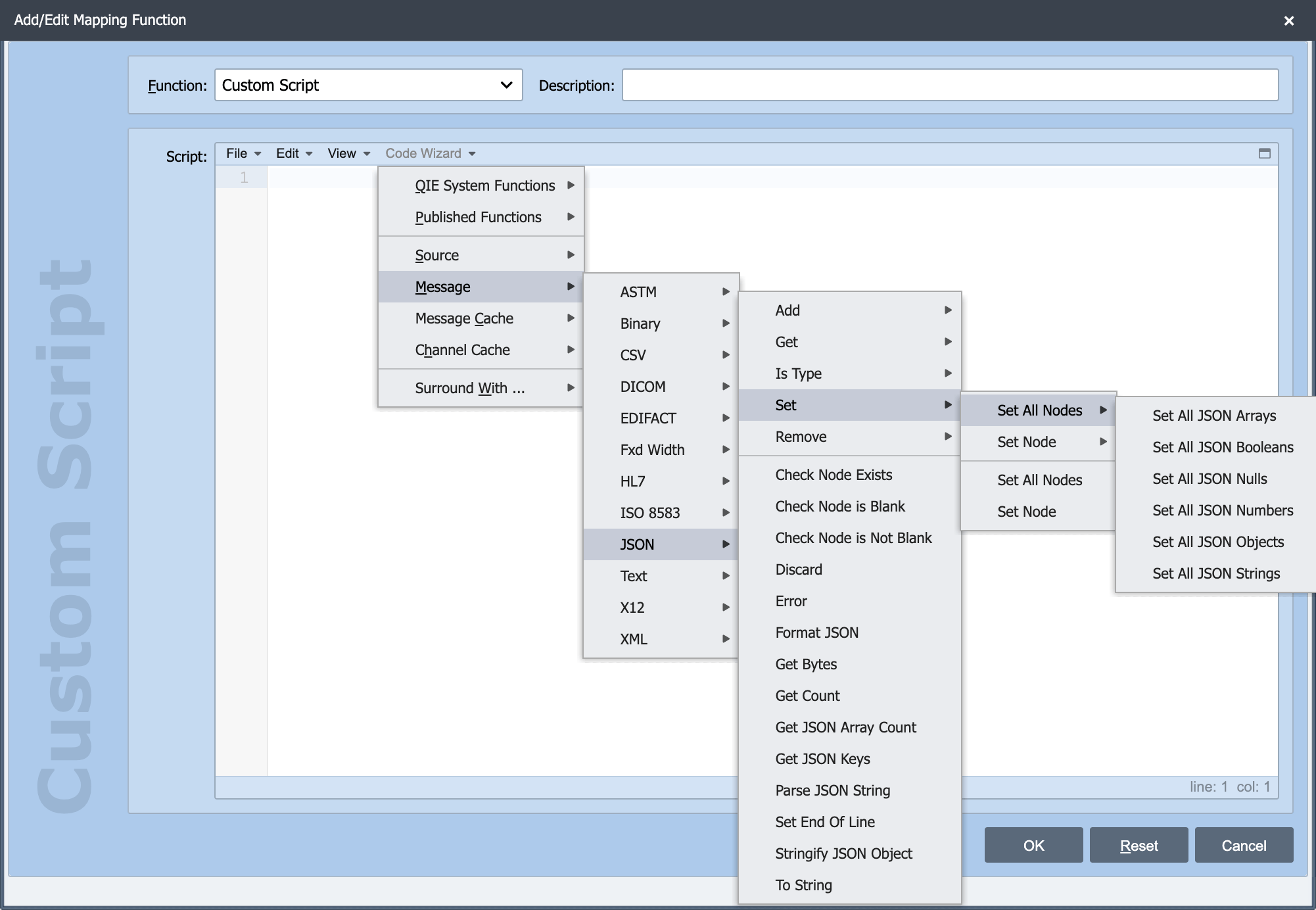
Code Wizard JSON Functions
The Code Wizard provides JSON-aware functions for creating, modifying, removing, and inspecting JSON content. Because JSON is type aware (Number, String, Boolean, etc.), most functions are named after the JSON type they operate on.
The function families are:
message.setJSON*/message.setAllJSON*set a node (or all matching nodes) to a typed JSON valuemessage.add*ToJSONappends a new key to the end of the current objectmessage.addJSON*Before/message.addJSON*Afterinsert a new key before or after an existing keymessage.add*ToJSONArrayappends a value to an existing arraymessage.removeJSON*removes nodes (first, last, or all matches)message.getJSONKeysandmessage.isJSON*list keys or check a node's JSON typemessage.formatJSONpretty-prints the JSON with indentationqie.createJSONMessageandqie.parseJSONStringcreate a new JSON message or parse content into a JSON message model
For full signatures, parameter details, and per-function behavior, open Channels -> Scripting -> Code Wizard -> Function Reference in the help navigation, or from the Code Wizard menu within the JavaScript editor.
Note
message.setNode() is equivalent to message.setJSONString(), and message.setAllNodes() is equivalent to message.setAllJSONStrings(). Use whichever reads better in context.
Note
qie.createJSONMessage, qie.parseJSONString, and message.setJSONObject accept either a JSON string or a native JavaScript object. Passing '/' as the node path to message.setJSONObject replaces the entire JSON message.
Note
Passing a native JavaScript object to message.setNode() throws an error directing you to use message.setJSONObject() instead. Use setJSONObject whenever the value is a native JavaScript object.
Arrays within JSON Objects
In JSON, array values must be of type string, number, object, array, boolean or null. Arrays can be nested in other JSON keys like the phoneNumbers in the example JSON message above. Values in an array can also be another array, or even another JSON object.
Examples:
This first example shows a phoneNumbers key whose value is a String Array of phone numbers.
This second example adds the standard array square brackets and an additional identifier of "usage" for the phone number in each of the phoneNumber JSON objects.
"phoneNumbers": [
   {
      "usage": "home",
      "number": "212 555-1234"
   },
   {
      "usage": "office",
      "number": "646 555-4567"
   },
   {
      "usage": "mobile",
      "number": "123 456-7890"
   }
]
How To Create And Set An Array In A JSON Object
To create an Array in a JSON Object use the message.setJSONArray function. This creates and adds a new key to the end of the current JSON object as an Array.
To add values to the JSON Array just created, use one of the five functions found under "Add To Array" in the Code Wizard. Create new keys in the array and then update them.
message.addObjectToJSONArray('/phoneNumbers', '{}');
message.setJSONString('/phoneNumbers/[1]/usage', 'home');
message.addObjectToJSONArray('/phoneNumbers', '{}');
message.setJSONString('/phoneNumbers/[2]/usage', 'work');
How To Loop Through A JSON Array and Set The Values
You can loop through and access or set array values by using a for loop. First, get the count of objects within the array using the /[] array filter.
Then using the count, you can loop through the array and add a new key of 'status' with a string value of 'active'.
for (var i=1 ; i <= phoneNumbersCount ; i++) {
  message.setJSONString('/phoneNumbers/['+ i +']/status', 'active');
}
Note
When looping through an array the instance must be included as part of the Node Path /phoneNumbers/['+ i +']. Each time through the loop, i evaluates to a number: /phoneNumbers/[1], /phoneNumbers/[2], and so on. See node path examples above for more information.
JSON Special Characters
There are certain characters that need to be escaped with a back slash (\ when writing JSON code. For example, to include a new line inside of a literal string value you can include '\n'.
Refer to the following table for all the special characters and their representation:
| Code | Outputs |
|---|---|
| \ | single quote |
| \ | double quote |
| \ | backslash |
| \n | new line |
| \r | carriage return |
| \t | tab |
| \b | backspace |
| \f | form feed |