Managing Queues
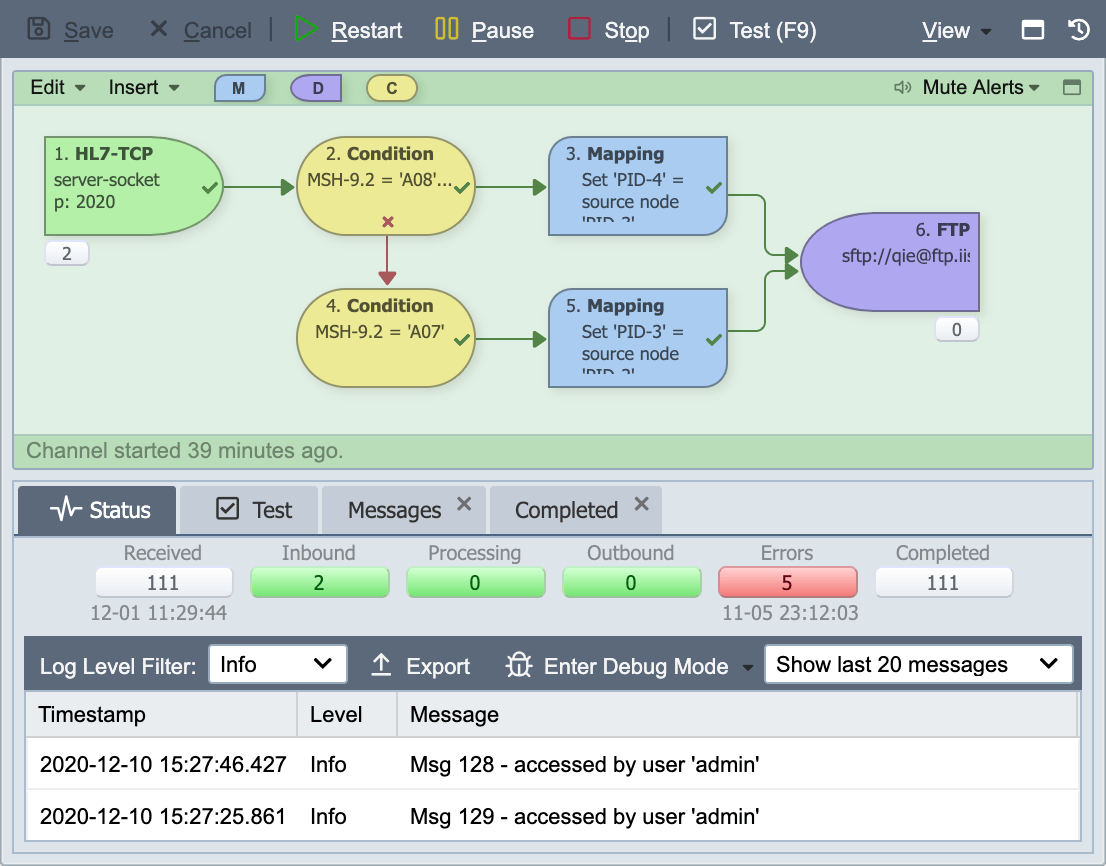
While the channel is running, the messages are processed through the inbound, processing and outbound queues. If a message encounters an error, it is placed in the error queue. To manage messages in the error queue, see Managing Errors.
Inbound Queue
When a message is received by the channel, the message first starts in the inbound queue. The number of messages in the inbound queue is displayed in the channel status tab and in the Visual Channel Editor beneath the green source node. Inbound messages can only be accessed when the channel is stopped. They are accessed by clicking on the inbound count, or by selecting the View | Queues | Inbound menu item. The channel's inbound queue is managed using the channel inbound tab.
Processing Queue
While a message is being processed, it is placed in the processing queue. The number of messages in the processing queue is displayed in the channel status tab. Messages that are being processed are accessed by clicking on the processing count, or by selecting the View | Queues | Processing menu item. The channel's processing queue is managed using the channel processing tab.
Outbound Queue
When a message is ready to be sent, the message is placed in the outbound queue. The number of messages in the outbound queue is displayed in the channel status tab. Outbound messages can only be accessed when the channel is stopped. They are accessed by clicking on the outbound count, or by selecting the View | Queues | Outbound menu item. The channel's outbound queue is managed using the channel outbound tab.
Priority Outbound Queue
Each destination also has a priority outbound queue. A mapping or condition script places a message in it by calling message.usePriorityQueue(). The destination sends everything in its priority queue, oldest first, before it returns to the regular outbound queue.
The flag belongs to the message rather than to the destination: every destination the message reaches honors it. The flag is stored with the message, so it survives a channel restart, an engine restart and a high availability failover.
The destination's send delay and send interval still apply. A priority message that has not yet waited out the send delay does not hold up the rest of the queue: the destination sends a regular message that is ready and takes the priority message on a later pass, once it has waited out the delay itself.
Priority messages are included in the outbound count on the channel status tab and in the outbound tab listing. The queue is shown as a whole and priority messages are not called out separately.
Note
On a channel with Process messages in order received selected, a priority message overrides that ordering and QIE writes a warning to the channel log. See Process messages in order received.
Completed Queue
When a message has been fully processed through the channel, it is placed in the completed queue. This includes messages that reached an end destination node successfully, plus the partial-path entries left behind when an errored message is discarded or resolved. All of these are considered complete. The number of messages in the completed queue is displayed in the channel status tab. Completed messages are accessed by clicking on the completed count, or by selecting the View | Queues | Completed menu item. The channel's completed queue is managed using the channel completed tab. Unlike the inbound, processing, and outbound queues, the completed queue can be viewed while the channel is running. Completed messages are also visible from the Message History tab.
The Path column on the Completed tab distinguishes these three cases:
- Successful messages show a path all the way to a destination node (e.g.
1-2-3). - Discarded errors are moved from the Error tab to the Completed tab with the partial path showing where they errored (e.g.
1-2); the message detail is marked Discarded. - Resolved errors are moved from the Error tab to the Completed tab as a parent message with the partial path showing where they errored, and a new child message is generated and reprocessed from the beginning of the channel. That child may complete successfully (full path on the Completed tab) or error again (back to the Error tab).
To filter the Completed tab to only fully-successful messages, open the Search Messages Dialog (magnifying glass in the Search Query field) and enter the destination node ID in the Execution Path field.
Queue Tabs
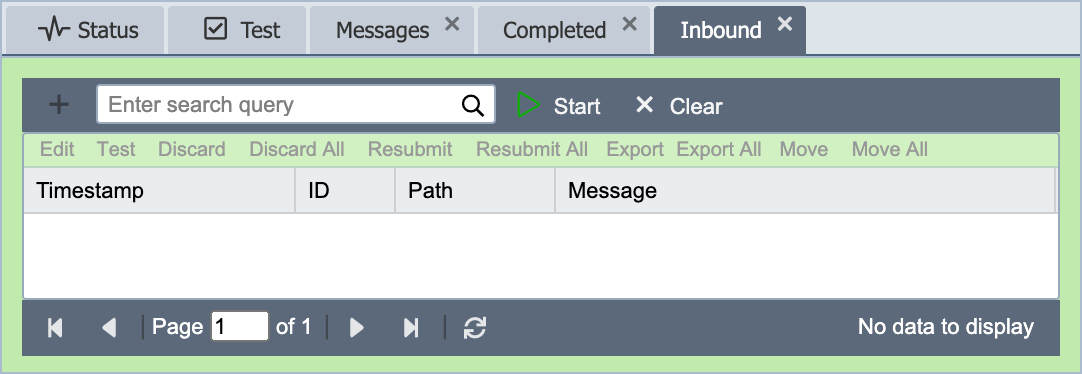
The inbound, processing, outbound, and completed tabs list messages in descending order with the most recent message at the top.
Double-click a message (or select it and click Edit) to open the Message Detail Dialog. The dialog's background color matches the tab it was opened from, and the default view depends on the tab:
| Opened from | Background color | Default view |
|---|---|---|
| Inbound | Green | Message Result |
| Processing | Blue | Message Result |
| Outbound | Purple | Message Result |
| Completed | Grey | Message Result |
See Message Detail Dialog for the header fields, view drop-down, and full button reference.
Messages can be discarded, resubmitted, exported, or moved to the error queue from any of these tabs by highlighting the message(s) and clicking the appropriate button. Messages can also be edited or sent to the Test window from the tabs. For the inbound, processing, and outbound tabs these options are only available while the channel is stopped; the completed tab is available while the channel is running.
Note
Messages from the processing and outbound queues display in the inbound queue list if the channel is configured for the default persistence level 1 (see Message State Persistence Levels). Messages from the processing queue displays in the inbound queue list if the channel is configured for persistence level 2. If the channel is configured at persistence level 0, no messages display in any of the queue lists.