Visual Channel Editor
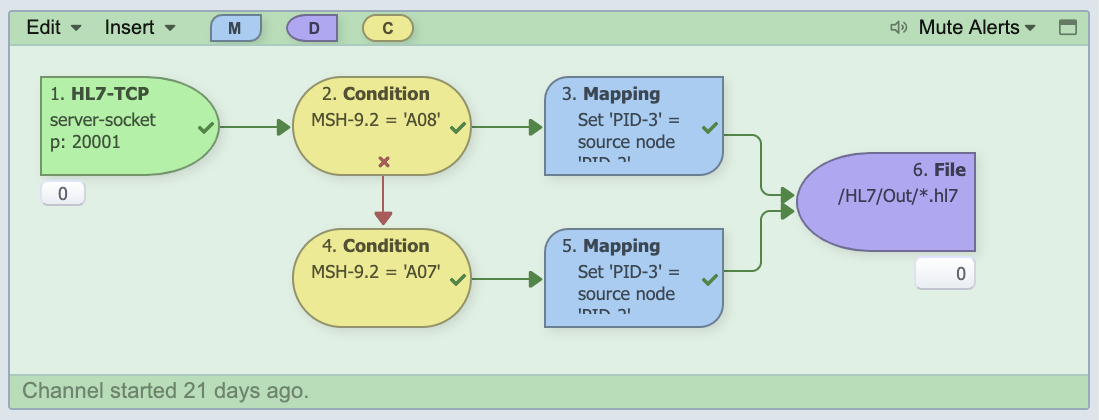
In QIE, channels are represented graphically as a series of inter-connected nodes using the Visual Channel Editor. Connections between channel nodes control how messages flow through the channel.
Node Types
Channels are built from four kinds of nodes:
| Node | Role |
|---|---|
| Source | Receives messages into the channel. Each channel has exactly one source node. |
| Mapping | Runs a user-configured JavaScript that transforms the message. A channel can have any number of mapping nodes. |
| Condition | Runs a user-configured JavaScript that returns true or false. Pass and fail paths route messages to different downstream nodes. |
| Destination | Terminal node that sends the message to an external system or marks it complete. A channel can have one or more destination nodes. |
See the individual node reference pages for configuration details.
Connection Rules
- A channel must have exactly one source node and at least one destination node.
- Connections flow downstream from source toward destinations; nodes cannot be connected circularly.
- A node can fan out to multiple downstream nodes. When this happens, the message continues down the first path and a copy is placed in the channel's processing queue for each additional path, so branches process independently.
- Destination nodes that connect directly to the source node receive a copy of the original unmodified source message.
Adding Nodes
New nodes can be added to the channel by selecting the desired node icons from the visual channel editor menu and dragging the node onto the visual channel editor.
Connections are added by selecting the node that acts as the source of the connection and dragging the green checkbox ( ) to the desired connection destination. For condition nodes, pass () and fail (
 ) paths can be specified. If the condition is met, the message follows the pass path. If the condition is not met, the message follows the fail path.
When a node is selected, the associated configuration tab is opened in the panel directly below the visual channel editor. In the image the green source node is selected and the panel below displays the source node parameters. Changes to channel node configurations are made using these tabs.
Node context menu
Right-click a node in the visual editor to open its context menu. Items vary by node type, but every node has a Select Connectors Only entry that highlights all connectors attached to that node without selecting the node itself. Pressing Delete after Select Connectors Only removes the connections while leaving the node in place, which is useful when restructuring routing without losing the node's configuration.
Copy and paste nodes
Nodes can be copied between channels via the channel Edit menu. Copy (Ctrl+C) captures the selected node(s) to a shared clipboard, and Paste (Ctrl+V) inserts them into the active channel's editor. The source node cannot be copied.
The clipboard persists across channels within the console session, so you can open one channel, copy a mapping, condition, or destination node, then open another channel (in the same or a different zone) and paste it. Cross-zone pastes prompt to relocate any referenced resources (system variables, connections, certificates, published mappings, etc.) that the pasted node depends on.