Published Mappings
When the same mapping is needed by several channels, publish it once instead of copying it. A published mapping is a collection of mapping functions held in one place and referenced by every channel that needs it, so a change is made once rather than in each copy. QIE itself manages the IIS and CCD interface core mappings this way.
A published mapping can call published functions, which are single functions rather than collections. The two are designed to be used together.
Note
Published mappings are cached when a channel starts and are only reloaded when the channel is restarted. After editing a published mapping, restart every channel that uses it for the change to take effect. Find Usages tells you which channels those are.
Managing Published Mappings
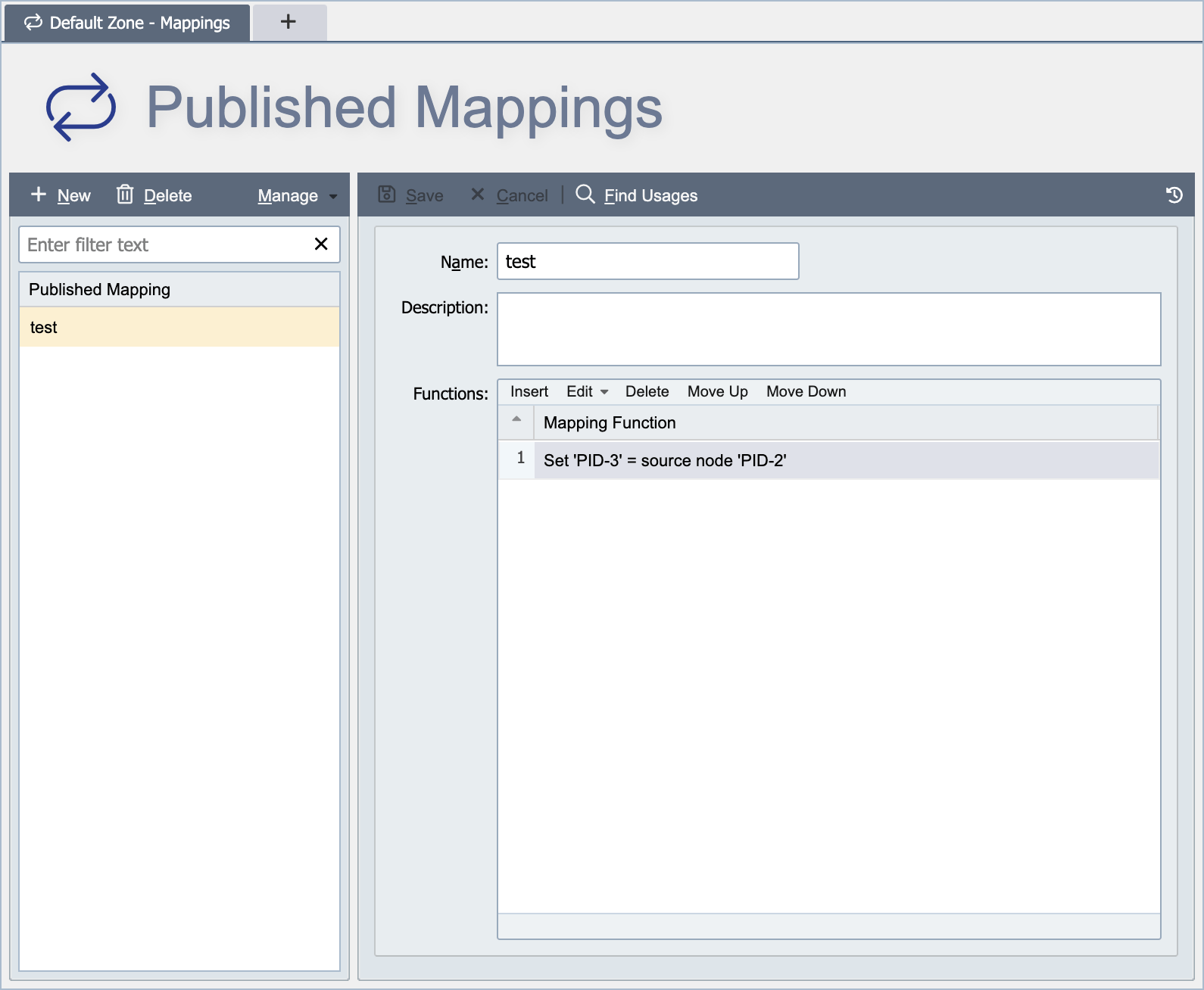
Published mappings are managed from the Published Mappings Page. They can be created from this page or created initially as part of a channel configuration and later "published". Published mappings are defined at either the global level or the zone level (see Global vs. Zone Scope for more information).
Name
The name associated with the published mapping identifies the mapping for use in channel configurations. The name must be unique within the applicable scope. For example, a published mapping created at the global level must have a globally unique name. A globally unique name is unique within the global published mappings and across all zone level published mappings. A published mapping created at the zone level must have a name unique to that zone and all global published mappings.
Description
The description is only visible from the published mapping page and can be used to provide additional information about the published mapping and how it is used.
Editing Published Mappings
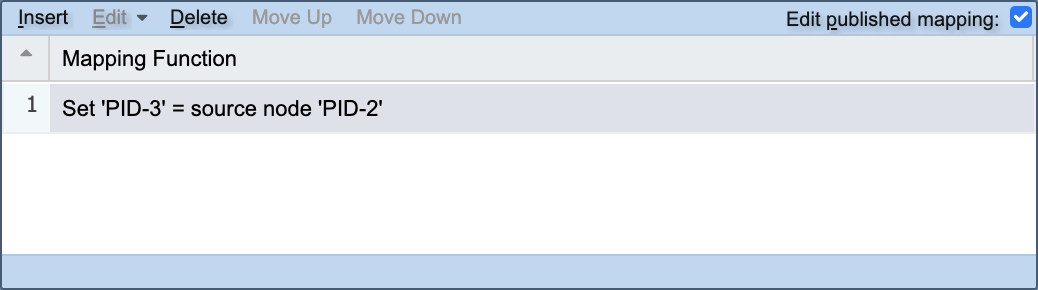
Published mappings can be edited directly from the published mappings page. However, it is often convenient to edit the published mapping in the context of a channel configuration. For this reason, local editing of a published mapping can be enabled by selecting the 'Edit published mapping' checkbox in the mapping editor from the channel configuration page.