Channel Status Tab
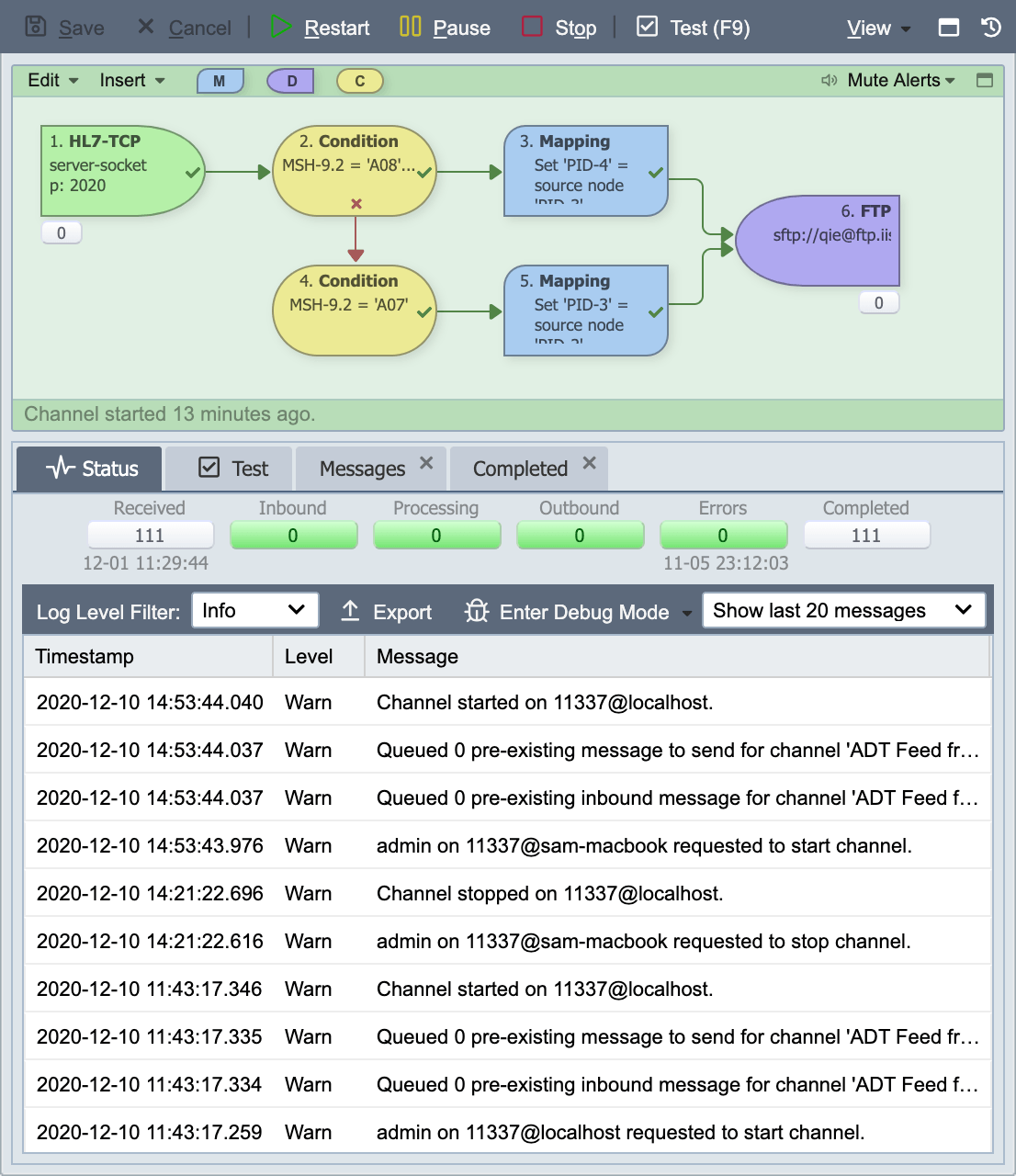
The channel status tab displays the current status of the channel (running, paused, stopped), a row of queue counts for the channel, and a list of the most recent log messages associated with the channel.
Queue Counts
The top of the tab shows a row of queue counts: Received, Inbound, Processing, Outbound, Errors, and Completed. Received is a running total of messages the channel has received and is display-only. The other five are clickable and navigate to the corresponding tab so the individual messages can be inspected:
| Count | Click behavior |
|---|---|
| Received | Display only |
| Inbound | Opens the Inbound tab |
| Processing | Opens the Processing tab |
| Outbound | Opens the Outbound tab |
| Completed | Opens the Completed tab |
| Errors | Opens the Error tab |
From any of those tabs, double-clicking a row opens the Message Detail Dialog for that message.
Log History Panel
The log history panel displays a list of the most recent log messages for the channel. The list is continuously updated as new log messages are recorded for the channel. The number of messages to display in the panel can be selected from the drop-down list at the far-right side of the panel tool bar. The system log panel contains a list of the most recent log entries across all channels. All log messages for the zone can be exported from this panel (see Exporting Log Messages for more information).
Finding who stopped a channel (or why)
When a user stops a channel from the console, a WARN entry is written to this log naming the actor and the instance: gmeyer on 1@qie-server requested to stop channel. A stop QIE initiates itself is attributed to the sys user instead. Policy stops name the reason in the same entry, for example sys on 1@qie-server requested to stop channel because a developer license is installed on this server. A stop caused by an error-management threshold logs the cause as a separate ERROR entry: 5 consecutive errors encountered. Shutting down channel. In every case a final entry records the transition: Channel stopped on 1@qie-server., or Channel stopped due to error on 1@qie-server. when the channel went to the errored state.
Log Level Filter
The Log Level Filter drop-down changes which log entries are displayed in the history panel. It accepts the same log levels you can configure on the channel itself (see Channel Log Level for more information).
Note
Changing the Log Level Filter does not change the log level for the channel. It simply changes (or filters) the log messages which are displayed in the log history panel. If the channel log level is set to 'Info', 'Debug' level messages are NOT generated, even if 'Debug' is selected in the Log Level Filter drop-down list.
Log Detail Window
Double-click a log entry to open it in the Log Detail Window. The window shows the full log text. If the log entry is associated with a specific message, the window includes a See associated message button that opens that message in the Message Detail Dialog.