Configuring the QIE Service Manager
Under Windows, QIE is configured to run as a local system service. The QIE Service Manager tool is used to configure the QIE service.
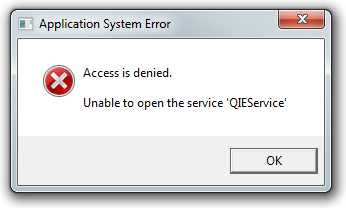
Note
Under Windows 10, If presented with an "Access is denied" dialog when launching the QIE Service Manager the shortcut must be configured to "Run as an administrator". This can be done by right-clicking on the QIE Service Manager shortcut, selecting the "Compatibility" tab, and selecting the "Run this program as an administrator" option under the "Privilege Level" section.
General Tab
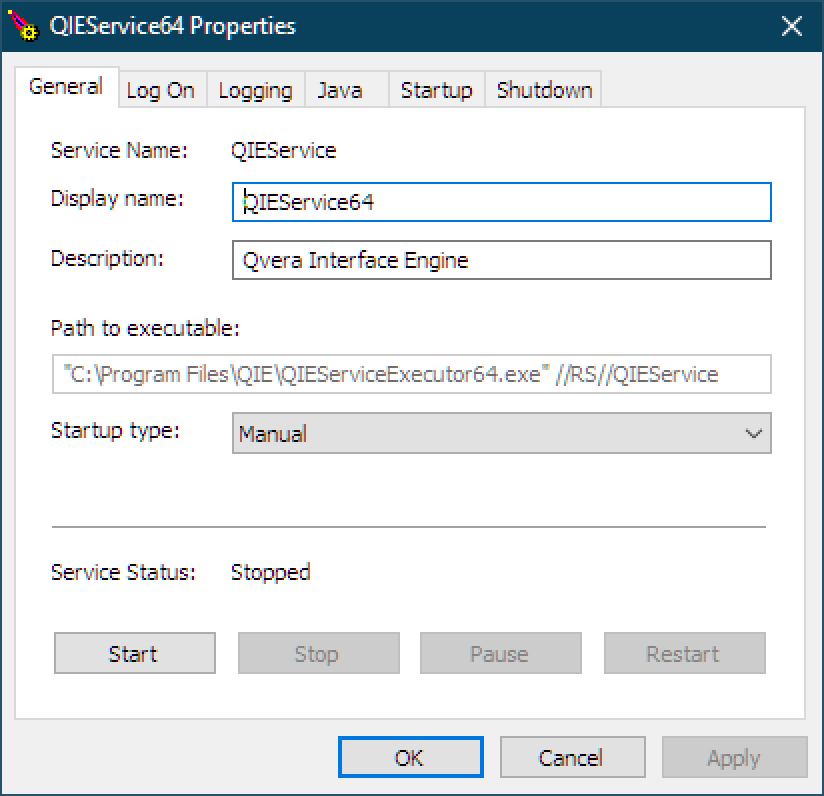
From the General tab a user can configure the following:
Display name and Description
These fields are used to configure the name and description associated with the QIE Service which are displayed in the Windows Services dialog.
Startup type
The startup type is used to configure how the QIE Service is started by the Windows operating system.
Log On Tab
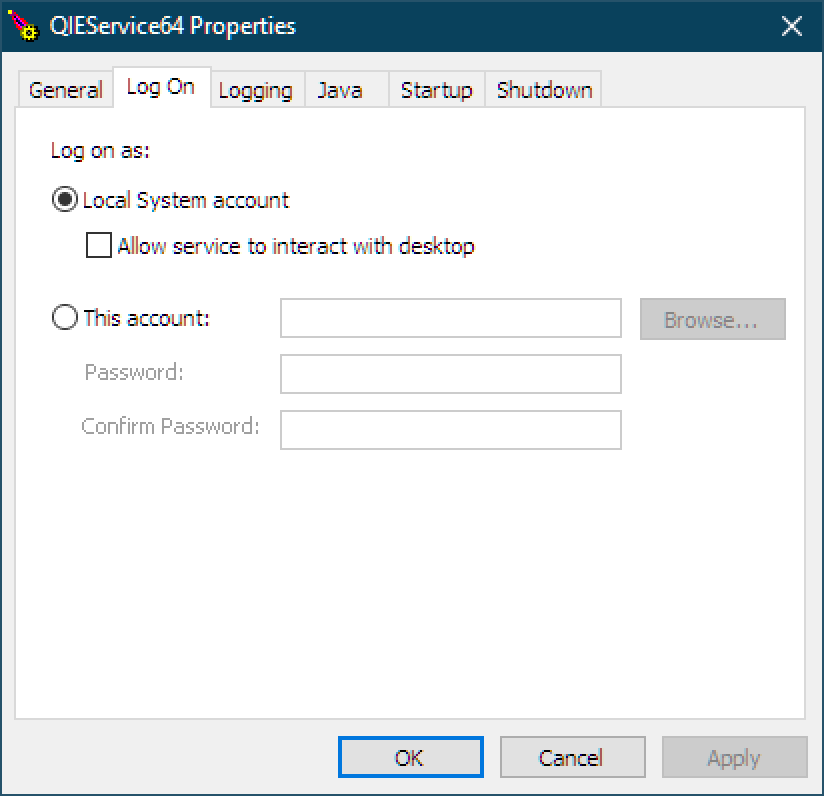
When a service is started under Windows, it is assigned privileges to local and remote resources based on the account selected under the "Log on as" section. If access to remote network folders is not required, then running QIE under the local system account is sufficient. Otherwise, QIE must be configured to run under a named account with appropriate privileges to the required network folders. This must be done using the "Windows Services" dialog and not from the QIE Service Manager.
Warning
Never change QIE Service log on information from the QIE Service Manager dialog. Log on configuration changes made using the QIE Service Manager dialog are not always recorded properly with the associated windows service manager. When this happens, the QIE Service does not start properly. For this reason, it is recommended that the QIE Service Log On information always be configured using the Windows Services dialog instead.
Logging Tab
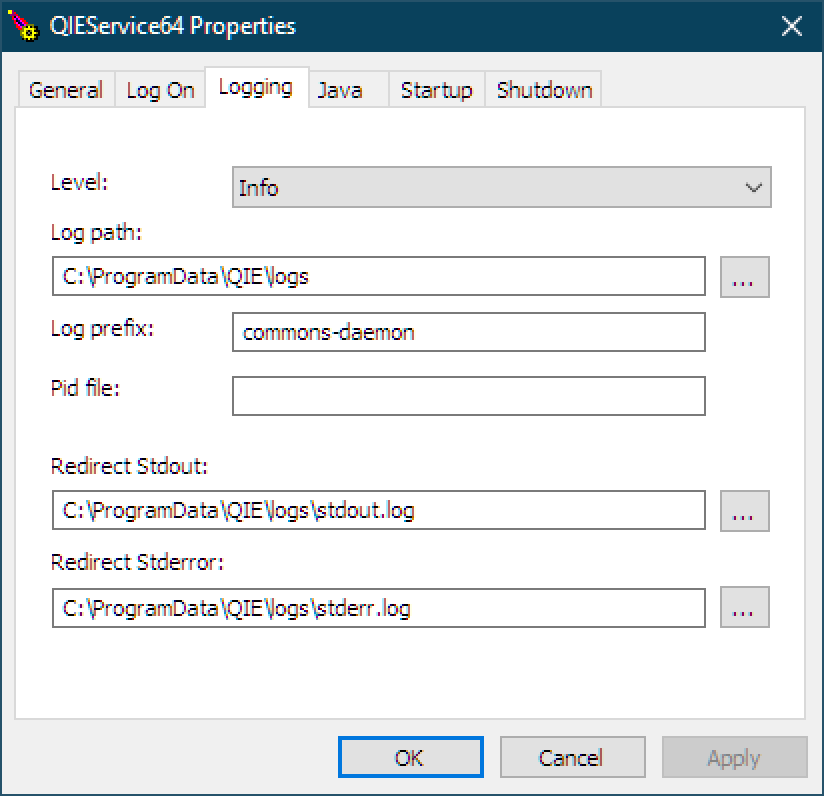
The Logging tab contains information about certain QIE Service related log files. In most cases, these setting should not need to be modified, but system administrators should take note of where the log files are located and what each log file contains.
QIE runs in a java servlet container wrapped as a service. Jetty is the Java servlet container which is used by QIE. When the QIE Service is launched, it starts the QIE Launcher. The Launcher starts the jetty instance inside the JVM. The QIE application is then loaded by that Jetty instance.
commons-daemon.YYYY-MM-DD.log
The commons-daemon.YYYY-MM-DD.log records service start and stop events associated with running QIE as a service. This log file contains information regarding any error(s) that may have prevented the service from starting properly.
stdout.log and stderr.log
These files are used by QIE Launcher and may contain errors during startup.
qieLauncher.log.x
This file is found in the log path. This is the main log file for the QIE Launcher that starts QIE application. This log file captures events and any unhandled exceptions that may occur during launching and monitoring of the QIE application.
qie.log
This file is found in the log path. This is the main QIE application log. This log file captures events and any unhandled exceptions that may occur in the QIE application.
dicom.log
This file is found in the log path. This log file captures DICOM association negotiations and data transfers related to DICOM. This debug file only contains information when enabled from advanced settings under System Configuration.
access.log
This file is found in the log path. This file records user access events. It includes details such as logins, viewing or modifying application components (e.g. Channels, Functions, Connections, Variables), starting or stopping channels, and identifies the user ID as well as their IP address.
Customizing the log configuration
QIE ships with an embedded Log4j 2 configuration that writes logs to the QIE home logs/ folder. To override the shipped configuration (for a different log directory, a different roll-over policy, or additional appenders), provide your own log4j2.properties (or log4j2.xml) file and point Log4j at it with the -Dlog4j.configurationFile=<path> JVM option.
Add the option on the Startup tab, not the Java tab
-Dlog4j.configurationFile must go on the Startup tab's Arguments so it reaches the QIE application JVM. If placed on the Java tab, it applies only to the QIE Launcher, which starts before the QIE application's Log4j is initialized, and has no effect.
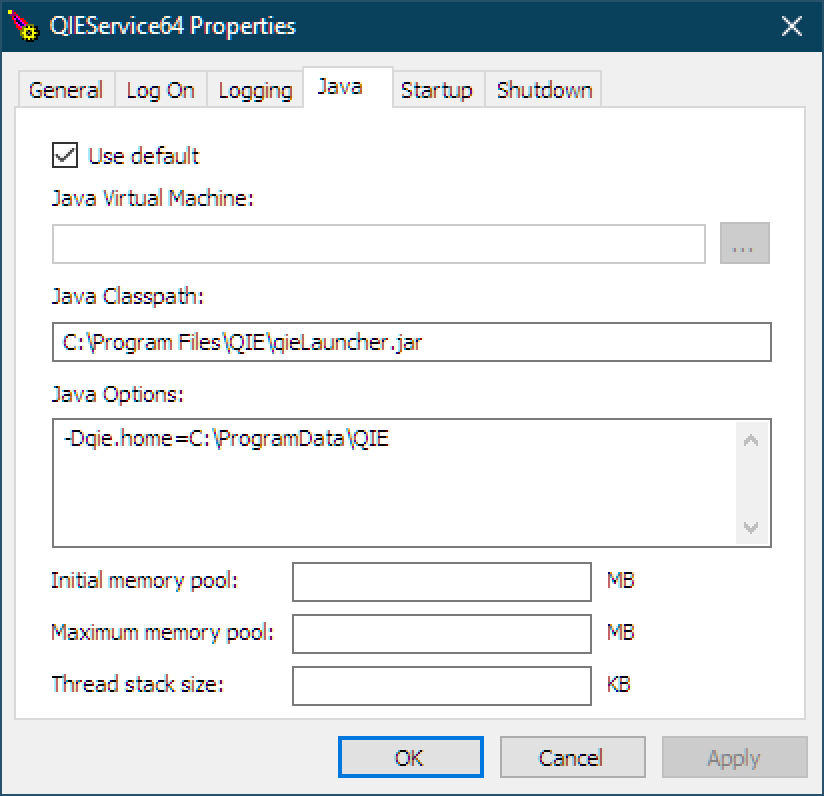
Java Tab
From the Java tab a user can configure options associated with the JRE.
Java Virtual Machine
This option sets the path to the JRE or Java Virtual Machine. If multiple versions of the JRE have been installed, this option may need to be modified to point to a compatible JRE. Otherwise, this option should not need to be modified.
Java Classpath
The Java classpath tells the JRE where program resources are found that should be associated with the QIE application. Normally, the only entry that needs to be included for this option is the qieLauncher.jar file.
Java Options
Options associated with the QIE application environment are configured using Java Options. The only required options on this tab are qie.home and add-opens. See descriptions below.
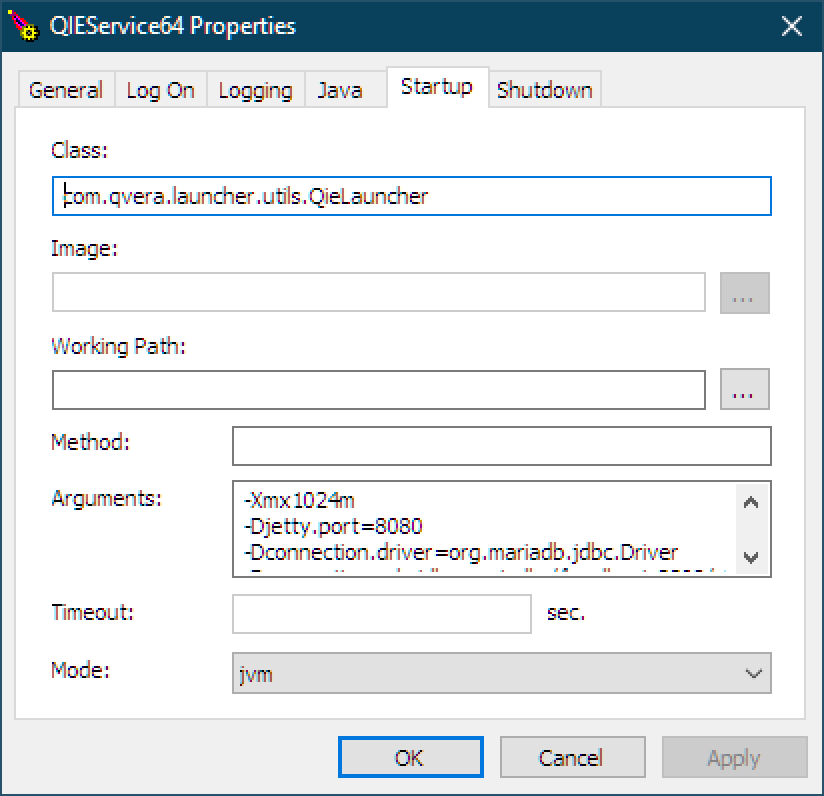
Startup Tab
From the Startup tab a user can configure Java options associated with the QIE application. These Java options are configured in the Arguments section. The rest of the settings on this tab should not change. In the event that these setting do get changed or deleted, they can be restored by re-running the QIE Installer.
Arguments
This is a list of Java Options to associate with the QIE application environment.
Required Java Options
The following options are required by QIE and must be properly set in order for the QIE application to run correctly.
| Option | Syntax & Default Value | Description |
|---|---|---|
| Java maximum memory pool | -Xmx2048m |
The maximum amount of memory (in megabytes) that the Jetty instance running the QIE application can use. |
| QIE Home | -Dqie.home=C:\ProgramData\QIE |
The home directory where the QIE application stores database files, log files, etc. This is the only option required to be specified on the Java tab in Java Options. Optionally it can be specified in Arguments on the Startup tab. If configured on both tabs, the values must match. |
| Add-opens | --add-opens java.base/java.lang=ALL-UNNAMED--add-opens java.base/java.util=ALL-UNNAMED |
Enables reflection in the packages specified, which is needed for correct functionality of QIE and third-party libraries used by QIE. Java 9 introduced strong encapsulation of internal JDK packages, so reflective access to java.lang and java.util internals must be explicitly re-enabled with --add-opens for QIE and several of its dependencies (Hibernate, Jackson, etc.) to work on Java 17. |
| Jetty Port | -Djetty.port=80 |
The QIE console runs as a web application. The Jetty port setting defines the port the QIE console is published to. The default is port 80, which eliminates the need to include the port in the URL. If port 80 is already in use, change the Jetty port to another available port (e.g. 8080). When installing QIE on a GE Centricity DTS workstation, this port must be changed from 80 to another port such as 8080. |
TLS Security Related Java Options
When configuring QIE to use TLS security for communication with external systems, the following Java options may be required.
| Option | Syntax | Description |
|---|---|---|
| Key Store | -Djavax.net.ssl.keyStore=??? |
The path and filename of the key store to be used by QIE for TLS communication. |
| Key Store Password | -Djavax.net.ssl.keyStorePassword=??? |
The password associated with the key store file specified above. |
| Key Store Type | -Djavax.net.ssl.keyStoreType=??? |
The type or format of the key store file being used (e.g. JKS or PKCS12). |
| Trust Store | -Djavax.net.ssl.trustStore=??? |
The path and filename of the trust store to be used by QIE for TLS communication. |
| Trust Store Password | -Djavax.net.ssl.trustStorePassword=?? |
The password associated with the trust store file specified above. |
| HTTPS Protocols | -Dhttps.protocols=TLSv1.2,TLSv1.3 |
The HTTPS protocols to be used by QIE for TLS communication. |
| HTTPS Cipher Suites | -Dhttps.cipherSuites=TLS_ECDHE_RSA_WITH_AES_128_GCM_SHA256 |
The cipher suites to be used by QIE for TLS communication. |
Note
The Java options above govern TLS for outbound connections QIE makes to external systems (database, HL7 partners, web services, etc.). They do not secure the QIE web admin console. To put the QIE web admin console behind HTTPS instead of plain HTTP, see the next section.
Securing the QIE Web Console (HTTPS)
The QIE web console can be served over HTTPS instead of plain HTTP. See Securing the QIE Web Console (HTTPS) for the keystore setup and the Java options it needs.
Database-Related Java Options
When configuring QIE to run against an alternate database management system the following Java options may be required.
| Option | Syntax | Description |
|---|---|---|
| Connection Username | -Dconnection.username=??? |
The username used by QIE when connecting to the alternate DBMS system. |
| Connection Password | -Dconnection.password=??? |
The password used by QIE when connecting to the alternate DBMS system. |
| JDBC Driver | -Dconnection.driver=??? |
The database driver used to connect to the database backing QIE. Varies based on the database. See Configuring QIE with an Alternate Database Management System for the correct driver class for each supported database. |
| Connection URL | -Dconnection.url=??? |
The connection URL to the database used as the backend for QIE. See Configuring QIE with an Alternate Database Management System for the correct URL pattern for each supported database. |
| Hibernate Dialect | -Dhibernate.dialect=??? |
The class name of the Hibernate SQL dialect used with the selected DBMS. See Configuring QIE with an Alternate Database Management System for the correct dialect class for each supported database. |
| Validation Query (optional) |
-Dconnection.validationQuery=??? |
Used to validate a connection before performing queries or updates. The default validation query SELECT 1 works for every DBMS. |
Other Java Options
There are hundreds of other options that enable various less-common features. While a comprehensive list is not provided here, a sub-set is. If you find a feature you need that does not exist please reach out to support for additional information.
| Option | Syntax | Description |
|---|---|---|
| Domain Login Only | -Dqie.allowDomainLoginOnly=true |
Only domain logins are accepted. |
| Max Render Size | -Dqie.binaryMaxRenderSize=51200 |
(default=51200) Maximum characters rendered in the Binary Editor in the browser. Prevents large files from locking up or crashing the browser. Example: -Dqie.binaryMaxRenderSize=10000 |
| Channel Stats Rolling Average | -Dqie.channelStatsRollingAverageCount=5000 |
(default=50000) Number of records used to compute the rolling average time in the channel stats dialog. Example: -Dqie.channelStatsRollingAverageCount=5000 |
| Channel Thread Count | -Dqie.channelStartThreadCount=10 |
(default=10) Number of threads used to start channels when the service starts up or a user starts multiple channels. Example: -Dqie.channelStartThreadCount=20 |
| Hibernate Show SQL | -Dhibernate.show_sql=true |
Logs the SQL queries being executed. |
| Lib Folder Location | -Dqie.lib.folder |
(default=qie.home) Location of the lib folder that contains all attached third-party libraries. Example: -Dqie.lib.folder=\java\qie\lib |
Shutdown Tab
The Shutdown tab of the QIE Service Manager dialog contains QIE specific configuration settings which should not be changed or deleted. In the event that these settings do get changed or deleted, they can be restored by re-running the QIE Installer.
Relocating the QIE Home Directory
To move an existing QIE installation's home directory to a different path (for example, from C:\ProgramData\QIE to D:\QIE on Windows, or from /opt/qie to /var/lib/qie on Linux):
- Stop the QIE service.
- Copy the current QIE Home directory to the new location and verify permissions on the new path. The QIE service account must be able to read, write, and create files in the new directory.
- Update
-Dqie.homeon the QIE Service Manager's Java tab (Windows) or the systemd unit'sExecStartline (Linux) to point at the new path. If-Dqie.homeis also set in the Startup tab's Arguments, update it there as well. The two values must match. - Start the QIE service and verify the console loads. Check
qieLauncher.login the new location to confirm QIE started against the new home directory. - Once startup is verified, delete the old QIE Home directory.
For MySQL, MariaDB, or MSSQL installations, the QIE database is not stored in the home directory, so relocating the home directory does not affect message history. For H2-backed installations (test/dev only), the database files live inside the home directory and move along with it.