AI Companion
The AI Companion is an assistant built into QIE that knows QIE. It is not a general chatbot bolted onto the side. It answers with QIE's own concepts, writes scripts against QIE's bindings, and reads QIE's log output. If you are stuck on something in this documentation, it is usually the faster way to an answer.
What it saves you
You do not have to know the node path syntax to write a mapping. Ask for "the HPath for the patient's date of birth" and you get PID-7, with the surrounding script if you want it. The same applies to XPath, JSON paths, X12, DICOM tags, and every other model QIE supports. See Node Paths for what you would otherwise be looking up.
You can paste an error instead of decoding it. Stack traces, exception messages, channel errors, and mapping failures go in as-is; what comes back is what the error means and what to change. This is the fastest route out of an error queue that has stopped a channel at three in the morning.
You can ask for a review, not just for code. Paste a script someone else wrote (or one you wrote a year ago) and ask what it does, what is wrong with it, or how to make it clearer. Reviewing existing channels is where most interface work actually happens, and it is the thing a search box cannot help with.
You can write SQL against a real schema. In SQL mode the AI Companion targets one of your configured database connections, so the query it writes uses your tables and columns rather than a plausible guess.
What it can do
- Generate code: JavaScript for any script type in QIE (mapping, condition, destination, custom sender, preprocessor, acknowledgement, refresh, timeout, error handler), HL7 templates, node-path expressions, and other QIE constructs.
- Review code: explain an existing script, template, or expression, identify problems, and suggest improvements.
- Diagnose errors: interpret log output, stack traces, exception messages, error queues, and mapping or condition failures, then recommend a fix.
- Work in any supported message model: HL7, JSON, XML, X12, EDIFACT, DICOM, CSV, Plain Text, Fixed Length, ASTM, and Binary, including the node-path syntax for each.
- Generate SQL: in SQL mode, against a configured database connection.
Opening it
Two routes, both available once a license is installed:
- Help -> AI Companion from the menu.
- The AI Companion button on the right of the main title bar, next to System Administration, Alerts, Lock and Logout.
Until a license is installed, both routes display a License Required message, and the AI Companion window refuses to open. See Before a License Is Installed.
The window
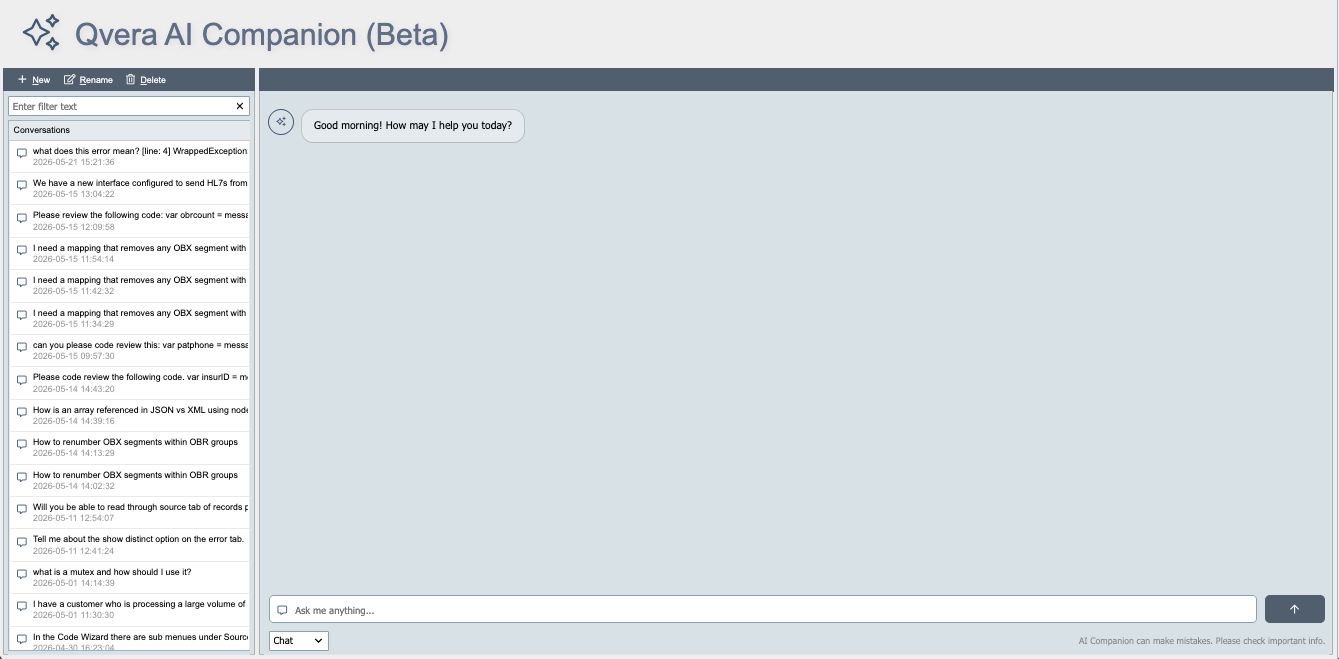
The window is split into two panes.
Conversations pane (left)
Your saved conversations. Selecting one loads its messages into the right pane; a new, empty conversation is selected when you first open the window. Conversations are per user and are kept between sessions, so a thread you started last week is still there.
| Control | Description |
|---|---|
| New | Starts a new conversation, added to the list and selected automatically. |
| Rename | Renames the selected conversation. |
| Delete | Deletes the selected conversation. |
| Filter / Search box | Filters the list by title, case-insensitive, matching anywhere in the title. Press Esc to clear. |
Rename and Delete are also on the right-click menu for an individual conversation.
Message pane (right)
The message history for the active conversation, questions and responses in order. Responses containing code (JavaScript, SQL, JSON, XML, HL7, ASTM, X12, EDIFACT, or CSV) are rendered with syntax highlighting in code blocks, ready to copy into the editor.
Asking a question
The input area at the bottom has three controls:
- Question text box: type a question, or paste code, an error message, a stack trace, or a message sample for review. The empty-state placeholder reads Ask me anything...
- Send: the up-arrow button to the right of the text box.
- Conversation type: a drop-down selecting Chat or SQL for this conversation.
Chat mode
The default. Free-form questions about QIE (features, configuration, scripting, integration topics) answered with reference to this documentation.
SQL mode
For generating SQL against one of your configured database connections. Selecting SQL reveals a database connection picker so the AI can target that connection's schema, and the response comes back as a SQL code block.
A connection must be selected before you submit. Without one, the AI Companion shows "Please choose a database connection before asking a SQL question." and the question is not sent.
Note
The conversation type is locked once the first message is sent. Choose Chat or SQL before you start; to switch, begin a new conversation.
Getting better answers
- Paste the actual thing. The real error text, the real segment, the real script beats a description of them.
- Say which message format you are working in. "HL7 v2 ADT" narrows the answer far more than "a message".
- Ask for the reasoning when the answer matters. "Why that path rather than the other one" surfaces assumptions worth checking.
- Treat generated code as a draft. Test it against a sample message before putting it in a running channel, the same standard you would apply to code from a colleague.