Standard Mapping Wizard Dialog
The Standard Mapping Wizard is a point-and-click way to build Standard mapping functions. Instead of typing node paths, you pick the input field and the output field and let QIE work out the paths.
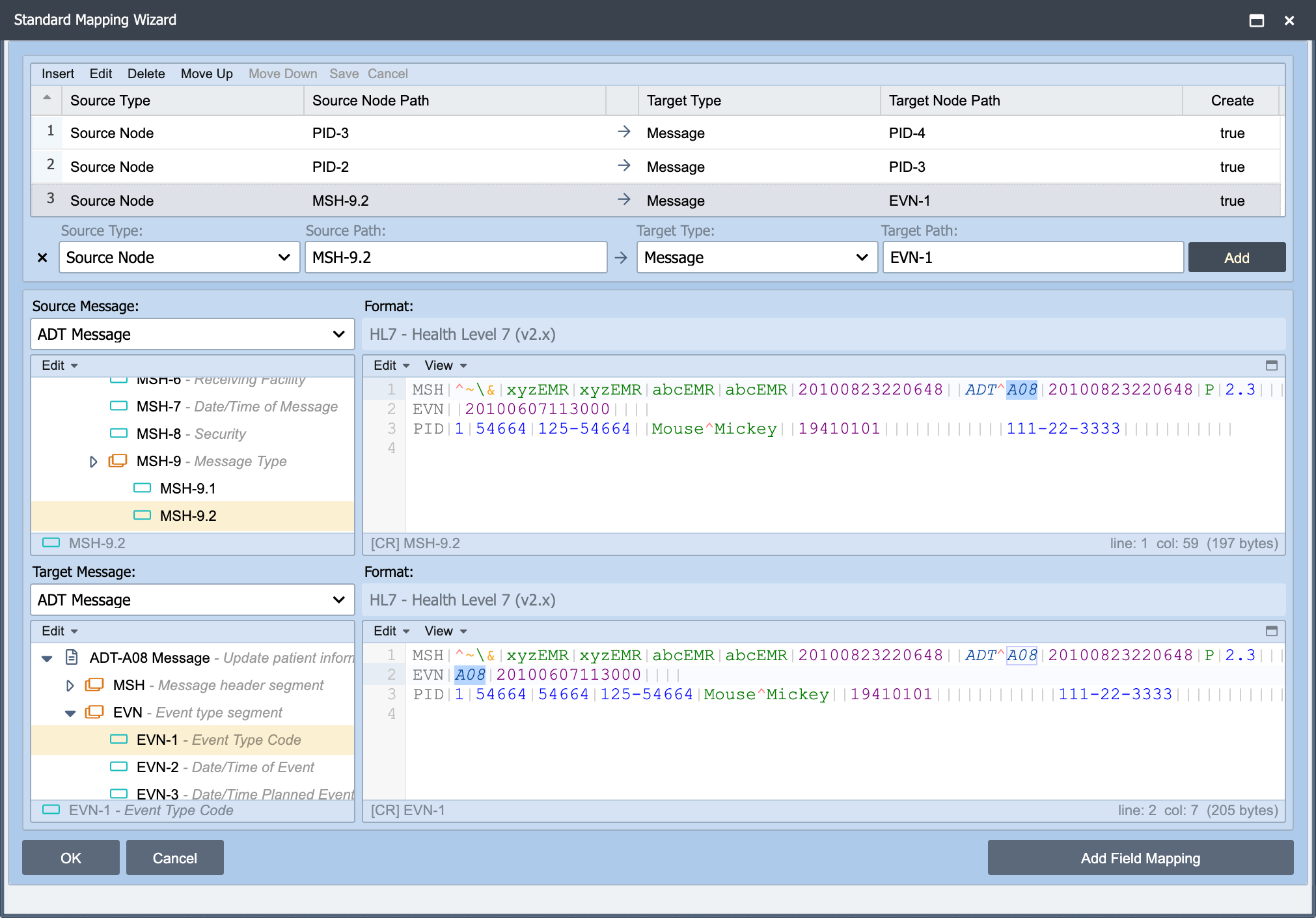
It is the faster route whenever you are mapping against a message structure you do not know by heart, and it removes the most common cause of a mapping that silently does nothing: a node path with a typo in it.
Building a mapping
-
Select the source field, using either the tree view or the sample message editor.
-
Select the destination field the same way.
-
Click Add Field Mapping.
Repeat for each field. The mappings accumulate, so a whole segment can be mapped without leaving the dialog.
Confirming the result
As each field mapping is added, the Target Message pane updates to show the output message as it actually be produced. This is the reason to prefer the wizard for unfamiliar structures: you can see immediately whether a value landed in the field you intended, rather than discovering it later from a test message or a rejection downstream.
If the Target Message does not change when you add a mapping, the source field is empty in the sample message, the mapping is probably correct, but there is nothing to copy. Load a sample message that carries the field before concluding the mapping is wrong.
What it produces
The wizard is a way of writing Standard mapping functions, not a different kind of function. Everything it creates appears in the mapping grid afterwards, where it can be edited, reordered, given a better description, or have a condition applied exactly like a hand-entered mapping. See Working with Mapping Functions.
Tip
The wizard is the fastest way to learn a message format you have not worked with before. Click a field in the tree and the node path QIE generates is the path you would have had to write, a few minutes in the wizard teaches the node path syntax for that format more quickly than reading it.