Practice Exercise 2
Exercise 2 Problem Statement
Create an ORU interface from an external system into the EHR system. At this point there are 3 changes that need to be made to the incoming message:
-
Set the patient external ID value (PID-2) to the concatenated result of the following: patient year of birth from PID-7; a dash; and the patient internal ID value from PID-3.
-
If the patient does not have a date of birth specified, it should give a user friendly error that the 'Patient is missing the date of birth.'
-
Update the observation identifier (OBX-3) from the universal service identifier description (OBR-4.2).
-
Correct the sequence in the OBX segments (OBX-1).
This exercise uses the following sample ORU messages. These messages can be saved as a sample messages in the channel. This allows you to lookup node paths and to test the messages in the Test window.
Sample Message with patient date of birth
MSH|^~\&|Results|E IM|EHR|Test^E IM|20120925173019||ORU^R01|16642134|P|2.3.1|||NE|NE
PID|1||661||Chamberlain^Lisa^S||1961-03-01|F||B|6790 Oak St^^Plano^IL^60448^USA||^^^lchamb@mbc.com|(214) 669-0123 [123]||M|||237-12-9812|||N
PV1|1|O|^^^E PEDS||||cmontanero
OBR|1|||73223^Wrist MRI WO|||20110913160654|||||||||hwinston||ZZ
OBX|2|TX|||FINDINGS: There is no fracture or abnormal bone marrow edema. No suspicious bone lesion is noted.||||||R|||20110913160654
OBX|3|TX|||There is positive ulnar variance. There is tear of the triangular fibrocartilage complex near radial attachment.||||||R|||20110913160654
OBX|4|TX|||IMPRESSION: 1. Ulnar positive variance with associated TFCC tear.||||||R|||20110913160654
OBX|5|TX|||2. Osteoarthritic changes in the first carpometacarpal joint with small joint effusion.||||||R|||20110913160654
Sample Message w/o patient date of birth
MSH|^~\&|Results|E IM|EHR|Test^E IM|20120925173019||ORU^R01|16642134|P|2.3.1|||NE|NE
PID|1||661||Chamberlain^Lisa^S|||F||B|6790 Oak St^^Plano^IL^60448^USA||^^^lchamb@mbc.com|(214) 669-0123 [123]||M|||237-12-9812|||N
PV1|1|O|^^^E PEDS||||cmontanero
OBR|1|||73223^Wrist MRI WO|||20110913160654|||||||||hwinston||ZZ
OBX|2|TX|||FINDINGS: There is no fracture or abnormal bone marrow edema. No suspicious bone lesion is noted.||||||R|||20110913160654
OBX|3|TX|||There is positive ulnar variance. There is tear of the triangular fibrocartilage complex near radial attachment.||||||R|||20110913160654
OBX|4|TX|||IMPRESSION: 1. Ulnar positive variance with associated TFCC tear.||||||R|||20110913160654
OBX|5|TX|||2. Osteoarthritic changes in the first carpometacarpal joint with small joint effusion.||||||R|||20110913160654
Note
You can download the Sample Channel with the Sample Messages already loaded.
STOP HERE! Before preceding with the step by step exercise instructions below try to perform the exercise with just the explanation given above. Do not forget to use the "QIE Code Wizard" to help with your code syntax.
Step 1: Create a Basic Channel
In the Default Zone, create a new channel called "Radiology Report >> to EHR (ORU)".
Select HL7 as the source message format, and File as the source. Set the source path to C:\HL7\In\.hd.
Load the two messages above as Sample Messages.
Set the destination node to File with a path of C:\HL7\Out\.hd.
Step 2: Create a custom mapping for setting PID-2
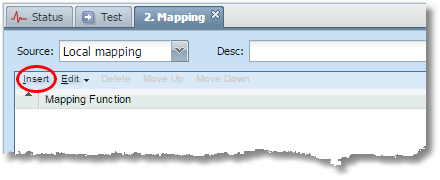
Select the mapping node from the graphical display of the channel. Click Insert. Change the Function type to Custom and remove the current default statement and set the Description to 'Set PID-2'.
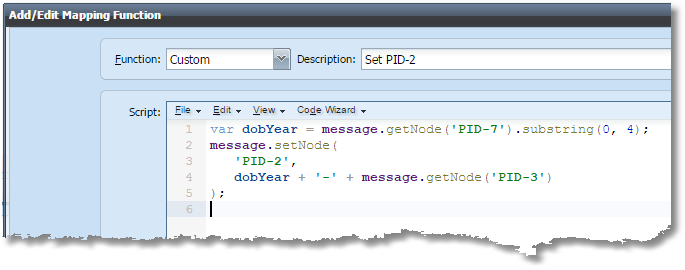
Next from the problem statement the first change is to set the patient's external ID value (PID-3) to the concatenated result of the following: patient year of birth from PID-7; a dash; and the patient internal ID value from PID-3. This is accomplished in these simple steps; retrieve the date from the source message, remove the month and day from the date, save it to a variable, put it into the outbound message along with the dash and the current value of PID-3.
-
Select the Code Wizard | Source | Get Node function. This inserts the following into the code window:
-
The template shows that the nodePath and instance are the available parameters for this function. Specify the node path of the date of birth from the source message. Delete the nodePath prompt and enter 'PID-7' or lookup the node path from the sample message. Delete the instance parameter including the comma that follows the first parameter.
-
Next, remove the month and day using the String Utils substring() method. Place your cursor before the source.getNode function and then select Code Wizard |QIE System Functions | String Utils | Substring. Replace the input string with the source.getNode function and then put 0 as the start position and 4 as the end position.
-
Now store the date of birth year in a variable. Add the var dobYear = to the beginning of the line as follows.
-
The last step is to append a dash and the value of PID-3 to the PID-2 value and place it back into the message. Do this by placing your cursor between the dobYear variable and the closing parenthesis and adding a " + '-' + " Then select Code Wizard | Source | Get Node function and replace the node path with 'PID-3' as follows.
-
Now test the code in the Test Window. The expected output should have populated the PID-2 field with 1961-661.
Step 3: Add error handling to year of birth calculation
Next from the problem statement if the patient does not have a date of birth specified, it should give a user friendly error that the 'Patient is missing the date of birth.' To accomplish this, use an if/else block around the code created so far.
-
Return to the channel and test the 2nd sample message (ORU^R01 w/o DOB) and notice that the value in PID-2 is missing the date of birth year before the hyphen (-661).
-
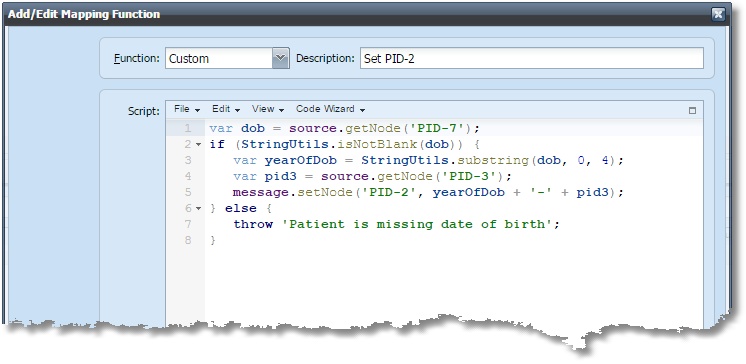 Open the 'Set PID-2' Mapping Function and highlight lines 2 through 4 of the code. Then select the Code Wizard | Surround With | if / else to surround the existing code with an if else statement. Replace the false/*todo*/ with the stringUtils.isNotBlank function from the code wizard and then replace the 'inputString' prompt with the dob variable.
The last item is to place a 'throw' statement in the else block with a user friendly error message. Your code should now look as follows:
-
Now test the code in the Test Window using the 'Sample message w/o a date of birth' again. This time a user friendly error message should be displayed.
By throwing a user friendly error message, this helps other users that need to identify why the messages have erred. The throw statement causes the message to end up in the error queue.
You have now learned how to make the JavaScript code in QIE provide better error messages to help in resolving errors!
Step 4: Populate the OBX-3 fields from OBR-4.2
The next item in the problem statement is to update the observation identifier (OBX-3) from the universal service identifier description (OBR-4.2). To do this, use a for loop and update each OBX segment. To know how many OBX segments there are, first use the source.getAllNodes() function. This function returns a String array containing each of the OBX segments as the elements of the array. Then use the instance option of message.setNode() to set the OBX-3 value in each segment inside the for loop.
Finally, from the problem statement, also correct the sequence contained in the first field of the OBX segments. Since the for loop is already in place, this can easily be done at the same time.
-
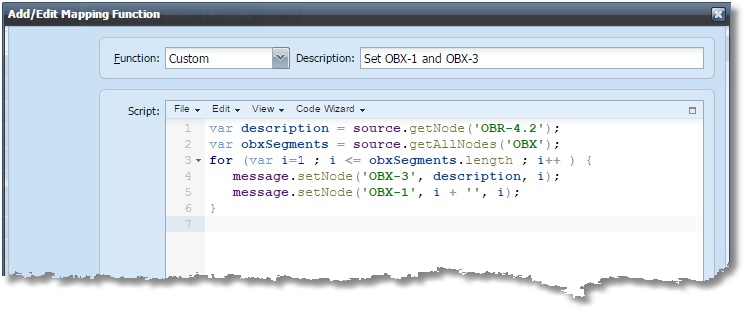
Click insert to create a second mapping function for the final requirement. Set it to be a Custom script, clear out the current script and set the Description to 'Set OBX-3 and OBX-1'.
-
Get the OBR-4.2 value by moving to line 1 and clicking Code Wizard | Source | Get Node. Then replace the node path with 'OBR-4.2' and assign it to a variable named description.
-
On line 2, click Code Wizard | Source | Get All Nodes and replace the node path with 'OBX' and assign it to a variable named obxSegments.
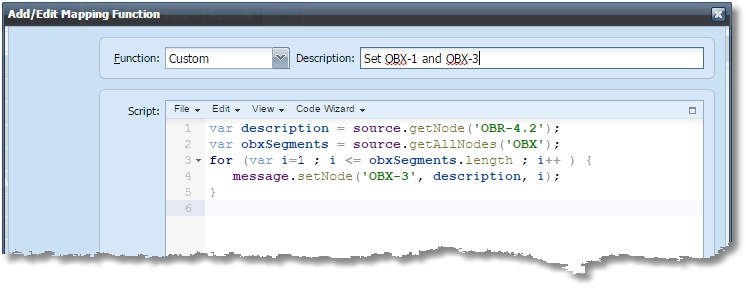
- On line 3, select Code Wizard | Surround With | for and then change it from a zero-based for loop to a one-based for loop. Do this by changing the var i=0 to var i=1 and then changing the i < 10 to i <= 10. Next, change it to loop only for the number of OBX segments, by changing the 10 to obxSegments.length. Inside the loop, set the value of the OBX-3 field for each OBX segment. Click Code Wizard | Message | Set Node, and then replace the node path with 'OBX-3', the 'value' with the description variable and the instance with the for loop counter variable i. Remove the forceNode parameter that is not needed.
var description = source.getNode('OBR-4.2');
var obxSegments = source.getAllNodes('OBX');
for (var i=1 ; i <= obxSegments.length ; i++ ) {
message.setNode('OBX-3', description, i);
}
-
To reset the sequence of the OBX segments, insert a new line inside of the for loop and click Code Wizard | Message | Set Node. Replace the node path with 'OBX-1', the 'value' with the i + '' and the instance with the for loop counter variable i. Remove the forceNode parameter that is not needed. The 'value' is a String parameter and that is why the second parameter must be changed to a string by adding the + ''. The final mapping function should look like this:
-
Now test the code in the Test Window. Check to make sure that the OBX segments are now sequenced correctly and each have a value in the OBX-3 field.
This completes the second tutorial exercise. Hopefully, this has been a helpful way to learn even more about how to use JavaScript in QIE. May the coding force be with you, young Padawan! Go forth and conquer the JavaScript code!