Managing Database Connections
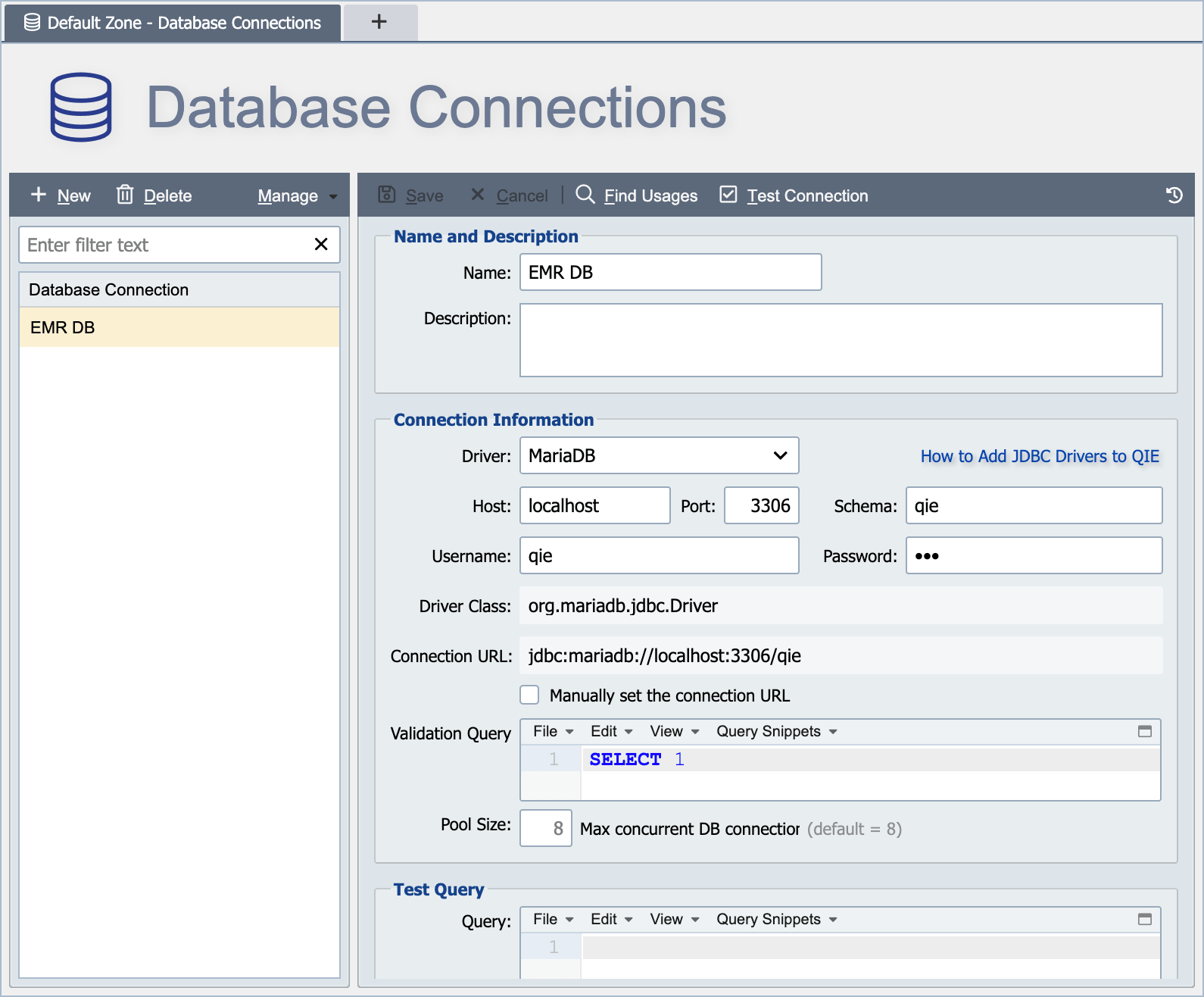
Database connections are created and managed from the Database Connections Page. Database connections are defined at either the global level or the zone level (see Global vs. Zone Scope for more information on scope).
Name
The name associated with the database connection identifies the connection for use in mapping functions and other database related activities. The name must be unique within the applicable scope. For example, a connection created at the global level must have a globally unique name (unique within the global connections and across all zone level connections). A connection created at the zone level must have a locally unique name (unique within the applicable zone and all global connections).
Description
The description is only visible from the database connections page and can be used to provide additional information about the connection and how it is used.
Driver
The driver drop-down list contains a list of pre-defined, commonly used JDBC drivers. If the driver you wish to use is not listed in the drop-down list, choose 'Custom' to create the connection.
Note
When creating a database connection using the MySQL, Oracle, or Custom driver option, the JDBC driver must be added to the QIE environment. The How to Add JDBC Drivers to QIE guide contains step-by-step instructions for doing this. This guide can be accessed from the Help menu or the link next to the Driver field on the Database Connections page.
Host, Port and Schema
The host, port and schema fields are used to pre-populate the Connection URL for the pre-defined JDBC drivers. When selecting one of these pre-defined drivers, the user does not need to know the driver class or connection URL pattern as this is managed by QIE. For custom JDBC drivers, these fields are not used, and the driver class and connection URL are set manually.
The Schema field is the database name to connect to on the specified host, the same value that would appear as the database name in a native JDBC URL (for example, qie in jdbc:mysql://server:3306/qie).
Username and Password
The username and password associated with the database connection should be entered here.
Note
Integrated (Kerberos/NTLM) authentication for connecting to Microsoft SQL Server is not currently supported. When connecting to a Microsoft SQL Server database with username and password, you must use SQL Server authentication.
Azure SQL with Managed Identity
Azure SQL Database supports passwordless authentication using an Azure managed identity. To connect QIE to an Azure SQL database with a managed identity, check Manually set the connection URL and enter a URL with Authentication=ActiveDirectoryManagedIdentity; leave Username and Password blank.
jdbc:sqlserver://<server>.database.windows.net:1433;databaseName=<qie-db>;Authentication=ActiveDirectoryManagedIdentity
For a user-assigned managed identity, set the identity's client ID in the URL as msiClientId=<guid> or enter it in Username and leave Password blank.
Driver Class and Connection URL
When connecting to a database using JDBC, the driver class and connection URL must be specified. For the pre-defined JDBC drivers, these fields are set automatically. If a database connection is being configured using a custom JDBC driver, the appropriate driver class and connection URL must be supplied. Please refer to the JDBC driver documentation (provided by the JDBC driver vendor) for information on appropriate values for the driver class and connection URL.
MySQL over TLS with client certificates
To connect QIE to a MySQL server that requires TLS with client-certificate authentication, place the client key and certificate in a Java keystore on the QIE server and point the MySQL Connector/J at it via the connection URL:
- Import the client certificate and its private key into QIE's Certificate Management page (and any CA certificates the server issues from).
- Use the Export dialog to export the client certificate and key as a JKS or PKCS12 file. Copy that file to a readable path on the QIE server (for example,
/etc/qie/mysql-client.jks). -
On the Database Connection, check Manually set the connection URL and add the SSL parameters:
Use clientCertificateKeyStoreType=PKCS12 if you exported to a .p12 file. Setting sslMode=REQUIRED refuses the connection if the server does not offer TLS; use sslMode=VERIFY_CA or sslMode=VERIFY_IDENTITY to also validate the server's certificate against the trust store.
Validation Query
Creating a new database connection object for each query would be very slow and would consume excessive resources. For this reason, QIE manages database connections using a database connection pool. When a database query needs to be executed, a connection is borrowed from the connection pool and then returned once the query has completed. The validation query is used by QIE to ensure the connection being borrowed from the pool is still valid. It is similar to a TCP/IP ping command which validates that one host can communicate via TCP/IP with another host. In most cases the default validation query of "SELECT 1" does not need to be changed. However, when creating a database connection using a custom JDBC driver, please refer to the JDBC driver documentation for information on an appropriate validation query.
Validation queries for common databases:
| Database | Validation Query |
|---|---|
| H2, MariaDB, MSSQL, MySQL, PostgreSQL | SELECT 1 (default) |
| Oracle | SELECT 1 FROM DUAL |
| DB2 | SELECT 1 FROM SYSIBM.SYSDUMMY1 |
| HSQLDB | SELECT 1 FROM INFORMATION_SCHEMA.SYSTEM_USERS |
Pool Size
Use this field to set the maximum number of connections allowed. This prevents QIE from trying to start a connection if it would exceed the number entered here.
Test Query
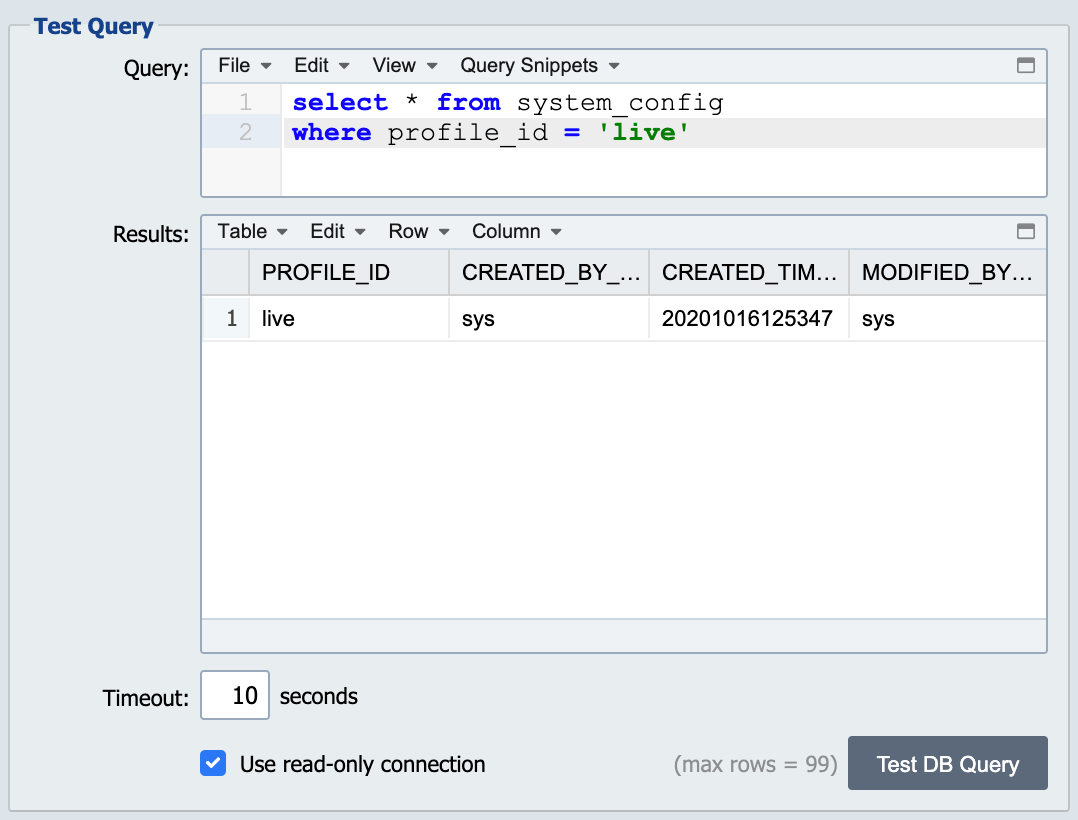
The test query allows the user to enter a query to test the connection. The formatted results are displayed in the Results grid.
Results
The query results are displayed here in a grid format.