Channel Tabs
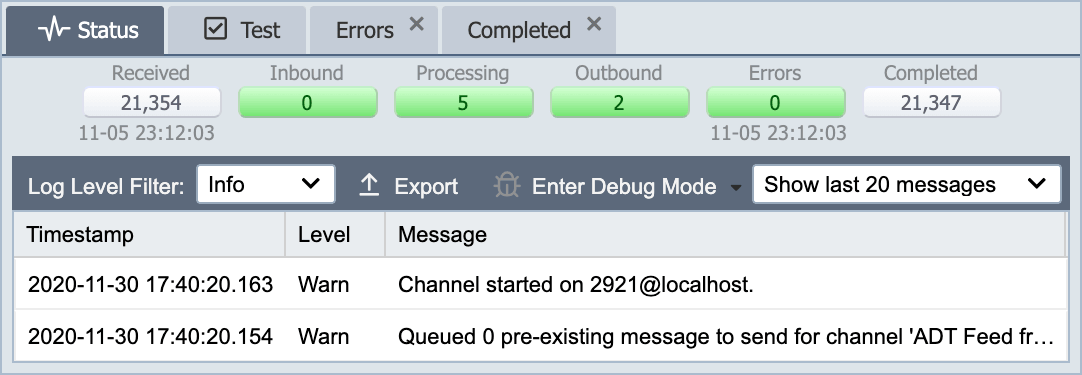
Channel tabs allow access to different information for the channel quickly and easily. Each of the channel tabs are discussed in detail later in this guide. The Message tab contains all messages that have been processed through the channel. The Error Tab contains a list of messages that have errored out. The Completed tab lists all messages that have finished processing, including errors that a user has resolved or discarded. All of these tabs have common elements that are discussed below.
Buttons
The buttons on the channel tabs allow the user to complete tasks quickly.
Edit
Opens the Message Detail Dialog.
Test
Opens the message in the Test window.
Resolve/Resolve All: Error Tab Only
Selecting the Resolve or Resolve All button sends the selected erred message(s) back to the inbound queue to be processed through the channel again. A message with no stored source content (a preprocessing script error, or purged source data), or a message streamed to disk whose file is no longer in the stream folder, is left in the error queue with a warning in its log, and QIE reports how many it could not resolve.
Resubmit/Resubmit All: Completed and messages Tabs Only
Creates an exact copy of the selected message(s), assigns it a new queue ID and sends it through the channel starting at the source node.
QIE skips three kinds of message and logs a warning against each one: a message with no stored source content, a message streamed to disk whose file is no longer in the stream folder, and a message that still has an open error. Resolve an open error from the Error tab instead, because resubmitting the message and later resolving the error would send it twice. When several selected rows belong to the same source message, it is resubmitted and counted once. When the run finishes, QIE reports how many it skipped.
Discard/Discard All: Error Tab Only
Selecting the Discard or Discard All button causes the selected erred message(s) to be marked as completed and removed from the error queue without being reprocessed. Discarded error messages are still accessible from the Message History tab.
Export/Export All
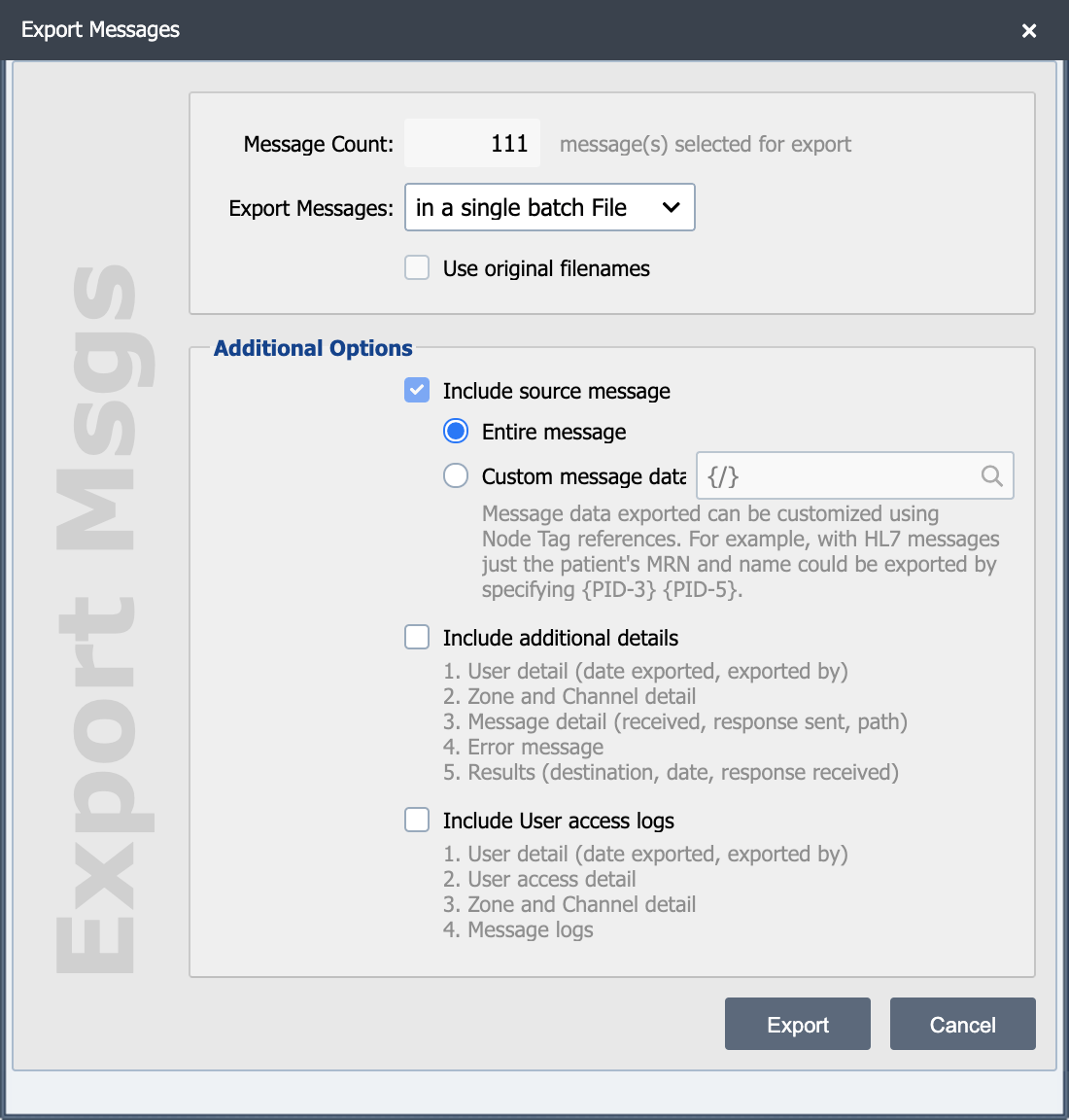
Selecting the Export or Export All button opens the Export Messages dialog.
Message Count
Displays the number of messages to be exported.
Export Messages
Messages can be exported in a single batch file or as individual files. If they are exported as individual files, the user can choose to use the original filenames.
Include source message
Select this checkbox to include the source message in the export.
Include Additional Details
Select this checkbox to include additional detail in the export.
Include user access logs
Select this checkbox to include detail pertaining to message access.
Message Search Options
QIE makes searching for messages from the channel tabs quick and easy.
Paging Toolbar
Older message can be accessed by using the paging toolbar at the bottom of the message history list. This shows a list of messages by page.
Search Query
A search string can be entered into the Search Query field located just above the message list. The Search query returns a list of messages where the value entered was found in the Source Message.
In addition to entering an Ad Hoc query in the search query field. A more refined search can be performed by clicking on the magnifying glass next to the search query field  . Because the message list on each tab is different, they all have different refined searches and are each covered in detail later in the guide.