Advanced
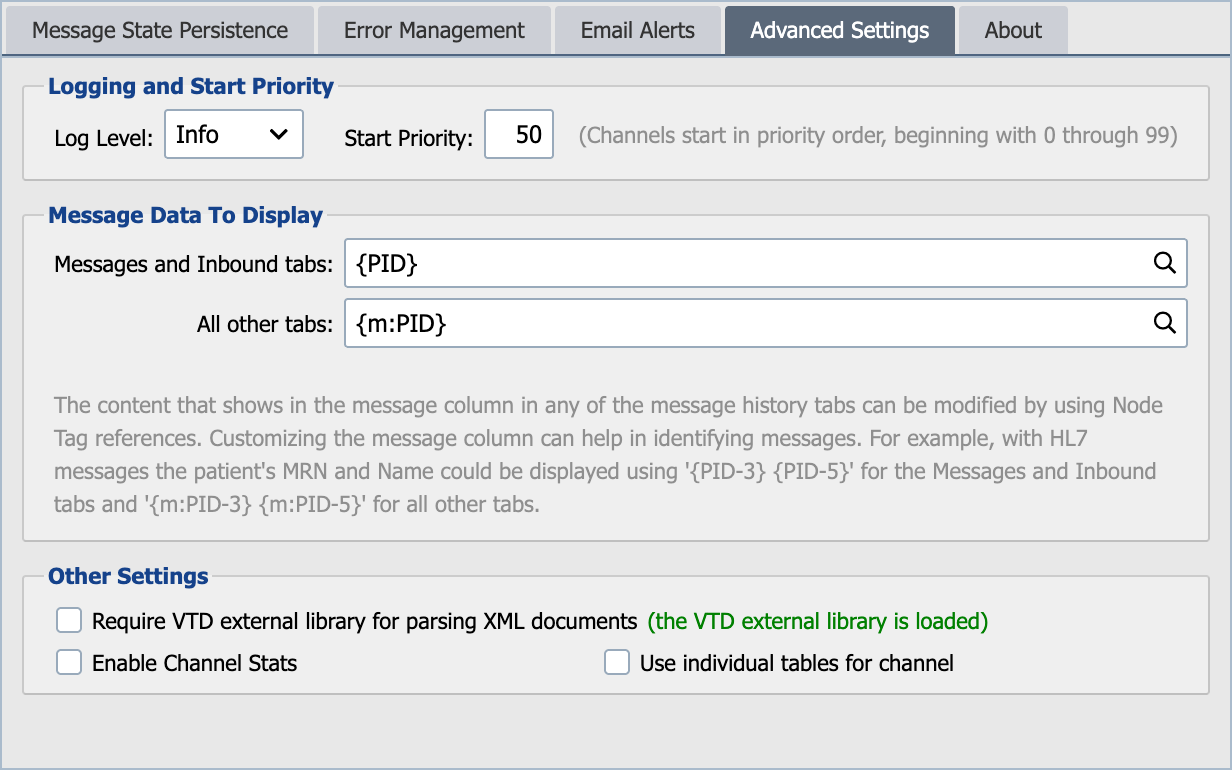
This tab contains the options described below.
Start Priority
The order in which this channel starts relative to others when QIE performs a bulk start (engine startup or the Start All Channels action). Channels are started in ascending order of this value, so a channel with priority 0 starts first and 99 starts last. Channels that share the same priority are then ordered by zone name, then by channel name.
Enter an integer from 0 to 99. The default is 50, which leaves the channel in the middle of the order so that channels can be promoted or demoted relative to it by setting a lower or higher number.
Log Level
The channel log level controls the level of detail (number of entries) included in the QIE log for the channel and associated messages processed by the channel. QIE supports Info, Warn, Error and Debug log levels. All log levels except for debug can be selected from the properties dialog.
| Log Level | Description |
|---|---|
| Info | Info, Warn and Error level log entries are recorded. Info level is the recommended level for most production environments. |
| Warn | Only Warn and Error level log entries are recorded. Unless an error is encountered during processing, warn level does not record any log entries associated with messages being processed. Warn level logging can increase overall channel performance for high-volume interfaces where log detail is not needed. |
| Error | Only Error level log entries are recorded. |
| Debug | Debug level logging typically generates 5 or more log entries per message. It can be very helpful during channel development or when researching issues related to a channel. |
Note
To enter Debug mode, click the Enter Debug Mode button on the channel status tab and select from 15 minutes to 72 hours for troubleshooting purposes. Setting a time limit allows you to troubleshoot an issue without leaving it indefinitely and causing disk space issues.
Message Data to Display
Specify the content that displays in the message column on the messages history tab. This can make identifying messages based on some value in the message easier thus reducing the number of searches. The value should be specified using an appropriate Node Tag for the given inbound message format specified. There are separate settings for messages/inbound tabs and all other tabs.
XML Parsing
Require VTD external library for parsing xml documents. This checkbox should always be selected if processing xml documents as they are processed more efficiently.
Disable HA validation
This checkbox is only displayed when QIE is running in High-Availability (HA) mode and is cleared by default.
When the channel is saved, QIE runs two HA validation checks and prompts before saving if either is triggered:
- A destination node has Limit this node to sending messages on only one HA instance enabled while the channel's persistence level (set on the Message State Persistence tab) is 1 or lower. If the node holding the mutex fails mid-send, the in-flight message can be lost because its state is not durably persisted for another HA node to pick up. Resolve this by raising the persistence level to 2 or higher on the Message State Persistence tab.
- A destination node has Append to the file enabled without Limit this node to sending messages on only one HA instance. Multiple HA nodes may attempt to append to the same file concurrently and corrupt or interleave the output. Resolve this by enabling Limit this node to sending messages on only one HA instance on the destination node and raising the persistence level to 2 or higher.
Selecting Disable HA validation suppresses the prompt for this channel so it saves without confirmation in future. Use it only when the configuration that triggers the warning is deliberate and the underlying risk does not apply, for example, a destination that is idempotent (resending the same message produces the same result with no side effects).
Enable Channel Stats
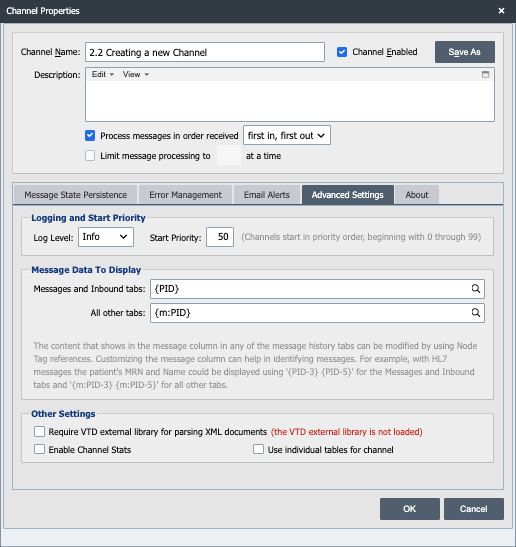
When selected, QIE continuously captures per-channel runtime statistics (total counts, per-node averages, per-node maximums, and rolling-window samples) for the inbound queue, every mapping and condition node, and every sender. These statistics are surfaced on the Channel Stats dialog and are always current when the dialog is opened.
When this option is not selected, QIE still gathers the same statistics on demand: each request from the Channel Stats dialog opens a 30-second capture window, so the figures refresh while the dialog is open. The cumulative columns (Total, Avg, Max) carry over between visits while the rolling columns clear once the dialog is closed.
Note
When enabled this feature adds a small amount of overhead to every processed message because timings are recorded at the inbound queue, at each node, and at every sender. For high-volume channels, leave this option off and open the Channel Stats dialog only when continuous metrics are required.
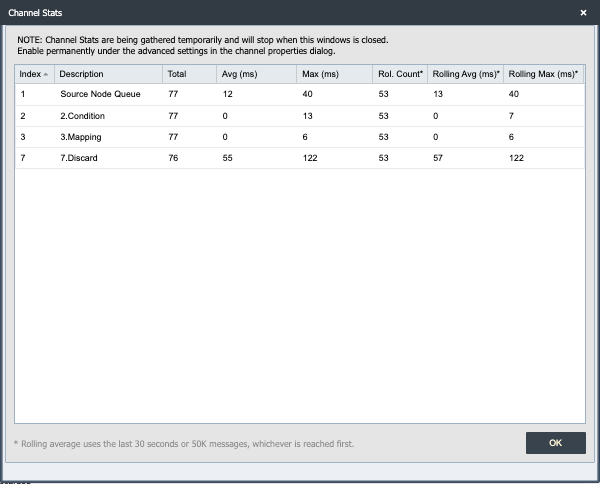
The Channel Stats dialog is opened from the Zone Channels page by selecting View | Channel Stats from the View menu on the toolbar (next to the Channel Properties entry). The dialog displays the total count, average time, maximum time, and rolling-window count/average/maximum for the inbound queue, each mapping and condition node, and each sender.
Custom Metrics from a Script
Mapping and condition scripts can read the current channel's stats and contribute their own timing samples to the Channel Stats dialog using two functions on the qie binding. This is useful for tracking how long a specific operation inside a script takes (a web service call, a database lookup, an external CDA transform) without splitting the work into its own node.
| Function | Description |
|---|---|
qie.getChannelStats() |
Returns the current channel's stats as a JSON message object with the same shape returned by the Channel Stats Management API endpoint: channelName, channelId, statsEnabled, rollingAverageMax, rollingAverageTimeInSeconds, and a nodeCounts array with one entry per row in the Channel Stats dialog (index, description, count, average, max, rollingCount, rollingAverage, rollingMax). The nodeCounts array is only populated while the channel is capturing. That is, when Enable Channel Stats is selected or within 30 seconds of the Channel Stats dialog being opened. |
qie.addTimeToChannelStats(metricId, description, timeInMs) |
Records a custom timing sample under a user-defined row in the Channel Stats dialog. metricId is any integer that identifies the row. The same value always lands on the same row, and QIE keeps custom rows out of the built-in node-index range internally so there is no risk of collision with a real node. description is the label shown beside the row. timeInMs is the elapsed time in milliseconds. The sample is recorded into the same total/average/max/rolling buckets used for the built-in rows. As with the built-in stats, samples are only recorded while capture is active. |
Pattern for timing a block of script:
var start = Date.now();
// ... the work being timed (web service call, query, transformation, etc.)
qie.addTimeToChannelStats(1, 'Patient lookup', Date.now() - start);
After a few messages have run through the channel, opening the Channel Stats dialog shows Patient lookup as its own row alongside the built-in inbound queue, mapping/condition node, and sender rows.
Note
Custom stats follow the same overhead rule as the built-in ones. When Enable Channel Stats is selected the samples are recorded for every message; otherwise capture only runs while the Channel Stats dialog is open. There is no separate enable switch for the script API.
Use individual tables for channel
By default, QIE shares the message processing tables (source, message, message logs, cache, responses) across all channels in the database. Selecting this checkbox provisions a dedicated set of those tables for this channel. Per-channel tables let you purge a single channel's message data without affecting other channels and can reduce contention on the shared tables for very high-volume interfaces.
Note
This option can only be enabled when the channel is stopped and all of its messages have been purged. It is not available when QIE is running against Microsoft SQL Server 2016 or 2017, or when the qie.useTableSplit Java option has been used to disable the feature system-wide.