Users
User accounts control who can sign into QIE. What each account is allowed to do once signed in is decided by the roles it holds. See Roles and Permissions.
Most of the per-user settings below have a system-wide default set on User Authentication; the values here override that default for one account.
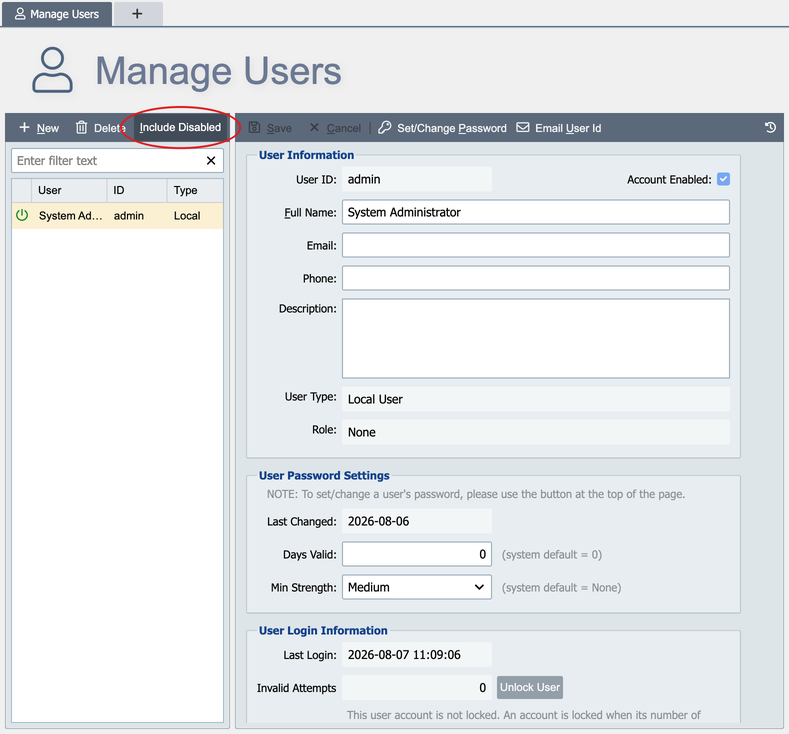
Manage Users allows a system administrator to manage user accounts. Disabled Accounts do not display in the list by default. Click the Include Disabled button to include them in the list.
Create, delete or disable a user account
Click the New button to create a new user account.
Highlight the user and select Delete to delete a user account.
To disable a user account, highlight the user and uncheck the Account Enabled box located to the right of the User Id.
Note
Deleting a user account does not remove that user from any system log or audit log entries. These entries remain in the system until they are purged according to the system message retention policy.
User Type
User Type: Indicates the type of user record.
-
Local User: Indicates that the user is a local QIE user account.
-
Domain User: Indicates that the user is a member of the organization domain. Domain users are automatically created when the user logs into the application. On each subsequent login the user's full name, email address, and role assignment are re-synced from the directory, with the domain controller treated as the source of truth (see Account Syncing). Domain users cannot be manually added to the system. (See the LDAP Authentication section of the system config page for setting up an environment to use LDAP authentication.)
-
Hub User: Indicates that the user is a person this site's Remote Management Hub vouches for. Hub users are created automatically when a statement from the Hub for that person passes the site's checks: a console sign-in, a job step or an AI call through the Hub. Later statements refresh the full name, email address and role. Hub users cannot be manually added to the system. (See Hub Sign-In for setting up a site to accept its Hub's users.)
Hub Users
The Type column of the user list shows Hub for a Hub user, and the External ID field shows the person's id at the Hub, in the form hub:<Hub id>:<Hub user id>.
Only Account Enabled can be changed on a Hub user; every other field is read-only, because the account comes from the Hub. Unticking Account Enabled makes the site refuse every statement for that person and ends their Hub console sessions on their next request. A statement from the Hub never re-enables the account.
A Hub user can be deleted, but the next statement for that person that passes the site's checks creates the account again. Disable the account to keep the person out. A Hub user cannot sign in with a password, and Set/Change Password says to change it at the Hub. See Hub Users for how the account is created and refreshed.
User Password Settings
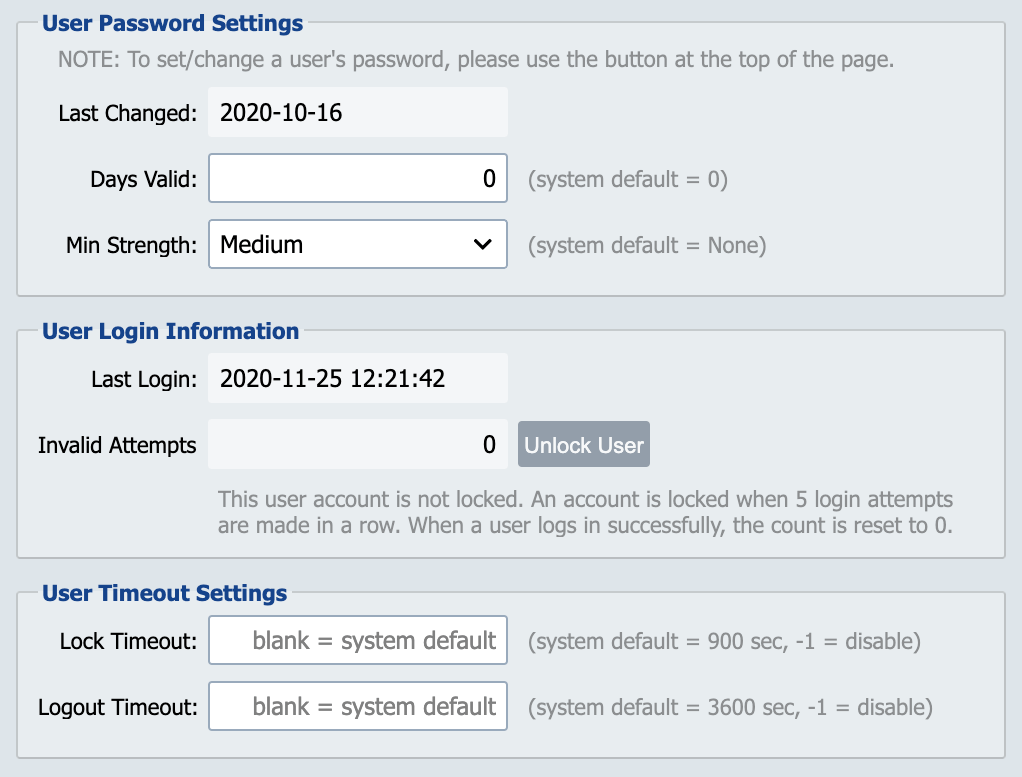
Last Changed: Displays the last time the password was changed for the user.
Days Valid: Displays the number of days the password is valid. The default is set in the System Administration -> System Configuration.
Min Strength: The drop-down allows selection of None, Weak, Medium or Strong. The default is set in the System Administration -> System Configuration.
User Login Information
Last Login: Displays the last valid login time for the user.
Invalid Attempts: Displays the number of invalid login attempts since the last valid login. The number of invalid attempts allowed before locking the User account is set in the System Administration -> System Configuration.
A system administrator must log in and click the Unlock User button to allow the locked user access.
User Timeout Settings
Lock Timeout: The number of seconds before the screen locks with no activity. The default is set in the System Administration -> System Configuration.
Logout Timeout: The number of seconds before the user is logged out with no activity. The default is set in the System Administration -> System Configuration.
Set or change a user password
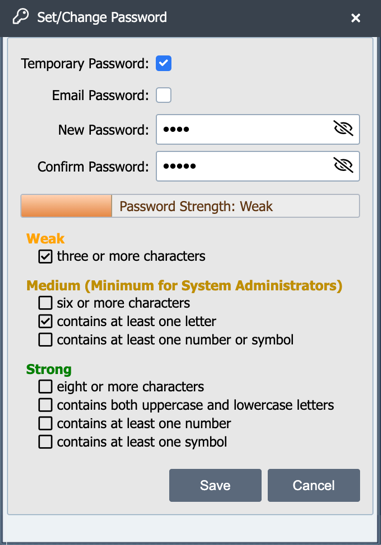
To change a user password select the Set/Change Password button from the Manage Users. The new password can be set as a Temporary Password, which forces the user to change the password the next time they log into the system. In addition, the administrator can elect to have the temporary password sent to the new user via email when the Email Password check box is checked and the new user is configured with an email address. When the password is changed the strength of the password is displayed on the screen. If the system is configured for password strength of medium or strong, this password must conform to that setting. See User Password Settings for the global strength policy this must conform to.
After entering the new password click the Set button to update the password.