Zones
A zone is an isolated container for a related set of interfaces. Channels in one zone cannot reach channels, connections, or variables in another zone. Each zone behaves like an independent workspace. Users are granted access to specific zones, so zones also determine who can see and edit what.
Two common ways to organize zones:
- By customer: Resellers and OEM Partners who host interfaces on behalf of multiple customers typically create one zone per customer. Each customer's interfaces, connections, and credentials stay walled off from every other customer's.
- By interface family: Large enterprises often group similar interfaces together, for example a zone for ADT feeds, another for LIS, another for Radiology. Operations staff responsible for one family can be given access to just that zone.
A zone holds the channels assigned to it plus the resources those channels use: web service connections, database connections, system variables, published functions, published mappings, and SSL certificates and keys.
QIE tracks the revision history of changes made to a zone and its resources. Click the history icon on the panel menu bar to view who changed what and when. See Revision History for details.
The Global Zone
The Global Zone is a special zone that contains no channels of its own. Instead, it holds resources that need to be shared across every zone (e.g. a single database connection used by channels in several zones, or a certificate used in multiple places). Defining the resource once at the global level means a password change, certificate rotation, or URL update happens in one place instead of being duplicated across zones.
Moving a Resource Between Zones
To move a resource to a different zone, or up to the Global Zone so other zones can use it, right-click the resource in the navigation tree and choose Move. The Move dialog lets you select the destination zone (or Global Settings to make it global) and optionally rename the resource at the same time.
Warning
Before moving a resource out of the Global Zone into a specific zone, use Find Usages to confirm no channels in other zones depend on it. Any such references break after the move.
Refreshing a Resource List
Each resource list page (channels, web service connections, database connections, system variables, published functions, published mappings, forms, packages, certificates, keys) exposes a Refresh item on its Manage menu. Refresh reloads the list from the server, picking up changes made by other tabs, by other users, or by cross-zone copy-and-paste flows. Lists also refresh automatically whenever you select their tab. Returning to a Published Functions tab after accepting a copy-dependency dialog in a different tab shows the newly-copied function without any explicit action. A refresh keeps the record you had selected, so each tab keeps its own selection when you switch between tabs showing the same list.
If you have an unsaved edit on a record when a refresh fires, that record is preserved and only the rest of the list is reloaded. You never lose in-progress work to a background refresh. Unlike the other Manage menu items, Refresh is available even when the list is empty.
Naming and Ordering
QIE lists zones and channels in alphabetical order by name. There is no separate sort field and no drag-to-reorder UI. Naming is the only lever you have over display order.
When the alphabetic default does not match your preferred grouping (e.g. you want a "Production" zone to sort above a "Test" zone), prefix the name with a numeric or special character that sorts ahead of letters:
| Prefix style | Example | Sorts as |
|---|---|---|
| Numbers | 0_Production, 1_QA, 2_Test |
Numeric ascending |
| Symbols | # Production, ## QA |
Symbols sort before letters in ASCII |
| Plain | Production, QA, Test |
Pure alphabetical (no override) |
The same trick works for channel names within a zone. Choose a convention and apply it consistently. Mixing prefixes across zones makes the overall list confusing.
Managing Zones
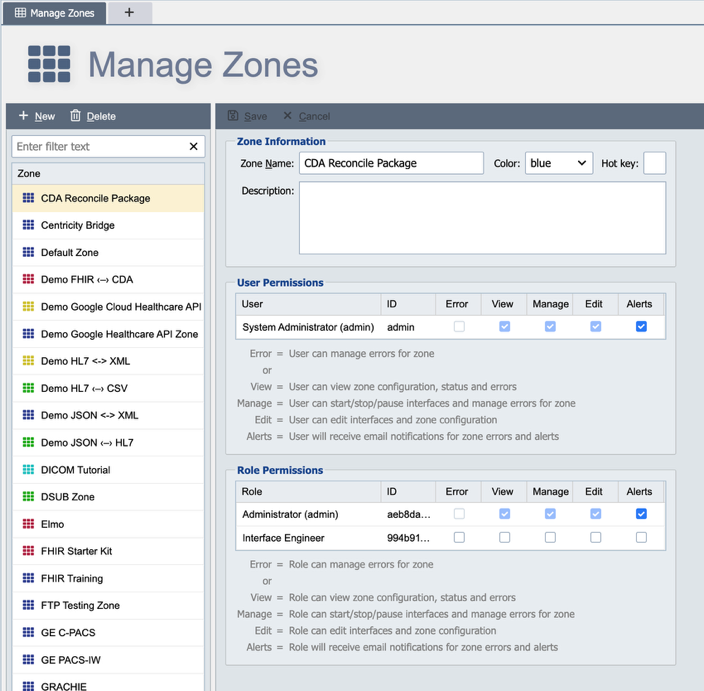
Manage Zones allows a system administrator to add, edit or delete zones. User permissions to the zone can also be managed from this page (see User Permissions for more information).
New: This button adds a new empty zone. The Zone Name is required; the remaining fields can be left at default values.
Delete: A zone can only be deleted if all channels have been stopped and deleted.
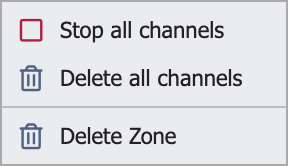
Right-clicking a zone in the center panel opens a menu with Stop all channels and Delete all channels actions for bulk operations before deleting the zone itself.
Delete all channels has two preconditions:
- All channels in the zone must be stopped (running, paused, or errored channels block the delete).
- No channel can have more than 5,000 inbound messages. Purge those queues first.
QIE prompts for confirmation before deleting.