Message Detail Dialog
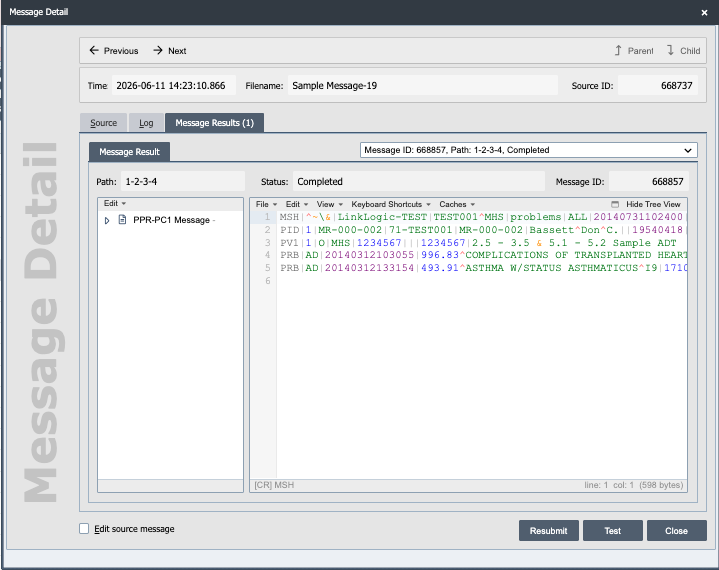
The Message Detail Dialog is the shared editor used to inspect a single message in the channel. It is opened from each of the channel tabs that lists messages (Messages (Message History), Inbound, Processing, Outbound, Completed, and Error) and shows the source content, the per-destination message result, the channel log entries for that message, and any acknowledgement or response that was stored.
The same dialog is also reachable indirectly from the Channel Status Tab by clicking a queue count (which navigates to that queue's tab, where double-clicking a row opens the dialog) or by opening a log entry that is associated with a specific message (which exposes a See associated message button).
Dialog background color by tab
When the dialog is opened from a tab, the dialog body's background color matches that tab so it is obvious which queue the message was selected from:
| Opened from | Background color |
|---|---|
| Messages | Green |
| Inbound | Green |
| Processing | Blue |
| Outbound | Purple |
| Completed | Grey (default) |
| Error | Red |
The green, blue, purple, and red backgrounds match the corresponding channel-node colors (source, mapping, destination, error). Completed uses the default dialog background. Completed messages are no longer associated with any active node, so they fall through to the default.
Default view by tab
Each tab opens the dialog to a default view (see Views below for what each view contains):
| Opened from | Default view |
|---|---|
| Messages | Source |
| Inbound, Processing, Outbound, Completed | Message Result |
| Error | Error Message |
Header bar
Previous / Next
Display the previous or next message in the originating tab's list, in the same order as the list.
Parent / Child
When a message is resolved or resubmitted, a new child message is created and the original parent is moved to the Completed queue. Parent and Child navigate between them.
Time
The date and time the message was received.
Filename
The original filename of the message. For socket source channels this label is shown as IP Address instead, displaying the sender's IP.
Source ID
The QIE-assigned identifier of the source message.
ID/Path Drop-down
If the source message spawned more than one result (for example, multiple destinations or fan-out from a condition node), every spawned result message is listed here. The total result count is also shown on the Message Result view.
Views
The view drop-down selects which content is shown in the body of the dialog. Several views appear only when there is content to show.
Source
The original, unmodified source message as it was received. This view is always available.
Message Result
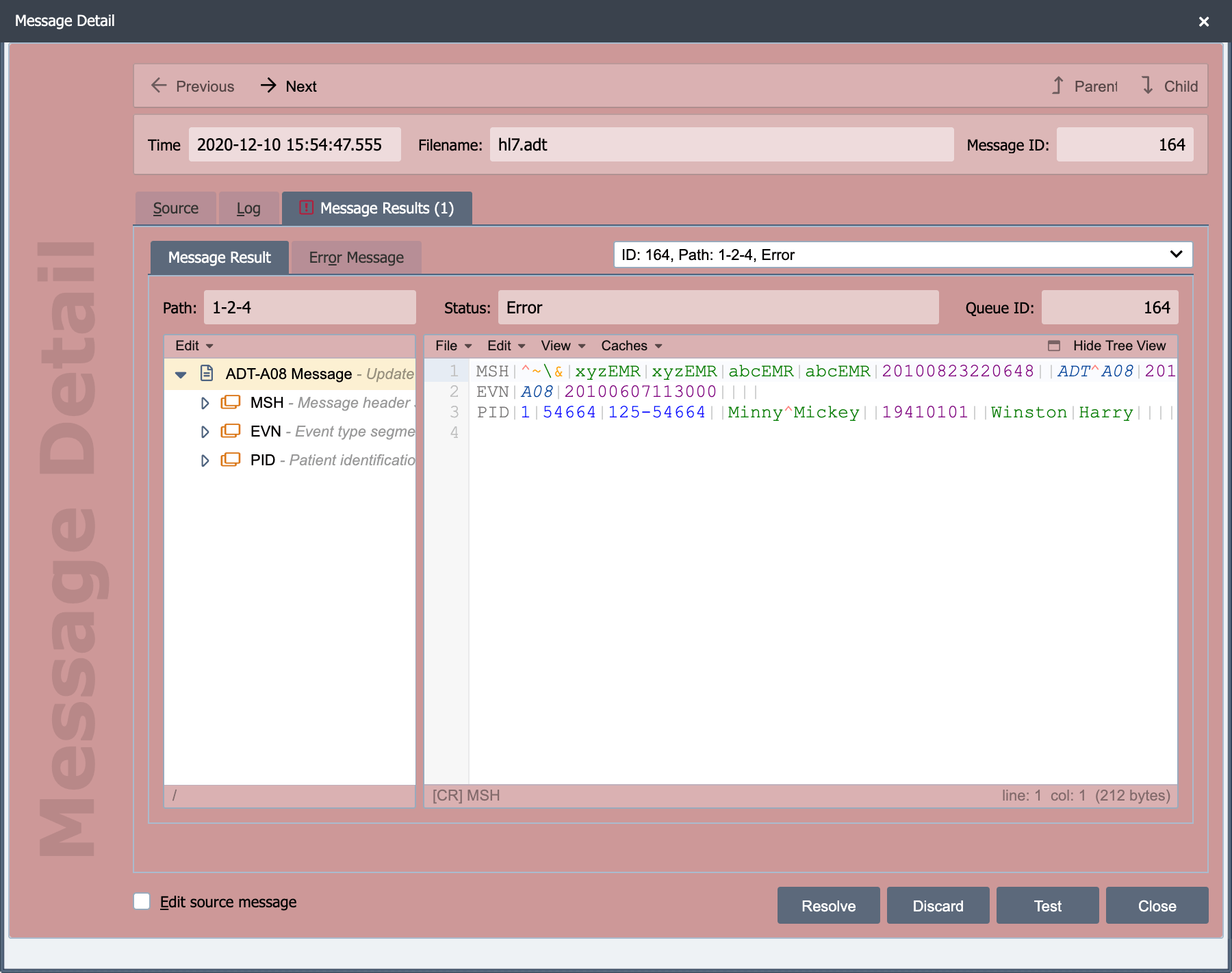
The destination-specific result of processing. The view shows three fields:
- Path: the node path the message took through the channel; each number identifies a channel node.
- Status: the final status of this result: completed or error.
- Queue ID: the ordering of this message in the channel queue.
Message Cache Tab
Shown to the right of the Message Result tab, this tab lists the message cache key/value entries associated with the selected message result. Select an entry in the grid to view its full key and value in the detail section below.
If the channel is not configured to persist message cache, the tab displays an explanatory notice in place of the grid. Message cache persistence is enabled in the channel properties.
Message Log
The channel log entries associated with this message.
Response Received
The response (acknowledgement, ACK, HTTP response body, etc.) that was returned by the destination endpoint and stored for this message. This view is hidden when no response was stored, for example when the destination is not configured to wait for an acknowledgement, when the endpoint never replied within the ack timeout, or when the channel uses a one-way sender (File, Network Share, etc.). See Ack Scripts for the rules governing when a response is stored.
Response Sent
The acknowledgement that QIE sent back to the source system after receiving the message, if the source channel was configured to generate one. Hidden when no response was sent.
Error Message
The full error text and stack trace for an erred result. Hidden unless this result is in the Error queue.
DICOM Responses
For DICOM destinations, the array of DIMSE sub-operation responses. Hidden for non-DICOM destinations.
Action buttons
Edit source message
Selecting this checkbox enables editing of the source view. Use it before resolving or resubmitting if the source content needs to be modified first.
Resolve
Sends the erred message back to the inbound queue to be processed through the channel again. The original parent is moved to Completed and a new child is created. Visible only when the dialog is opened from the Error tab.
A message with no stored source content cannot be resolved as it is: a message that failed in the preprocessing script, or one whose source data was purged. Resolving it without an edit shows an error, logs a warning against the message, and leaves it in the error queue. Select Edit source message and enter the content to resolve it, or discard it.
A message streamed to disk is resolved from the file with its name in the stream folder, which can be a later file that arrived with the same name. If no file with that name is there, Resolve shows an error and the message stays in the error queue.
Discard
Marks the erred message as completed and removes it from the Error queue without reprocessing. Discarded error messages remain visible from the Messages tab. Visible only when the dialog is opened from the Error tab.
Resubmit
Creates a new copy of the message with a new queue ID and sends it through the channel starting at the source node. Visible when the dialog is opened from the Messages or Completed tab (the user must also have manage permission on the zone).
A message with no stored source content is resubmitted only with edited content. Without an edit, Resubmit shows an error and logs a warning against the message. A message streamed to disk is the exception while a file with its name is still in the stream folder: its content is read again from that file, which can be a later file that arrived with the same name. If no file with that name is there, Resubmit shows an error.
Resubmit is also refused, with a warning in the message log, while the message still has an open error. Resolve the error from the Error tab instead, because resubmitting the message and later resolving the error would send it twice.
Test
Opens the message in the Testing and Debugging environment so it can be stepped through the channel.
Close
Closes the dialog.