Custom Script Receiver
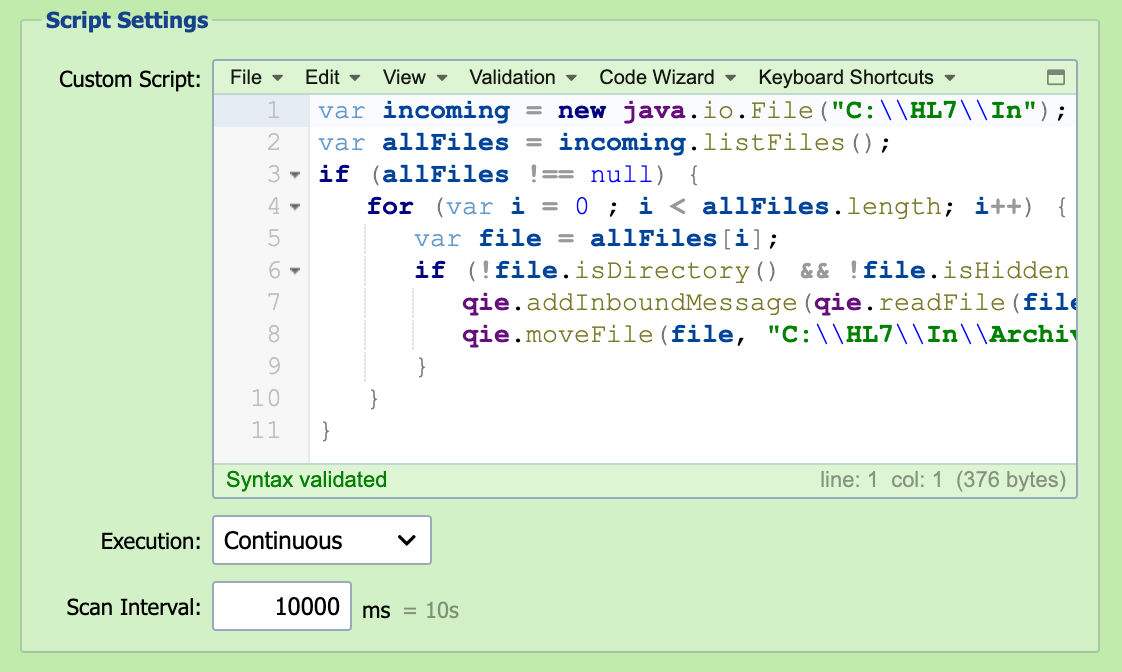
A custom script can be created to add messages to the inbound queue. The script can do anything from read a file folder for certain files to querying a database and assembling custom messages.
Use the Custom Script Receiver when no built-in receiver (File, FTP, HTTP, etc.) fits the source system, for example, polling a custom REST API, reading from a queue service via its SDK, or assembling messages from multiple sources.
Description
This field is used to describe the custom script and is displayed in the mapping node on the visual channel editor.
Custom Script
The custom script to be executed is entered here (see Creating Custom Scripts). The script must call qie.addInboundMessage() to push each message onto the channel's inbound queue. The script itself runs on its configured schedule whether or not it calls addInboundMessage, but until it does, no message enters the channel, and no downstream mapping, condition, destination, or qie.info/qie.debug statement in those nodes execute.
Worked examples of common Custom Script Receiver patterns:
- Polling SFTP from a Custom Script Receiver. List, download, and create one inbound message per data row from an SFTP folder.
- Ingesting Empty Files. Replace the File source when zero-byte files must still enter the channel.
Note
When the channel's message format is DICOM and the source node's DICOM Format section has Enable storing DICOM Pixel Data in a separate folder checked, DICOM files parsed with the qie.parseDICOMFile() function have their pixel data extracted to the separate folder as they are read, a Custom Script Receiver handles large instances the same way the built-in DICOM receivers do.
Execution
Execution defines the frequency and schedule associated with executing the custom script. The three available options are continuous, scheduled or manual.
If execution is set to Continuous, the script is executed continuously with a timeout period between executions equal to the 'Scan Interval'.
If execution is set to Scheduled, the script is executed according to the schedule specified in the associated CRON String. Runs never overlap: if the script is still running when the next CRON time arrives, QIE skips that time and runs it at the first CRON time after the current run finishes.
If execution is set to Manual, the script is executed only when a user selects the Run Now button.
run now
If execution is Scheduled or Manual, use the Run Now button for immediate execution.
Scan Interval
When using Continuous execution, the scan interval is used to set the 'timeout' or wait period between script executions.
CRON String
When using Scheduled execution, the CRON String is used to specify the schedule to be used for script executions. See CRON String Format for the six-field syntax and examples.