User Authentication
System-wide login, password, and two-factor policy. These settings apply to every local QIE account; per-account settings live on Users and Roles.
User Login Settings
Invalid Attempts
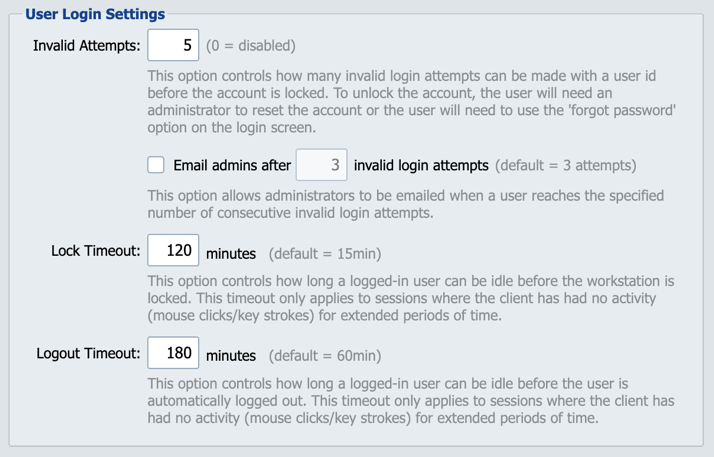
This option controls how many invalid login attempts a user account can accumulate before it is locked. Once locked, the user can unlock the account by using Forgot password on the login screen (which emails a one-use password that bypasses the lock), or a system administrator can unlock it from Users and Roles.
Default: 5. Set to 0 to disable account lockout entirely.
Email admins after N invalid login attempts
When enabled, administrators are emailed as soon as a user account reaches the specified number of consecutive invalid login attempts. This runs independently of the Invalid Attempts lock threshold. The email can fire before the account is locked, letting administrators see repeated failures during the retry window.
The check box next to the field turns the notification on or off; the number field is the threshold. Default: 3 attempts.
Login Throttle
The login throttle limits how many login attempts one network address can make. When Throttle logins by address is selected, QIE counts every login attempt from an address, successful or not, including the passcode step of two-factor authentication. Once an address makes more than Attempts within Window minutes, QIE refuses every login from that address for Cooldown minutes. A refused login shows the message "Too many login attempts from this address" and never reaches the password check.
Default: off. When turned on, the defaults are 10 attempts in a 5 minute window, then a 15 minute cooldown.
The throttle and Invalid Attempts work independently. Invalid Attempts counts wrong passwords for one user account and locks that account. The throttle counts every attempt from one address, across all accounts, and refuses that address for a while. A login the throttle refuses is not counted against any account, so to have the throttle act before an account locks, set its attempts below the Invalid Attempts value.
Every QIE node in a high-availability cluster shares one count per address, because QIE keeps the counts in its database.
On a Remote Management Hub, this throttle covers signing in to the Hub's own console. Logins forwarded through the Hub to a managed engine's console are throttled by the Hub for each technician, with Java options (see HTTP Proxy). When the managed engine's own throttle is on, it also counts each forwarded login, against the technician's address the Hub reports.
Sizing for shared addresses: People who sign in from a terminal server, a VDI pool or another shared address all count against that one address. Set the attempts above the number of logins they make together within the window, or they lock each other out at busy times such as the start of a shift.
Proxy Hops
The number of reverse proxies or load balancers between users and the QIE console. The login throttle needs the real client address, and behind a proxy the address that connects to QIE is the proxy's.
- 0 (default): QIE uses the address that connected. Behind a proxy, every user then shares the proxy's address and counts against one limit. While Throttle logins by address is selected and Proxy Hops is 0, System Configuration shows a warning under Proxy Hops as a reminder to set it when the console is behind a proxy.
- 1 or more: QIE reads the client address from the
X-Forwarded-Forheader, counting that many entries in from the right, because each proxy adds the address that connected to it at the end of the header.
The MCP authorization, token and revocation endpoints accept a request as HTTPS when trusted proxies say so in X-Forwarded-Proto. QIE reads every line of that header as one list, ignores blank entries, and accepts the request only when every other entry is https. The proxy nearest the users must set the header to the scheme the client used. A proxy behind it should pass the header on, because one that sets or adds its own scheme writes http when its connection from the outer proxy is plain HTTP, as nginx does with proxy_set_header X-Forwarded-Proto $scheme, and QIE then refuses the request.
Warning
Set Proxy Hops to the real number of proxies and no higher. A client can add its own entries at the start of X-Forwarded-For, so a value higher than the real number lets a client choose the address QIE counts against.
The proxy nearest the users must set X-Forwarded-Proto rather than pass on a value the client sent. If no trusted proxy writes it, a client on plain HTTP can send X-Forwarded-Proto: https and the MCP endpoints treat its request as HTTPS.
QIE reads every X-Forwarded-For line as one list, in the order the lines arrive. Each trusted proxy must add its entry at the end of that list, on the last line or on a line of its own. A proxy that adds its entry to the first line and passes a later line on unchanged lets a client choose the address QIE counts against.
With Proxy Hops above 0, make the console port reachable only through the proxy. A client that connects to it directly can send its own X-Forwarded-For and be counted as any address it chooses, to get around the throttle or to lock out another address. The MCP sign-in limits, and the address the MCP audit log records for a sign-in, use the same setting.
Forgot Password
Users can recover a forgotten password from the login screen. Click Forgot password, enter the username, and QIE emails a temporary single-use password to the address on that user's account. The single-use password is valid for 15 minutes and unlocks the account if it was locked by Invalid Attempts, because the single-use path bypasses the lockout check.
Prerequisites: SMTP must be configured on the Email Settings page, and the user must have a valid email address on their account.
Forgot Password is available for local users only. Domain (LDAP) and OIDC users must reset their passwords through the identity provider.
Lock Timeout
This option controls how long the workstation is idle before it is locked. This timeout only applies to sessions where the client has had no activity (mouse clicks/key strokes, etc.) for extended periods of time.
Logout Timeout
This option controls how long a workstation is idle before the user is automatically logged out. This timeout only applies to sessions where the client has had no activity (mouse clicks/key strokes, etc.) for extended periods of time.
User Password Settings
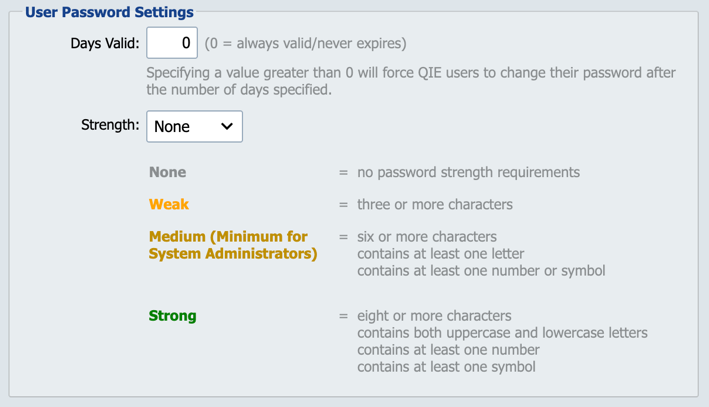
The user password settings control the global level of QIE security policies. The global settings configured here can be overridden on a user-by-user basis from the Manage Users page.
Days Valid
This setting determines the frequency with which users must change their passwords. If this field is set to zero (0) users are never prompted to change their password.
Strength
This setting controls the minimum password strength required when setting or changing a password.
-
None: No password strength requirements enforced.
-
Weak: Passwords require at least 3 characters.
-
Medium: Passwords require at least 6 characters and must contain at least one letter and at least one number or symbol.
-
Strong: Passwords require at least 8 characters and must contain:
-
both uppercase and lowercase letters
-
at least one number
-
at least one symbol
-
Two-Factor Authentication
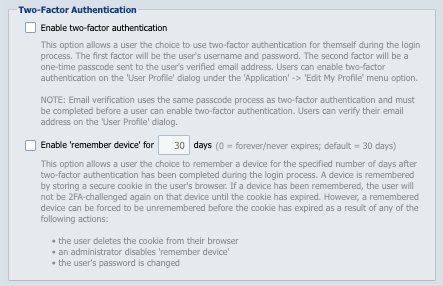
The two-factor authentication settings control whether users can opt in to a second authentication factor at login, and whether trusted devices can skip the second factor for a configurable period.
Enable two-factor authentication
When this option is enabled, each user can choose to require two-factor authentication for their own account. The first factor is the user's username and password; the second factor is a one-time passcode sent to the user's verified email address. Users opt in from Application -> Edit My Profile on the User Profile dialog.
Note
Email Settings must be configured before two-factor authentication can be enabled. Users must also verify their email address on the User Profile dialog (using the same passcode process) before they can enable two-factor authentication for themselves. Verification takes effect as soon as the passcode is accepted: closing the User Profile dialog with Cancel does not undo it.
Enable 'remember device' for N days
When enabled, a user can choose to have QIE remember the device they are signing in from for the specified number of days after successfully completing the two-factor challenge. A remembered device is identified by a secure cookie stored in the user's browser, and is not re-challenged for two-factor authentication on subsequent logins until the cookie expires.
The duration accepts 0 to 365 days, where 0 means the remembered device never expires.
This option is only selectable when Enable two-factor authentication is enabled. A remembered device can be forced to be unremembered before the cookie has expired by any of the following:
- The user deletes the cookie from their browser.
- An administrator disables 'remember device'.
- The user's password is changed.