Advanced System Settings
Settings behind the Show Advanced Settings button at the bottom of the System Configuration page. Most installations never change them.
Optional Modules

This section is used to enable or disable optional QIE modules. The only available optional module is ISO 8583.
ISO 8583 Module
The ISO 8583 Module enables support in QIE for ISO 8583 formatted messages and communication protocols. The ISO 8583 format is used primarily for financial transactions involving credit or debit cards.
Qvera Remote Support
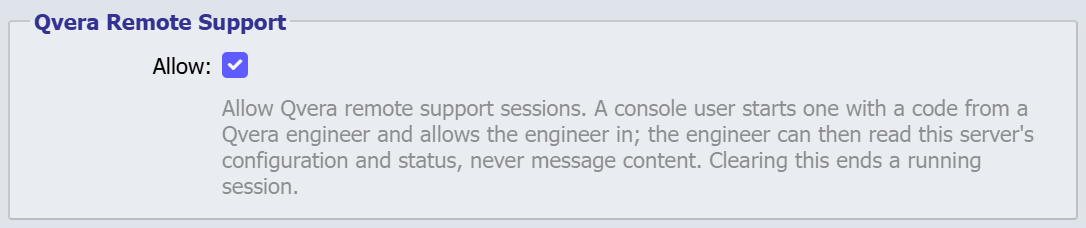
Allow lets console users start a remote support session, in which a Qvera support engineer reads this server's configuration and status through its MCP tools, never message content. It is selected by default. Clearing it also ends a running session. See Remote Support Sessions with Qvera.
Email Queue

This shows the number of messages in the queue. Click the Clear Emails button to empty the queue.
Http/Https Proxy Settings
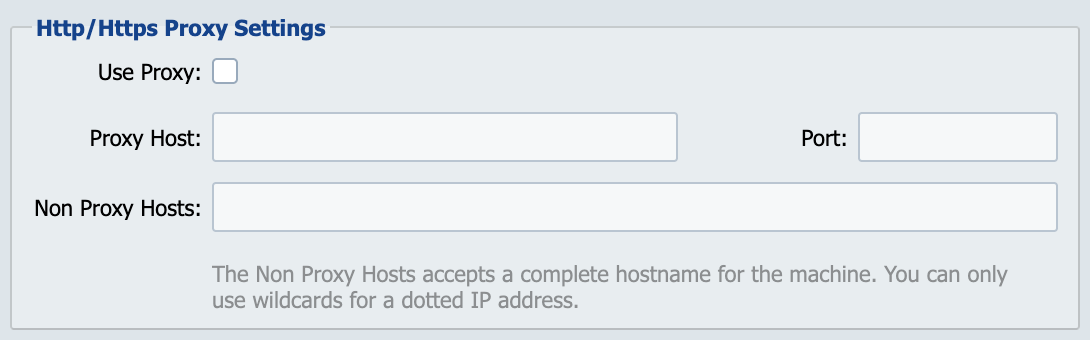
This section is used to enter host and port information if QIE is installed in an environment which requires internet traffic to be routed through a proxy server. Changes made to this section require a restart of QIE.
Use Proxy
Select this box to use a proxy server.
Proxy Host and Port
Enter the server name or IP address and port.
Non-Proxy Hosts
If there are specific hosts that should bypass the proxy, enter the servers in a comma separated list.
SFTP Proxy Settings
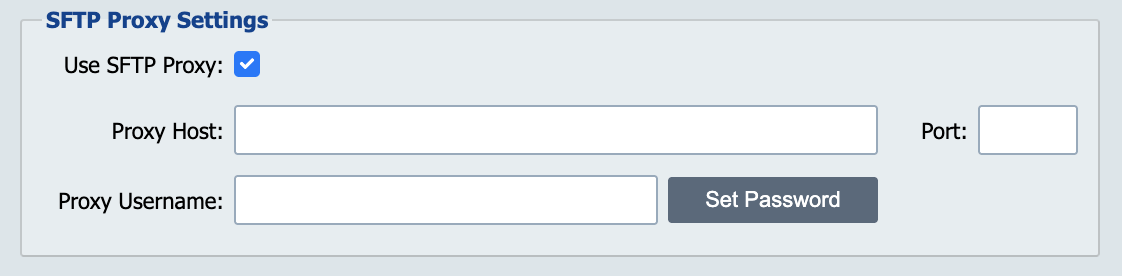
This section works exactly like the Http/s Proxy settings for SFTP connections.
Other System Settings
Auto Startup
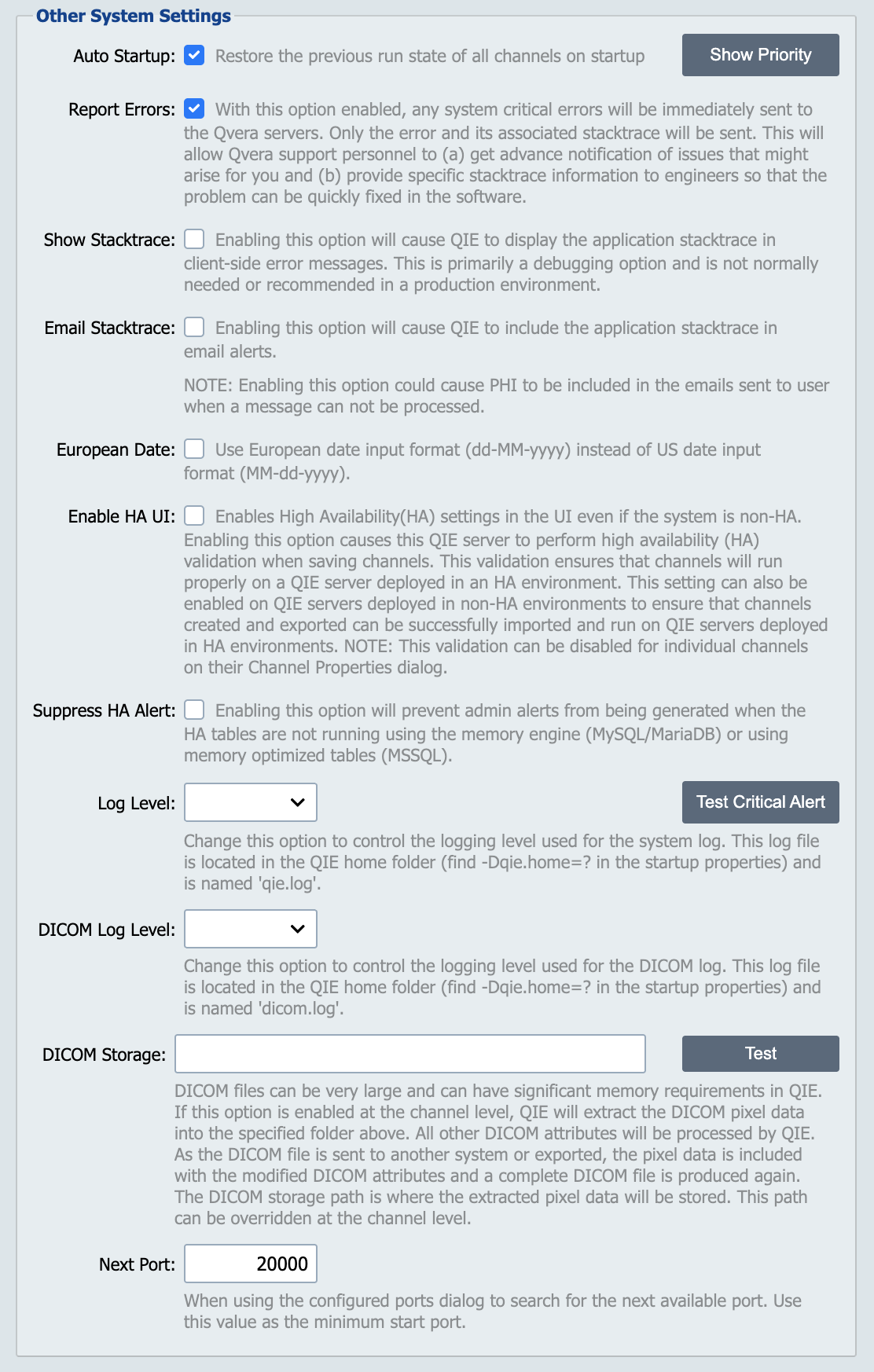
Enabling this option tells QIE to start all enabled channels when the QIE service is started. Disabling this option prevents any channels from starting when the QIE service is started.
Report Errors
With this option enabled, any system critical errors are sent immediately to the Qvera servers. Only the error and its associated programmatic stack trace are sent. This gives Qvera support personnel advance notification of issues that might arise. It also provides specific stack trace information to engineers, so that any problems can be quickly identified and fixed in the software.
Show Stacktrace
Enabling this option causes QIE to display the application stack trace in client-side error messages. This is primarily a debugging option and is not normally needed or recommended in a production environment.
Email Stacktrace
Enabling this option causes QIE to include the application stack trace in the email alerts.
Note
Enabling this option could cause PHI to be included in the emails sent to users when a message cannot be processed.
European Date
This option changes the date input format from MM-dd-yyyy to dd-MM-yyyy. It also controls how qie.deduceDate() reads a numeric date when no format is passed. With the option on, 03-04-2026 is 3 April. With it off, it is 4 March, and a date whose first number is over 12, such as 29-09-2026, returns null.
QIE reads this option only at startup, so restart QIE after changing it.
Tip
To parse a date the same way on every server, pass its format: qie.deduceDate(value, 'dd-MM-yyyy HH:mm:ss').
Log Level
The log level controls the level of detail (number of entries) included in the QIE system log. This log file is qie.log and is located in the QIE home folder. QIE supports the following log levels:
| Log Level | Description |
|---|---|
| INFO | Info, Warn and Error level log entries are recorded. Info level is the recommended level for most production environments. |
| WARN | Only Warn and Error level log entries are recorded. Unless an error is encountered during processing, warn level does not record any log entries associated with messages being processed. Warn level logging can increase overall channel performance for high-volume interfaces where log detail is not needed. |
| DEBUG | Debug and trace log levels are used for troubleshooting. They are not recommended for normal processing. |
| TRACE | Debug and trace log levels are used for troubleshooting. They are not recommended for normal processing. |
Next Port
This port number is used by the configured ports dialog to search for the next available port. Enter the port number where the search should start.
Thread Pools
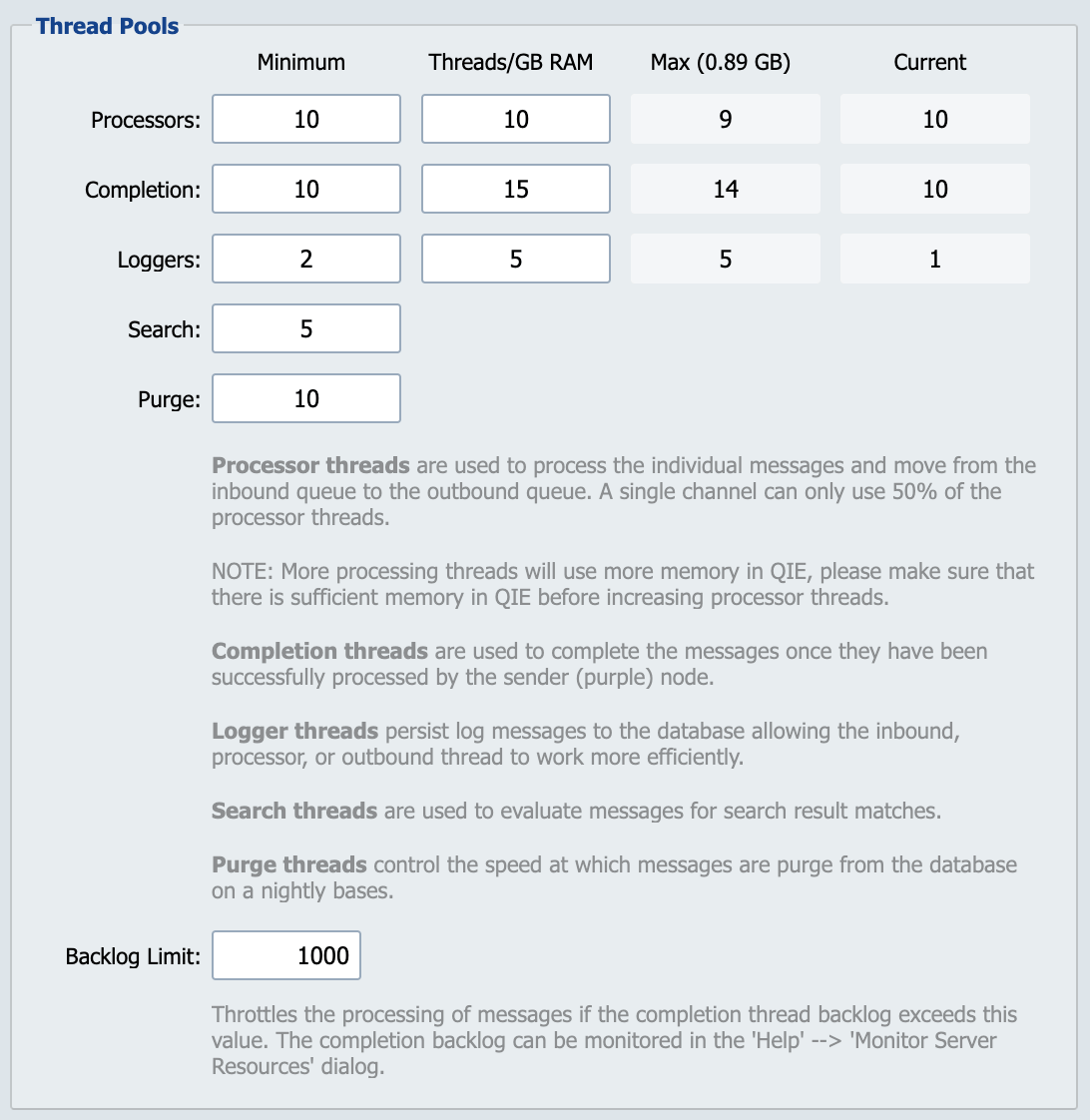
This section allows control over the number of threads allocated to QIE for processing, completing, logging, searching and purging messages. Each row sets a Minimum and a Threads/GB RAM value, and shows the Current count.
Processor Threads
The number of threads used to process individual messages and move them from the inbound to the outbound queue, set on the Processors row. A single channel can only use 50% of the processor threads.
Note
More processing threads use more memory in QIE. Please make sure that there is sufficient memory in QIE before increasing processor threads.
Completion Threads
The number of threads used to complete the messages once they have been processed by the destination node, set on the Completion row.
Logger Threads
The number of threads to persist log messages to the database, allowing the inbound, processor or outbound thread to work more efficiently. Set on the Loggers row.
Search Threads
The threads used to evaluate messages for search results, set on the Search row.
Purge Threads
Purge threads control the speed at which messages are purged from the database, and are set on the Purge row.
Backlog Limit
The maximum number of messages allowed to accumulate in the completion queue before QIE slows down processing to let the completion threads catch up. When the completion queue exceeds this number, processor threads sleep briefly between messages, reducing the rate at which new work flows into the channels. Normal processing resumes once the queue drops back below the limit.
The default is 1000 and the minimum is 500. QIE may apply a higher effective threshold automatically when overall message throughput is high, so this setting acts as a floor rather than a hard cap.
A sustained throttle event is logged to qie.log in the QIE home logs/ directory as Processors throttled due to completion queue backlog and indicates the completion thread pool is undersized for the current workload. The typical response is to raise the Completion thread count rather than to raise the Backlog Limit.
Search Settings

Max Results Limit caps how many messages a search on the Message History, Errors, or Completed tab returns. Default: 5000. Set to 0 for no limit, which is useful for exports of very large result sets, at the cost of memory and query time on the QIE server.