The Qvera JavaScript Environment
QIE has many features built into the scripting window to assist in creating and validating code. This section introduces some of these features.
Custom Scripting Window
The custom scripting window is the main area that allows the user to create custom scripts. This window consists of the Scripting Window, the Syntax Validator, Auto Code Completion, and the Menu Items including the Code Wizard.
Scripting Window
The scripts within the scripting window are color coded to highlight specific parts of the code. The following colors are used:
| Color | Description |
|---|---|
| Purple | Purple is used to identify predefined QIE objects. The always-available objects are qie, source, message, messagePath, messageCache, channelCache, sharedCache, errorManager, StringUtils, and hapi. |
| Yellow | Yellow is used for the functions that can be called or used on the QIE and JavaScript objects (e.g. source.checkNodeExists('EVN-2')); |
| Light Blue | Light Blue is used for the JavaScript var keyword. |
| Dark Blue | Dark Blue is used to identify variables and JavaScript keywords. |
| Green | Green is used for Strings, and String parameter values. |
| Light Grey | Light Grey text is used for either multi line or single line comments. |
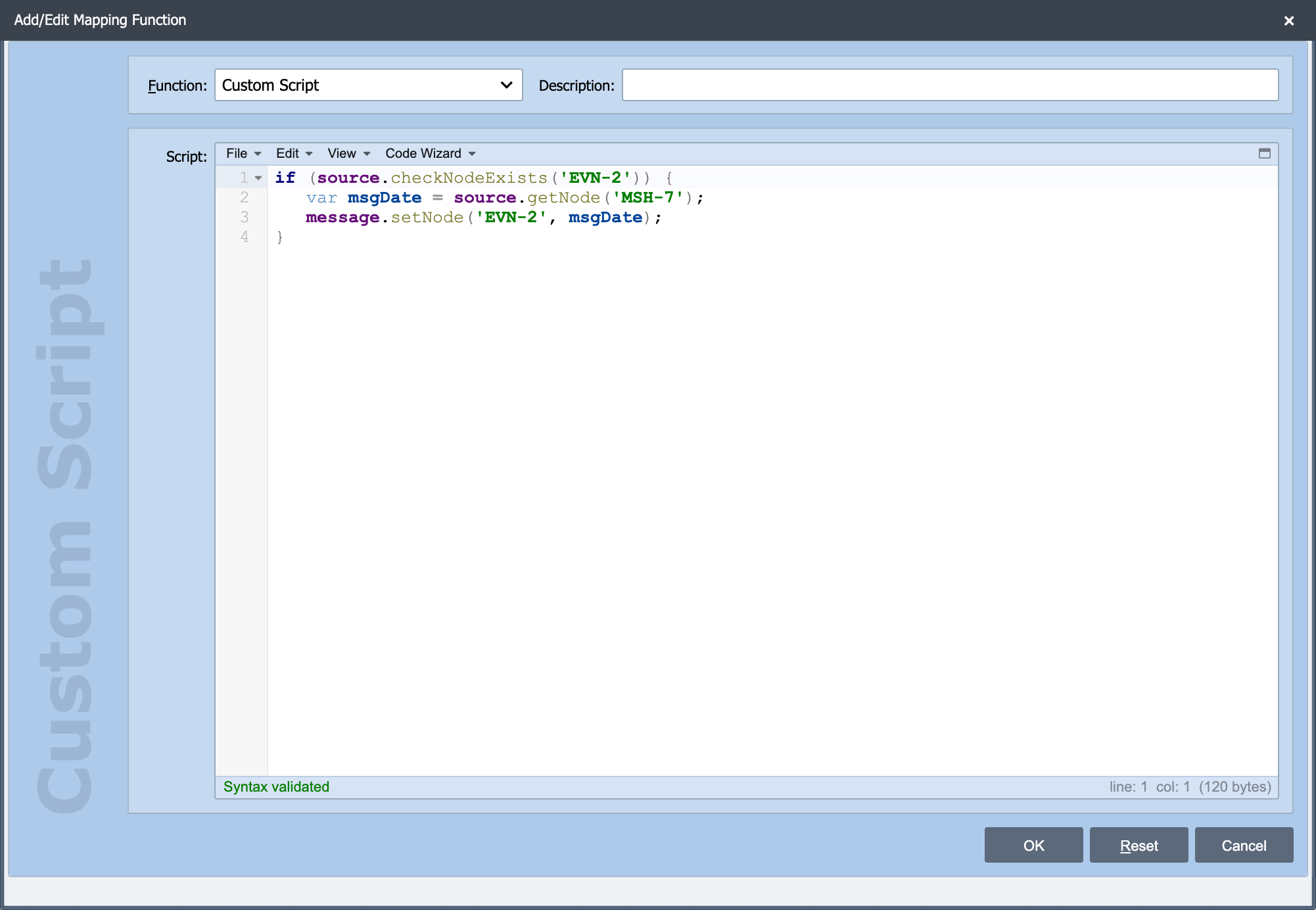
Real-time Syntax Validator
Because the best time to catch a script error is before it occurs, the QIE JavaScript editor validates scripts in real-time as they are edited. The status of the real-time script validation is displayed in the editor status bar area. If a syntax error is detected, the associated error message is displayed. Selecting View -> Go to -> Error or pressing Ctrl+E takes the cursor to the position of the error. QIE uses a third-party open-source syntax validation library called JSHint. More information about JSHint options is included in The JavaScript Editor.
Menu Items
The menu includes many options to assist with the creation and editing of JavaScript scripts. Some of the menu options are outlined below.
File
| Item | Description |
|---|---|
| Auto Validate Syntax | When enabled, this option validates JavaScript syntax in real-time. |
| Validate Script Now | This option is used to validate JavaScript on demand when the Auto Validate Syntax is disabled. |
Edit
| Item | Description |
|---|---|
| Indent -> Auto Indent (Ctrl + I) | This option auto indent the JavaScript code for readability. |
| Line Commands | Under this option there are many commands available to assist with writing JavaScript code. Each of these commands has a shortcut associated with it. Learning the shortcut for the commands you use most often speeds up code development. |
| Word Commands | Under this option there are many commands available to assist with writing JavaScript code. Each of these commands has a shortcut associated with it. Learning the shortcut for the commands you use most often speeds up code development. |
View
| Item | Description |
|---|---|
| Node Path Lookup (F2) | This option can be used to easily lookup HL7, XML, CSV, and other file format node paths. |
| Node Tag Lookup | This option can be used to easily lookup Node Tags used in areas like templates and database queries. |
| Regex Evaluator | This option assists in the creation and validation of regular expressions that can be used in many of the available JavaScript functions. |
| Go to -> Error (Ctrl + E) | This option moves the cursor to the line containing an error shown in the lower left hand corner by the Syntax Validator. |
| Word Wrap | This option is useful to display scripts or messages within the containing window. |
Code Wizard
To facilitate accessing standard objects, built-in functions and common JavaScript constructs, QIE includes a Code Wizard menu which documents available objects, functions and constructs. When an item from the Code Wizard menu is selected, the function or construct is automatically added to the current script with sample parameters and suggested values.
| Item | Description |
|---|---|
| QIE System Functions | Under this option there are many top level functions for managing a channel, sending emails and manipulating Strings with StringUtils. |
| Source | This object is a copy of the original message received by QIE. This is a read only copy of the original message. |
| Message | This object initially is an exact copy of the original message. This is the copy of the message that has been manipulated and is ultimately the message that is output on the destination node. |
| Message Cache | This object is used to temporarily store data that can be used in later mapping functions. The scope of the data stored in Message Cache variables is limited to a given message. |
| Channel Cache | This object is used to store data that can be used across all messages that traverse a channel. These variables persist when stopping and starting channels or the interface engine itself. |