Revision History
QIE tracks all revisions made to objects in the interface engine. This allows the user to view modification details including the user who made the change, the date/time of the change, the value before the change and the resulting value.
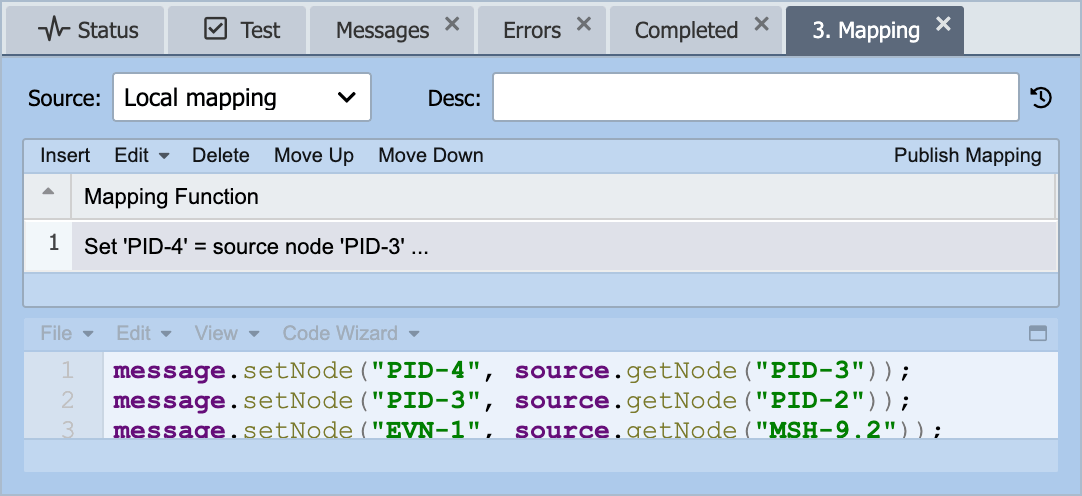
The Revision History dialog is accessed by clicking on the history icon on panel menu bars and next to the Description field of source, condition, mapping and destination nodes.
Revision History Dialog
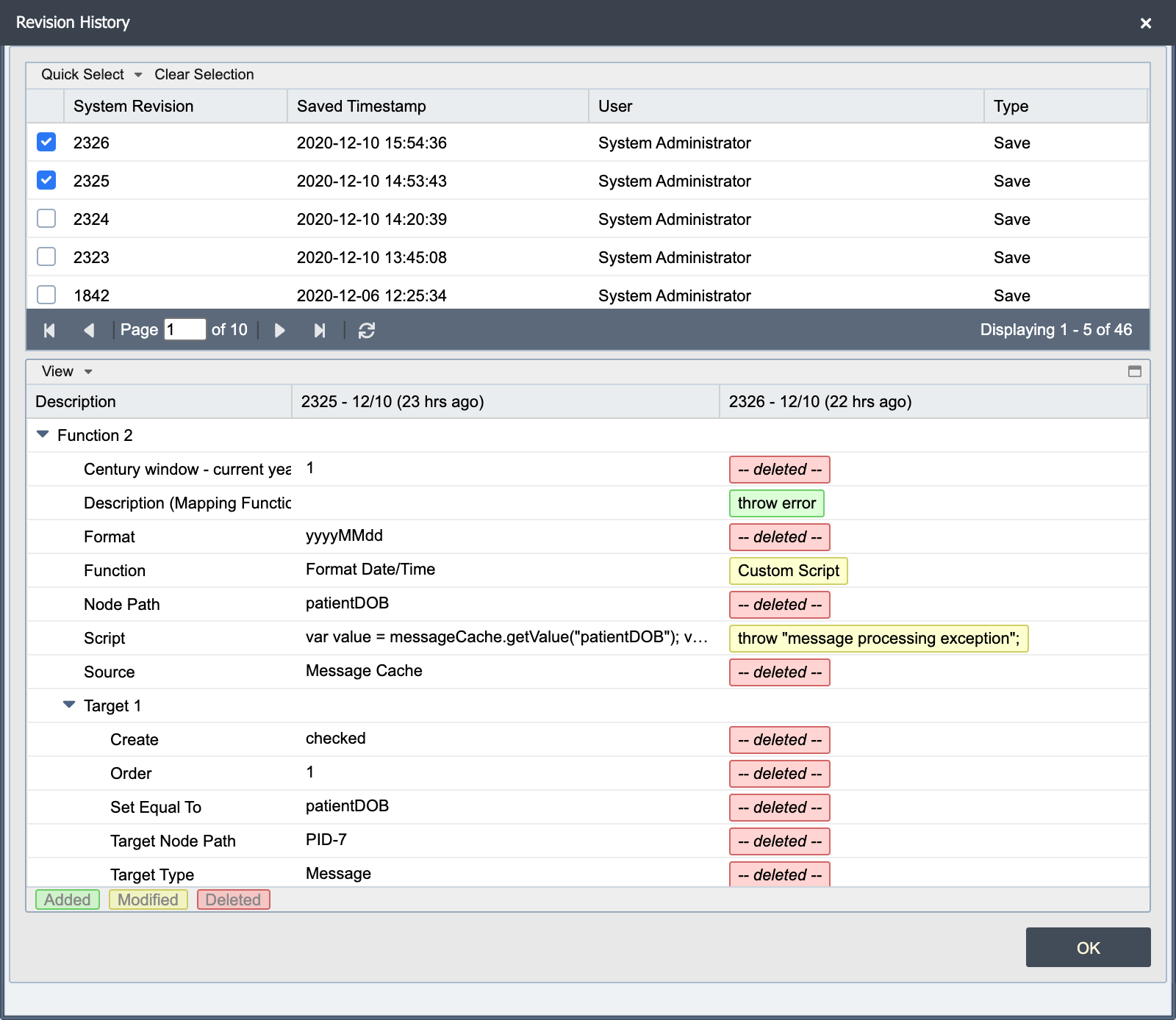
The top half of the dialog is the Selection Panel which displays the summary information for all of the revisions for this channel. The total number of revisions is displayed in the bottom right corner of the selection panel.
This section includes the revision number, the date and time of the revision, the user who made the revision, how the revision was made (the Via column) and the type of the revision (either import or save).
The Quick Select checkboxes allow selection of multiple revisions which display in the bottom half of the screen.
Select the Clear Selection option to clear the checkboxes.
The bottom half or Detail Panel displays the detail information of the selected revisions.
The revisions are highlighted in green for an added function, yellow for a modified function or red if a function was deleted. Double clicking on the highlighted item displays the Dual Compare dialog.
How a Revision Was Made
The Via column shows how each revision reached QIE. The User column always names the account that made the change, whatever the route.
Console: A person saved the change in the QIE console. Revisions saved before QIE recorded the route also show Console.
MCP: An AI client made the change through the QIE MCP server, signed in as the user shown in the User column. The client's name follows in parentheses, for example MCP (Claude Code), taken from the MCP audit log entry of the call that made the change. The name is left out when the client gave none, or when that entry has been deleted by the audit log's retention; revisions themselves are never deleted.
Management API: A call to the Management API made the change, including a configuration import sent through the Management API.
System: QIE made the change itself as the system account, for example while starting up, or when it creates or refreshes a Hub user.
The next three values appear only at a site that accepts work from its Remote Management Hub (see Hub Sign-In). The User column names the Hub user the change ran as.
Hub Job: A step of a job the Hub ran at this site made the change, or a rollback of one. A step runs as the Hub user of the person who prepared the job, and a rollback as the Hub user of the person who asked for it.
Hub MCP: An AI client signed in at the Hub made the change through the Hub, as the person's Hub user (see AI calls through the Hub). Unlike MCP, the client's name is not shown.
Hub Console: A person signed in to this site's console through the Hub made the change, as their Hub user (see Console Sign-In Through the Hub).
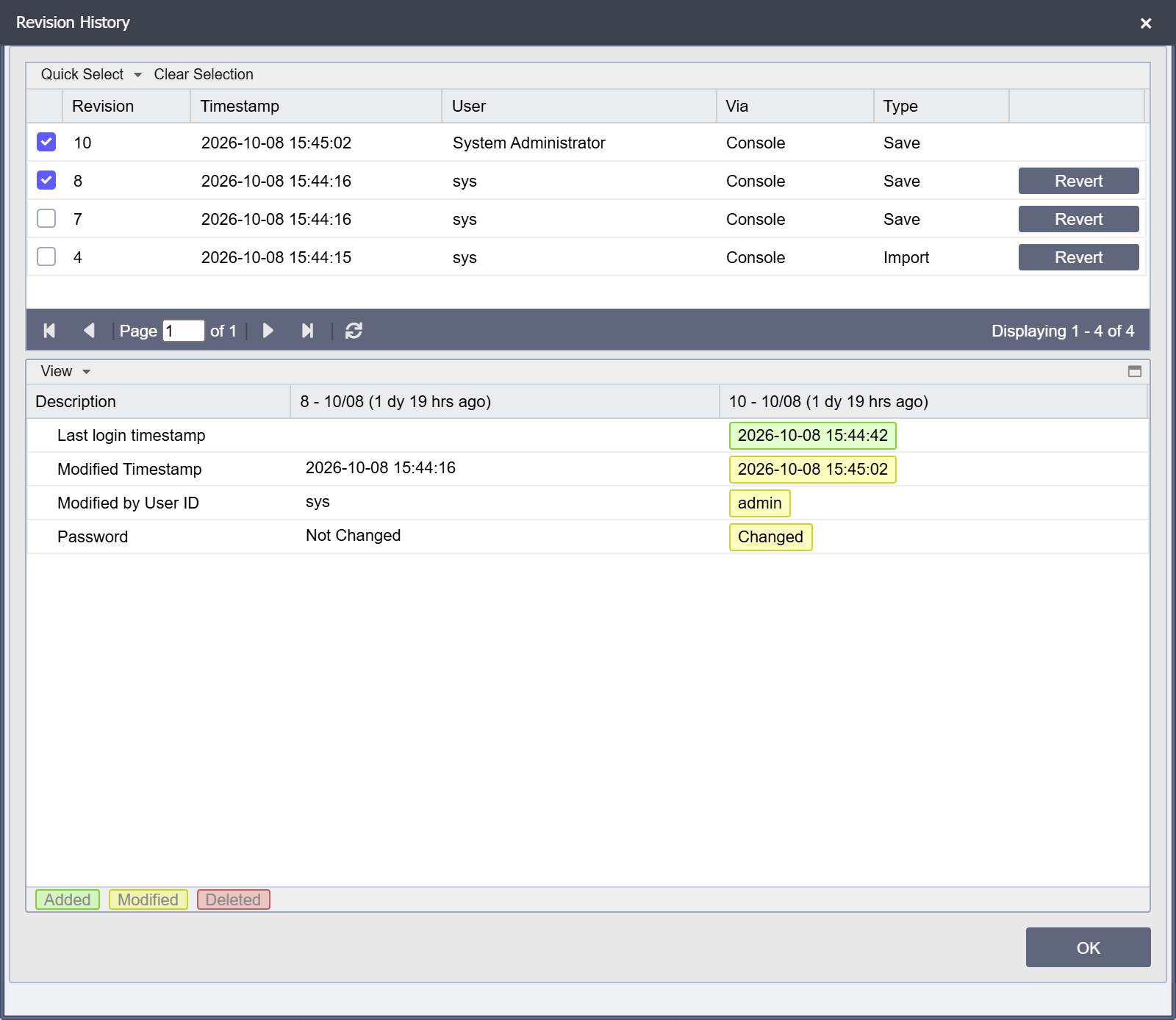
The Global Revision History dialog shows the same Via column for every object.
Dual Compare Dialog
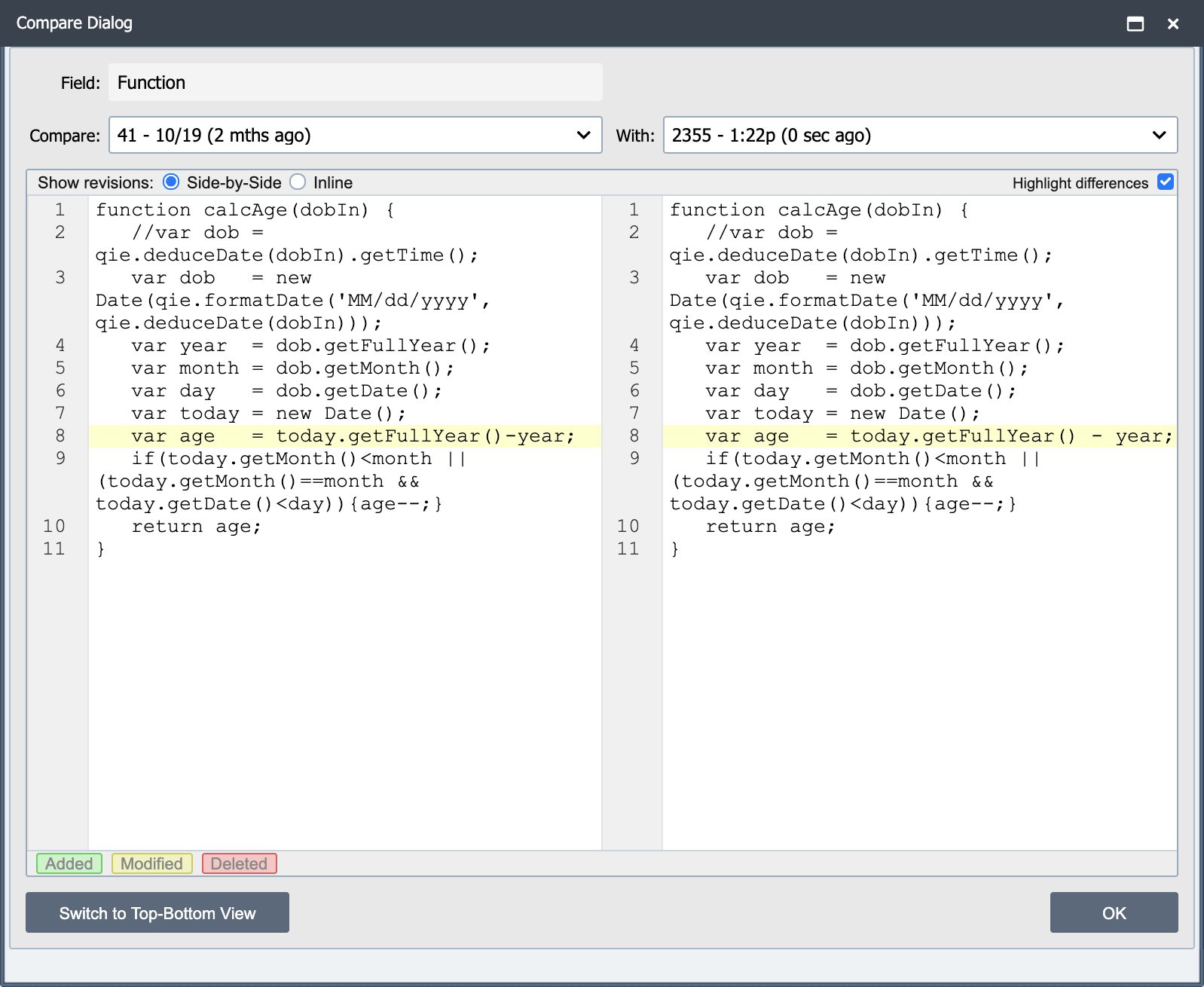
The dual compare dialog displays the revisions side by side, so it is very simple to see the value before the revision and the resulting value. Use the drop-down menus at the top of the screen to choose different revisions to view in the dialog.