Introduction
The Qvera Interface Engine (QIE) connects you to the networks and platforms that unlock your patient data. This guide provides detailed resources that support effective implementation and management of software interfaces using QIE.
Key Concepts to Understand
This chapter describes some of the key concepts that a user must understand in order to successfully utilize the QIE application.
Message
A message is the basic unit of data that QIE operates on. It is a packet of data which represents a communication in digital format from a source system to a destination system. A message consists of a format (HL7, XML, CSV, etc.) and content. Using QIE, messages can be routed based on content or other conditional logic. Message content can be manipulated using mapping functions, and message format can be changed from one format to another (e.g. from HL7 to XML).
Channel
A QIE Channel represents an interface between two (or more) systems and contains the entire configuration for managing the flow of information between the systems. A channel always has one (and only one) data source and at least one destination. A channel typically also contains one or more mapping and/or condition nodes which handle message routing and data manipulations.
Channel Node
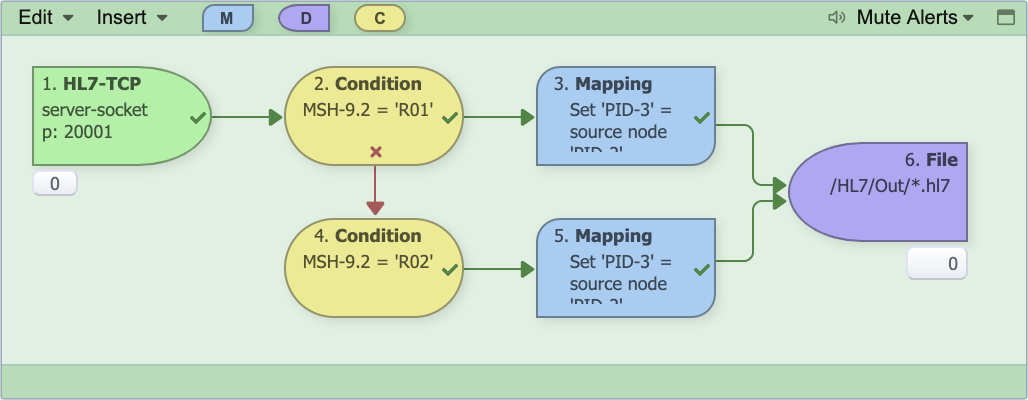
In QIE, channels are represented graphically (using QIE's Visual Channel Editor) as a series of inter-connected nodes. Connections between channel nodes control how messages flow through the channel.
There are 4 types of channel nodes:
-
Source Node (green): The source node represents the data source for the channel. It is used to configure how messages are received (e.g. socket connection, file transfer, database query, etc.). The source node also specifies the expected format of the incoming messages (e.g. HL7, XML, CSV, etc.).
-
Condition Node (yellow): The condition node is used to route messages based on message content or other conditional logic. If the condition is met, the message is routed to all nodes connected to the success connection point (
 ). If the condition is not met, the message is routed to all nodes connected to the failure connection point (
 ).
). -
Mapping Node (blue): The mapping node contains one or more mapping functions which are used to manipulate message data or format. The number of mapping nodes in a channel varies based on the requirements of the interface.
-
Destination Node (purple): The destination node represents a data destination for the channel. Similar to a source node, the destination node is used to configure how messages are sent to the destination system (e.g. socket connection, file transfer, web service call, etc.). The number of destination nodes in a channel varies based on the requirements of the interface. A minimum of one destination node is required.
Mapping and Mapping Function
A mapping consists of one or more related mapping functions which are executed in a specific order. A mapping function is an operation performed on a message to manipulate the message data, format, etc. All data manipulations in QIE are performed using mapping functions.
Database Connection
A database connection contains the connection information (username, password, schema, driver, etc.) for connecting to a database in QIE. Database connections are used by source nodes and mapping functions to query for information in a database. They are also used by destination nodes to insert or update information in a database.
Web Service Connection
A web service connection contains the connection information (username, password, service type, end-point URL, etc.) for establishing a web service connection. Web service connections are used by mapping functions and destination nodes to query a web service for data or information and/or submit data to a web service. Connectivity to immunization registries and HIE networks is typically established using web services.
System Variable
System variables are used to store static values that can be referenced by mapping functions (e.g. a cross-reference table used to map physician IDs from one system to another). System variables can be updated from a script as long as the option to 'Enable qie.setVariable() ' is checked.
Certificates
Certificates are used to establish secure communication between two systems. QIE has integrated certificate management into the user interface to help simplify the management and integration of certificates for communication.
Zone
A Zone is a group of channels and resources (variables, database connections, functions etc) that are utilized by the channels. An object in one zone cannot be seen or utilized in any other zone. QIE permissions can be granted based on zones.
Global vs. Zone Scope
Resources such as variables, connections, published mappings, etc. can exist at either the global level or the zone level. Resources that exist at the global level (in the Global Settings Zone) are visible to all zones. Resources that exist at the zone level are only visible to the zone in which they exist.
Navigation
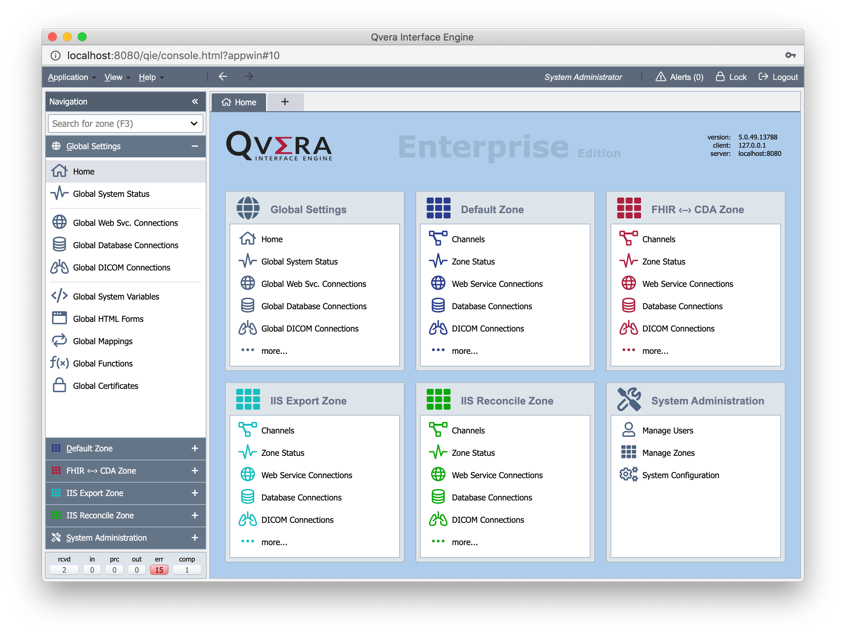
The QIE user interface is divided into two main sections: the Navigation Panel and the Content Panel.
Navigation Panel: Used to move between zones, channels, and the resources channels draw on. What you select here decides what the content panel shows.
Content Panel: The working area. It displays the page for whatever is selected in the navigation panel (a channel, a connection, a system administration page) and is where the configuration and monitoring actually happens. When nothing is selected, it lists the zones the signed-in user has access to.
Taskbar
The taskbar located along the top of the QIE application is accessible from anywhere in the application. It contains the Application, View and Help menus, displays the logged-in user and the number of active Administrator Alerts and allows the user to logout (Ctrl+Shft+L) or manually lock the terminal (Ctrl+L).
Application Menu
Contains options to modify the refresh rate of the status screens and edit the logged-in user's profile or change the password for the user. This menu also displays the hot key combinations to lock the terminal (Ctrl+L) and logout (Ctrl+Shft+L). The dialogs to import/export configurations are also located on this menu. For more information about importing and exporting please see Importing and Exporting Configurations.
View Menu
The View Endpoints option allows the user to view all endpoints for all channels in all zones. (See below) The user can also view the QIE server logs and access a global find function to search for channels, code or other items of interest within QIE.
The View menu also contains options to customize the appearance of QIE and manage tabs. Hot key combinations are included for opening a new tab (Ctrl+Insert), closing the current tab (Ctrl+Delete) and moving between open tabs (Ctrl+Tab or Ctrl+Shft+Tab).
The Display Modified Timestamps checkbox option, enabled by default, shows an additional line beneath each item in the channel list and the other zone-object lists (database connections, DICOM connections, forms, published mappings, packages, published functions, SSL certificates and private keys, system variables and web service connections) with the date and time the item was last modified. The selection is saved with the logged-in user's settings, so it persists across logins.
ViewEndpoints
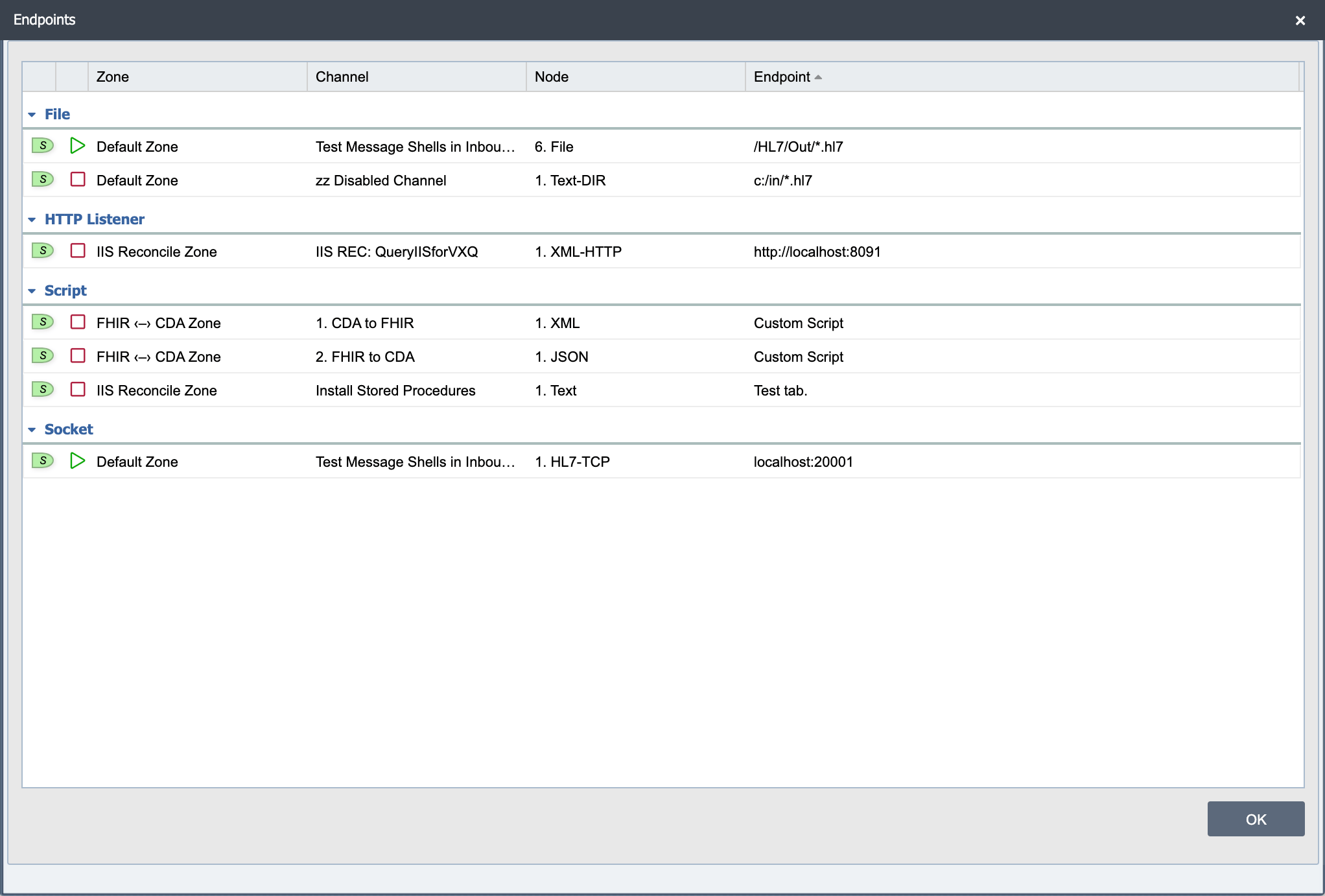
The view Endpoints dialog displays all endpoints (both source and destination) from all channels in all zones. The endpoints are grouped by Type: Database, FTP, File, HTTP Listener, Script, Secure Socket, Socket and Web Service. Each group can be minimized or maximized by clicking the button to the left of the type.
For each endpoint the following information is displayed: Source  or Destination
  , Zone, Channel, Node and Endpoint. If the logged-in user does not have sufficient permissions, the object displays the word Hidden. Hovering over the word hidden displays 'Insufficient permissions to view detail'.
Double clicking on the line item takes you to the channel listed in the dialog assuming the user has sufficient permissions to view the resource.
Help Menu
The Help menu is deliberately short: it links to the places answers live rather than listing every guide, because the help site's own navigation already does that and a duplicate list here goes stale whenever a page moves.
- AI Companion: opens the AI Companion for in-app assistance. Usually the quickest route to an answer.
- Help Documentation: opens this help site, including the generated Java Options reference (System Administration -> All Java Options) and the Code Wizard function reference (Channels -> Scripting -> Code Wizard -> Function Reference), both searchable by name. The help site opens in the light or dark scheme of the current QIE theme. Its own toggle switches the scheme until the next time the help is opened from QIE.
- Knowledge Base: opens the Qvera Knowledge Base in a new browser tab.
- Monitor Server Resources: opens the Monitor Server Resources dialog, discussed later in this document.
- About QIE: opens the About dialog, showing the installed build and license information.
Alerts
This icon is displayed on the taskbar if there are any outstanding alerts in QIE. Administrative alerts let the user know that there may be an issue that needs to be addressed by an administrator such as no SMTP Server Configured for email alerts or a certificate that is about to expire. Clicking the icon displays the alert and explains how to correct the issue. The alerts also display immediately after login. The number of outstanding alerts displays to the right of the icon.