Global Settings
The Global Zone contains resources that are available for use in all zones. For resources such as database or web service connections, defining a single shared instance at the global level means a password change, certificate rotation, or URL update happens in one place instead of being duplicated across zones.
QIE tracks the revision history of changes made to global resources. Click the history icon on the panel menu bar to view who changed what and when. See Revision History for details.
Managing Resources Across Zones
A resource that lives in one zone can be copied or moved to another zone, or up to the Global Zone so other zones can use it. Open the appropriate resource dialog, select the resource, and choose Save As or Move from the Manage drop-down in the center panel.
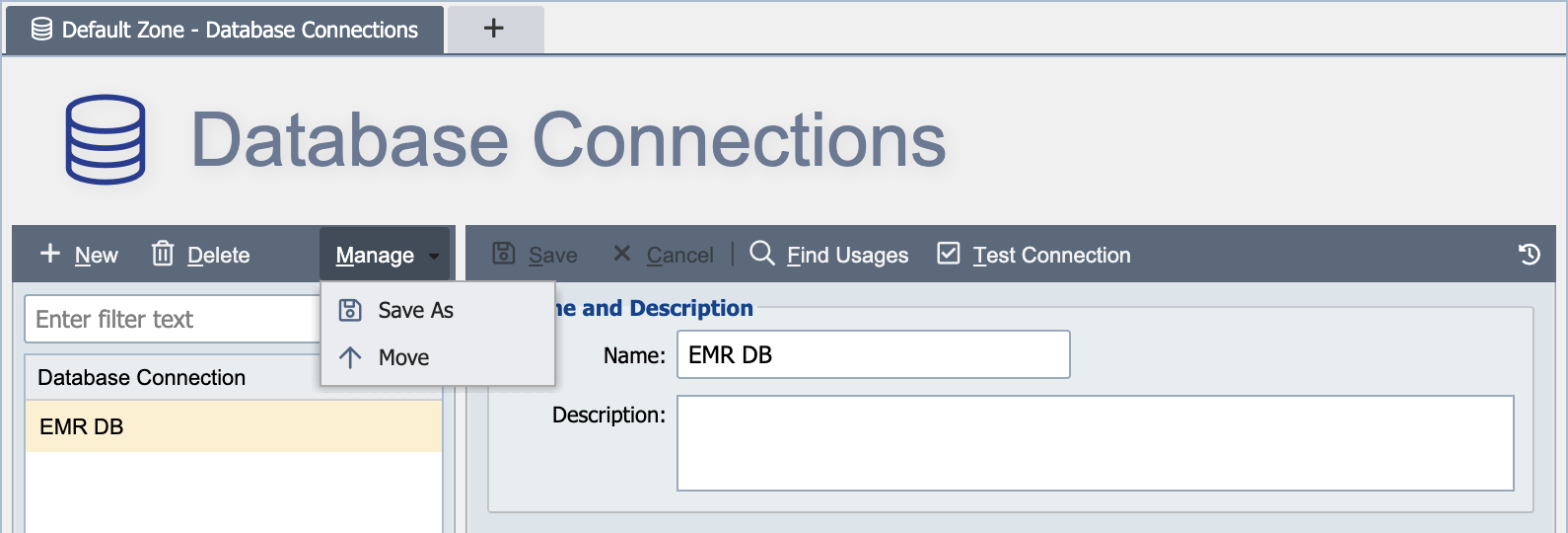
Before moving or deleting a resource, click Find Usages to see which channels reference it.
Save As
Creates a copy of the resource in another zone. The original stays in place. Enter a New Name for the copy and select the destination zone (or Global Settings to make the copy global). The new name must be unique within the destination zone.
Move
Moves the resource out of its current zone into another zone. The original no longer exists in the source zone. Optionally enter a new name, then select the destination zone (or Global Settings to move the resource to the Global Zone). The name must be unique within the destination zone.
Warning
Before moving a resource out of the Global Zone into a specific zone, use Find Usages to confirm no channels in other zones depend on it. Any such references break after the move.