System Maintenance
The System Maintenance, Migrate QIE Database and Restart QIE controls described on this page are sections of the System Configuration page, at the foot of the panel.
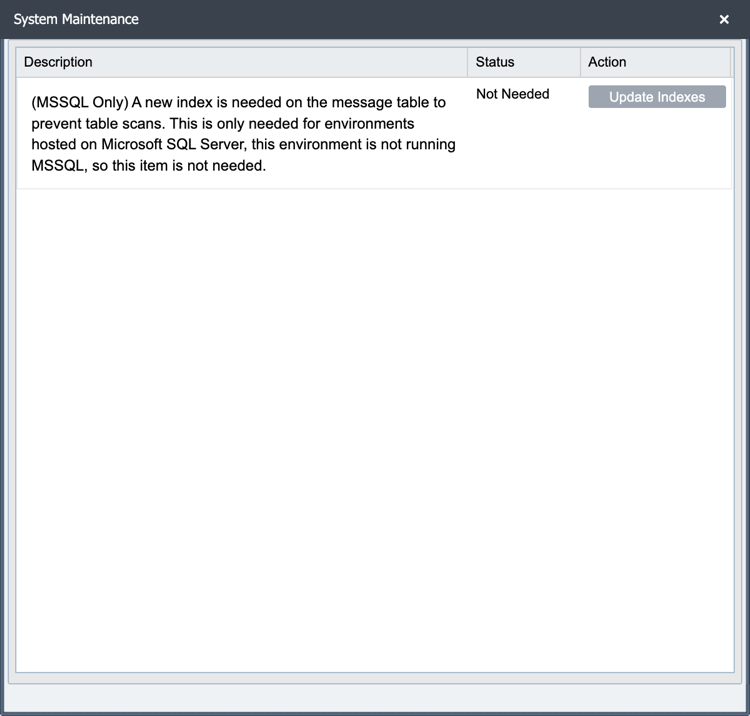

The System Maintenance feature provides a framework for running long-running tasks that prepare customer databases for newer QIE versions. Administrators have full control over when these tasks are executed, ensuring they can be run at the most convenient time. While it currently includes a task to add a new database index, future product releases will introduce additional tasks or retire existing ones as needed.
Migrate QIE Database

This option can be used to migrate the QIE database without losing any of the message history or configuration.
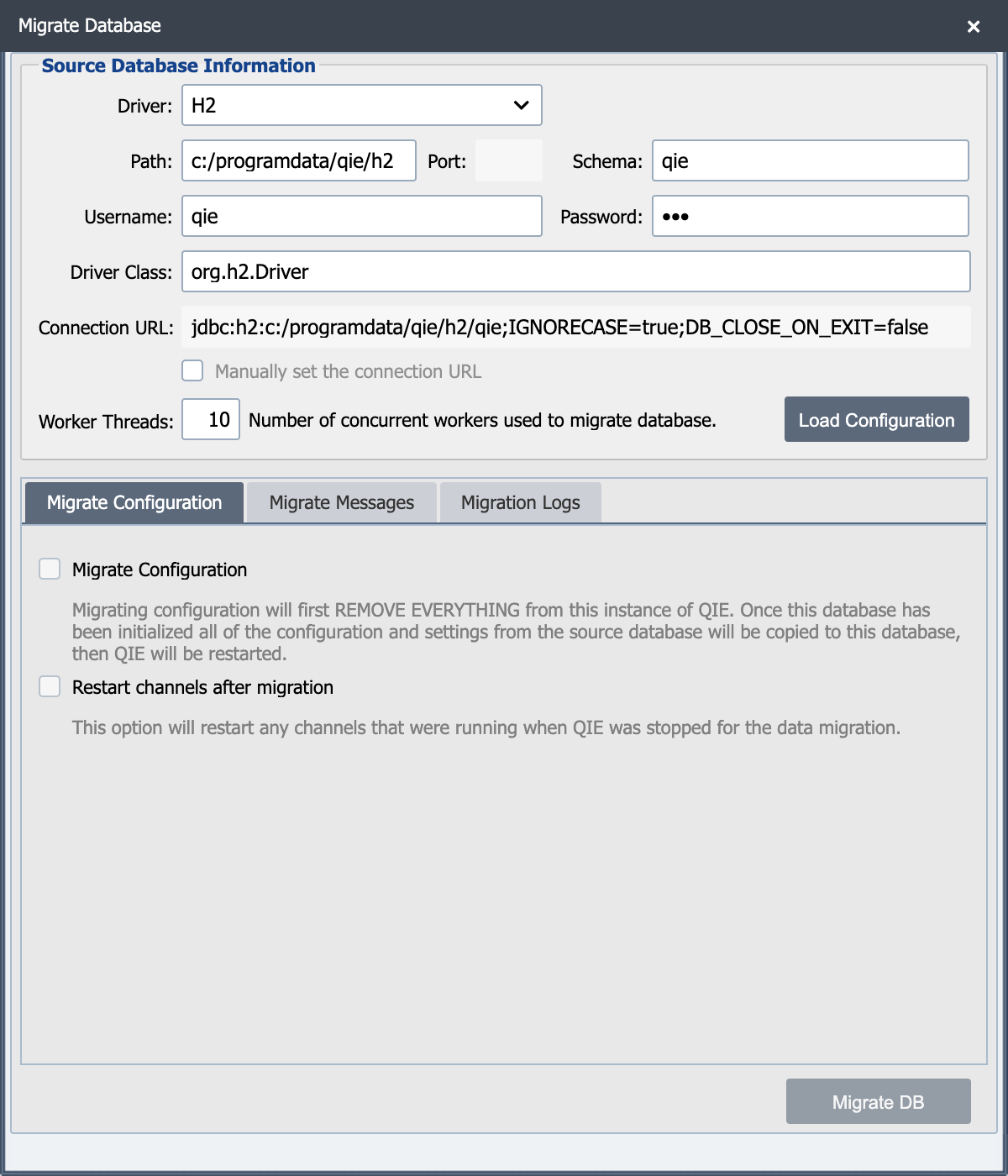
Migration can be run from H2, MySQL, MariaDB or MSSQL to MySQL, MariaDB or MSSQL.
Warning
You cannot migrate TO an H2 database.
Before you start
The Migrate QIE Database dialog reads from a source database and writes into the database QIE is currently connected to. The dialog does not switch databases for you. QIE must already be running against the empty target before you click Load Configuration. The required ordering applies to any database migration:
- Create the target schema and user. Stand up an empty database/schema on the target server (MariaDB, MySQL, or MSSQL) and create a database user with full privileges. See Configuring QIE with an Alternate Database Management System for the per-vendor steps.
- Reconfigure QIE to point at the empty target. Update QIE's Startup arguments (
-Dconnection.driver,-Dconnection.url,-Dhibernate.dialect,-Dconnection.username,-Dconnection.password) to point at the new target. The matching section of the Supported Databases guide lists the exact values per vendor. - Restart QIE. When QIE comes back up, it is running against the new empty database.
- Open Migrate QIE Database and identify the original database as the source in the fields below.
Driver
Select the database from the drop-down list.
Path
Enter the full path to the database.
Port
Enter the port where the database is installed.
Schema
Enter the name of the database.
Username
Enter a username with full access to the database.
Password
Enter the password associated to the user.
Load Configuration
After filling in the information above, click the Load Configuration button.
Select the data to be migrated from the Migrate Configuration and the Migrate Messages tabs:
Migrate Configuration
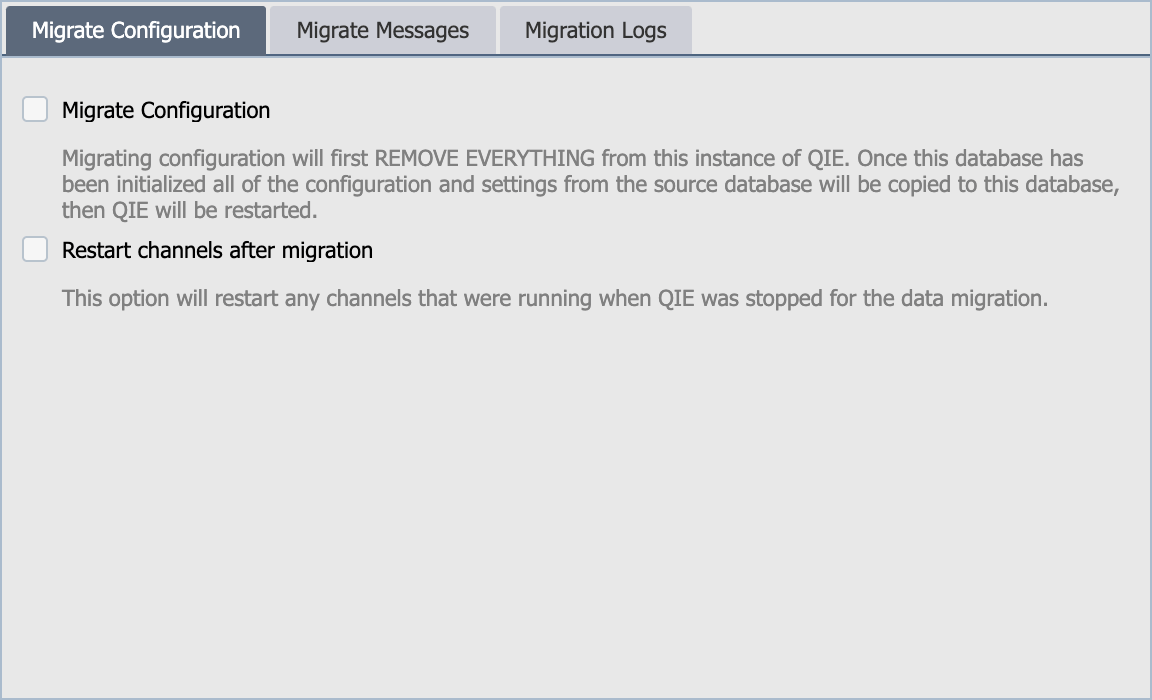
Migrate Configuration
Select this option to migrate the configuration. This is only available if the current configuration is empty.
Restart channels after migration
Select this checkbox if the channels need to be restarted after the migration is complete.
Migrate Messages
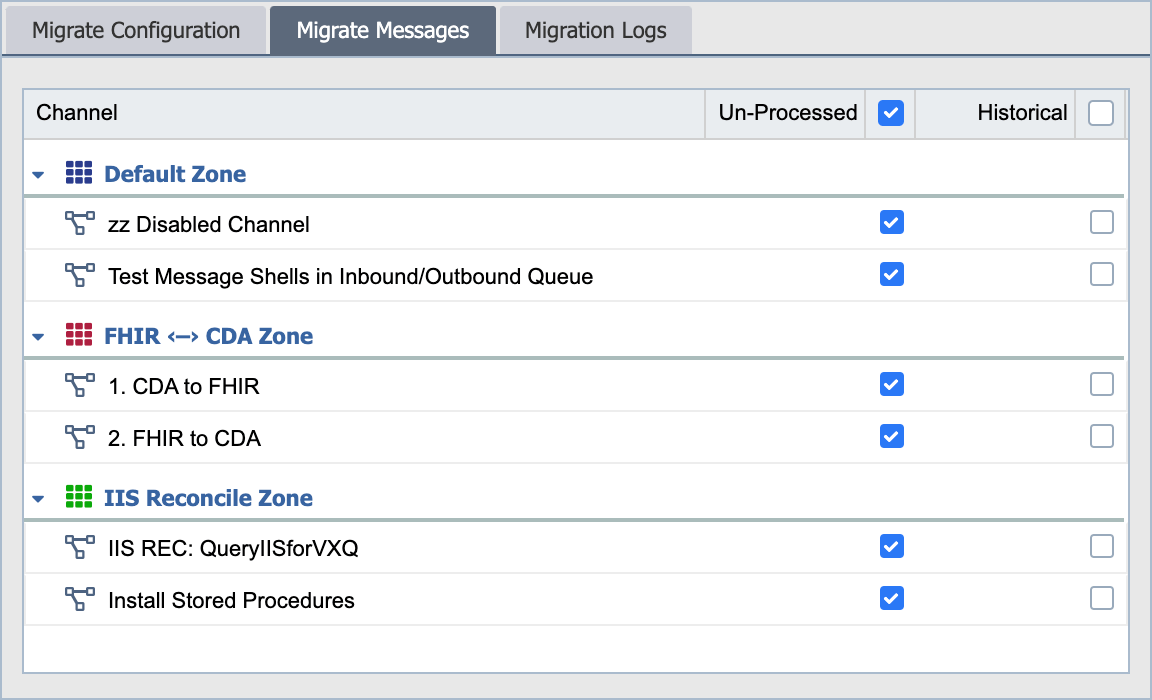
Channel
Select the desired channel(s).
Un-Processed
Select this option to migrate unprocessed messages for the selected channel(s). This option is only available when the configuration is also selected.
Historical
Select this option to migrate historical messages for the selected channel. This option can be selected when the configuration and un-processed messages are migrated. The historical migration is typically the longest running process so it can also be run after completing the initial migration. This allows the user to get QIE up and running quickly with the configuration and un-processed messages.
Log Messages
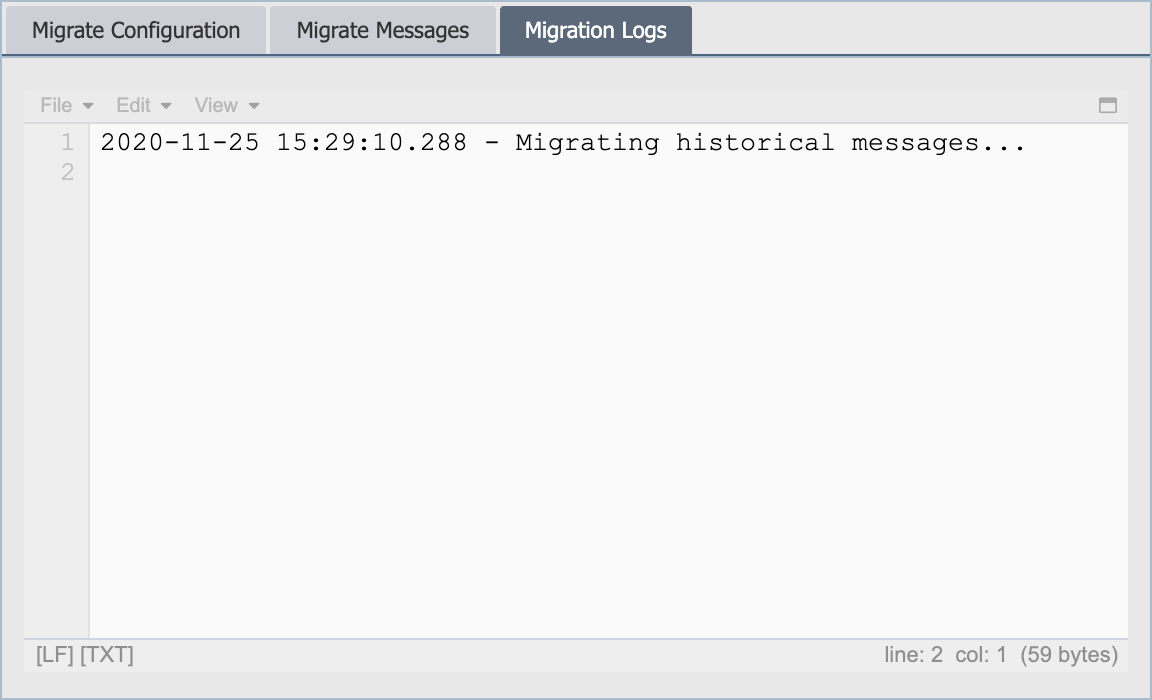
This tab displays the log messages produced by the migration. It is available during and after the migration and can be used to troubleshoot a failed migration.
Restart QIE
Clicking on the Restart QIE button stops and restarts the QIE service from the client side, without having to log onto the QIE server to perform this function.