Managing Licenses and License Groups
Licenses
In QIE the total number of channels allowed to run simultaneously is determined by the installed license. If a license has a channel limit of 5, attempting to start a 6th channel displays an error and prevents the channel from starting. There is no limit to the number of channels that exist in an instance of QIE, allowing the user to create and test changes to channels without affecting a production environment.
Note
Non system administrators can only VIEW licenses.
Before a License Is Installed
Until a license is installed, QIE opens only the Home page and the dialogs needed to license it. Selecting any other page, menu item or toolbar button displays a License Required message instead. For an administrator, clicking OK on the message opens the License dialog so a license can be installed. Other users are told to contact an administrator, and can only log out.
These remain available without a license:
- Help -> About QIE and the License dialog, including Configure Http Proxy Settings.
- Import Configuration, from the Application menu or from the prompt shown at first login.
- Migrate DB, from the License dialog, while the installation has no configuration of its own.
- Help -> Monitor Server Resources.
- Change My Password, Lock and Logout.
- Help Documentation and Knowledge Base.
Any installed license lifts the restriction, including an expired one. A license whose key cannot be read, or whose key carries no License ID, does not count. An expired license still cannot start channels. The AI Companion is not available until a license is installed.
Activating a License
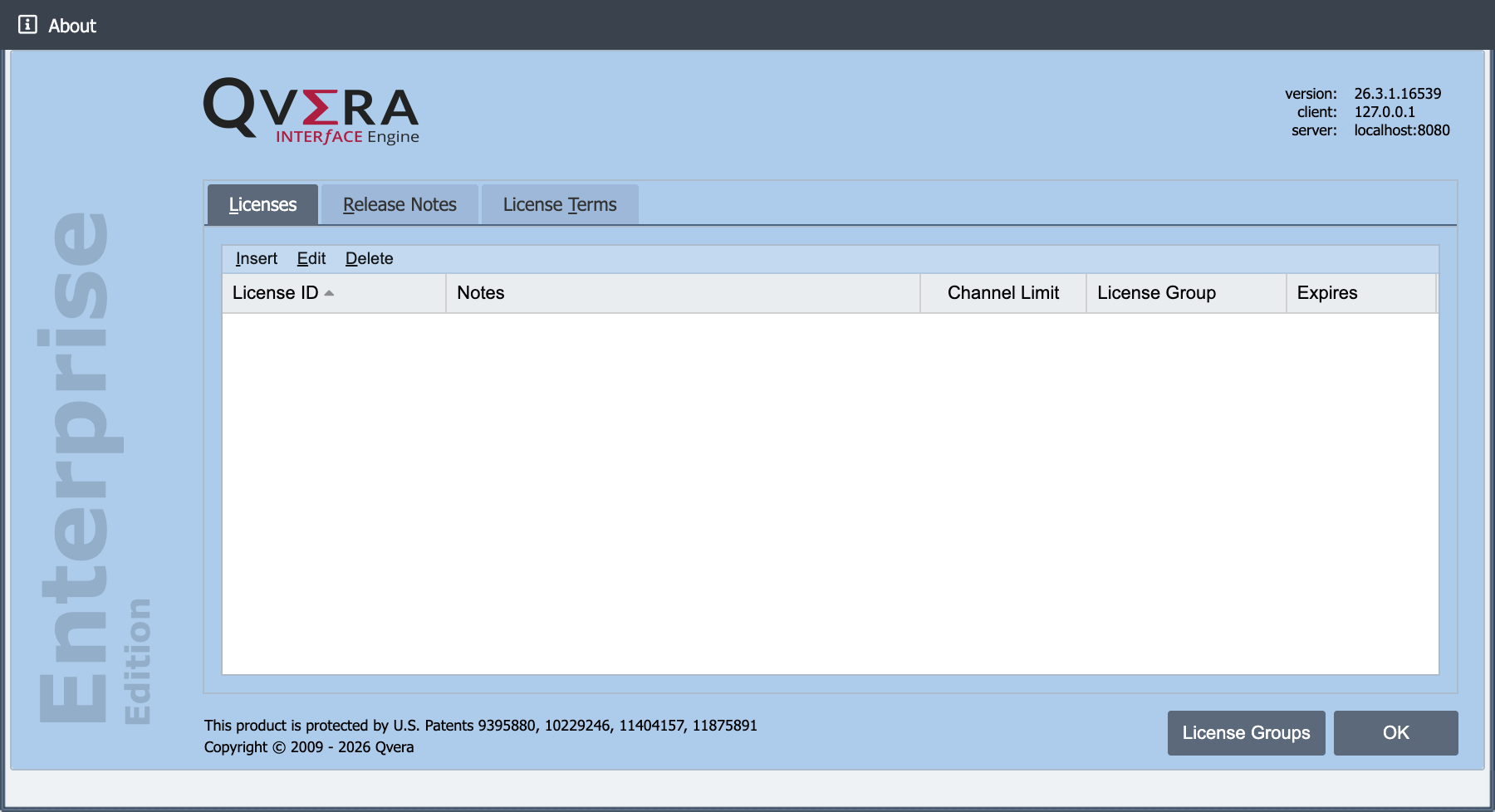
On a new installation, the License dialog opens on its own after the first login. To open it yourself, follow these steps:
-
Select Help -> About QIE from the main menu.
-
Select Insert on the Licenses tab.
-
If no license is installed yet, enter the System Name, select the System Type, and click Apply. Get License stays disabled until both are saved.
-
Enter the License ID and Activation Code and select Get License. The license details populate when both are valid.
-
Select Save and OK to exit.
Note
When you select Get License (or Refresh License for an already-installed license), QIE retrieves the license key from Qvera and saves it to the QIE database immediately. Because the license is stored as soon as it is retrieved, the Cancel button no longer removes it. Cancel only discards unsaved changes such as license notes or the allocated-channel count. If you retrieved a license you did not intend to install, remove it from the License Keys grid (select it and click Delete).
Note
Right after Get License or Refresh License, the Cancel button is disabled until you change an editable field (for example, the license notes or allocated channels). The license is already registered to this server, so select Save to finish; the status bar and the hover text on Cancel say so. At any other time Cancel is enabled, including before you select Get License and when you open an installed license with Edit.
Note
A License ID and Activation Code can be obtained by contacting Qvera.
The License Dialog
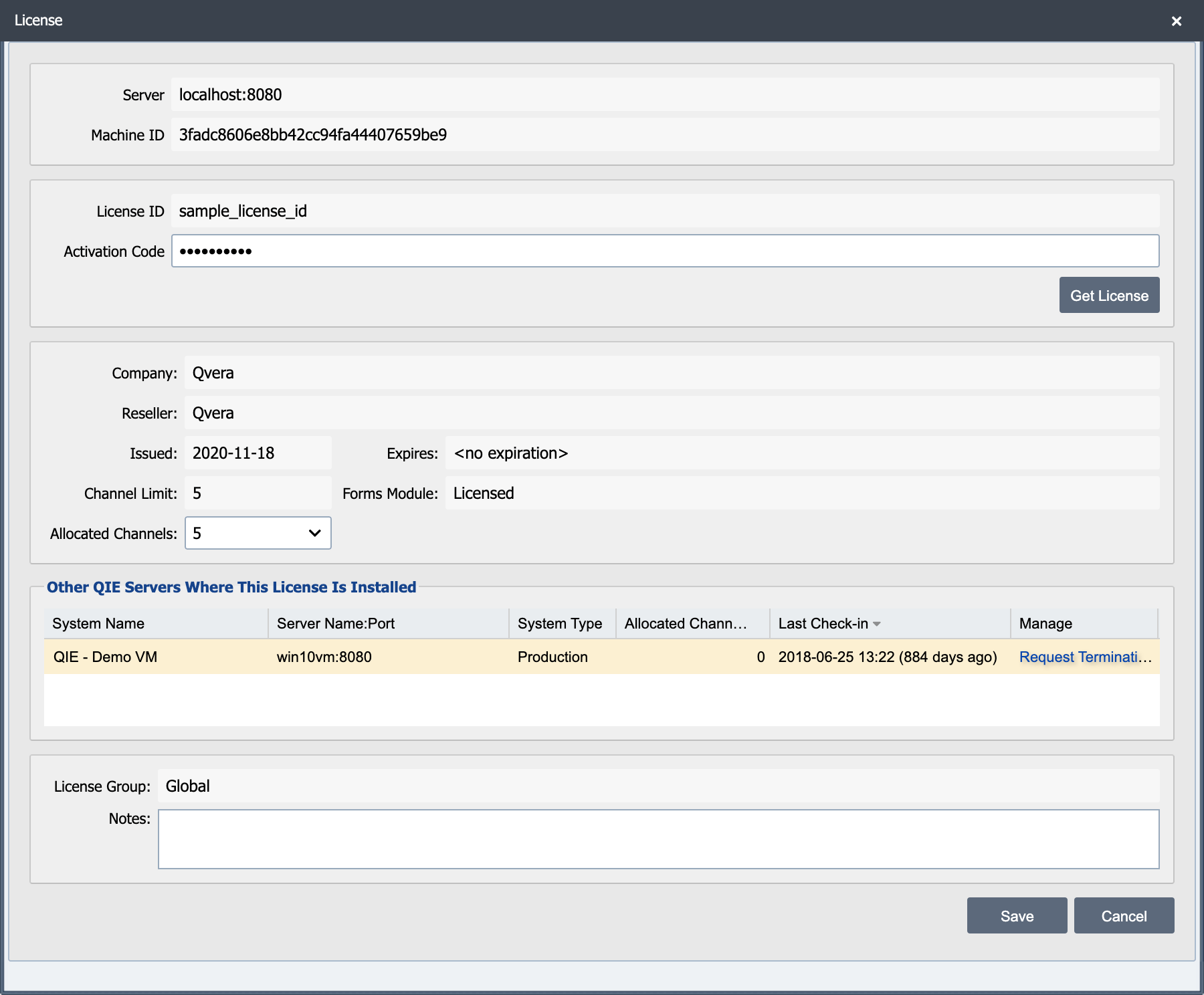
The License dialog opens with the System Name and System Type of this installation. Below them are the License ID and Activation Code used to retrieve a license from the Qvera license server. Next come the Server and Machine ID the license is associated with, and the license detail. The progress bar is only visible within the last 30 days prior to the expiration date. The last sections show other servers where the license may already be installed, and the group the license is part of. While no license is installed and nothing is configured yet, a Migrate QIE Database box sits at the bottom.
System Name and System Type
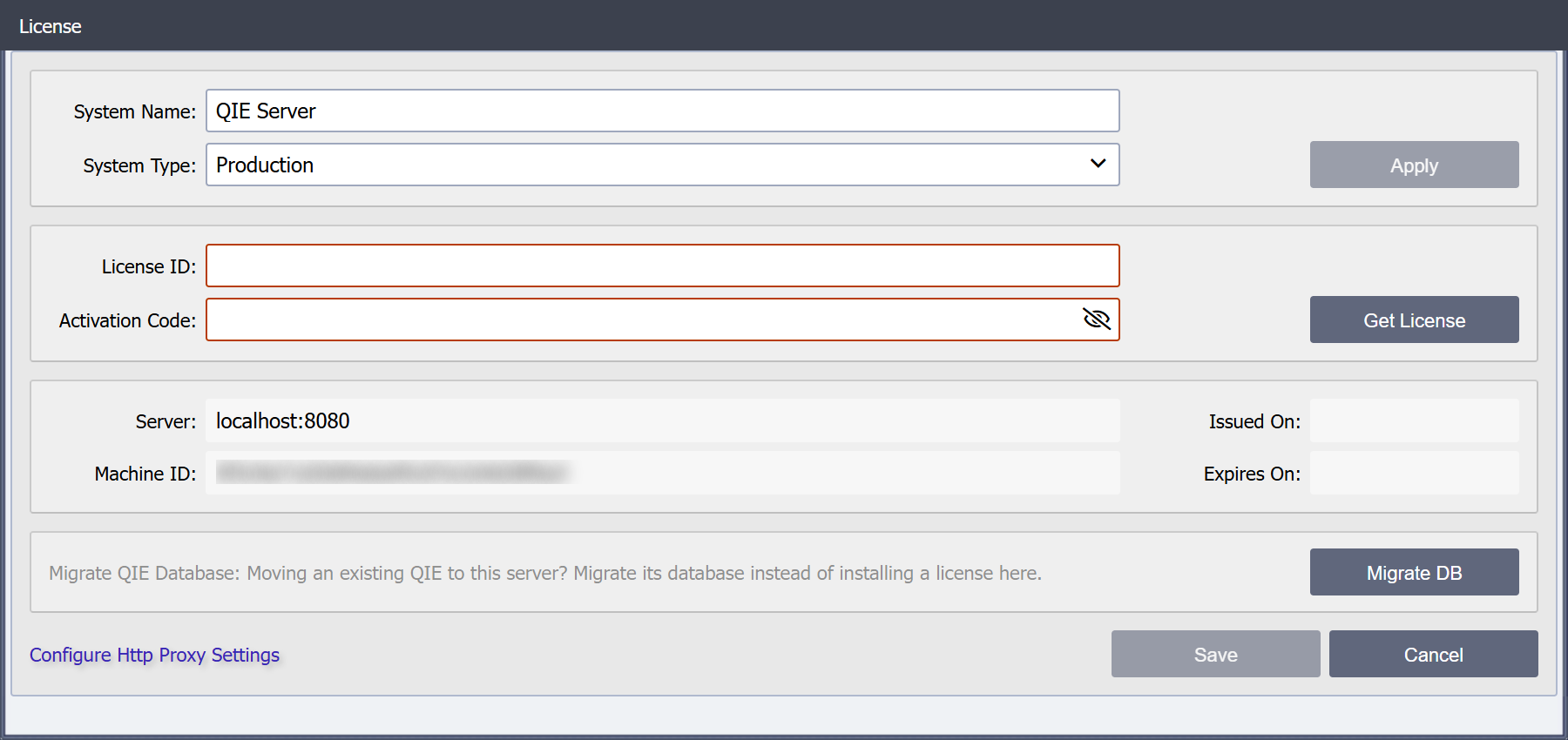
The System Name and System Type of this QIE installation, the same settings that head the System Configuration page. They are editable here only while no license is installed, so a new installation can be named, typed and licensed from one dialog. Change either field and click Apply to save it. Get License stays disabled until both are saved.
Once a license is installed, both fields are read-only here and are changed on the System Configuration page instead. On a Remote Management Hub the system type is always Hub, so only the System Name is shown.
Migrate QIE Database
The Migrate QIE Database box at the bottom of the License dialog is shown only while no license is installed and the installation has no channels and no zones besides the default zone. Its Migrate DB button closes the License dialog and opens the Migrate Database dialog, the same Migrate QIE Database option the System Configuration page offers. Use it to move an existing QIE to this server instead of licensing a new installation. The migration copies the other system's configuration, including its System Name, System Type and licenses.
License Group:
This is the group this license is associated with. This is the only editable field and can be modified via the Select button to the right. See the License Groups section for more about license groups.
Company:
This is the organization the license was issued to.
Issued On: and Expires On:
These fields identify the duration of a license. Expires On is the first day the license is no longer honored, and the license stays valid through the end of the day before it. From midnight on the Expires On date, QIE refuses to start any more channels in the license group. Channels that are already running keep processing until the nightly check-in, which stops them and disables the forms in that license group.
Channel Limit:
The channel limit on a license controls the maximum number of running channels or enabled forms allowed. Channels and forms can be created without a license but cannot be started or enabled until properly licensed.
Allocated:
From this field a user can determine how many channels to allocate to this QIE instance. It appears only for licenses whose channels are divided between servers. If all of the channels for this license are already installed on another server, the user must first log onto the other server and allocate fewer channels on that instance. That frees up channels to be allocated on the second server.
Other QIE Servers Where This License Is Installed
A single license is normally installed and used with one production and one test server. This dialog also allows a user to deactivate a license from a given server so as to be installed on a new or different server. However, a single license with multiple channels can also be divided up across multiple QIE instances.
System Name:
This column shows the name of the QIE instance assigned in The System Configuration where this license may already be installed.
Server Name:Port
This column shows the Server Name and Port Number where a given license may already be installed.
System Type:
This field shows the system type (Production, Test, or Hub) of the QIE instance where the license may already be installed. Hub identifies a Remote Management Hub, which runs no channels and spends the license's channel limit on registered sites instead.
Allocated Channels:
This field shows how many channels have been allocated to a given QIE instance. By default, all channels are allocated to the first server it is installed on. The number of channels can be divided by changing the Allocated drop-down from the previous section. This column appears only for licenses whose channels are divided between servers, and never for Standard licenses.
Last Check-in:
This field shows the date a given QIE instance checked in. By default, QIE checks in on a nightly basis. This can help the admin user to determine if a license is still actively being used on another QIE instance.
Manage:
A license can be terminated from another QIE instance by clicking on the Request Termination hyperlink. This takes you to a form that can be filled out and submitted to Qvera to request the termination of the other QIE instance.
Developer license behavior
Developer licenses are provided for building and validating channels, not to run in production. To make that distinction enforceable, QIE applies two policy behaviors whenever a developer license is installed:
- Daily 7 a.m. channel stop. Every morning at 7 a.m. local server time, every running channel is stopped. Channels can be manually restarted after the stop, but they will be stopped again the next morning. This keeps a developer-licensed instance from unintentionally carrying live clinical traffic.
- Management API start / resume is a no-op. A start channel or resume paused channel request through the Management API returns successfully (HTTP 200) but does not actually start or resume the channel; the response body includes a
/notefield explaining that the command would have started the channel on a regular license. Other Management API commands continue to work.
To run channels continuously (or start them programmatically through the Management API), switch to a Test or Production license.
License Groups
If required, zones can be controlled by licenses. License groups help organize how licenses are applied to zones. For example, in a hosted environment, each hosted client may have their own license. Each license may be assigned to whichever zone(s) include the client channels. This can prevent issues with all other clients if one client has an expired license. An expired license prevents channels in the included zone(s) from starting.
License Groups Dialog
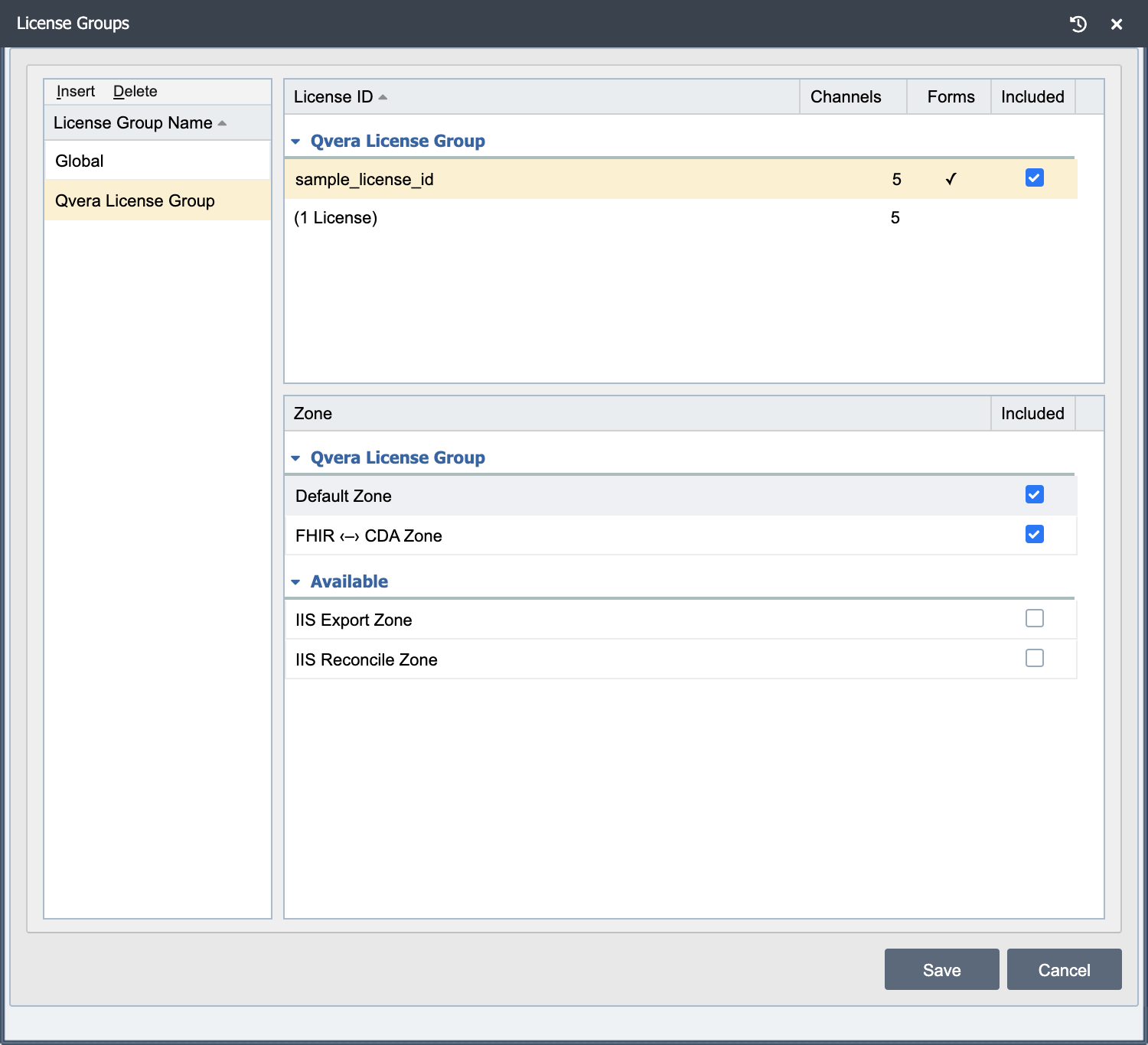
This dialog is used to both Manage and select license groups. This dialog is divided into two sections. The left section displays a list of License Groups. Use the Insert button to create a new license group. The Delete button deletes the highlighted license group. The right section is used to display and edit the detail for the selected license group. The panel displays license zone detail information.
License ID: The licenses included in the license group or that are available to be included in the license group.
Available: The licenses that are installed on the system and not in the license group.
Channels: Number of channels included in each license.
Forms: Whether forms are included in the license.
Included: Checkboxes to specify which licenses and zones are included in the group.
Creating a new License Group and Linking Licenses and Zones
-
Select Help -> About QIE from the main menu.
-
Click the License Groups button.
-
Click Insert to create a new license group. Enter a name and click OK.
-
The screen displays the available licenses. Use the checkbox to select the license(s) to include in the license group.
-
The screen displays the Available zones. Use the checkboxes to select which zone(s) to include in the license group.
-
Click Save to save the license group. The License Group field contains the new group.
The license now applies to only the zone(s) included in this license group.
The Global License Group
When licenses are installed without being tied to a license group they are in the Global License Group. This group covers all zones not included in other License Groups.
License Group Channel Limits
The channel limit for a license in the Global License Group applies to all zones included in the Global License Group. The channel limit for a license linked to a license group limits the number of running channels in the group. Multiple licenses can be linked to the same group to increase the channel limit for the group. To further clarify:
-
A QIE instance has 3 licenses.
-
License 1 and 2 each have a channel limit of 5.
-
License 3 has a channel limit of 25.
-
License 1 and 2 are linked to License Group MyHealth.
-
There are 2 zones (A and B) in License Group MyHealth.
-
The remaining zones are in the Global License Group.
-
Zone A has 6 running channels so Zone B is limited to 4 running channels.
-
The remaining zones can use up to 25 running channels.
Backing up License Configurations
In a multiple license install, QIE preserves the license, license group, and zone configurations. The nightly backup includes this configuration detail. In addition, the default System Administrator (Admin) user can also export this configuration. However, there are a few things to keep in mind:
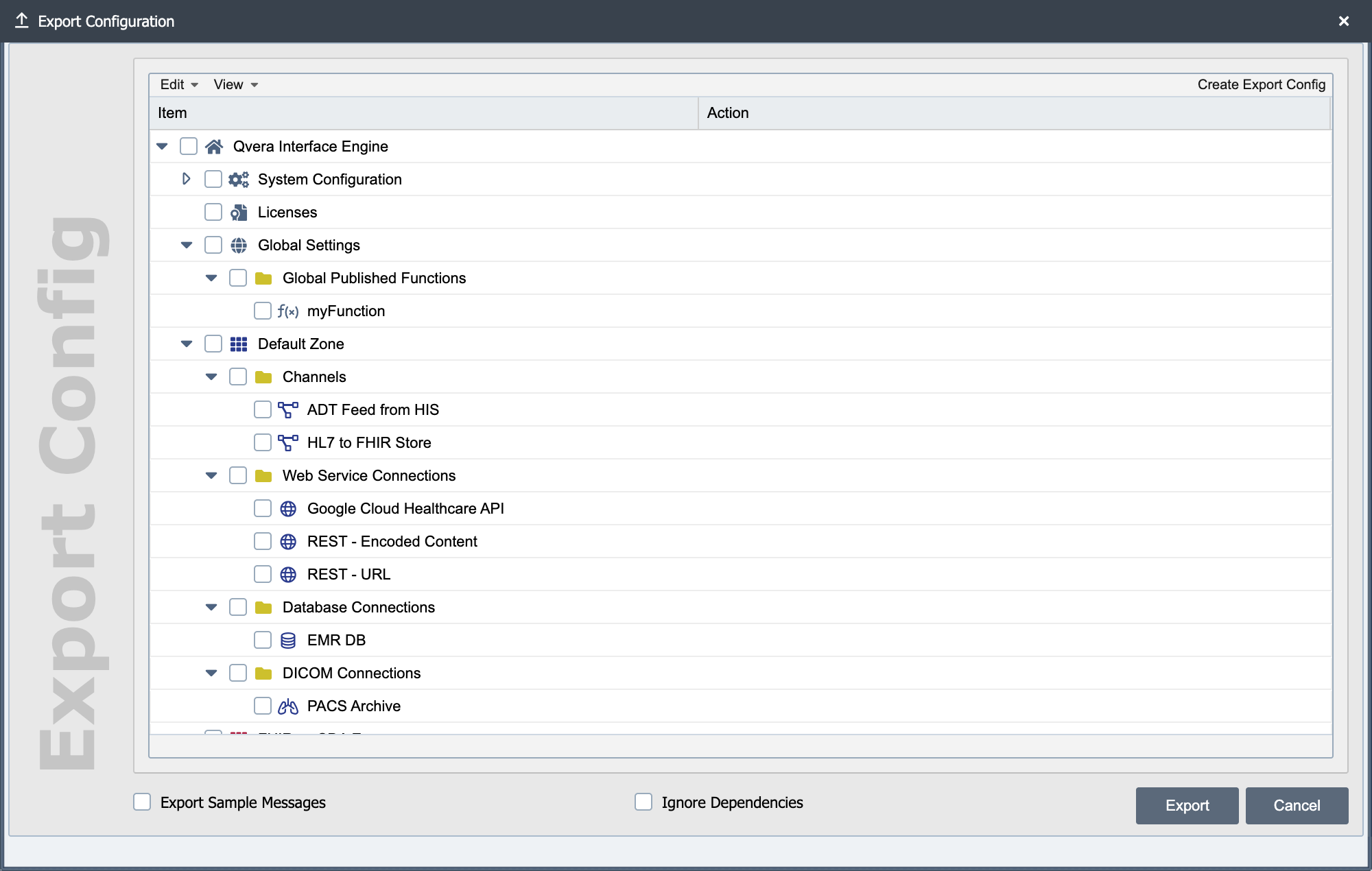
- The configuration is split across two nodes in the export dialog. The license groups and relationships to licenses and zones are exported under the System Configuration node, while the licenses are exported in the Licenses node. (See Importing and Exporting Configurations.)
Note
Both must be selected to capture the full licensing configuration.
- Only the default System Administrator (Admin) user has access to manually import and export the licenses.
Note
Licenses are encrypted in the export file and password protected using the password for the default System Administrator user at the time of export. Licenses can only be imported if the correct default System Administrator password is entered when prompted on import.