Zone Status
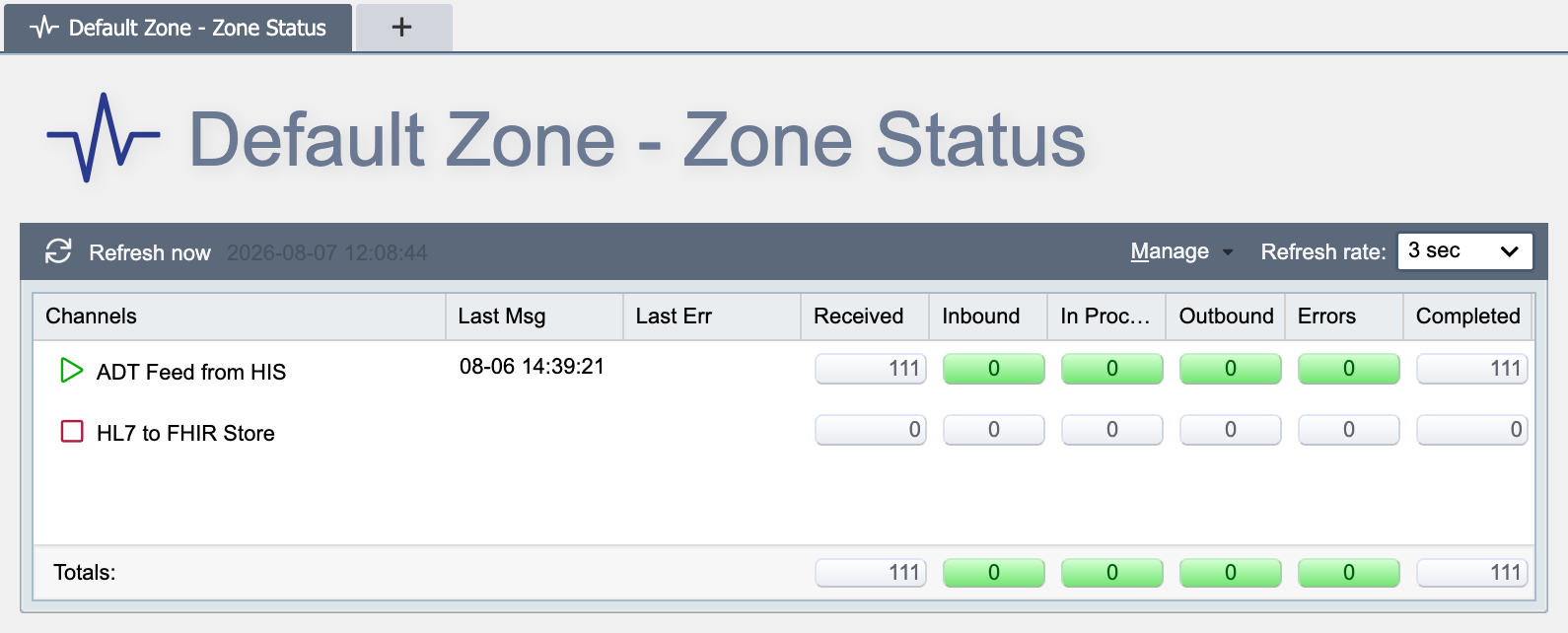
The Zone Status is nearly identical to the global status page described above. The scope is the only difference.
Status Summary Panel
The status summary panel contains 1 row for each channel in the zone and displays the counts for each of the message queues for the given channel. Clicking on the row displays the selected channel. The channel context menu can be accessed by right-clicking on the row. This context menu allows you to start, pause or stop the channel. The Manage button allows you to start, stop or pause all channels in the Zone.
Log History Panel
The system log panel contains a list of the most recent log entries across all channels. All log messages for the zone can be exported from this panel (see Exporting Log Messages for more information).
Log Level Filter
The Log Level Filter drop-down changes which log entries are displayed in the history panel. It accepts the same log levels you can configure on the channel itself (see Channel Log Level for more information).
Note
Changing the Log Level Filter does not change the log level. It simply changes (or filters) the log messages which are displayed in the log history panel. If the log level is set to 'Info', 'Debug' level messages are NOT generated, even if 'Debug' is selected in the Log Level Filter drop-down list.