Job Import Step
The Import the file step imports the job's configuration file at each site, as the preparer's Hub user. It imports the way the Management API's import does: everything in the file is selected, and each object is matched to the site's own object by its reference id or by its exact name (see Configuration Endpoints). A matched object is replaced by the file's; anything else is created. A job has at most one import step.
What the Import Writes
The import writes zones and the objects in them: channels, published functions, published mappings, database, web service and DICOM connections, system variables, certificates, private keys, HTML forms and packages. The file's system configuration and licenses are left out. Users, roles and their permissions are never written through the Hub, whatever the file holds. Nor are the certificates that the site's tunnel to the Hub, its Management API and its MCP listener present and trust, or the private keys that match them: an import step that tries to change one fails, and the certificate stays as it was.
As with any import, importing a channel only saves it. A running channel keeps running the version it loaded until it is restarted, so a change to running channels takes effect only after a Restart channels step. A later check step can then confirm it with Each Channel Runs Its Saved Version. See Job Channel Steps and Job Check Step.
The import runs as the preparer's Hub user, with the role the site's Role Map gives the preparer's Hub role. It needs edit rights in every existing zone it writes, and an administrator role at the site to create a zone. Its changes appear in the site's revision history with Via set to Hub Job; see What a Site Records for a Job.
Before the import writes anything, the site records the revision each matched object is at, so the import can later be rolled back; see Rolling Back a Job Site. A rollback cannot undo a package import, so a site where the job's file held packages cannot be rolled back.
Options
The import options are set on the step in the Add Step or Edit Step dialog, under Options. Each is the same as the Management API import option it names. A new step starts with the options the console's Import Configuration dialog starts with: Import Sample Messages and the names option ticked, the rest clear.
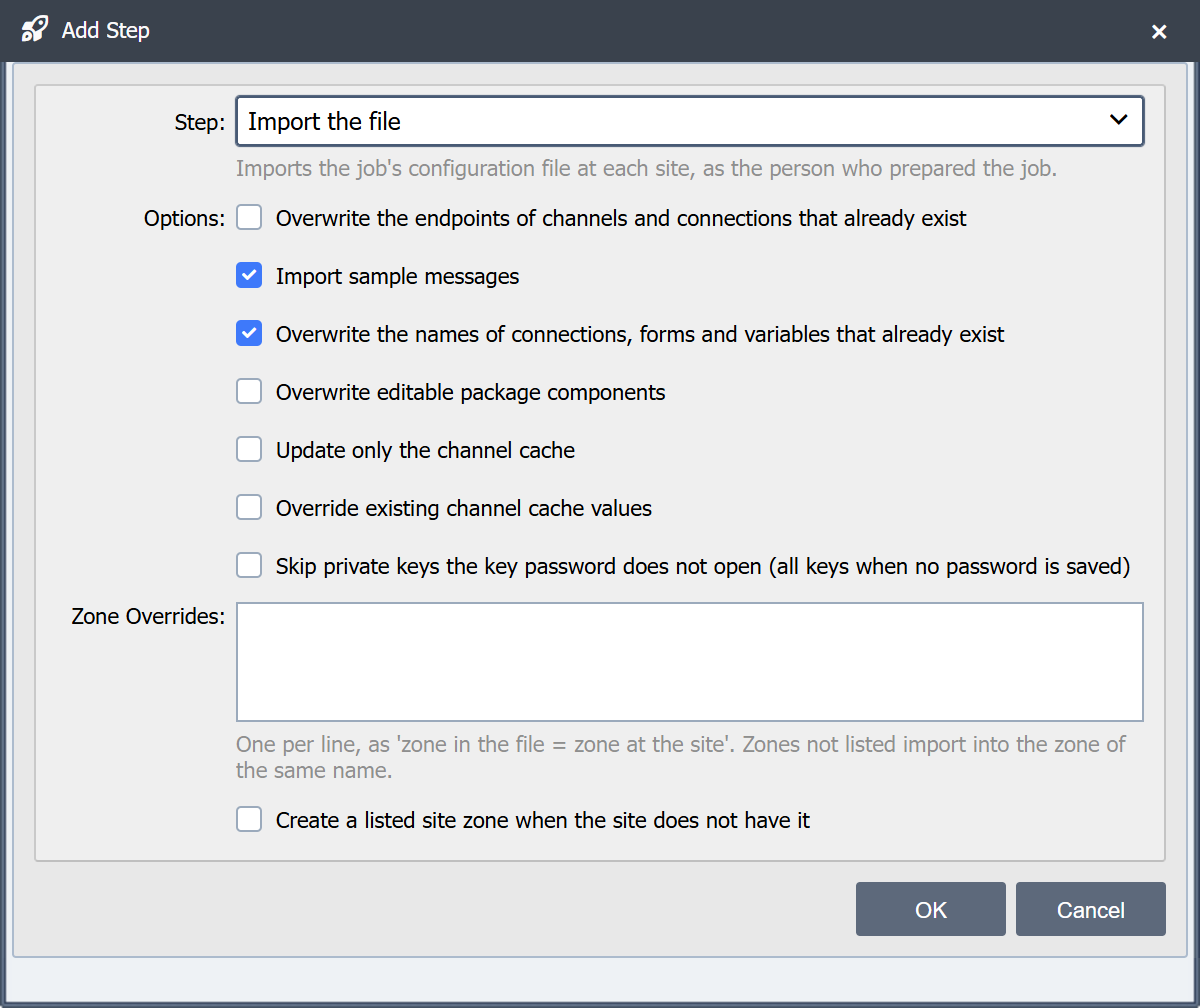
Overwrite the Endpoints of Channels and Connections That Already Exist
Off by default: an existing channel keeps its own endpoints. Ticked, the endpoints in the file replace them. This is the Management API's overwriteEndpoints and the console import's Overwrite Endpoints.
Import Sample Messages
Imports the sample messages in the file with their channels (importSampleMessages). Ticked by default.
Overwrite the Names of Connections, Forms and Variables That Already Exist
An existing database, web service or DICOM connection, HTML form or system variable that the import updates takes the name it has in the file. Clear, it keeps its name at the site. Ticked by default (overwriteConnAndVarNames). This is the console import's Overwrite Connection, Form, and Variable Names.
Overwrite Editable Package Components
Replaces the editable components of a package that already exists at the site with the file's. Clear, the site's own changes to them are kept (overwriteEditablePackageComponents). See Overwrite Editable Package Components.
Update Only the Channel Cache
Updates only each channel's channel cache instead of importing the whole channel (updateChannelCacheOnly).
Override Existing Channel Cache Values
Replaces the values of existing channel cache entries with the file's. Off, existing values are kept, while descriptions and missing entries are still updated (overrideExistingChannelCacheValues).
Skip Private Keys the Key Password Does Not Open (All Keys When No Password Is Saved)
Imports only the private keys the job's key password opens and skips the rest without an error (skipKeysWithInvalidPasswords). With no key password saved on the job, every private key in the file is skipped. Off, a file with private keys needs a key password that opens every one of them before the job can be submitted.
Zone Overrides
Zone Overrides sends a zone in the file into a differently named zone at each site, one per line, as zone in the file = zone at the site. Each line is split at its first "=". Zones not listed import into the zone of the same name.
Create a Listed Site Zone When the Site Does Not Have It applies to every line. Ticked, a site that does not have a listed zone creates it, which needs an administrator role at the site. Not ticked, the step fails at a site that does not have the zone. A line that names a zone the file does not hold fails the step at every site.
A zone in the file that the site does not have at all, by name or by reference id, is created, and creating a zone needs an administrator role at the site.
What a Site Refuses Before Writing Anything
The site checks the file before the import writes anything, and fails the step with the reason when:
- The file holds private keys, and the step sends no key password and does not skip keys.
- The file would write a zone the Hub user may not edit, or create a zone without an administrator role at the site.
- The file would change a certificate or private key that the site's own connection to the Hub uses.
- A zone override names a site zone that does not exist, and creating it is not ticked.
- The file cannot be read as a configuration export.
- Another import is already running at the site, started from the console, the Management API, the MCP or the Hub. The step fails at once with the message the console gives when another import process is running.
Affected Channels
The import step's result names the channels it affected at that site:
- The channels the import created or saved, whether or not the file changed them.
- The channels that use a published function, published mapping or certificate the import created or changed, found the way Find Usages finds them, across every zone at the site. The import saves every object in its file that matches one at the site, so one of these counts as changed only when what it holds differs from before the import.
A listed channel in a zone that the Hub user's site role may not view is named "a channel in a zone you cannot see".
Channel and check steps that name no channels act on these channels. A channel in a zone the Hub user may not manage is listed but left alone by a channel step; see Job Channel Steps.
A File From a Newer Version
When the file was exported from a newer QIE version than a site runs, comparing the first three numbers of each version, the Hub shows a warning on that site before and after the job runs. The import still runs there. See Job Details.