QIE Hub Install Guide
The Hub runs from the same QIE WAR as a regular engine installation. There is no separate "Hub" download. The installation steps below assume you have already followed the standard QIE Install Guide to install QIE, configure the database connection, and verify that QIE starts in its default engine mode. This guide covers only the additional steps needed to run that same installation as a Hub.
Prerequisites
A Hub host is a tier-1 administration host. It holds credentials with authority over every connected site, so it should be deployed with the same hygiene as your primary identity systems. See Hub Host Security Guidance for the full discussion.
DNS
The Hub requires wildcard DNS under a domain you control.
Operators reach the dashboard at the apex of that wildcard, and each
enrolled site is reachable at a site- subdomain underneath it:
| Hostname pattern | Purpose |
|---|---|
hub.example.com |
Dashboard / Sites Dashboard (operators log in here) |
site-<label>.hub.example.com |
Per-site HTTP proxy (one subdomain per enrolled site) |
site- is a fixed prefix the Hub always adds in front of the subdomain
label you choose when enrolling a site. It is not configurable, and the
label alone, without the prefix, is never a valid hostname for a site. A
single *.hub.example.com wildcard record and certificate still cover
it, since site-<label> sits at the same one-label depth as any other
subdomain.
In practice you create one wildcard A record (or A + AAAA) pointing at the Hub host (or load balancer in HA).
The Sites Dashboard builds each site's link from whatever hostname is in
the browser's address bar when the operator clicks it, not from a
separately configured value. Open the dashboard at hub.example.com and
a site opens at site-<label>.hub.example.com. Open the dashboard at a
different hostname and the site link uses that hostname instead.
Warning
In an HA deployment, every operator must reach the dashboard through the same DNS name: the load balancer's, never an individual node's own hostname. Because the per-site link mirrors whatever hostname served the dashboard page, reaching different nodes by different hostnames makes the same site open at a different address depending on which node answered. A certificate scoped to one node's hostname will not validate for another's, either. See HA Deployment.
Warning
Subdomain-per-site routing is strongly recommended: it gives each
site its own browser origin, isolating cookies and preventing a
compromised site from reaching others. Path-based proxying (e.g.
hub.example.com/sites/foo/) is also supported for deployments that
cannot provision wildcard DNS and a wildcard cert, but it puts every
site under the Hub's single origin and loses that isolation. A
trade-off for the operator to accept. See HTTP Proxy.
TLS certificate
The Hub needs a wildcard TLS certificate matching the DNS scheme
above (e.g. a cert valid for *.hub.example.com and
hub.example.com). Any source is acceptable (a public CA, Let's
Encrypt, or a customer-internal CA) as long as browsers reaching the Hub trust it.
This cert is presented by the main Jetty (port 8080 by default) and is separate from the tunnel listener's server certificate, which is issued from a Hub-internal CA and presented only to remote QIEs (not browsers). See SSL & PKI for the distinction.
In an HA deployment, install the identical certificate on every node's main Jetty. It only needs to validate for the single shared DNS name from the DNS section above, not for any node's own hostname.
Network ports
| Port | Default | Reachable from | Purpose |
|---|---|---|---|
| Main Jetty | 8080 | Operator workstations | Dashboard + per-site proxy (TLS) |
| Tunnel listener | 8443 | Remote QIE sites | Persistent mTLS tunnel from each site |
The two ports live on independent Jetty Server instances inside the
Hub JVM and can be firewalled into different network zones. Operators
should never reach the tunnel port; remote QIEs should never reach the
dashboard port. The defaults are configurable. The dashboard port is
controlled by the existing engine jetty.port property, and the tunnel
port is set on the Hub Configuration page after
install.
File descriptors
Each connected site holds one long-lived TCP socket plus internal multiplexer state. On Linux, raise the open-file ulimit for the Hub process to comfortably exceed your site count:
The default 1024 does not accommodate a multi-hundred-site deployment.
High availability
For HA deployment (multiple Hub instances behind a load balancer with sticky sessions and a shared database) see HA Deployment. The single-instance setup documented here is the right starting point, and HA can be added later without re-enrolling sites.
Installation steps
-
Follow the standard QIE Install Guide through to a QIE installation that starts cleanly in engine mode and reaches its database. You may want to do this on a fresh database schema. The Hub schema is created on first start, and starting a fresh Hub installation is simpler than converting an engine deployment with channels into a Hub.
-
Provision wildcard DNS and a wildcard TLS certificate as described in the prerequisites.
-
Configure the main Jetty to present the wildcard certificate as documented in Securing the QIE Web Console (HTTPS) of the standard install guide. In summary, add the three options:
-Dqie.secureConsole=true
-Dqie.consoleKeyStore=<path to your wildcard keystore>.jks
-Dqie.consoleKeyStorePass=<keystore password>
and set
-Djetty.portto 443 or 8443 (the launcher refuses to start with secureConsole enabled andjetty.portset to 80 or 8080). The wildcard keystore must contain a certificate valid for bothhub.example.com(the dashboard hostname) and*.hub.example.com(the per-site proxy subdomains). The Hub does not introduce new dashboard-side TLS plumbing. These are the same properties any engine-mode TLS deployment uses. -
Add the Hub mode property to the JVM startup options:
On Windows-service installations this goes in
wrapper-extra.conf; on systemd installations it goes in the unit file'sEnvironment=or wrapper script. The property is read once at process start. -
Start QIE. The startup log should report:
The engine subsystem does not start. The tunnel listener reports that it is idle (waiting for configuration); this is expected on a fresh install.
-
Log in to the dashboard at
https://hub.example.com:8080(or whatever your main Jetty URL is) with your usual administrative credentials. You land on an empty Sites Dashboard.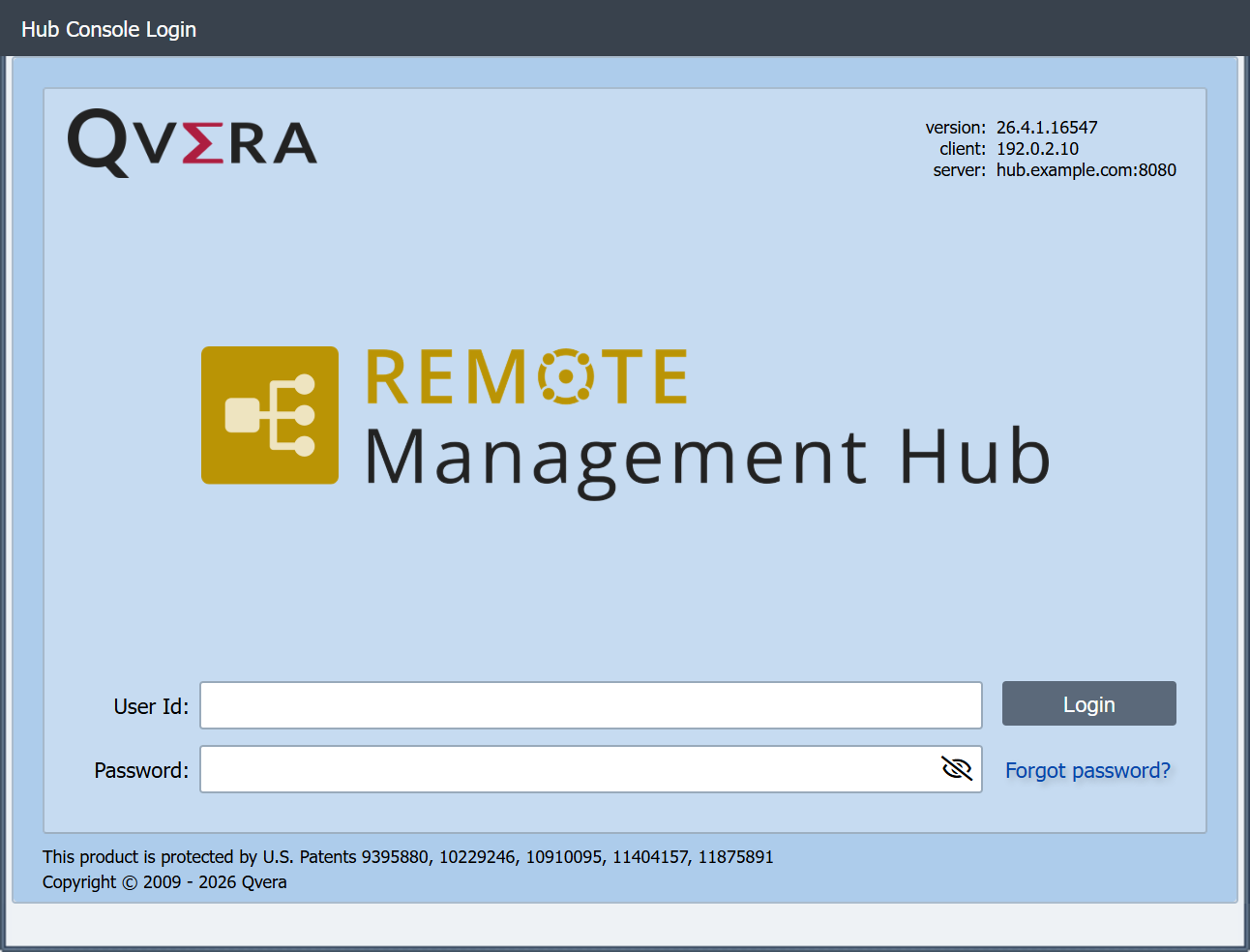
-
Open System Administration -> Hub Configuration and work through its Setup Checklist: save the hostname, click Initialize Internal CA, click Generate Server Cert, then click Restart Listener. The Hub then accepts site enrollments. See Hub Configuration.
A Hub and an engine cannot share a database
A Hub and an engine each own the database they run against. QIE checks this at every start and refuses to start when the database was already set up for the other mode. The refusal is written to the log as a block delimited by dashed lines, and it names what was found so you know what to remove.
QIE stops when it finds:
| Starting as | Refuses when the database holds |
|---|---|
| Hub | an engine license, or any configured channel |
| Engine | a Hub license, any registered site, any issued enrollment bundle, or generated Hub tunnel certificates |
Only configuration you created counts. Starting a blank database in one mode, configuring nothing and then starting it in the other mode is allowed, so you can correct a mistyped startup option without having to rebuild anything.
To recover, either point the service at a new, empty database, or remove
the existing database before starting the service. If the mode itself
was the mistake, add or remove -Dqie.mode=hub and start again.
Switching an existing engine to hub mode
There is no in-place conversion. A Hub-mode QIE does not process messages, so any channels configured on that instance would become inert, and the start-time check above refuses the database rather than letting that happen quietly.
The supported path is to deploy a separate Hub installation against its own database and enroll remote QIEs with it.
Uninstalling / reverting to engine mode
Remove -Dqie.mode=hub from the JVM startup options and restart. The
Hub-only beans (tunnel listener, Sites Dashboard, proxy) do not load and
the engine subsystem starts normally.
This works only on a Hub that was never configured. Once the Hub holds a license, a registered site, an issued bundle, or generated tunnel certificates, the database belongs to that Hub and an engine started against it is refused. Point the engine at its own database instead.
Verifying the installation
After completing Hub Configuration, a successful end-to-end test is:
- Enroll a single remote QIE site (see Enrollment).
- Confirm the site appears in the Sites Dashboard with a green status icon within ~30 seconds of the remote QIE restarting.
- Click the site from the dashboard. A new browser tab should open
against
https://site-<label>.hub.example.com:8080and present the remote QIE's login screen. - Log in to the remote QIE through the proxy and verify a normal administrative action (open a channel, view server logs).
If any step fails see Troubleshooting.