Preparing a Job
A job starts as a draft that only its preparer sees and edits. The draft holds the configuration file to import, the steps, the tags whose sites the job reaches, and its two limits. Preparing a draft needs the Jobs grant at one or more sites, or a Hub administrator's role. The grant is given to roles, for tags (see Site Access Grants). A Hub administrator can prepare a draft without the grant, but a job reaches only the sites where its preparer's role holds it, so submitting needs it too.
Creating a Draft
Open Sites -> Jobs and click New Job. The New Job dialog opens with three tabs: Job, Steps and Sites.
On the Job tab, enter a Name, choose the Configuration File when the job imports, and enter the Key Password when the file holds private keys. Enter both limits.
On the Steps tab, add the steps in the order each site runs them. See Job Steps.
On the Sites tab, tick the tags whose sites the job reaches.
Above the buttons, the editor says what submitting would do (see What Submit Does). Click Save Draft to keep the draft for later, or Submit to save it and submit it in one go; the button reads Submit for Approval when the job will need approval. See Saving and Submitting.
Job Tab
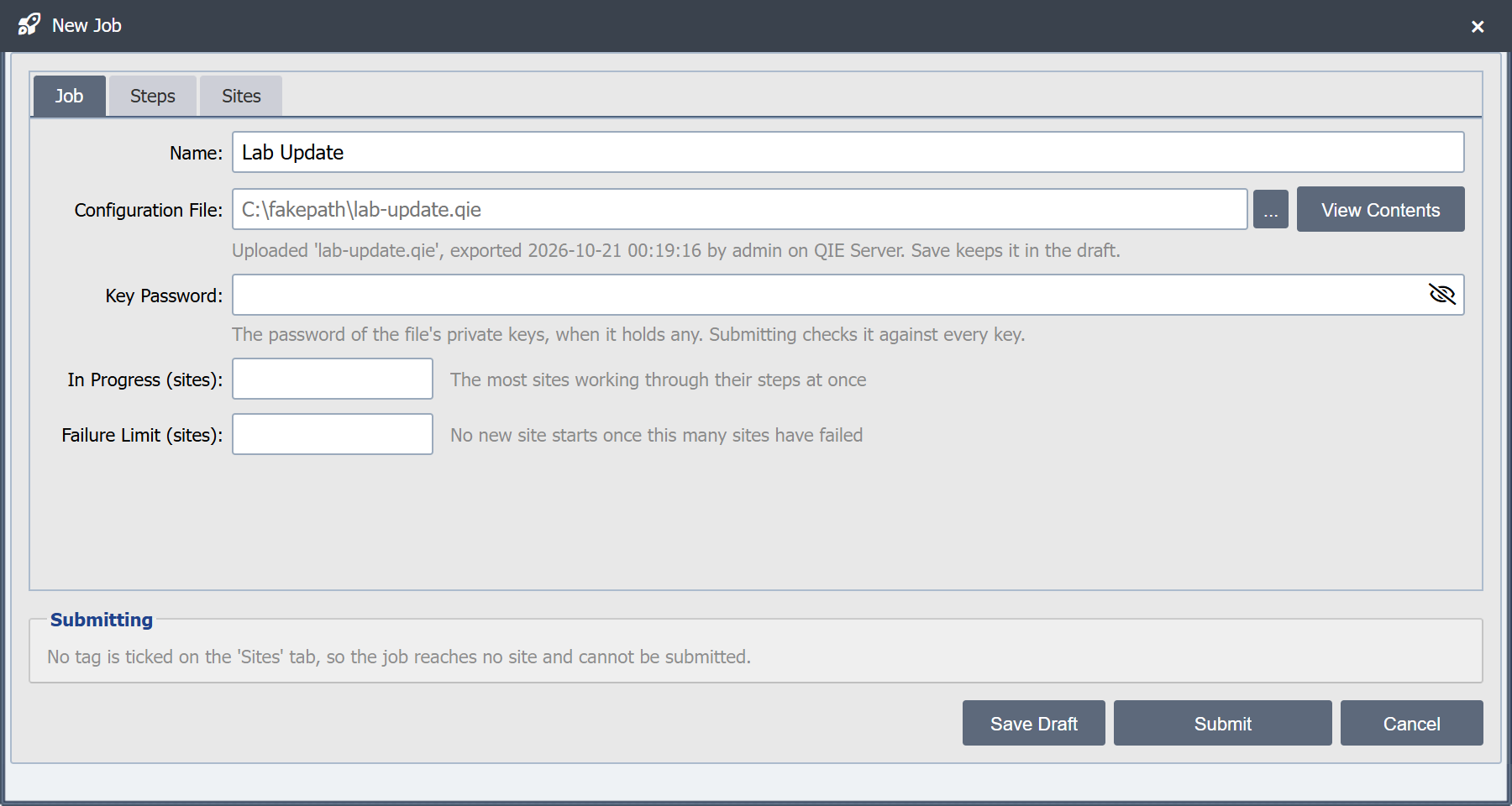
Name
The job's name, 1 to 100 characters. A draft cannot be saved without one.
Configuration File
The configuration export to import at each site, made with Application -> Export Configuration at the QIE where the change was tested (see Importing and Exporting Configurations). A job without an import step needs no file.
Choosing a file uploads it at once. The Hub reads it, and the Configuration File Contents dialog opens to show what it holds, as the import step imports it (see Viewing a File's Contents). A file that is not a configuration export is refused, with the reason in a message, and the field goes back to the saved file, or is emptied when none is saved. A file larger than 190 MB is refused with "The file is larger than 190 MB, the most a site accepts in an import step." So is a file that holds more, once unzipped, than a fifth of the memory the Hub may use: the message gives the limit in MB, for example "The file holds more than 819 MB once unzipped, more than this Hub can read." The Hub reads one file at a time, so a file chosen while another is being read waits for it. Choosing a file needs what preparing a draft needs: the Jobs grant at one or more sites, or a Hub administrator's role. While the file is still uploading, Save Draft and Submit say so in the status bar and do nothing.
A file that holds packages imports them as the console's Import Configuration dialog does. A site where a job imported packages cannot be rolled back; see Rolling Back a Job Site.
The site allows five minutes for the whole file to arrive, so a large file needs a fast enough link: 190 MB in five minutes needs about 650 KB a second. The site's time to answer starts once the whole file has arrived.
Saving the draft keeps the file with it, encrypted in the Hub's database, until the job's record is deleted (see Job Retention). The Hub records the file's SHA-256 and the QIE version that exported it, and who exported it, on which system and when, as the file records them. Once a file is saved, the field shows its name as a chosen file shows, after C:\fakepath\, and the description under the field names it with those details. Choose a file only to replace it. A rerun accepts only the same file as the job it reruns; see Copying and Rerunning a Job.
View Contents
Opens the Configuration File Contents dialog for the file the draft would import: the file just chosen, or else the saved one. It shows the file as the job's import step imports it, with the step's options. When no file has been chosen, clicking it says so.
Key Password
The password of the private keys in the file, when it holds any. It is saved encrypted with the draft, and the field is left empty once one is saved; enter a new one only to replace it. Submitting checks it against every key in the file. The Hub deletes the key password when the job ends.
A file with private keys needs either this password or the import step's option to skip keys the password does not open; see Job Import Step.
Remove the Saved Key Password
Shown when a key password is saved. Tick it, then save, to remove the saved password.
In Progress (sites)
The most sites working through their steps at once, 1 or more. There is no default: a draft can be saved without it, but Submit refuses until it is entered. See Running a Job for how sites share these places.
Failure Limit (sites)
How many failed sites stop the job, 1 or more. Once this many sites have failed, no new site starts. There is no default: a draft can be saved without it, but Submit refuses until it is entered. A site counts as failed when one of its steps failed or was refused, or when it never answered about a step. A site that was not run does not count. See Running a Job.
Steps Tab
The steps grid lists each step with its number (#), its type (Step) and a summary (Details).
Add: Opens the Add Step dialog. The new step goes after the selected step, or at the end when none is selected.
Edit: Opens the selected step in the Edit Step dialog. Double-clicking a step does the same.
Remove: Removes the selected step.
Move Up and Move Down: Move the selected step one place.
Sites Tab
The grid lists every tag on the Hub, All sites included. Tick Include on each tag whose sites the job reaches; the Kind column reads Tag. Beneath the grid the editor says how many are ticked, since the grid scrolls when the tags do not fit. A job reaches sites only through tags. To change a single site, connect to it.
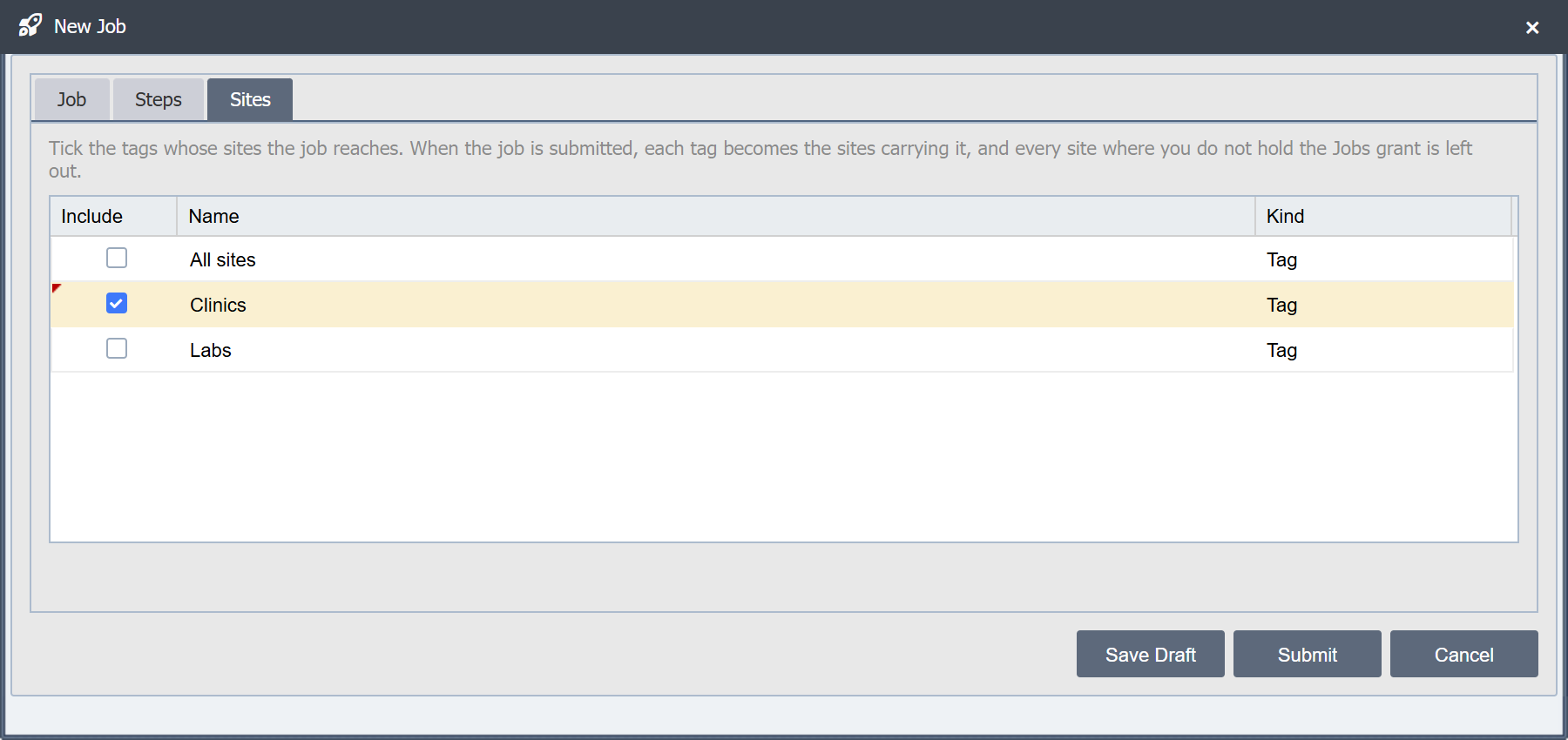
A tag is turned into the sites carrying it when the job is submitted, and that list does not change afterward: a site given the tag later is not added. A site carrying more than one ticked tag is in the list once.
A tag deleted after the draft named it is listed as (a deleted tag), still ticked. The draft cannot be submitted until it is unticked, so the job never reaches fewer sites than its preparer chose without saying so.
A tag can be carried by sites where the preparer does not hold the Jobs grant. Submitting leaves those sites out of the job. A site where the preparer loses the grant after the job is submitted is skipped as "not permitted, not run" when the job reaches it; see Job Site Outcomes.
A Rerun's Sites
A rerun lists sites instead of tags: the sites the job it reruns did not run, each with Kind Site (see Copying and Rerunning a Job). Untick a site to leave it out. A site cannot be added to a rerun, so a site saved unticked is no longer listed. A site deleted since the rerun was made is listed as (a deleted site). Submitting leaves out every site where the preparer does not hold the Jobs grant, as for any job.
Before It Can Be Submitted
When something stops the draft being submitted, the editor lists it under Before It Can Be Submitted, one sentence each. The list is hidden when nothing does. It covers:
- A job with no steps.
- A missing or invalid In Progress (sites) or Failure Limit (sites).
- A tag the draft names that no longer exists.
- A step whose type is not chosen.
- More than one import step: a job has at most one.
- An import step with no file.
- An import step whose file holds private keys, with no key password and no option to skip keys the password does not open.
- A key password that does not open a key in the file, naming the key and its zone.
- A channel or check step that names no channels while no earlier step imports, since there are then no imported channels to default to.
- A check step with no checks, or whose "since" checks name no earlier step that is sent to the sites.
- A wait step without a number of seconds of 1 or more, or a wait-until step without a time as HH:mm.
Submitting checks these again, and also refuses a job that reaches no site where the preparer holds the Jobs grant (a site where the preparer does not hold it is left out of the job), one that reaches more than one site while the approval threshold is not set, and one that reaches a site already in another unfinished job or being rolled back. See Job Approval.
What Submit Does
The Submitting box above the buttons says what submitting would do with the ticks on the Sites tab. The Hub works it out each time a tick changes, without saving anything:
- Needs approval: the job reaches more sites than the approval threshold. The button reads Submit for Approval, and someone other than the preparer, whose role holds the Jobs grant at every one of the job's sites, must approve it before it can start. See Job Approval.
- Needs no approval: the job reaches no more sites than the threshold, or one site while the threshold is not set. The button reads Submit, and the submitted job is ready to start; it starts when Start is clicked in its details. See Running a Job.
- Cannot be submitted: no tag or site is ticked, a deleted tag is ticked, the job reaches no site where the preparer holds the Jobs grant, it reaches more than one site while the approval threshold is not set, or one of its sites is already in another unfinished job or being rolled back.
Either way, submitting freezes the job. The box counts only the sites where the preparer holds the Jobs grant. What else stops a draft being submitted is listed under Before It Can Be Submitted once the draft is saved.
Saving and Submitting
Save Draft: Saves the draft and closes the editor.
Submit (or Submit for Approval): Saves the draft, then submits it. A missing In Progress (sites) or Failure Limit (sites) is reported first, and nothing is saved. A submitted job either waits for approval or is ready to start, and its details open. When the Hub refuses to submit it, the editor stays open with the draft saved, now titled Edit Job and the job's name, shows why in its status bar, and lists what still stops it under Before It Can Be Submitted.
Cancel: Closes the editor without saving.
Editing and Deleting a Draft
Open a draft from the Jobs page to edit it; it opens in the Edit Job dialog. Only its preparer sees it. Select a draft and click Delete Draft to delete it, with its file and key password.
A draft is the only kind of job that can be changed. To change a submitted job, withdraw it before it starts (see Job Approval) or copy it into a new draft (see Copying and Rerunning a Job).