Register with Hub
The Register with Hub dialog is the remote QIE's side of
site enrollment. The site administrator uses it to
import the .qcb bundle the Hub operator generated, and afterwards to start,
stop, or remove the registration.
On the remote QIE, open System Administration -> System Configuration and click Register with Hub in the toolbar, beside Management API.
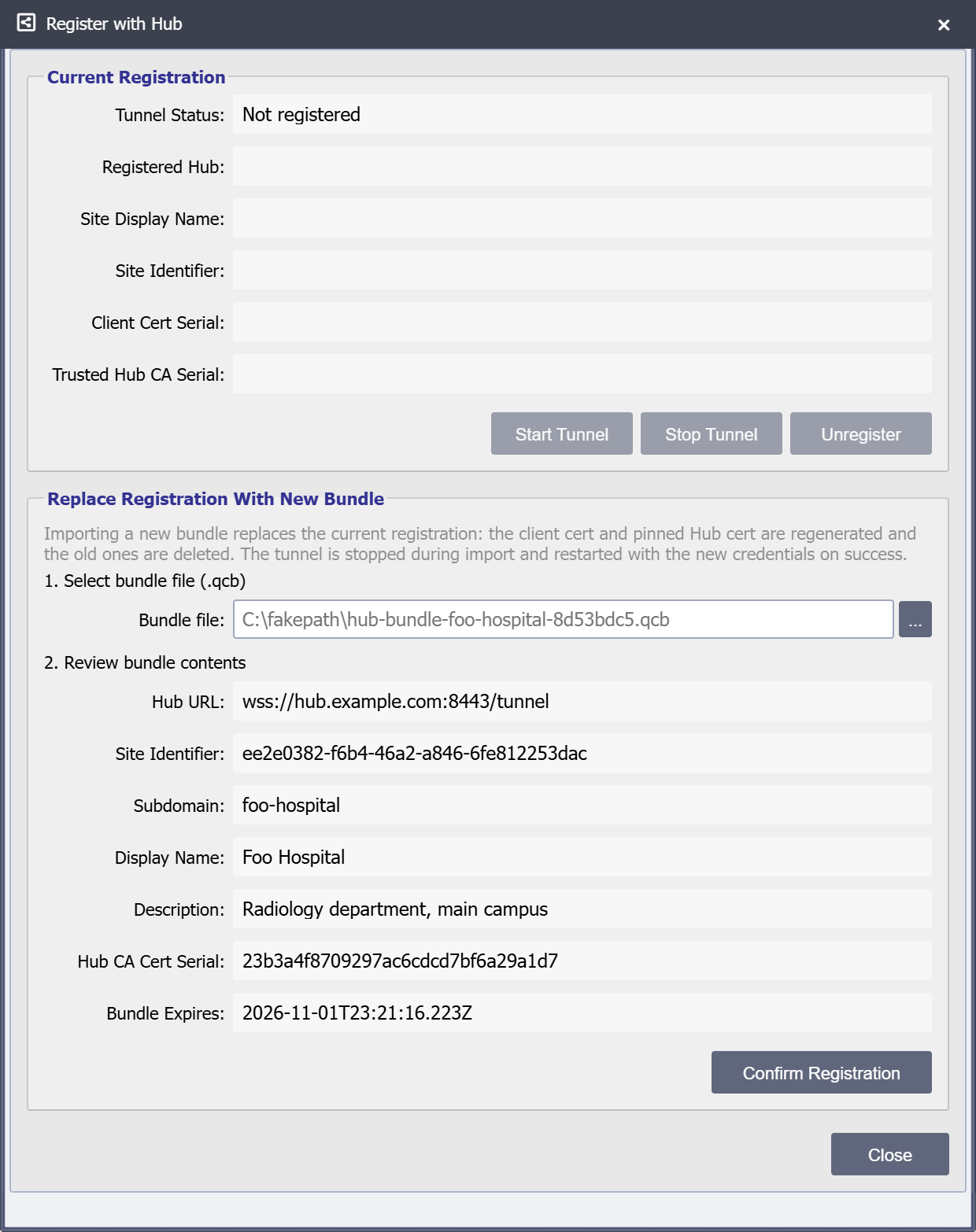
The dialog has two sections.
Current Registration
If the QIE is already registered with a Hub, the top section shows the current registration. While the dialog is open it checks the tunnel status every 3 seconds, and the status bar warns that importing a new bundle overwrites the registration.
| Field | Meaning |
|---|---|
| Tunnel Status | Not registered when the QIE has no registration, STOPPED after Stop Tunnel, CONNECTING while the tunnel is started but not connected, and CONNECTED once it is up |
| Registered Hub | The wss://...:port/tunnel URL the client dials |
| Site Display Name | The display name the Hub assigned to this site |
| Site Identifier | The site UUID (matches the cert subject CN) |
| Client Cert Serial | Serial number of the active client cert |
| Trusted Hub CA Serial | Serial number of the Hub internal CA this QIE trusts. This is the trust anchor. Any server cert the CA signs validates, so a routine Hub server-cert rotation does not change this value |
Three buttons control the lifecycle:
| Button | Effect |
|---|---|
| Start Tunnel | Sets enabled=true on the registration and starts the tunnel client (if it was stopped) |
| Stop Tunnel | Sets enabled=false and tears down the tunnel without losing credentials. Use this to suspend connectivity for maintenance |
| Unregister | After a confirmation, deletes the local registration row, client cert, and trusted Hub CA cert. The Hub-side site row stays. Revoke it from the Hub if you want to fully decommission |
Replace Registration With New Bundle
This section walks through importing a .qcb file. Importing replaces
any existing registration: the previous client cert and trusted Hub CA
cert are deleted and the tunnel restarts with the new credentials.
- Select bundle file (.qcb) is a file-upload picker. Choosing a file triggers an immediate upload to the QIE server. The server parses the JWS and verifies the signature against the Hub internal CA cert embedded inside the bundle (the bundle is signed by the CA private key), then returns the parsed fields to the dialog.
- Review bundle contents shows all parsed fields read-only: Hub URL, Site Identifier, Subdomain, Display Name, Description, Hub CA Cert Serial, Bundle Expires.
- Click Confirm Registration. If the QIE is already registered, an Overwrite Existing Registration confirmation comes first.
Close dismisses the dialog and does nothing else. It does not unregister the site, stop the tunnel, or undo a registration that has already been confirmed. To undo a registration, use Unregister.
On Confirm:
- QIE generates a fresh RSA-4096 keypair locally.
- QIE builds a CSR and POSTs
{ bundleId, csrPem }as JSON to the bundle'shubRegisterUrl. The TLS connection is validated by chaining the Hub's server cert to the CA cert in the bundle. The system trust store is not consulted. - Hub verifies the bundle (not consumed, not expired), signs the
CSR with the internal CA forcing the CN to the bundle's
intendedSiteIdentifier, creates thehub_siterow, and marks the bundle consumed. - Hub returns
{ signedCertPem, siteIdentifier, subdomainLabel }. - QIE saves the cert + key into its SSL Certs / Keys store, the
Hub CA cert into its SSL Certs / Keys store (as the tunnel trust
anchor), and populates the
hub_registrationsingleton. - QIE starts its tunnel client. mTLS handshake on
/tunnelsucceeds because the QIE's cert is now signed by the Hub's internal CA, and the listener's trust manager finds the matchinghub_siterow by serial.
If everything succeeds, a Registered message shows the site identifier
and subdomain, the Current Registration section fills in, and
Tunnel Status changes from CONNECTING to CONNECTED once the tunnel
is up. On the Hub side, the site appears in the Sites Dashboard
with a green status icon.