Job Details
The Job dialog shows one submitted job: where each site is, what each step did there, and what was approved. It is where a job is approved, started, paused, continued, stopped, copied, rerun and rolled back. It offers each person only the actions they may take on the job now.
Opening the Details
On the Jobs page, select a job and click Open, or double-click it. A submitted job opens in this dialog, on its Job tab; a draft opens in the editor instead. The dialog also opens after a draft is submitted.
While the job is awaiting approval, ready to start, running or paused, the dialog refreshes itself every five seconds. Click Refresh to reload it at any time.
Job States
The State at the top of the dialog shows where the job is, with the reason when one is recorded.
| State | Meaning |
|---|---|
| Awaiting approval | Waiting for a second person; see Job Approval |
| Ready to start | Approved, or needing no approval, and not yet started |
| Running | The Hub is moving its sites through their steps |
| Paused by an operator | The preparer or the approver paused it |
| Paused during a CA rotation | The Hub paused it for a CA rotation, and resumes it when the rotation ends |
| Paused during a Hub lockdown | The Hub paused it for a lockdown, and resumes it when the lockdown ends |
| Stopping | It was stopped; sites are ending, and no new site begins |
| Halting | Failed sites reached the failure limit; sites are ending, and no new site begins |
| Finished | Every site has ended |
| Stopped | Every site has ended after a stop. The reason names who stopped it, or the preparer or approver who was disabled or deleted |
| Halted | Every site has ended after the failure limit was reached. The reason gives the number of failed sites |
| Rejected | The approver rejected it; the reason is theirs |
A reason follows the state after a colon, for example "Stopped: asked by jsmith" or "Halted: 2 sites failed, which reached the failure limit of 2". See Running a Job for what each state allows.
Job Tab
Prepared By: Who prepared the job and when they submitted it.
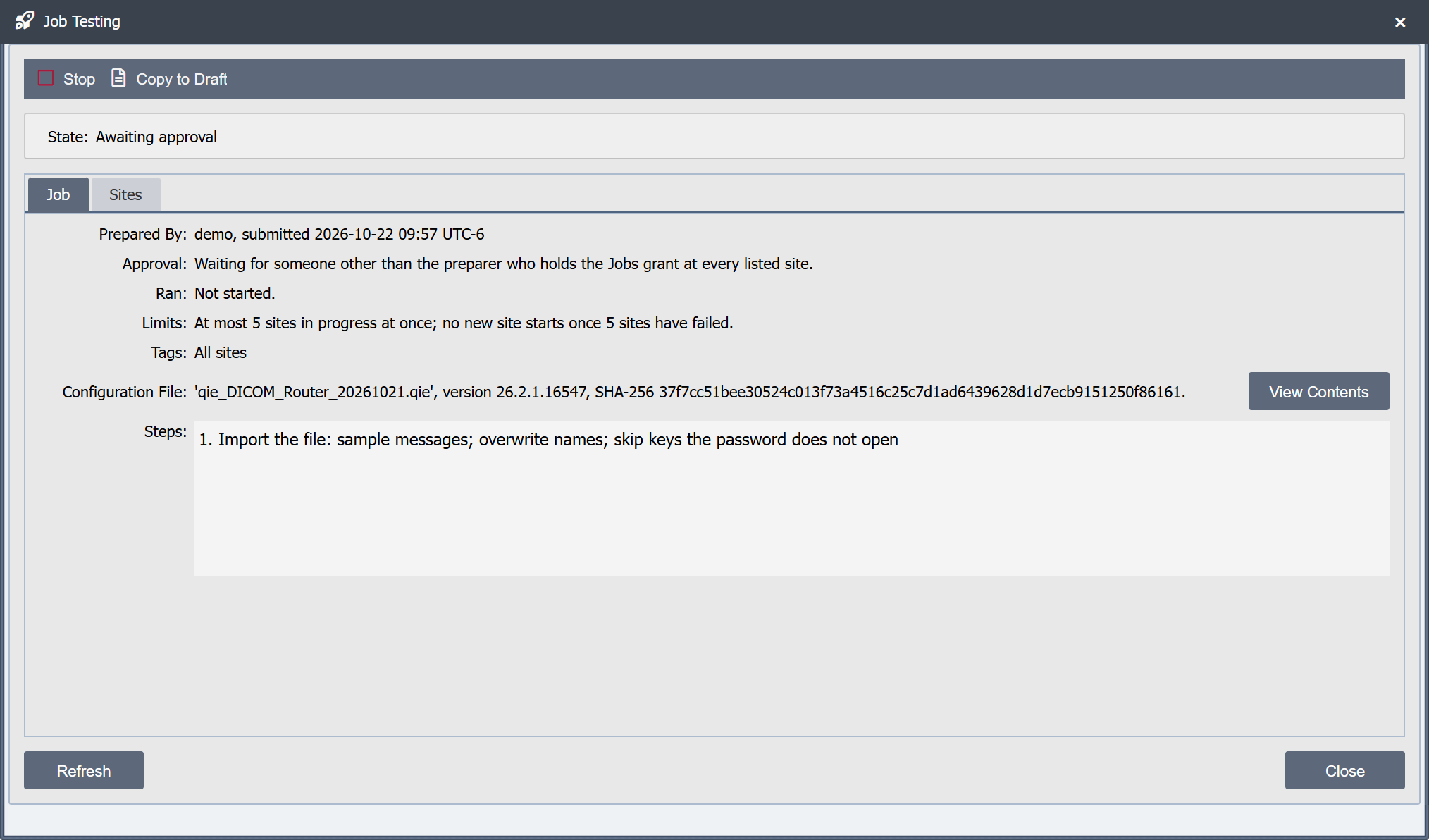
Approval: Who approved it and when. While it waits, this says it needs someone other than the preparer who holds the Jobs grant at every listed site. A rejected job shows the reason, and one that needed no approval says it reaches no more sites than the approval threshold.
Ran: When the job started and ended, or "Not started."
Limits: The In Progress (sites) and Failure Limit (sites) values.
Tags: The tags the job was prepared with. A tag deleted since is shown as "(a deleted tag)". A rerun names no tags, and this says so. The site list itself was fixed when the job was submitted.
Configuration File: The file's name, who exported it, on which system and when, the QIE version that exported it and its SHA-256, or that the job does not import. The export time is the exporting server's clock, as the file records it, and is not converted to your time zone. A file that records no export time is "dated" by the time its zip entry was written instead.
View Contents: Shows everything the file holds, as the job's import step imports it (see Viewing a File's Contents). It is shown to anyone who sees the whole job. When the job has no file, clicking it says so.
Steps: The steps, numbered, each with its summary.
Viewing a File's Contents
View Contents opens the Configuration File Contents dialog: the Import Configuration dialog's tree of the file, view only. Every item is ticked, or only the Channel Cache items when the import step updates the channel cache only. The Zone column shows the zone the job imports each item into, after the step's zone overrides, and Import To shows the item's name. The import options show the step's settings, including Skip Private Keys the Key Password Does Not Open. Nothing in the dialog can be changed; OK closes it.
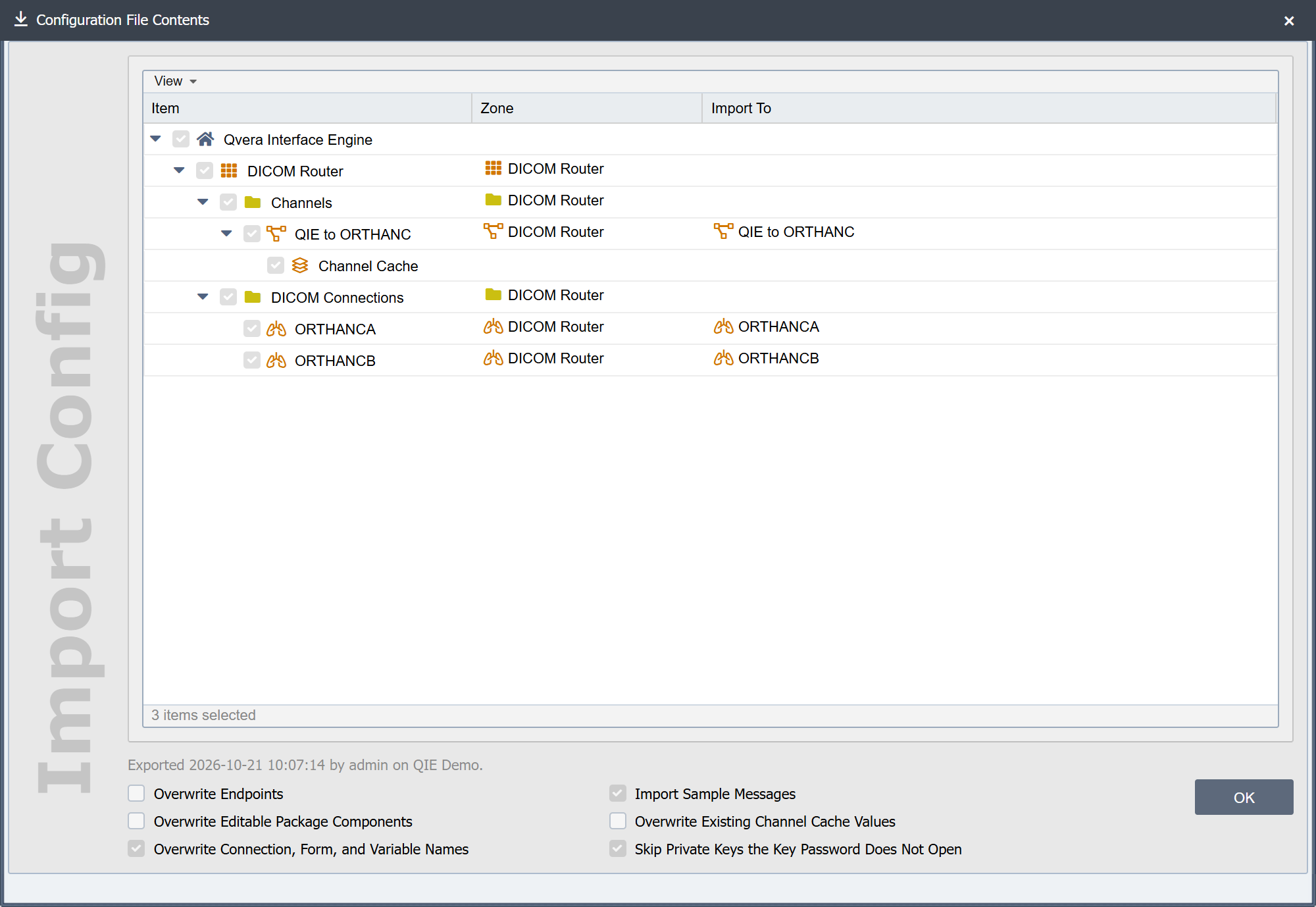
The dialog leaves out the file's system configuration and licenses, because a job never imports them. It does not show what each site already holds; the Hub does not preview what the import would change at a site.
Sites Tab
The grid lists the job's sites:
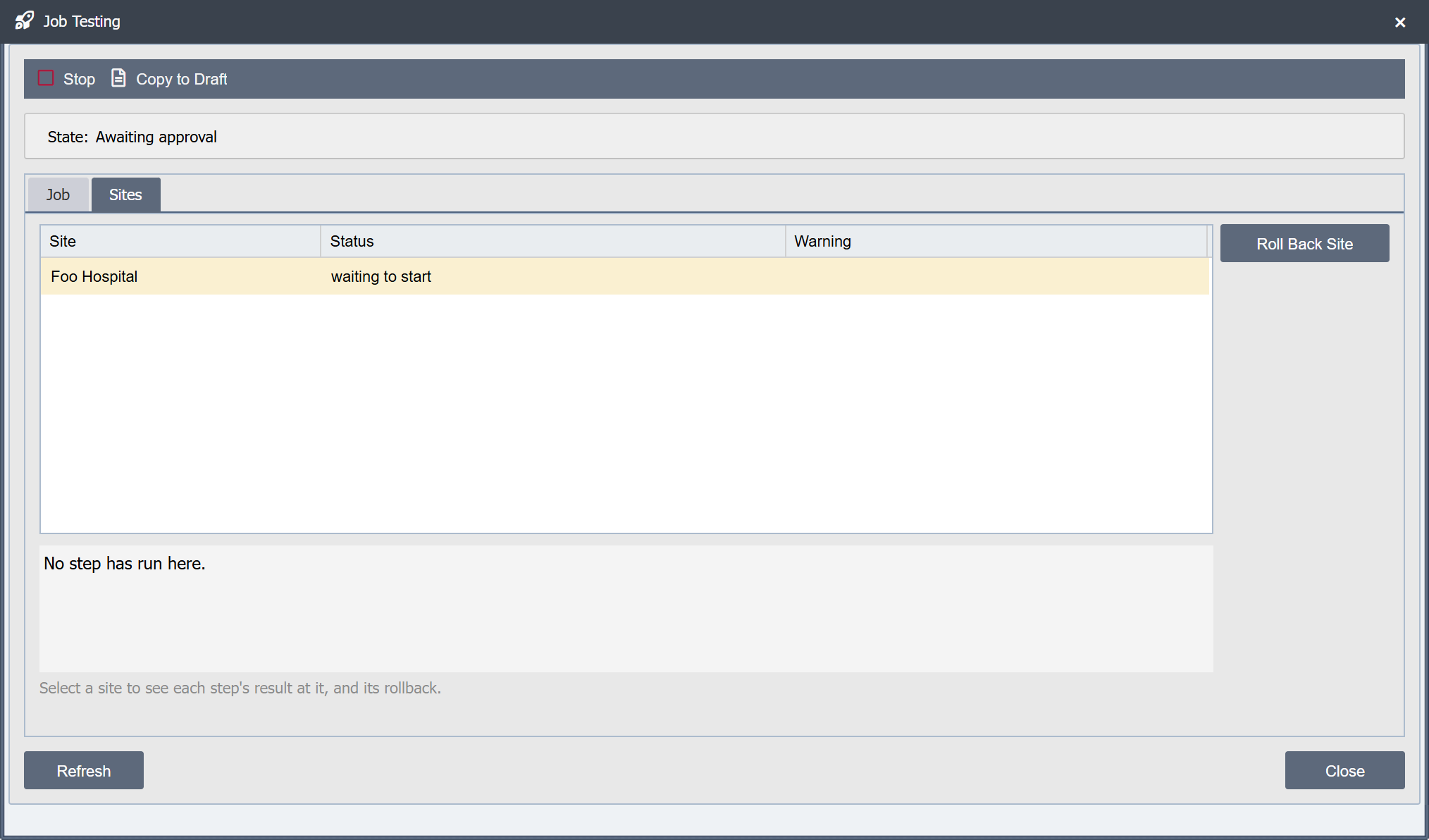
Site: The site's display name, or its subdomain label when it has none.
Status: Where the site is in its steps, or how its part ended. See Job Site Outcomes.
Warning: What the Hub knows that may affect the site. See Warnings.
Select a site to see each step's result at it below the grid, one line per step: the step's number and type, whether it succeeded or failed, and the error the site gave. Under a channel step, a line for each channel says what the step did to it, for example "ADT In: started" or "Lab Out: not touched: disabled". Under a check step, each channel shows "passed" or the checks it failed. Under the import step, each channel the import affected is listed. A line also names each channel the site did not find. When the site has been rolled back, or a rollback is under way, the lines that follow show who asked for it and what happened to each object.
Times in each site's status, and on the Job tab, are shown in your browser's time zone, followed by its offset from UTC, such as UTC-6. The configuration file's export time is the exception; see Job Tab.
Roll Back Site: Asks for the selected site's import to be undone, after confirmation. See Rolling Back a Job Site. When the site cannot be rolled back, clicking the button says why instead.
A person who does not see the whole job sees only the sites where they hold the Jobs grant, and the text under the grid says so. See Jobs Page.
Warnings
The Warning column shows a version warning, naming both versions, whenever the file came from a newer QIE version than the site runs. The Hub compares the first three numbers of the version recorded in the file with the version the site reported, and works this out when the job is submitted. When either version cannot be read, there is no warning. The import still runs at the site; the warning only tells the approver and the operator.
Until the job starts, the column also shows what the Hub expects to stop the site. It works these out each time the details load, from whether the site is connected and from the settings the site last reported:
- The site is offline now.
- The site would refuse the job's statements, with the reason, such as Use Hub being off or the preparer's Hub role missing from the site's Role Map.
- The site has a developer license, so it is skipped, when a step starts channels.
- The site has not reported its Hub settings.
- The person who prepared the job is no longer a Hub user.
Once the job starts, only the version warning stays; the site's Status shows what actually happened.
Actions
The job's actions are in the toolbar at the top of the dialog. They change with the job's state and with who is looking at it: an action that does not apply now is not shown, and the toolbar is hidden when none applies.
| Action | Shown to | When |
|---|---|---|
| Approve and Reject | Anyone but the preparer who holds the Jobs grant at every listed site | Awaiting approval |
| Withdraw | The preparer | Awaiting approval or ready to start |
| Start | The preparer and the approver | Ready to start |
| Pause | The preparer and the approver | Running, or paused only by the system, and not stopping or halting |
| Resume | The preparer and the approver | Paused by an operator |
| Continue | The preparer and the approver | Running, with every site at the next checkpoint or ended |
| Stop | The preparer, the approver and Hub administrators | Awaiting approval, ready to start, running or paused, and not already stopping or halting |
| Copy to Draft | Anyone who sees the whole job | Always |
| Rerun Not-Run Sites | Anyone who sees the whole job | Finished, stopped or halted, with at least one site that was not run |
The bottom of the dialog holds Refresh, which reloads it, and Close.
Reject asks for the reason, and Stop asks for confirmation. Copy to Draft and Rerun Not-Run Sites close the dialog and open the new draft in the editor, and submitting it there opens its details; see Copying and Rerunning a Job.