Hub Sign-In
The Hub Sign-In tab of the Remote Management Hub dialog decides whether this site accepts the people its Remote Management Hub vouches for, and which site role each of them gets. Every kind of work the Hub sends here needs it: job steps, AI calls through the Hub and console sign-ins.
To open it, go to System Administration -> System Configuration, click Remote Management Hub in the toolbar, and select the Hub Sign-In tab. The dialog is shown on a site only, never on a Hub.
The Hub vouches for a person with a signed statement for each action it asks of the site: a job step, an AI call through the Hub, or a console sign-in. The site checks every statement and then acts as the person's Hub user, a site account it creates and refreshes from those statements. The site must already be registered with the Hub, and it accepts no statement from the Hub until an administrator turns on Use Hub.
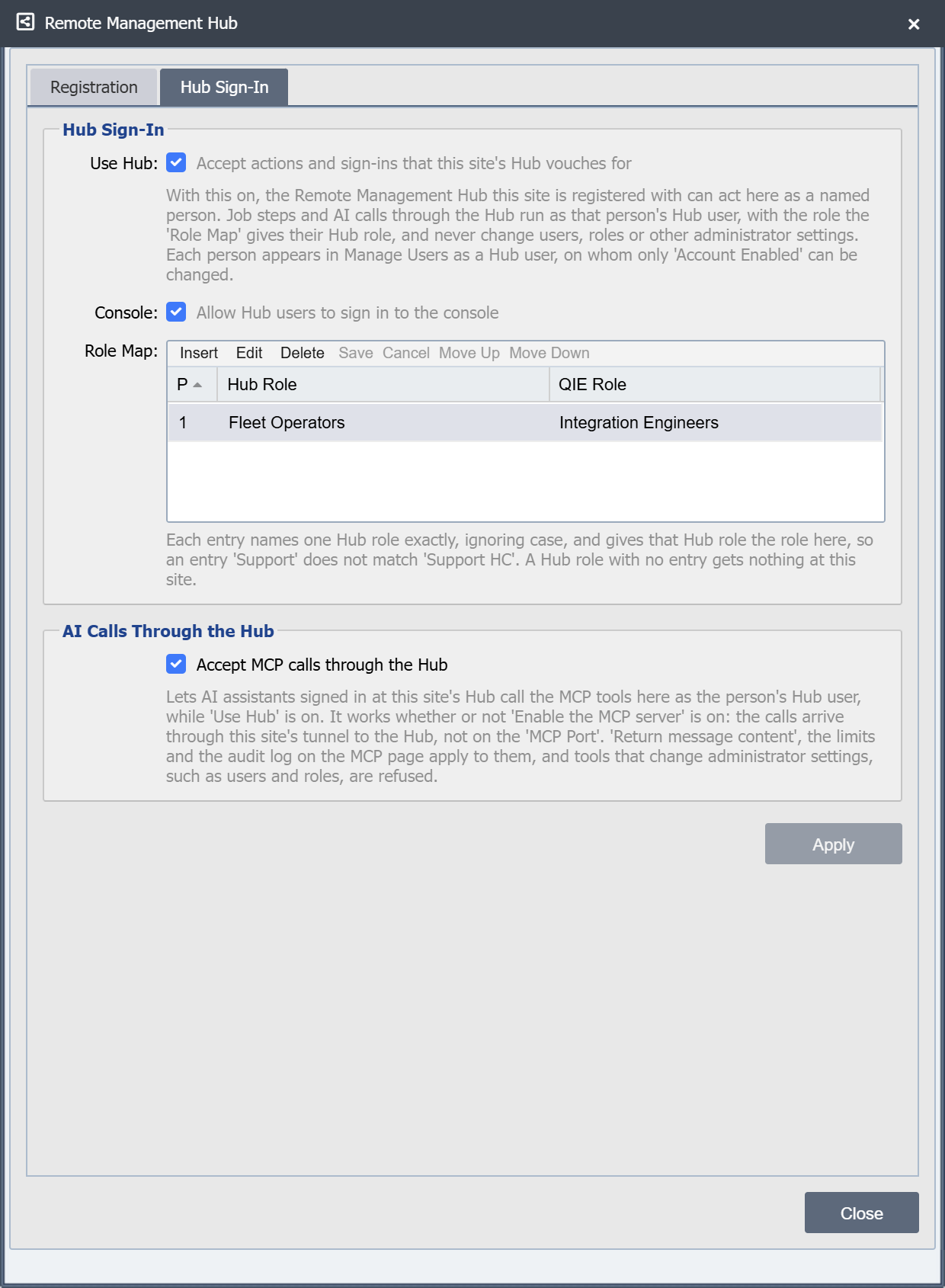
Use Hub
Accept actions and sign-ins that this site's Hub vouches for. Off by default.
While it is off, the site refuses every statement from its Hub, and Hub console sessions end on their next request. Turning it on needs at least one Role Map entry. Clicking Apply without one shows "Add at least one 'Role Map' entry before turning on 'Use Hub'." in the status bar. Every setting on the tab shows whether or not Use Hub is ticked.
Job steps need only this switch. AI calls through the Hub also need Accept MCP Calls Through the Hub.
Apply
Apply saves the four settings on this tab and nothing else. It is enabled once a setting has changed. Use Hub, Console and the Role Map are stored with System Configuration and appear in its revision history; Accept MCP calls through the Hub is stored with the MCP settings and appears in theirs. Saving the System Configuration page or the MCP page leaves them as they are.
While the tunnel is up, the site sends the saved settings to the Hub at once, so the Hub's checks use them for the next job step, AI call or console sign-in. A Hub on an older build reads them only when the tunnel connects. For such a Hub, Apply asks whether to restart the tunnel now; clicking Yes restarts it, which cuts off anything going through the tunnel until it reconnects.
Console
Allow Hub users to sign in to the console. Off by default. Turning it off ends open Hub console sessions on their next request.
With it on, Connect on the Hub's Sites Dashboard can open this site's console signed in as the person's Hub user, with no site password (see Console Sign-In Through the Hub). In the console, a Hub user has the permissions of the role the Role Map gives them, like any other user with that role.
Role Map
Maps each Hub role to a role at this site. The grid has three columns: P (the order), Hub Role (the Hub role's name) and QIE Role (the site role it gives). Use Insert, Edit, Delete, Move Up and Move Down to manage the entries.
A person's Hub role is the role their account holds at the Hub. An entry gives its site role only to the Hub role it names exactly, ignoring case and any spaces at either end. An entry Support therefore matches a Hub role named support, but not one named Support HC, which needs an entry of its own. A person whose Hub role has no entry, or who has no Hub role, gets nothing at this site: every statement for them is refused.
Each Hub role may have only one entry. Clicking Apply with two entries for the same Hub role shows "The 'Role Map' names the Hub role '
Because the entries name Hub roles, renaming a role at the Hub takes it out of every site's Role Map until each site changes its entry to the new name. A Hub refuses to give two of its roles the same name (see Site Access on a Hub).
The Hub applies the same rule to the entries this site last reported, so it can tell in advance whether this site would refuse a person (see Apply for when a change reaches the Hub).
Mapping a Hub role to an administrator role
When an entry maps to an administrator role, the tab shows this warning: "A Hub role mapped to an administrator role makes those Hub users administrators of this console when they sign in through the Hub, so a Hub sign-in can change everything here, including these settings." Job steps and AI calls through the Hub never change administrator settings themselves, whatever role the person maps to; a channel they import or start still runs its own scripts (see What Work Through the Hub Can Change). A console sign-in through the Hub can, once Console is on.
Accept MCP Calls Through the Hub
In the AI Calls Through the Hub box. Off by default. Lets AI assistants signed in at this site's Hub call the MCP tools here as the person's Hub user, while Use Hub is on.
It works whether or not Enable the MCP server is on, on the site's Model Context Protocol (MCP) page: the calls arrive through the site's tunnel to the Hub, not on the MCP Port. That page's Return message content, limits and audit log apply to them, and tools that change administrator settings, such as users and roles, are refused. See MCP Calls Through the Hub.
Hub Users
The site turns each person the Hub vouches for into a Hub user, a site account of type Hub User. It finds the person's Hub user by an outside id built from the Hub's id and the person's user id at the Hub. The Users page shows it as External ID, in the form hub:<Hub id>:<Hub user id>.
When no Hub user exists for the person, the site creates one:
- User ID: The person's user id at the Hub, cut to 25 characters. When the site already has a user with that id, the site adds
_1,_2and so on up to_99, shortening the id to 22 characters first when needed. - Full Name: The person's name at the Hub, or their user id when the Hub has no name.
- Email: The person's email address at the Hub, when there is one.
- Role: The site role the Role Map gives.
A Hub user holds its user id as any other account does. A domain user with the same id then cannot sign in with LDAP at the site, the same as when an OIDC user holds the id. A domain user who signed in at the site first keeps the id, and the Hub user gets the id with a numbered suffix such as _1.
Later statements refresh the full name, email address and role when they change, so a change at the Hub or in the Role Map reaches the site with the person's next action. A Role Map change that gives an open Hub console session's Hub role another role, or none, ends that session on its next request. The site creates and refreshes Hub users as the system account, so revision history shows them with Via System.
Besides checking the statement itself, the site acts on it only when:
- Use Hub is on, and Console too for a console sign-in.
- The site has not disabled the person's Hub user. When a job step names the job's approver, the site also refuses it if it has disabled the approver's Hub user.
- The Role Map gives the person's Hub role a role that exists at this site.
- The person is within the site's limits.
Disabling or Deleting a Hub User
Only Account Enabled can be changed on a Hub user. Unticking it makes the site refuse every statement for that person and ends their Hub console sessions at this site on their next request. A statement from the Hub never ticks it again; only a site administrator can.
A site administrator may delete a Hub user. The next statement for the person that passes the checks creates a new Hub user, so disable the Hub user to keep a person out.
What Work Through the Hub Can Change
Job steps and AI calls through the Hub run as the person's Hub user, with the zone permissions of their mapped role. Whatever that role is, they never change this site's administrator records: users, roles, user and role permissions, System Configuration (these Hub Sign-In settings included), Management API settings, licenses and license groups, MCP settings, the site's Hub registration, or the certificates and keys of its Hub connection and its Management API. The one exception is the site administrators' usual access to a zone that the work creates or deletes. The guard covers the work itself, not what that work leaves running: a channel the work imports or starts runs its scripts as any channel does, and a script that changes administrator records is not stopped by it.
A console sign-in through the Hub is different. The person works in the console with everything their mapped role allows, as any user with that role does.
What a Hub User Cannot Do
- Sign in any other way: The site refuses a password sign-in, an LDAP sign-in and an OIDC sign-in for a Hub user. The Hub is its only way in.
- Be edited: The Users page shows a Hub user read-only except Account Enabled, and the console refuses any other change. The Management API's user/update call refuses any field but
enabledfor a Hub user. - Authorize MCP access at the site: The site refuses to authorize an AI assistant for a Hub user, and refuses any MCP token a Hub user holds. A Hub user's AI calls go through the Hub, which decides each call.
- Lock the console: The console hides the Lock button and the Lock Terminal menu item for a Hub user, because the site holds no password to unlock it with.
Roles in the Role Map
A role named in the Role Map cannot be deleted. Trying shows "Unable to delete role '
Limits, Records and Alerts
Every statement except a job's status check counts against two limits on the MCP page, applied to each person instead of each token: Requests per Token per Minute and Concurrent Requests per Token. They apply even while the site's own MCP server is off. A statement over a limit is refused, and the first such refusal in a minute writes a RATE_LIMIT_BREACH entry to the MCP audit log.
The site records every statement it receives before any work starts, whether it accepts or refuses it, with the reason for a refusal. The records are kept for the MCP page's Audit Retention (days); 0 keeps them for ever.
A refusal that suggests a forged, replayed or misdirected statement raises an admin alert, which is also sent to the administrators when alerts are set up. Examples are a bad signature, a statement for another site, an expired statement and a statement used before. Each node raises at most one such alert per reason every ten minutes, and still records every refusal. A refusal that this site's own settings explain raises no alert: a switch that is off, a Hub role not in the Role Map, a disabled Hub user, or too many requests.