Site Details dialog
The Site Details dialog is the read-only view of one registered site: its configuration, its client certificate, its tunnel status, and the resource figures its most recent heartbeat carried. Open it from the Sites Dashboard by selecting a row and clicking View Details.
The dialog is mostly read-only. The Enable / Disable / Delete actions stay on the Sites Dashboard toolbar, and the dialog has one action of its own, Rotate Certificate, on the Certificate tab. It auto-refreshes every 15 seconds while open and offers a manual Refresh button.
Note
View Details is the only way in. A row double-click does something different: it connects to the site, opening its proxied admin console in a new browser tab, which is what the Connect button does for the selected row.
Header section (always visible above the tabs):
| Element | Content |
|---|---|
| Status icon | 3-color glyph matching the grid's status column (green / red / grey) |
| Display name | Bold |
| Site identifier | The UUID (matches cert subject CN), smaller and dimmer |
as of HH:MM:SS |
Timestamp of the snapshot the dialog is currently showing |
Site tab
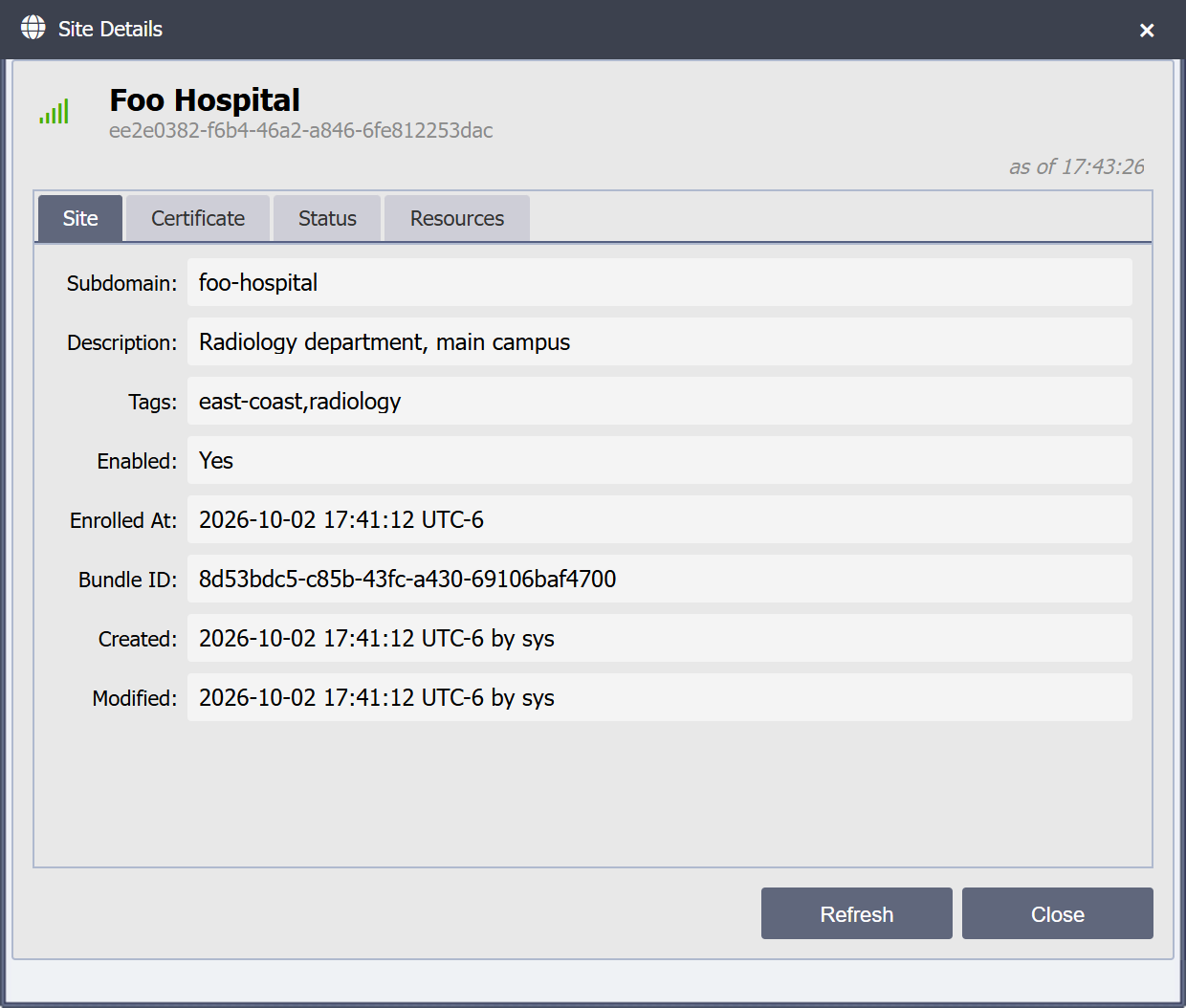
| Field | Source |
|---|---|
| Subdomain | hub_site.subdomain_label |
| Description | hub_site.description |
| Tags | hub_site.tags (CSV) |
| Enabled | Yes / No |
| Enrolled At | hub_site.enrolled_at |
| Bundle ID | hub_site.bundle_id, the bundle that produced this site |
| Created | created_by_userid + created_timestamp |
| Modified | modified_by_userid + modified_timestamp |
Certificate tab
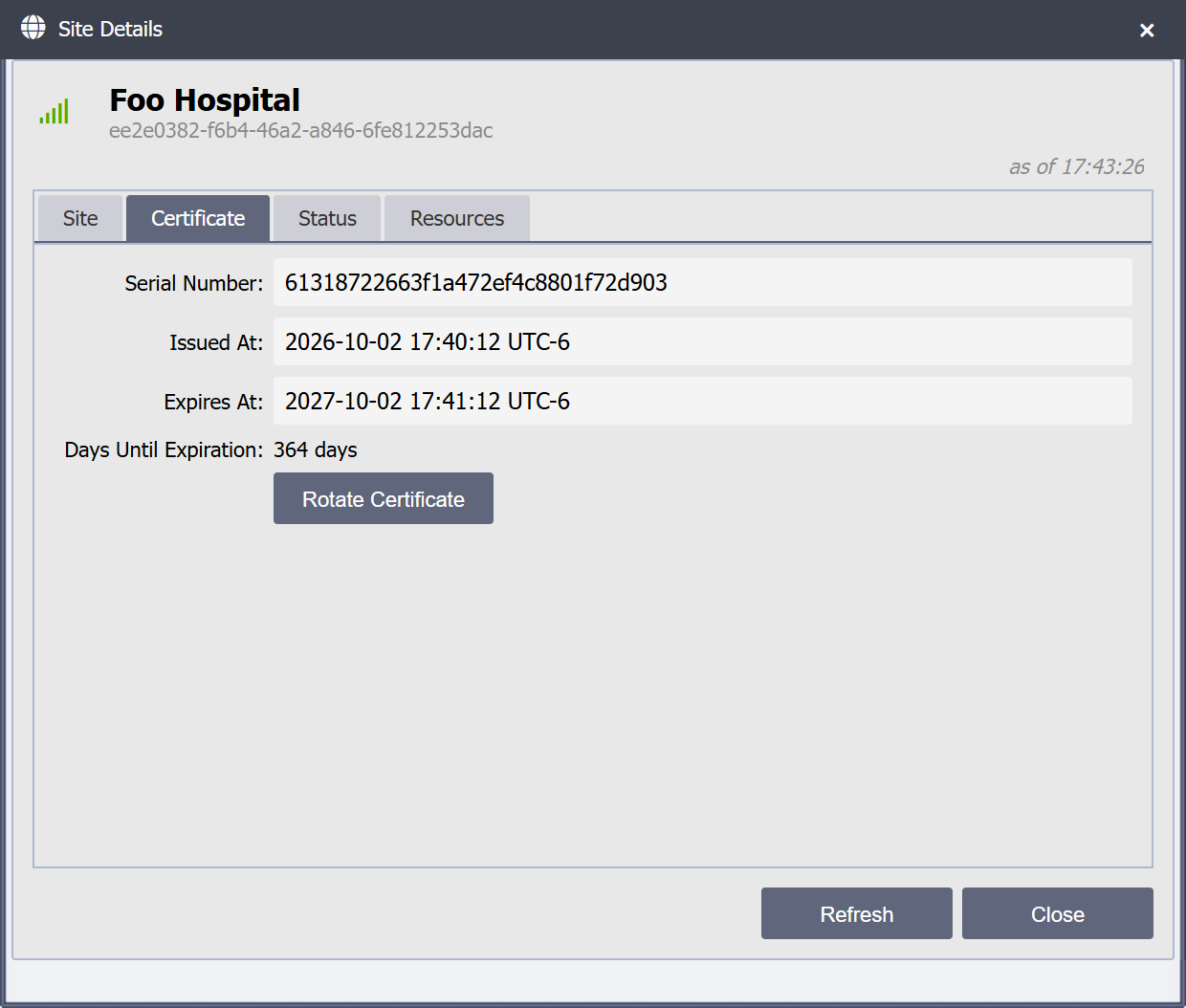
| Field | Source |
|---|---|
| Serial | hub_site.client_cert_serial |
| Issued At | hub_site.client_cert_issued_at |
| Expires At | hub_site.client_cert_expires_at |
| Days Until Expiration | Computed server-side, color-coded |
| Rotate Certificate (button) | Forces a client-cert cycle for this site immediately, instead of waiting for the renewal window. Enabled only when the site is enabled and connected (the cycle is delivered over the live tunnel). See SSL and PKI |
The Days Until Expiration color thresholds match the Hub's cert-cycling threshold, so the operator sees a visual cue at the same moment renewal becomes operationally relevant:
| State | Threshold | Color |
|---|---|---|
| Normal | More than 30 days remaining | Default text |
| Warning | 30 days or fewer remaining (renewal window open) | Yellow |
| Critical | 7 days or fewer remaining (last-resort week) | Red |
| Expired | Past the expiry timestamp | Red, Expired N days ago |
Days are computed against the Hub clock, not the browser's, so all operators see the same value regardless of their workstation timezone.
Status tab
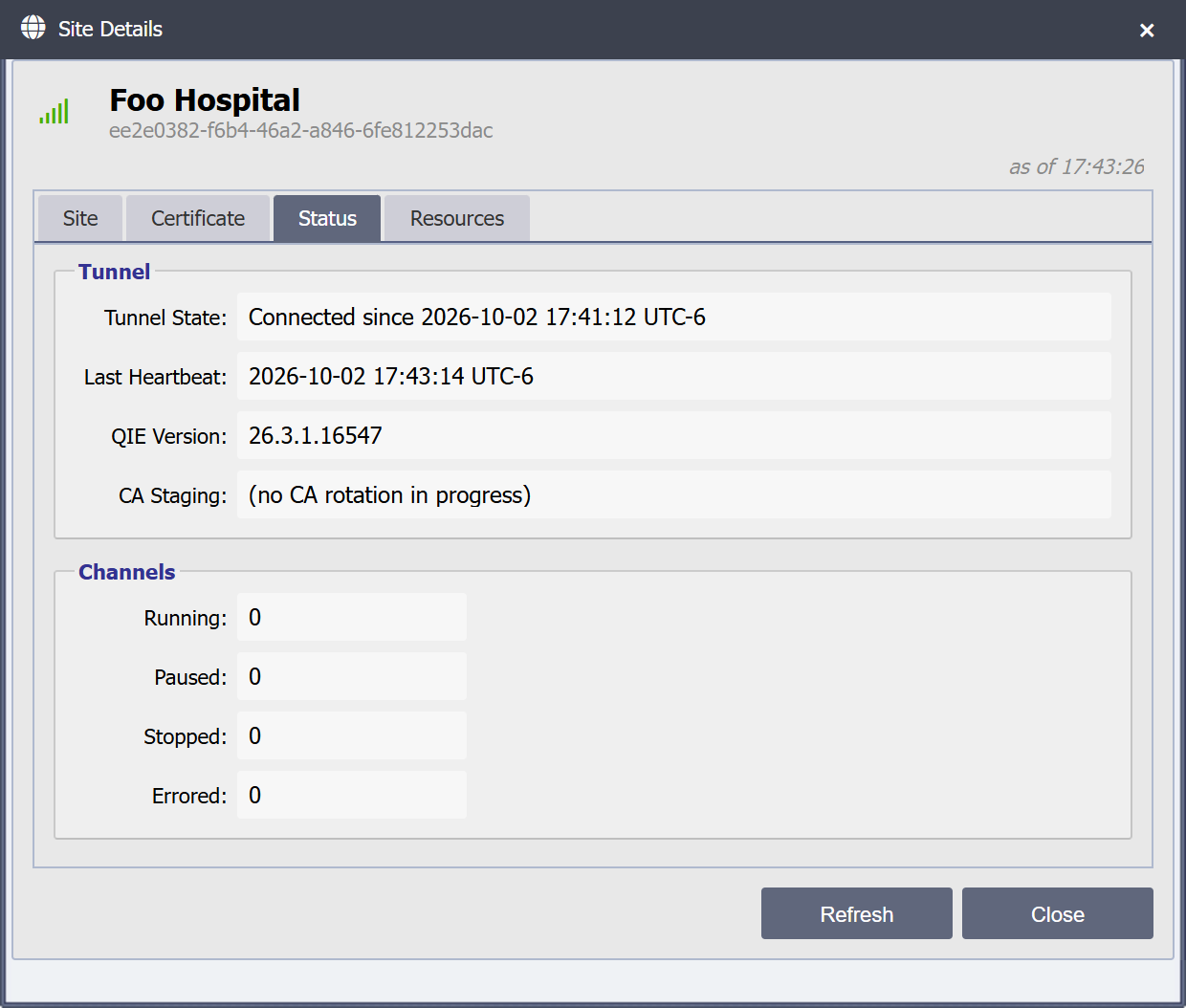
| Field | Source |
|---|---|
| Tunnel State | Connected since YYYY-MM-DD HH:MM:SS, Disconnected, or Disabled for a disabled site |
| Last Heartbeat | Timestamp of the most recent heartbeat received |
| QIE Version | Reported in the heartbeat |
| CA Staging | The site's part in an internal-CA rotation: (no CA rotation in progress), New CA staged; awaiting confirmation, New CA trusted (confirmed <time>), or Failed: <reason> |
| Channels Running / Paused / Stopped / Errored | Channel state summary from the heartbeat |
Resources tab
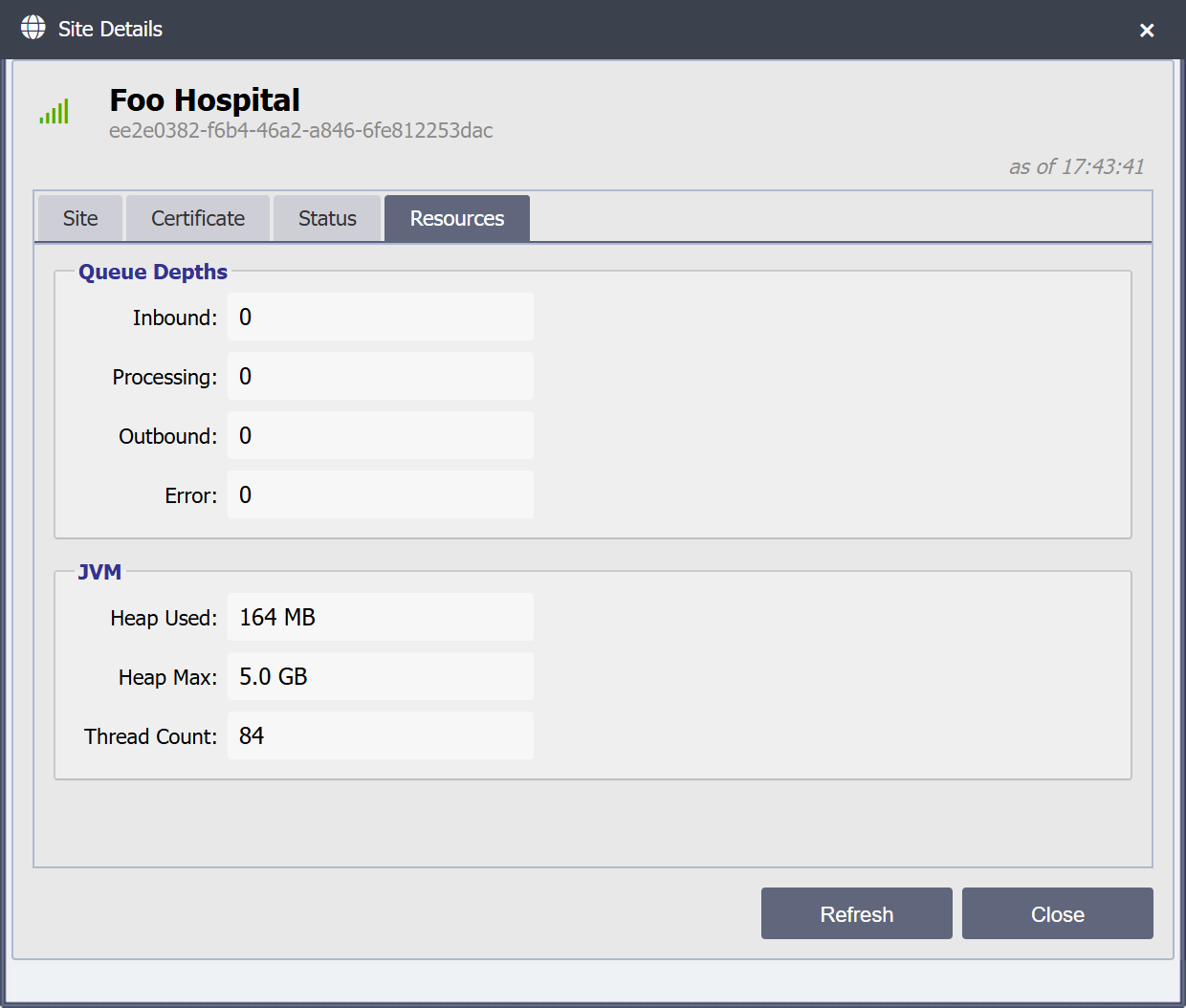
| Field | Source |
|---|---|
| Inbound / Processing / Outbound / Error | Aggregate queue depths across all channels on the site |
| Heap Used | Most recent JVM heap usage reported in the heartbeat |
| Heap Max | Configured -Xmx |
| Thread Count | JVM thread count |
Heap and queue values are rendered in human-readable form (KB / MB / GB, comma-separated thousands).