Jobs Page
The Jobs page lists the jobs the signed-in person can see on the Hub, most recently changed first, one page at a time. It is where a job is created, and where every job is opened to be edited, approved, run or rolled back.
Opening the Page
Open Sites -> Jobs. The entry is shown to Hub administrators and to anyone whose role holds the Jobs grant at one or more sites.
Filters
The row under the toolbar narrows the list. Set the filters and click Search, or press Enter in a filter box. Clear empties every filter and lists the jobs again. Both work within what Show Completed shows, which they leave as it is.
Name: Text the job's name contains, ignoring case.
State: One state to list, or Any.
Prepared By: Text the preparer's user id contains, ignoring case.
From: The earliest day the job last changed.
To: The latest day the job last changed, including the whole of that day.
Show Completed: At the right end of the row. Lists the jobs that have ended (finished, stopped, halted or rejected) as well as the unfinished ones. Ticking or clearing it lists the jobs again at once, from the first page, with the filters of the last search. It is clear when the page opens, so the list starts with the jobs still in progress. While it is clear, the State list offers only the unfinished states, and clearing it while State is an ended state sets State back to Any.
Job List
Name: The job's name.
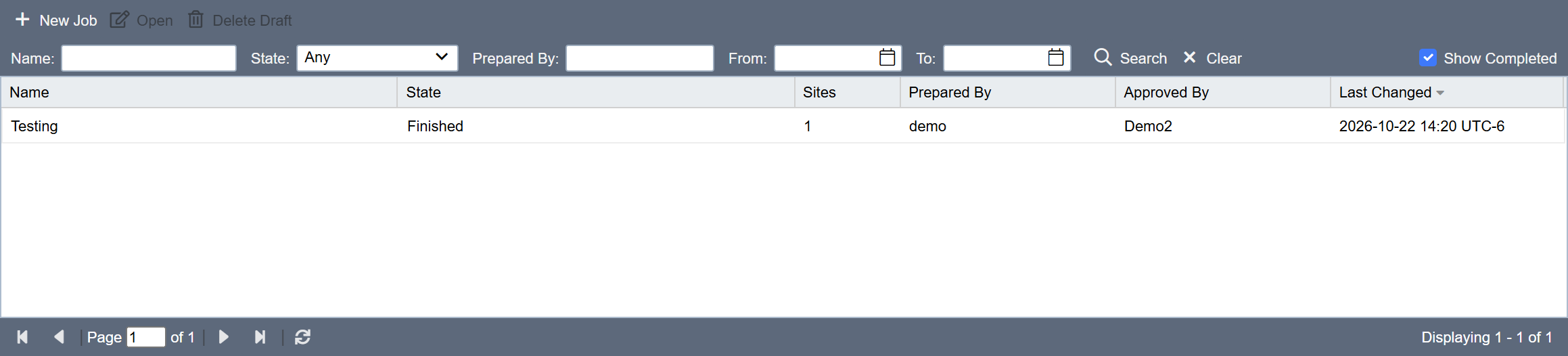
State: Where the job is in its life, with the reason when one is recorded, for example "Paused during a CA rotation". See Job Details for every state.
Sites: How many sites the job reaches. A draft shows nothing here, because its site list is fixed only when it is submitted.
Prepared By: The user id of the person who prepared the job.
Approved By: The user id of the person who approved it; empty when it needed no approval or has not been approved.
Last Changed: When the job last changed.
Click a column heading to order the list by that column; the Hub orders every page, not only the one shown. Each page holds as many jobs as the list shows without scrolling. The paging bar under the list moves between pages, gives the total count, and its refresh button reads the page shown again.
While the first page is shown, the list reads it again every 3 seconds, so a job that changes state or ends shows without a click. The selected job stays selected while it is still listed. A later page holds still, so the rows do not move while you page through them. If a refresh fails, the page says so once, and again only after a refresh has succeeded.
Toolbar
New Job: Opens the editor for a new draft. See Preparing a Job.
Open: Opens the selected job. A draft opens in the editor; any other job opens in its details. Double-clicking a row does the same.
Delete Draft: Deletes the selected draft, with its file and key password, after confirmation. Only a draft can be deleted. A submitted job stays on file with its statements until the Hub's retention removes it; see Job Retention.
Who Sees Which Jobs
The list holds only the jobs the person may see, and the details show each job in full or in part:
| Person | Sees |
|---|---|
| The preparer | Their own drafts, and their submitted jobs in full |
| The approver | The job in full |
| A Hub administrator | Every submitted job in full |
| Anyone who holds the Jobs grant at every site the job reaches | The job in full; this is everyone who could approve it |
| Anyone else who holds the Jobs grant at one or more of its sites | The job, with only the rows of the sites where they hold the grant |
| Everyone else | Nothing |
A draft is seen only by the person who prepared it. Hub administrators do not see other people's drafts.
Seeing a job in full matters for two actions. Only someone who sees the whole job may copy it into a new draft or rerun its not-run sites, because both take the whole job; see Copying and Rerunning a Job. Rolling back a site needs only the Jobs grant at that site; see Rolling Back a Job Site.
The Jobs grant is given to roles, for tags, in the Site Access section of the role on the Manage Roles page (see Site Access Grants). A change to a grant, or to the tags a site carries, applies the next time it is checked. Being a Hub administrator does not give it.