Remote Support Sessions with Qvera
A remote support session lets a Qvera support engineer look at your QIE server through its MCP tools while you watch. You start it from the console with a code the engineer gives you, and you allow the engineer in. The engineer can only read: nothing they do changes your configuration or your messages, and they never see message content.
Start a session
- Ask the Qvera engineer for a pairing code. It looks like
K7Q-M4Xand works once, for 5 minutes. - In the console, open Help and choose Remote Support Session.
-
Type the code in Code and click Connect. Capital letters, spaces and dashes do not matter.
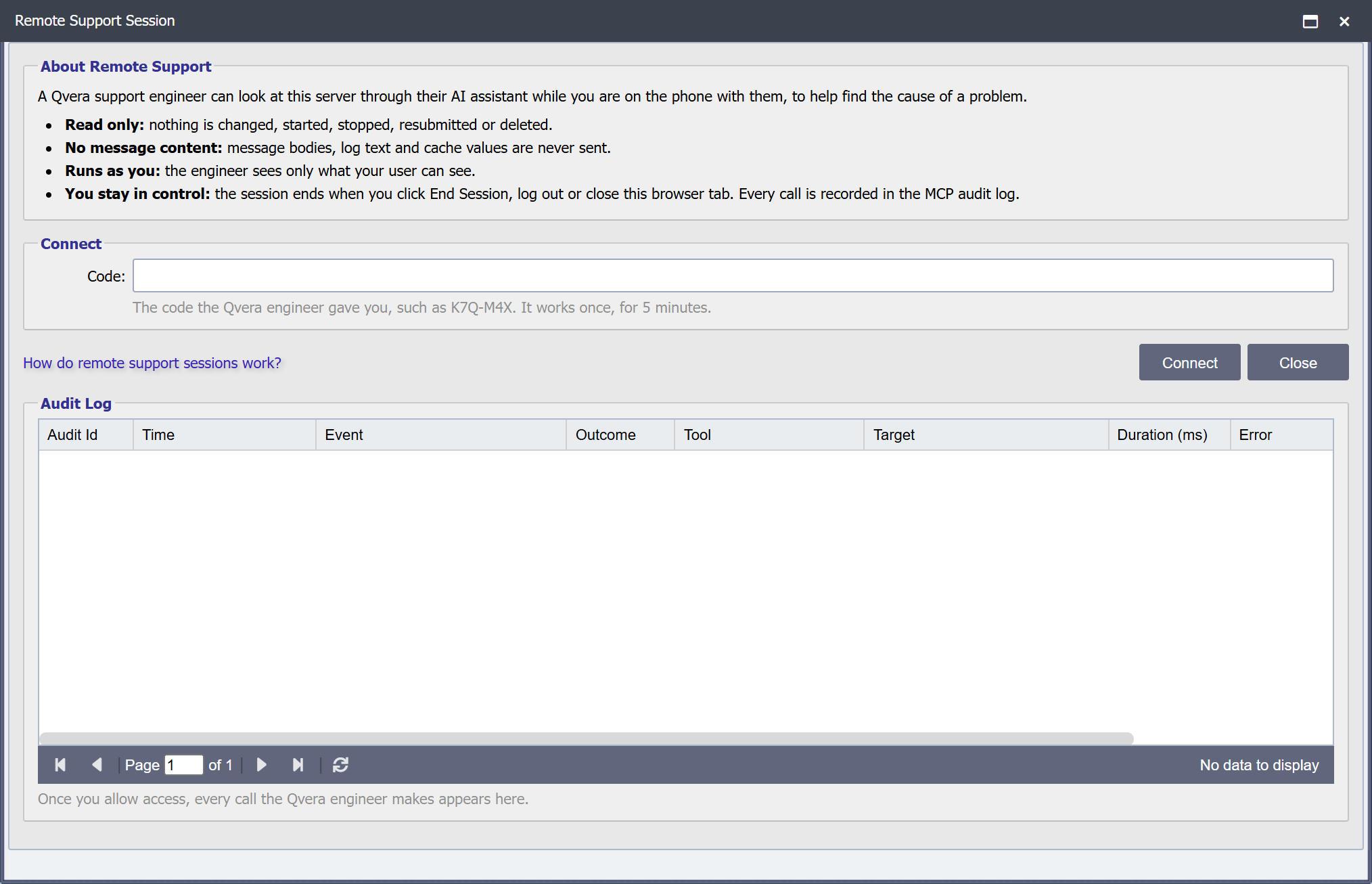
-
The Session box takes the code's place, with the engineer's name and the case number if they gave one. Check it is the person you are talking to, then click Allow. Click End Session instead to end the session.
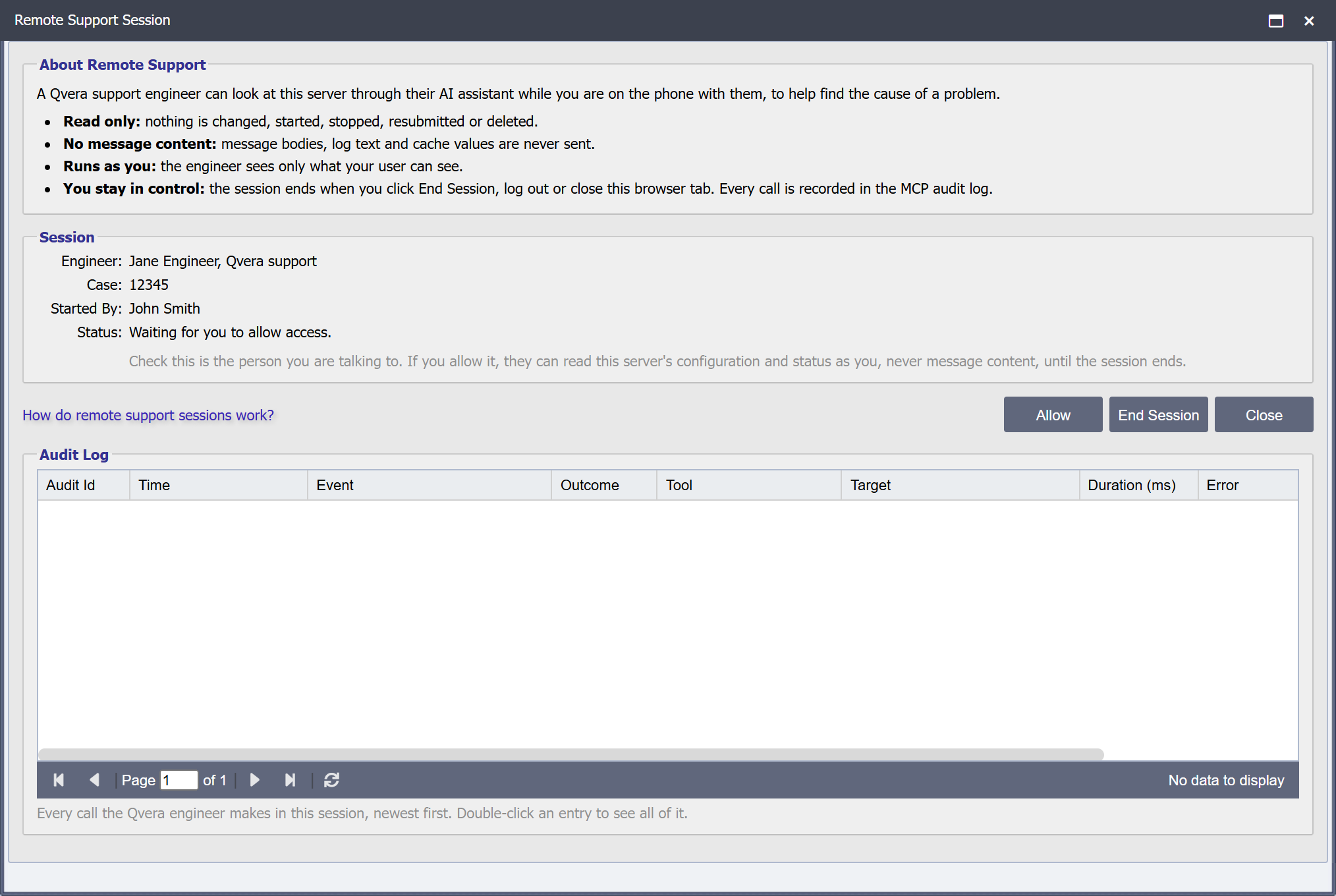
Once you allow it, the dialog shows the session as connected, and the banner described below appears. If the code is wrong or has expired, the dialog says so and you can type it again.
How QIE connects
QIE connects to Qvera's support service, mcp-gateway.qvera.com, over an encrypted WebSocket on port 443 that QIE opens itself, so no port needs to be opened to your network. If your firewall limits outgoing traffic, let the QIE server reach that address on port 443. When an HTTP/HTTPS proxy is set in System Configuration, the connection goes through it.
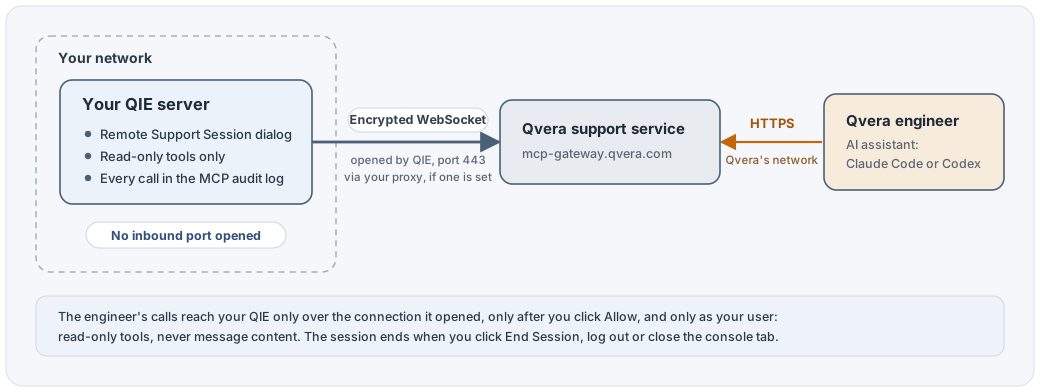
The engineer's calls reach your QIE only over that connection, only after you click Allow, and only as your user.
Follow the session in the dialog
The Remote Support Session dialog stays open while the session runs. Below its buttons, the Audit Log box lists every call the engineer makes in the session, newest first, read again every 3 seconds while the dialog is open. Double-click an entry to see all of it, as in the MCP audit log. The dialog can be resized and maximized to show more entries.
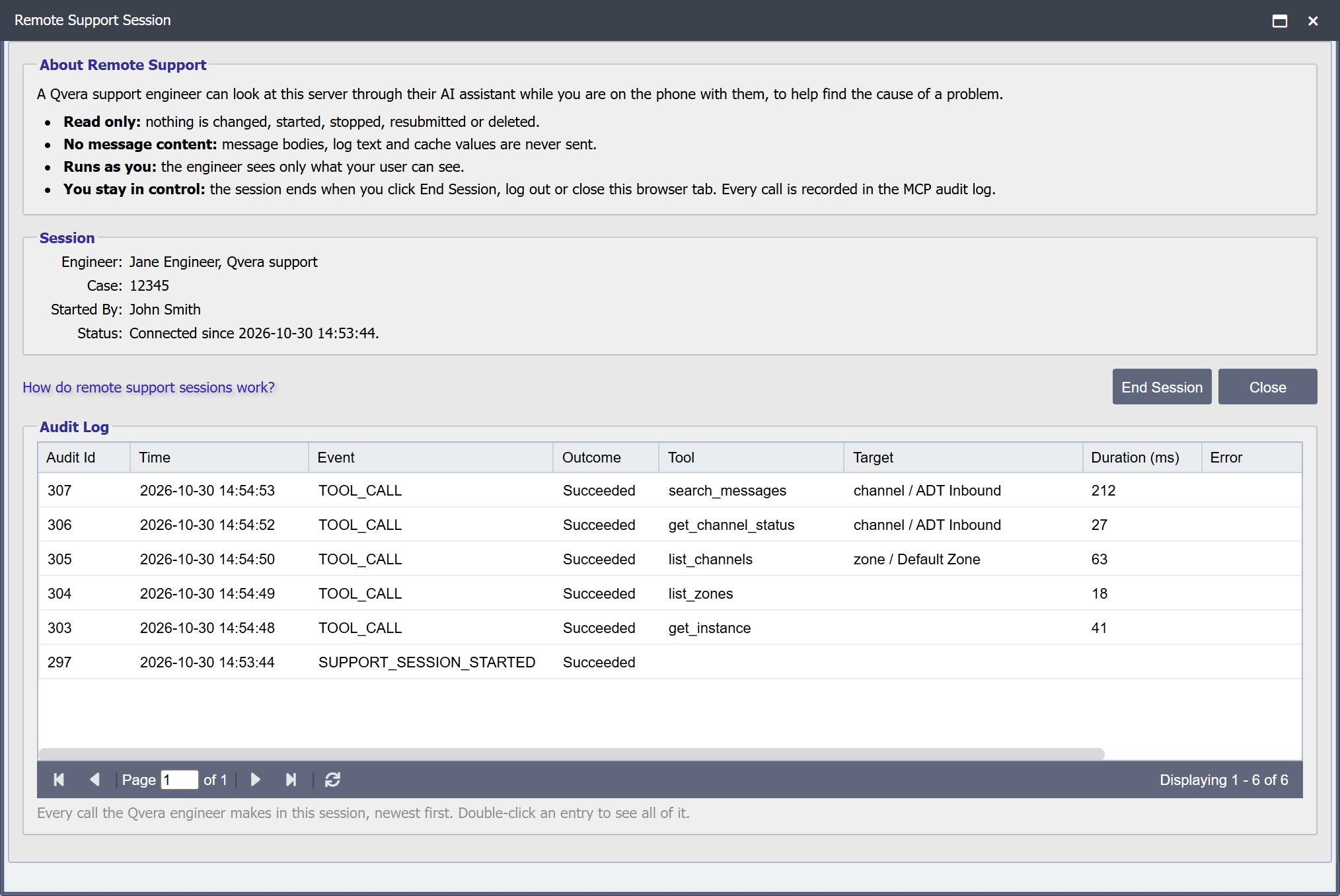
The user who started the session and administrators see its calls. Anyone else who opens the dialog sees the Session box without them.
Close closes the dialog and leaves the session running. To come back to it, open Help and choose Remote Support Session again: the dialog shows the session where it stands, including Allow if you closed it before allowing the engineer in. A session that is not allowed within 5 minutes ends.
What the engineer can and cannot see
- The engineer runs as you: they see only what your user can see in the console.
- Only tools that read are available. Tools that change, start, stop, resubmit or delete anything are refused, and so are tools that would ask you a question.
- Message content is always held back, whatever Return message content says on the MCP page. Message searches work on metadata only, and message bodies, log text and cache values are not returned. See Message Content and the MCP.
- The engineer can run at most 4 calls at once, and as many message searches a minute as Message Searches per Token per Minute on the MCP page allows (see MCP Settings).
Every call is written to the MCP audit log under your user, with the engineer's name, including a call QIE refuses: a tool that is not available, a call before you allow the engineer in, or a call while your user is cut off. A call refused for going over one of the two limits above writes a RATE_LIMIT_BREACH entry the first time in a minute, naming the limit, and nothing for the rest of that minute. The log also records when a session went live and when it ended. The end is recorded under the user who clicked End Session or logged out, and under your user when no one did.
The banner
While a session is live, every signed-in console user sees a bar above the tabs: "Qvera support session with engineer, started by user, is active." Anyone in the console can see that Qvera has remote access at that moment.

The bar shows View Logs and End Session to the user who started the session and to administrators. View Logs opens the Remote Support Session dialog on the session, with its calls. Other users see the bar without either button.
End a session
A session ends when any of these happens:
- You click End Session in the dialog or on the banner, or an administrator does.
- The Qvera engineer ends it, or is signed out of Qvera's support service.
- You log out, or the console tab you started it from is closed. A closed tab ends the session within about two and a half minutes, or sooner when the browser tells QIE the tab is closing. A tab left open in the background, or behind another window, keeps the session running.
- Allow under Qvera Remote Support in System Configuration is cleared.
- Your user is disabled, locked out after too many failed sign-in attempts, or deleted. The session ends at the engineer's next call. A temporary or expired password does not end it.
- The server running the session shuts down.
- The server running the session has not been able to check the session in its database for 30 seconds, for example because the database is down, so it cannot tell whether anything above has happened.
When a session ends with the dialog open, the dialog says why, and who ended it when a person did: you, an administrator by name, or the Qvera engineer. When a session that went live ends with the dialog closed, the console tab you started it from tells you instead. QIE also tells Qvera which console user ended the session.
Only one session can run at a time on an installation. While one is active, the dialog shows that session, with who started it, instead of asking for a code.
Turn remote support sessions off
Remote support sessions are allowed by default. To stop anyone starting one, an administrator clears Allow under Qvera Remote Support in the advanced settings of System Configuration (see Advanced System Settings). Clearing it also ends a running session. Help still shows Remote Support Session, and the dialog says in red under Code that sessions are switched off as soon as it opens, with Code and Connect disabled. It notices within a few seconds when the setting changes while it is open.
Remote support sessions are not available on a Remote Management Hub.