MCP Calls Through the Hub
A site registered with a Remote Management Hub can run the MCP tool calls of AI assistants signed in at that Hub. The person signs their assistant in once, at the Hub's own MCP server (see The MCP Server on a Hub). For each tool call, the Hub signs a statement that names the person, the site and the tool, and sends it to the site with the call. The site checks the statement and runs the call through the same tools as its own MCP server, as the person's Hub user.
A site takes no calls from its Hub until its administrator turns this on.
Turning It On
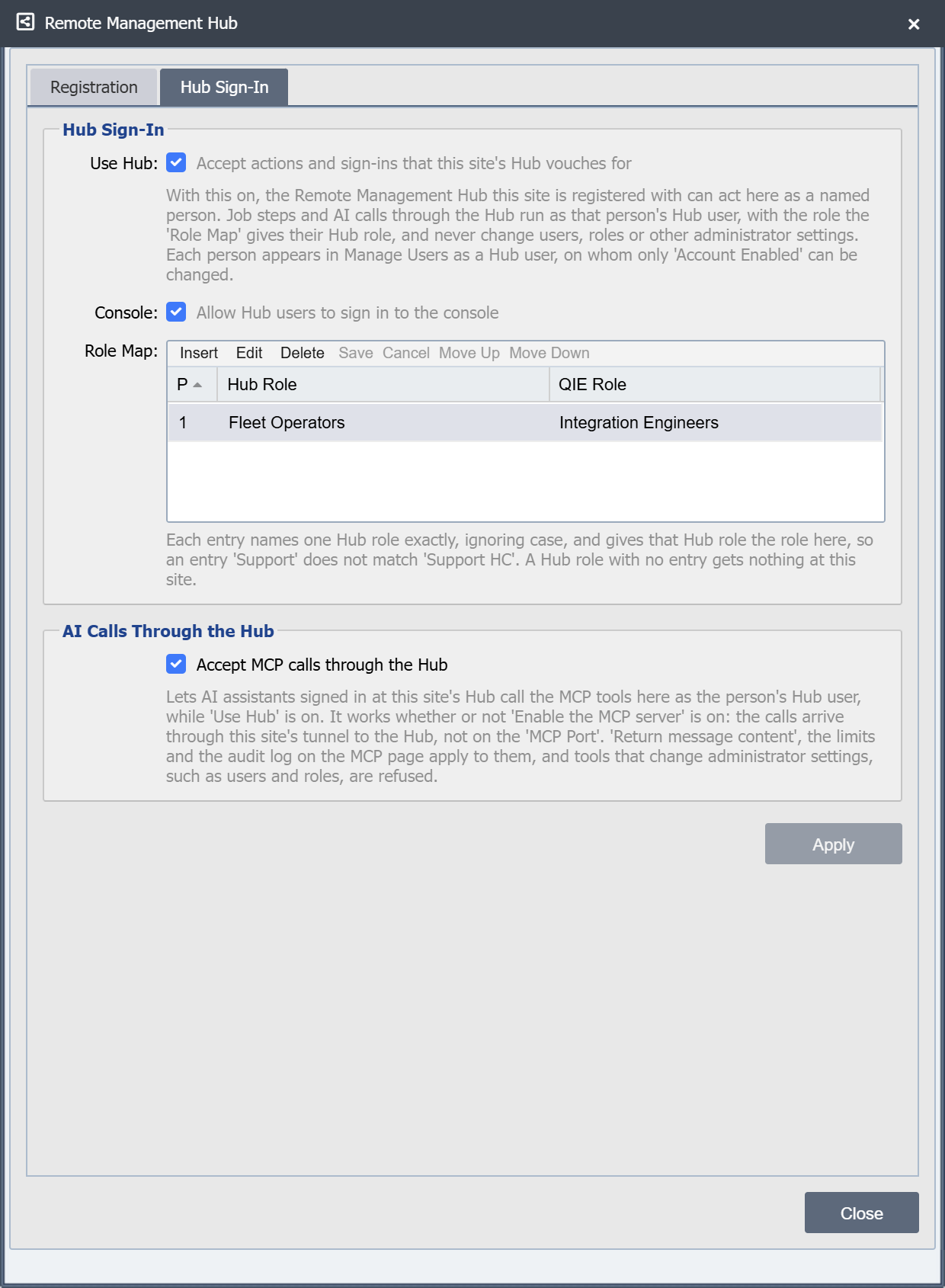
A site takes MCP calls from its Hub only while every item below holds. The site's settings are all on the Hub Sign-In tab of its Remote Management Hub dialog, which opens from the toolbar of System Administration -> System Configuration.
At the Hub:
- The Hub's own MCP server is on, since the person's AI assistant connects to it (see The MCP Server on a Hub).
- The person's role holds the MCP grant at the site, given for a tag the site carries. A Hub administrator holds it only through their role too (see Site Access Grants).
At the site:
- The site is registered with the Hub and its tunnel is connected (see Remote Management Hub Dialog).
- Use Hub is on, with a Role Map entry that matches the person's Hub role (see Hub Sign-In).
- Accept MCP calls through the Hub is ticked, in the AI Calls Through the Hub box. It is off by default.
Not needed at the site: Enable the MCP server, the MCP Port, a server certificate or a Resource URL. The calls arrive through the site's tunnel to the Hub, not on the MCP port, so a site can take calls through the Hub with its own MCP server off.
To turn them on, open the Hub Sign-In tab, tick Use Hub and Accept MCP calls through the Hub, add a Role Map entry, and click Apply.
The site checks its settings on every call, so turning one off refuses the next call. The Hub also keeps its own copy of the site's settings, and refuses a call that copy says the site would refuse without sending it. The site sends the copy when its tunnel connects, and again while the tunnel is up whenever the settings change: at once after Apply on the Hub Sign-In tab, and at the next check for a change made any other way, such as a configuration import. That check runs every 15 seconds.
A Hub on an older build reads the copy only when the tunnel connects. After an Apply that changes the settings, the site asks whether to restart the tunnel so such a Hub reads them. Restarting it cuts off anything going through the tunnel until it reconnects.
Who a Call Runs As
Each call runs as the person's Hub user: the site account that the site creates and refreshes for that person, with the site role that the Role Map gives their Hub role. The call has that role's zone permissions, as a person with that role has in the console. A tool that needs an administrator runs only when the role is an administrator role.
When the person approved their AI assistant at the Hub, they chose its access: read only, manage or full. Every statement carries that choice, and the site uses it as the call's scope, as it uses a token's scope on its own MCP server. A call needs both: the scope the tool requires, and the permission in the zone.
The person needs no account and no sign-in at the site. Nothing appears for them under Registered Clients or Sign-Ins on the site's MCP page, and revoking sign-ins there does not affect calls through the Hub. To stop every call through the Hub, turn Accept MCP calls through the Hub off. To stop one person, disable their Hub user, as Hub Sign-In describes.
What Still Applies
Calls through the Hub follow the site's own MCP page, as calls to its own MCP server do.
- Return Message Content: While it is off, no message bodies, log text, cache values or sample messages are returned (see Message Content and the MCP). While it is on, the content a tool returns passes through the Hub to the AI assistant as the site sent it.
- Require Client Confirmation: The Hub tells the site whether the person's AI assistant can show a form. While this setting is on, an assistant that cannot is refused the actions that need confirmation.
- Limits per person: Requests per Token per Minute, Concurrent Requests per Token and Message Searches per Token per Minute count for each person the Hub vouches for, on each node. They apply whether or not the site's own MCP server is on. A call over a limit is refused at once, with no wait for a free place. The same counts also cover the person's job steps and console sign-ins through the Hub.
- Results: The limits that shape a tool's answer, such as Max Page Size and Read Cap (bytes), apply as they do on the site's own MCP server.
- Repeated requests: An action that asks for confirmation is recognized as a repeat when the same Hub sign-in and AI assistant send it again, as a repeat from the same access token is (see Repeated requests).
- Allow Reports to Qvera:
send_reportis refused while it is off. Through the Hub the site never shows a form: the assistant asks the person itself and passes their answers with the call. While Require client confirmation is on, which is the default, the site therefore refusessend_reportthrough the Hub (see Sending a report to Qvera and What Is Refused Through the Hub). - Audit Retention (days): Decides how long the site keeps the audit entries for these calls, and the statements the Hub sent.
What Is Refused Through the Hub
Nothing a call through the Hub does itself can change who may do what at the site, even for a Hub user whose role is an administrator role. That covers the call's own work, not the scripts of a channel it starts or changes, which run as any channel's scripts do.
- The user and role tools are refused:
update_user,create_user,set_user_enabled,delete_user,set_user_password,set_user_zone_permissions,set_user_administrator,set_user_role,set_management_api_token,save_roleanddelete_role. The Hub does not list them. - A zone sent to
save_object,overwrite_objectorvalidate_objectwithusersorrolesis refused, even when they are unchanged. Leave both out: a zone saved through the Hub keeps its users and roles as they are. send_reportis refused while the site's Require client confirmation is on, which is the default, because through the Hub the site cannot show the person the report's form; the assistant's answers would be the model's word.- The site also refuses, when it saves, any other change to its administrator records. These are users, roles, their permissions, System Configuration, the Management API settings, licenses and license groups, the MCP settings, the site's Hub registration, and the certificates and keys of its Hub connection. Creating or deleting a zone may still add or remove the site administrators' usual access to that zone.
import_configurationis refused before it writes anything when the package would change a certificate or private key that the site's Hub connection, Management API or MCP listener uses. Without that check, the save would refuse the record partway through the import, after earlier objects were written.
A tool the site does not have, for example because the site runs an older version than the Hub, is answered with not_found.
Confirmations in Two Steps
An action that asks the person to confirm it (see Confirmations) takes two statements through the Hub.
- The first call runs until the tool would ask. The site then stops and sends the Hub the question and the version of the object it is about. Nothing has changed yet.
- The Hub puts the question to the person through their AI assistant, starting it with the site's label, as in "Site 'lab': ...", since the same object names can exist at every site. It relays only the standard confirmation form, and answers any other with a cancel. The Hub sends the answer in a second statement that names the first. Before it signs the answer, the Hub checks again that it is not in a lockdown, that the person is enabled at the Hub and their role still holds the MCP grant at the site, and that the site is still enabled; when one no longer holds, it sends nothing and the call is refused as the first call would have been.
- The site runs the action only when the answer confirms it, and only while the object is still at the version the person approved. If the object changed in the meantime, nothing is changed and the call returns
target_changed.
The site accepts a second statement only as the answer to a question it asked the same person, about the same tool, in the statement the second one names. A declined or canceled question ends the operation, so asking again starts over. When the person gives no answer, the Hub sends a cancel.
What the Site Records
MCP audit log: Each call writes its entries in the site's own MCP audit log, as a call to the site's MCP server does. The entry names the Hub user and the AI assistant's own name and version. Its client id is hub: followed by the Hub's id for the assistant, so it never matches a client registered at the site. Its session is the Hub's MCP session, its source address is the address the Hub saw the assistant call from, and its request id is the statement's id. No token is recorded, because there is none.
Confirmations: The first call's entry succeeds, with "confirmation": "asked through the Hub" in its details, and a CONFIRMATION_REQUESTED entry follows it. The second call writes its own entry and a CONFIRMATION_ANSWERED entry with the answer.
Limits: The first refusal of a person under a limit in a minute writes a RATE_LIMIT_BREACH entry with the client id hub and the statement's id.
Revision history: A change made by a call through the Hub shows Hub MCP in the Via column, with the Hub user in the User column (see Revision History). The revision is also stamped with the statement's id and the call's MCP audit entry.
Statements: The site keeps every statement its Hub sends, accepted or refused, for the Audit Retention (days) on its MCP page. A call the site refuses before the tool runs, for example because a switch is off or the person's Hub role is not mapped, is recorded with its statement. Apart from the limit entries above, such a refusal writes nothing to the MCP audit log. Hub Sign-In lists those refusals and the alerts some of them raise.