Converting a Mirth Connect Channel
QIE converts a Mirth Connect channel export into a QIE configuration that imports like any other. The structured parts of a Mirth channel (listeners, destinations, filter rules, connection settings) convert directly into QIE nodes and connections. The JavaScript in transformer steps, filter rules and connector scripts is rewritten for the QIE scripting API. Every conversion ends with a report and a per-channel list of what still needs a person, so nothing is dropped silently.
The conversion runs on Qvera's conversion service rather than on your engine. The QIE server needs outbound HTTPS access to qvera.com, and the Application -> Convert Mirth Configuration menu item is available to administrators only.
Step 1: Export the Channel Group from Mirth Connect
QIE accepts a channel group export or a full server backup. A single-channel export carries no group and is rejected as an invalid Mirth configuration file.
In the Mirth Connect Administrator, open Channels, select the group that contains the channel and choose Export Group from the Group Tasks list. Save the XML file. Every channel in the group converts together, so move a channel into a group of its own first to convert it alone.
To convert everything on a Mirth server, open Settings, select the Server tab and choose Backup Config. The backup holds every group and channel, and QIE converts it into one zone per group.
Tip
Export immediately before converting. The conversion is faithful to the file, so a change made in Mirth after the export does not reach QIE.
Step 2: Open the Convert Mirth Configuration Dialog
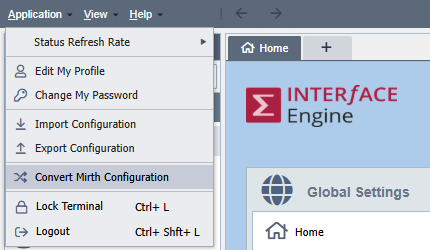
Select Application -> Convert Mirth Configuration from the main menu. The Convert Mirth Configuration dialog lists every conversion job on this QIE server, newest first, with its status and percentage complete. When there are no jobs yet, the file picker opens on its own.
Step 3: Upload the Export File
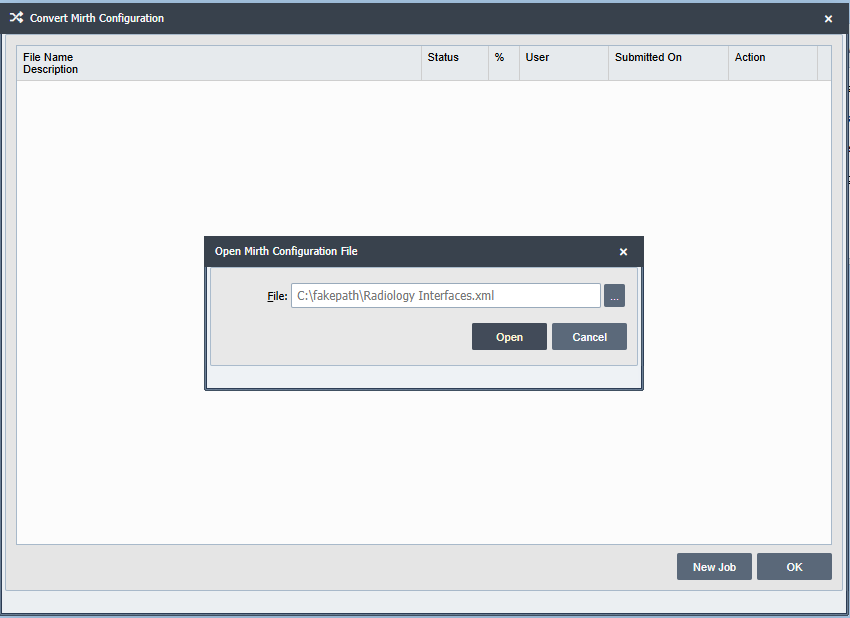
Click New Job. In the Open Mirth Configuration File dialog, choose the exported XML file in the File field and click Open. QIE reads the file, confirms it is a Mirth Connect export and counts its channels. The job appears with a grey dot and the status Uploaded, described by its group name and channel count, or for a backup by its date, group count and channel count.
Nothing has left your server yet: uploading stores the file in the QIE database with the job, and the next step sends it.
Step 4: Submit the Conversion
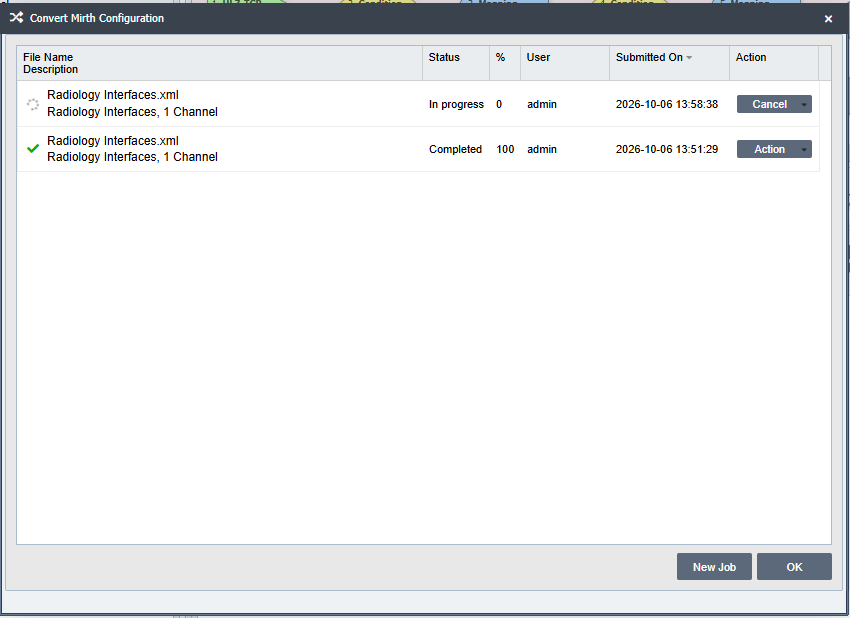
In the job's Action column, click Submit and select Submit from the menu. QIE sends the file to the conversion service, the dot becomes a spinner and the status changes to In progress. Closing the dialog does not stop the conversion: reopen it at any time to see where the job is.
The percentage climbs as the service reads the export, builds the channels and converts their scripts. Script conversion takes most of the time: a channel with a dozen scripts typically completes in a few minutes. To stop a running conversion, select Cancel from the job's Action column.
The indicator at the start of each row shows the job's state:
| Indicator | Status |
|---|---|
| Grey dot | Uploaded: stored on this server, not yet submitted |
| Spinner | In progress: the conversion service is working on it |
| Green check | Completed: ready to import |
| Red triangle | Failed: the conversion stopped with an error |
| Yellow triangle | Cancelled: stopped by a user |
Step 5: Read the Conversion Report
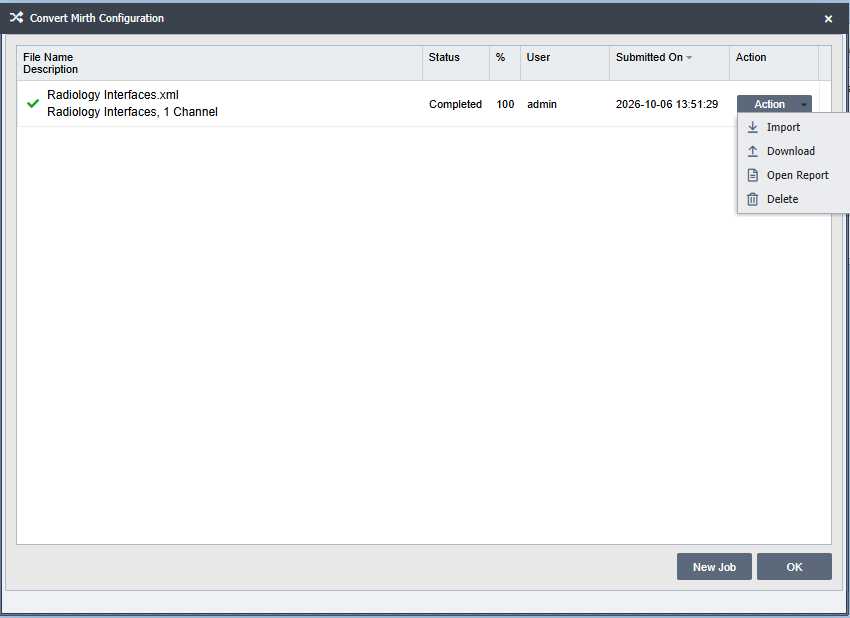
When the job is Completed, click Action and select Open Report. The Conversion Report opens in a read-only viewer where the text can be selected and copied, and Download saves it as a text file.
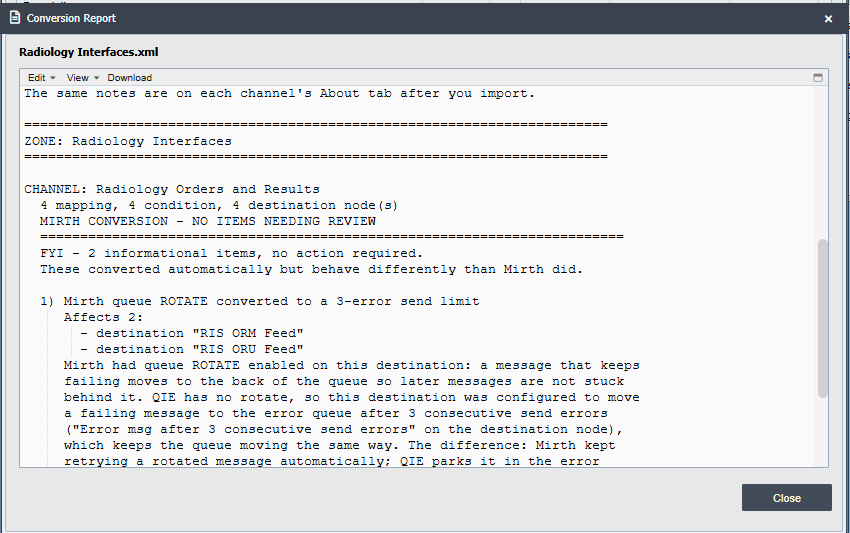
The report has three parts:
- The header gives the source file, its description, the status and when the job started.
- What was created counts the zones, channels, nodes and connections, and says how many channels have conversion notes.
- The channel detail lists each zone and channel with its node counts, followed by that channel's conversion notes.
Each conversion note starts with one of the labels under What Needs Manual Follow-Up, names the node it concerns, explains what happened and quotes the Mirth source involved. The same notes are written to the channel's About tab (the Version Info field of the Channel Properties dialog) on import, so they stay with the channel.
For a failed or cancelled job, the report gives what the conversion service reported and what the percentage it stopped at means.
Step 6: Import the Converted Configuration
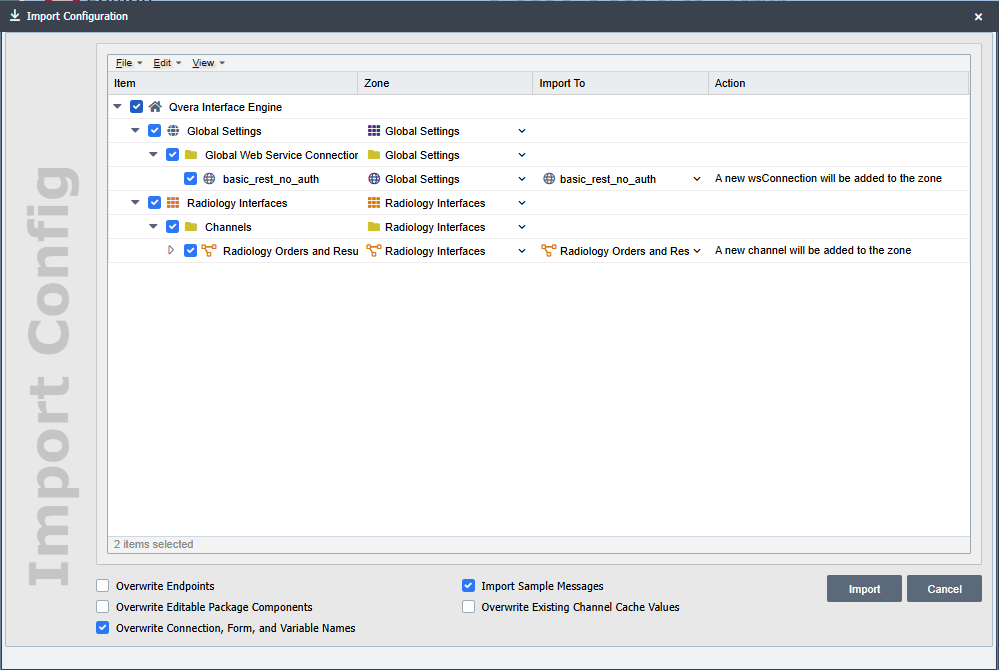
Click Action and select Import. The converted configuration opens in the Import Configuration dialog at the item selection step, with one zone per Mirth group. Global Settings holds basic_rest_no_auth, a generic web service connection whose URL converted calls override per request. Choose the items and the target zone and import them: see Importing and Exporting Configurations for the options.
Select Download instead to save the converted configuration as a .qie file, for example to review it on a test server before importing it into production. Delete removes the job and its files from this QIE server, not anything already imported.
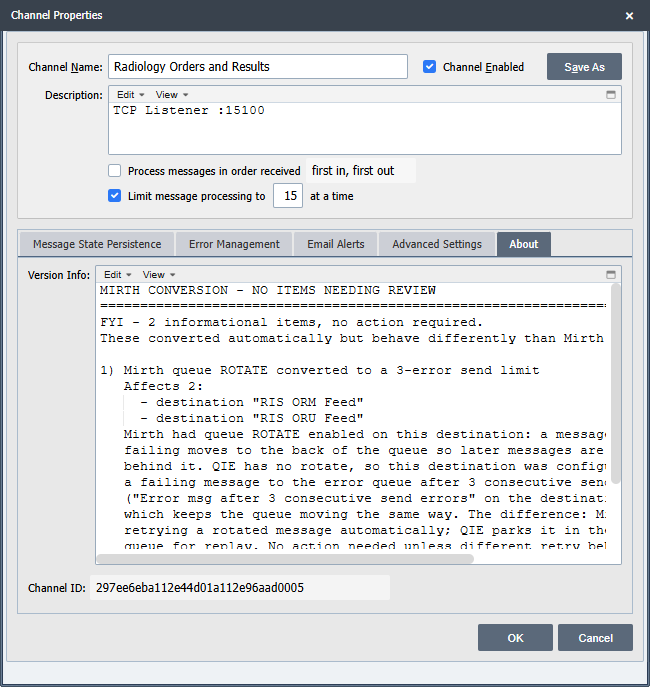
Converted channels import stopped. Work through each channel's About tab, check the endpoints and credentials, and test with a sample message before starting it.
What Converts Automatically
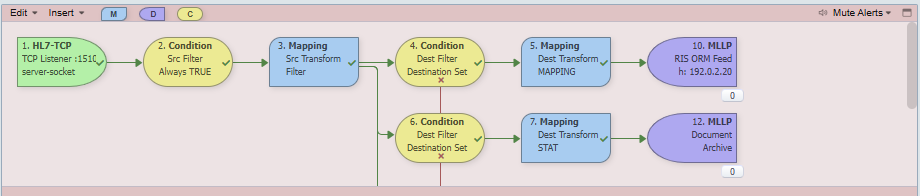
A Mirth channel group becomes a QIE zone of the same name. Each channel keeps its name and the shape Mirth gave it: the source connector becomes the source node, each filter a condition node, each transformer a mapping node, and each destination connector a destination node.
| Mirth construct | QIE result |
|---|---|
| TCP Listener, TCP Sender | Socket source or destination, with the host, port and MLLP framing |
| HTTP Listener | HTTP Listener source |
| HTTP Sender, Web Service Sender | Web Service destination with a Web Service Connection built from the URL |
| File Reader, File Writer | File source or destination |
| FTP, SFTP | FTP or SFTP destination |
| DICOM Listener, DICOM Sender | DICOM Listener source or DICOM destination, with the AE titles |
| Channel Reader, Channel Writer | Channel Queue source or destination |
| Database Reader | Database source |
| Database Writer | Custom Script destination running the converted script, with a Database Connection built from the connector |
| JavaScript Reader | Custom Script source |
| JavaScript Writer, SMTP Sender, JMS Sender | Custom Script destination running the converted script |
| Document Writer | File destination that writes the message as the file content |
| Rule Builder filter rule | Standard condition where the operator has a QIE equivalent, otherwise a custom script condition |
| JavaScript filter rule | Custom script condition |
| JavaScript Step, Mapper Step, Destination Set Filter | Custom mapping function |
| Inbound and outbound message templates | Sample messages on the channel |
| Preprocessor script | Preprocessor script on the source node |
| Disabled rule or step | Converted and left disabled |
Each script is rewritten for the QIE scripting API. Mirth references such as msg['PID']['PID.5']['PID.5.1'] become node paths such as message.getNode('PID-5.1'), and Mirth maps become the QIE caches. The converted script keeps the original's control flow, names and comments so the two can be read side by side.
A script that opens its own database connection or calls an endpoint causes the conversion to create the matching Database Connection or Web Service Connection and reference it by name, with the credentials moved onto the connection. One connection is created per distinct database and login, however many scripts use it. A driver QIE does not ship (jTDS) is replaced with the equivalent QIE driver, and the original URL is recorded on the connection.
What Needs Manual Follow-Up
Each note on a channel's About tab begins with one of these labels. Work through them before the channel goes live.
- Script needs manual work: the first line of the converted script is
// TODO manual conversion:followed by what remains and why. The rest of the script is usable. Do what the line says. - Script could not be converted by the AI: convert the script by hand from the Mirth source in the note, or send the report to support.
- Script opens a connection the AI never requested: a script uses a database or endpoint for which no connection was created. Create it by hand with the name the script uses.
- Database destination has no connection configured: the Mirth destination had no database URL. Configure a connection if the destination is used, or delete it.
- HTTP authentication needs credentials: the QIE source requires authentication like the Mirth listener did, but the credentials were not in the export. Configure them, or the source rejects callers.
- Port needs to be set by hand: the Mirth port was a variable or an expression rather than a number. Enter the real port.
- Port converted to a node tag - confirm the cache key is written: the port is now a node tag evaluated per message. Confirm that a converted step writes that cache key.
- Response transformer not converted and Channel-level script not converted: response transformers and the deploy, undeploy and postprocessor scripts have no QIE slot. If the quoted Mirth logic matters, place it in the right QIE script: an ack script, an error handler or a scheduled script.
- Mirth queue ROTATE converted to a 3-error send limit: Mirth moved a failing message to the back of its queue. QIE sends in order, so the destination errors a message after three consecutive send failures. Change the limit if you want a different one.
- Mirth template scrub converted to a final mapping step: the Mirth destination template stripped text from the outgoing message, and a final mapping step now does the same. Check that the stripping is still wanted.
- Outbound message template with no tmp writes and Destination sent a custom payload, not the message: the Mirth destination sent a template rather than the processed message. QIE sends the message, so rebuild the payload in a mapping node if the receiver expects it.
- Filter mixed AND and OR: check the converted condition's logic against the original intent.
- Database driver is not one QIE ships: choose the equivalent QIE driver on the connection. The original driver and URL are recorded on it.
- Destination transport not supported, Mirth construct has no converter and Unrecognised Mirth construct: the construct has no QIE equivalent. Rebuild it by hand from the Mirth source in the note.
What Is Sent to Qvera
Submitting a job sends the Mirth export file to Qvera's conversion service at qvera.com over HTTPS, together with the QIE version and build number and an encrypted token that identifies the submitting user and the QIE installation. The converted configuration comes back to QIE and is stored with the job. The uploaded export and the converted configuration stay in your QIE database until you delete the job.
The export travels exactly as Mirth wrote it, so everything in it reaches Qvera. That includes the user names and passwords Mirth stores on its connectors: SFTP File Readers and Writers, HTTP and Web Service Senders that use authentication, Database Readers and Writers, and SMTP Senders. It also includes anything written into a script, and the inbound and outbound message templates, which are real patient messages when they were pasted from a live feed. A full server backup also carries the server settings, global scripts and code templates. Review the export before uploading it and replace anything that should not leave your network.
When a Conversion Fails
Conversions can fail for temporary reasons. Open the report to see what the service reported and which phase the job reached, wait a few minutes, then upload the file again as a new job. If it keeps failing, download the report and send it to support@qvera.com with the Mirth export.
Either of these status bar messages means QIE could not reach qvera.com. Check that outbound HTTPS is allowed, because retrying gives the same message until it is.
- Unable to retrieve certificates from URL. Please validate the URL and try again. Before sending anything, Submit downloads a certificate from qvera.com, and that download is what fails when a firewall blocks outbound HTTPS.
- Conversion service request failed: the conversion request itself did not get through, or the service did not answer.
Note
The Import Configuration dialog only imports QIE configuration files. A Mirth export selected there is rejected as an invalid QIE configuration: convert it first.