Entering Passwords in QIE
Some MCP tools need a password or key that only the person knows, such as the password of the private keys in a configuration package. The person types it into QIE itself, on a QIE page the AI client opens for them. The password never passes through the AI conversation, so it never reaches the AI provider or the AI client's session files. No tool takes these passwords as arguments.
Tools That Ask
import_configurationasks for the password of a package's private keys, unless the call setsskipKeysWithInvalidPasswords, which leaves the keys out. See Importing a package.import_certificatesasks for the password of a key store (.jks, .p12 or .pfx) or of a key file (.pem, .key, .der or no extension) that says it is encrypted, and for the password QIE stores each chosen private key with. A password-protected key file that does not say so looks like a damaged file, so QIE refuses it as unreadable and gives the reason. The model then sends the same call withfilePasswordas{"$secret": "ask"}, which has the person type the file's password. See Importing certificates and keys.create_userandset_user_passwordask for the user's password, andset_management_api_tokenfor the token. See Users, Roles and Alerts.save_objectandoverwrite_objectask for each field sent as{"$secret": "ask"}: a password field, a web service connection'sapiKey, or an external variable source'spassword. See Changing and Deleting Objects.update_nodeandadd_nodeask for a destination'spasswordsent as{"$secret": "ask"}. The page names the node by its number and title, as the channel editor shows it.create_jobon a Remote Management Hub asks for the password of the file's private keys, unless its import step setsskipKeysWithInvalidPasswords. The Hub checks it against every key in the file and saves it with the draft, as the Jobs page does. See Job Tools on a Hub.
How the Person Is Asked
The tool call sends the AI client a link question, which MCP calls URL elicitation. The client shows the person the link and asks whether to open it. Opening it shows QIE's password page in the browser.
The page looks like the console's Home page, with the product logo, the edition, and the version, client and server details across the top. A Hub's page has no edition, and on a page reached through a Remote Management Hub, the site's name takes the edition's place.
Above its fields, the page names what the request is about, with the icon the console shows for it:
- For
save_objectandoverwrite_object, the object, by its type and name. - For
add_nodeandupdate_node, the channel. - For
import_certificates, the file, by its kind and name, such as P12 File. - For
import_configuration, the QIE Import File and the system it was exported from. - For the user tools, the user, by full name and user ID.
- For
create_jobon a Hub, the job.
Below that, one section shows the name the AI client gave itself, the zone the request is in or writes to, with the zone's icon in its color inside the field, or Multiple Zones when there is more than one, the channel and node a destination's password belongs to, and when a QIE Import File was exported. Its Action field says in a few words what the call will do, such as Import and replace. Under it, the page lists the certificates and keys an import_certificates call takes or the options of an import_configuration call. The AI client's own prompt describes the request in full, zones included. Each password has a section of its own, with a label that says what it is for, such as P12 File Password, Import Private Key Password or Database Connection Password. The page asks twice for a password the person is choosing, such as the password QIE stores an imported private key with, so a typo is not saved. QIE checks what it can before the call goes on, and asks again on the page when a value is refused. It checks the password of a file's private keys or of a key store against the file, a user's new password against the required strength and the user's earlier passwords, and any other value against the rules of the object it is saved in.
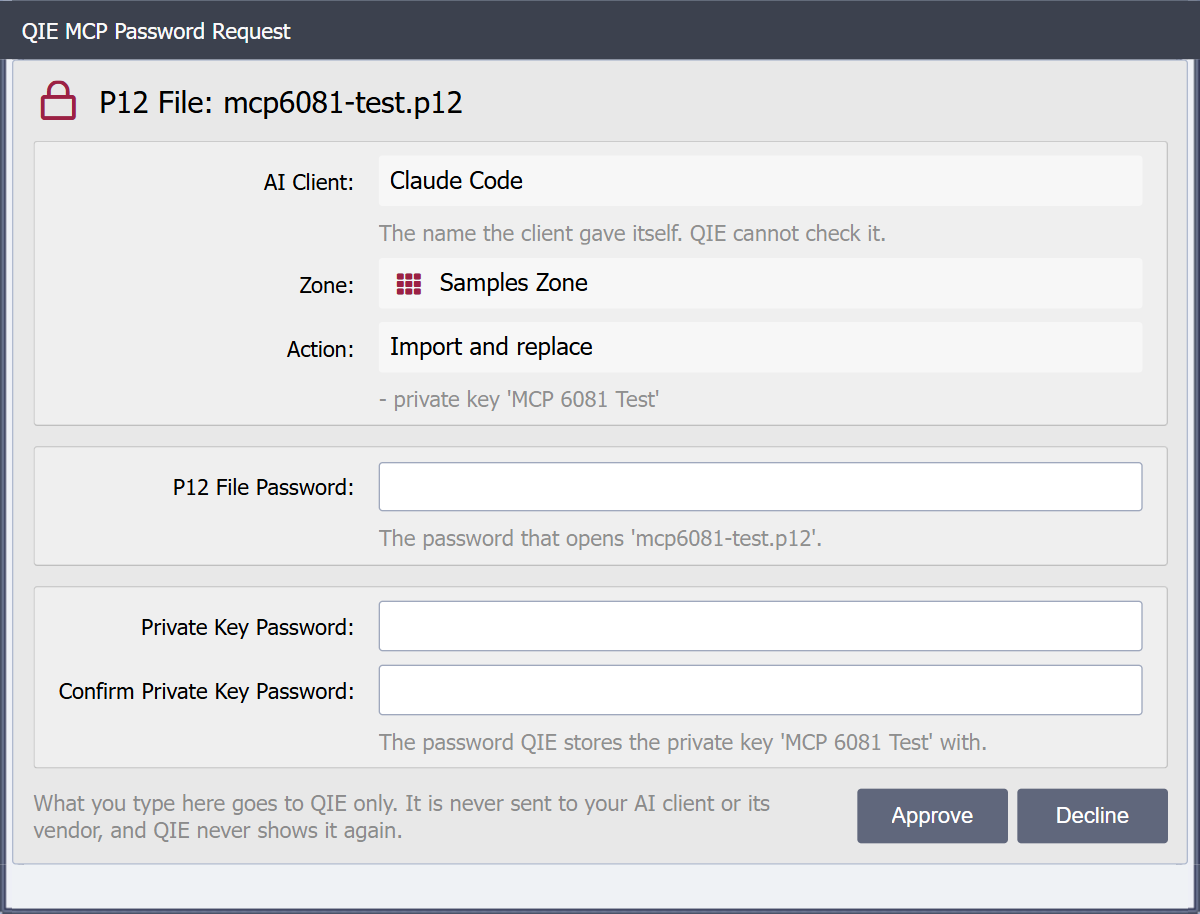
When the call would also ask the person to confirm the action, the page asks instead: Approve answers both. A call that confirms nothing shows OK and Cancel. Pressing Enter in a field moves to Approve or OK, as in the console's dialogs, and pressing it again submits. Decline or Cancel ends the call, and nothing is changed.
After the person submits, the page stays as it is while QIE checks what they entered. Its status bar then says the request is done, or why a value was refused, and the page asks for it again. When no call is waiting to take what they entered, the status bar says it is saved and that QIE finishes as soon as the AI client continues.
When the request is done, a message box with a green check says that QIE has what it needs and that the page can be closed, and the status bar says the same. Once the request is over, the page has no buttons, and the status bar keeps the outcome. OK closes the message box, and the status bar then says to close the tab, since a browser does not let a page close a tab it did not open.
Never type the password into the conversation
Type a password only on the QIE page. A model that asks for one in the conversation is not using this page, and anything typed there reaches the AI provider.
Signing In
The page needs the person to be signed in to the QIE console as the same QIE user the AI client acts for. A person who is not signed in goes to the login page first and returns to the password page afterwards. Anyone else who opens the link, and a request that has ended, sees only that the request has ended. The link holds a random id for the request and nothing else.
As with the approval page that signs an AI client in, the page cannot be opened from the QIE server itself. A person signed in to a site through the Remote Management Hub opens it only for a call that came through the Hub, as the next section describes.
Calls Through the Hub
A tool call that an AI client makes at a Remote Management Hub, and that the Hub passes to a site (see MCP Calls Through the Hub), asks for the password on the site's own password page, which the person opens through the Hub. The link the AI client shows is the site's address on the Hub, the one Connect opens.
- No other access to the site is needed. Opening the link signs the person in to the site as their Hub user, as Connect does, and shows the password fields. When their Hub session has ended, the link goes to the Hub's login first, then signs them in to the site and shows the page.
- The Hub must be able to sign the person in. Their Hub role needs the Console grant for the site (see Site Access Grants), and the site must take console sign-ins from the Hub for that role, with Use Hub, Console and a matching Role Map entry on its Hub Sign-In tab (see Hub Sign-In). Otherwise the call is refused before any link is shown, and nothing is changed. A Hub too old to pass the link on is refused the same way.
- The password goes to the site through the Hub's connection, as anything typed into a site's console through the Hub does. It never passes through the AI conversation.
- Each call waits up to 45 seconds for the person. When they take longer, the AI client calls again and picks up what they entered.
Clients That Cannot Open a Link
A client must support link questions (URL elicitation, from MCP protocol version 2025-11-25) for these tools to ask. A call from a client that does not is refused with elicitation_unsupported, and nothing is changed. Require client confirmation on the Model Context Protocol (MCP) page does not change this, because a password has no unattended path. Do the work in the console instead. get_instance_info reports whether the client can open a link as elicitationUrl.
Waiting for the Person
The call waits up to 2 minutes for the person, less 5 seconds, or until about 5 seconds before the Request Timeout when that is longer (see MCP Settings). When the person has not finished by then, the call ends with operation_in_progress and a message saying how long the request stays open. Calling the tool again with the same arguments picks up the same request, so the person does not have to start again. A request stays open for 10 minutes.
When the person finishes on the page, by entering what it asks or by declining, QIE tells the AI client, which stops showing that it is waiting for them. Once the call has used what they entered, the same call made again is a new request and asks again.
What QIE Keeps
QIE holds what the person typed, encrypted, in its database until the call takes it. The database is used rather than memory so that a page served by one node of a cluster reaches a call waiting on another. The call clears the value when it takes it. When no call takes it, because the AI client never calls again, QIE stops using it once the request's 10 minutes are up. It stays in the database, still encrypted, until the nightly cleanup deletes every request that has ended. A password is never written to the MCP audit log and never returned to the AI client.
The audit log records each request as SECRET_REQUESTED and each answer as SECRET_ANSWERED, naming the fields, never their values (see MCP Audit Log).