Model Context Protocol (MCP)
The Model Context Protocol (MCP) page in System Administration holds the MCP server's settings and lists the clients that registered and the sign-ins still in force, each of which can be revoked. It also opens the MCP audit log. Only administrators see it. A Remote Management Hub has the page too, for its own MCP server, with fewer settings (see The MCP Server on a Hub).
The About MCP box at the top of the page says what the MCP server is and what people can do with it, and its link, How do I connect an AI assistant to QIE?, opens Connecting an AI Assistant to QIE.
Changing the settings
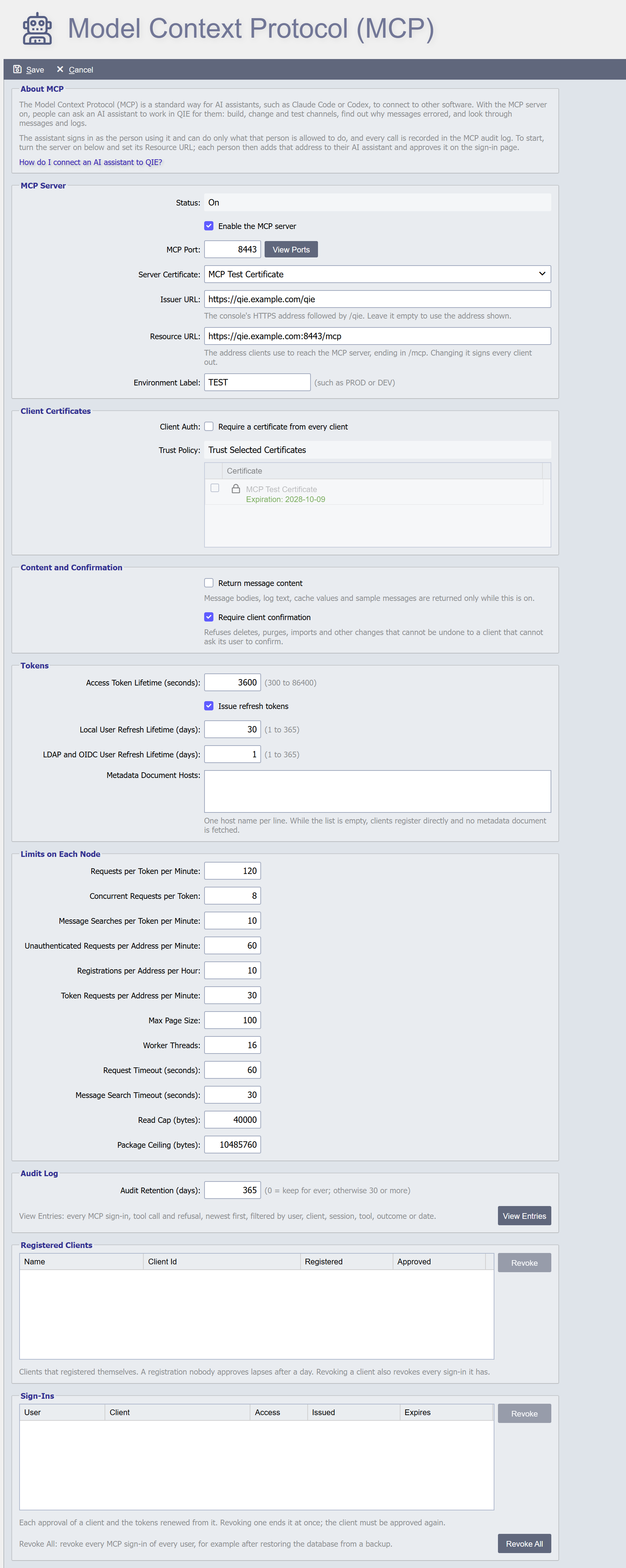
The page works like System Configuration: change any setting, then click Save in the toolbar, or Cancel to go back to the values last saved. Every setting, its default and its effect is described in MCP Settings. View Ports beside MCP Port lists the ports QIE already uses, so a free one can be chosen.
Turn the MCP server on with Enable the MCP server. Status shows On while the MCP server is enabled and Off otherwise. On a site it reads "Off. Calls through the Hub do not need the MCP server." while the server is off, because calls through the Hub do not use it: they are turned on in the site's Remote Management Hub dialog (see MCP Calls Through the Hub). Saving rebuilds the MCP listener on every node, and turning the server off stops it (see MCP Listener).
QIE checks the settings when you click Save. A port that is out of range or already used by the console or the Management API, a server certificate without its private key, an issuer or resource URL that is not an HTTPS address, a resource URL that does not end in /mcp, an environment label longer than 20 characters or with characters other than letters, digits, spaces, hyphens and underscores, Client Auth on with no certificate selected, and a Metadata Document Hosts line that is not a host name are refused, with the reason in a message.
The revision history button at the right end of the toolbar shows every change to the settings, who made it and how it was made, and can bring back an earlier version to save again.
A certificate the MCP settings use cannot be deleted from Global Settings until another certificate is chosen here.
View Entries in the Audit Log section opens the MCP audit log, newest first, with filters (see Viewing the log).
Certificate warning
Under Server Certificate the page shows a warning when MCP clients are likely not to trust the saved certificate:
- The certificate is self-signed. People may then be told to turn off certificate checks in their client, which removes the protection HTTPS gives.
- The certificate does not chain to a trusted certificate authority. A trusted authority is one the Java runtime trusts, or a certificate authority whose certificate is in Global Settings. If your organization's certificate authority issued the certificate, add the authority's certificate to Global Settings.
- The certificate is not valid now, because it has expired or is not valid yet. The warning gives its dates.
- The certificate does not name the host of the Resource URL, or of this node's own address when the Resource URL is empty. In a cluster the Resource URL is the shared address in front of the nodes, so the certificate must be issued for that name.
Use a certificate issued by your organization's certificate authority. The warning reflects the certificate as saved, so it changes after you choose another certificate and click Save.
Registered Clients
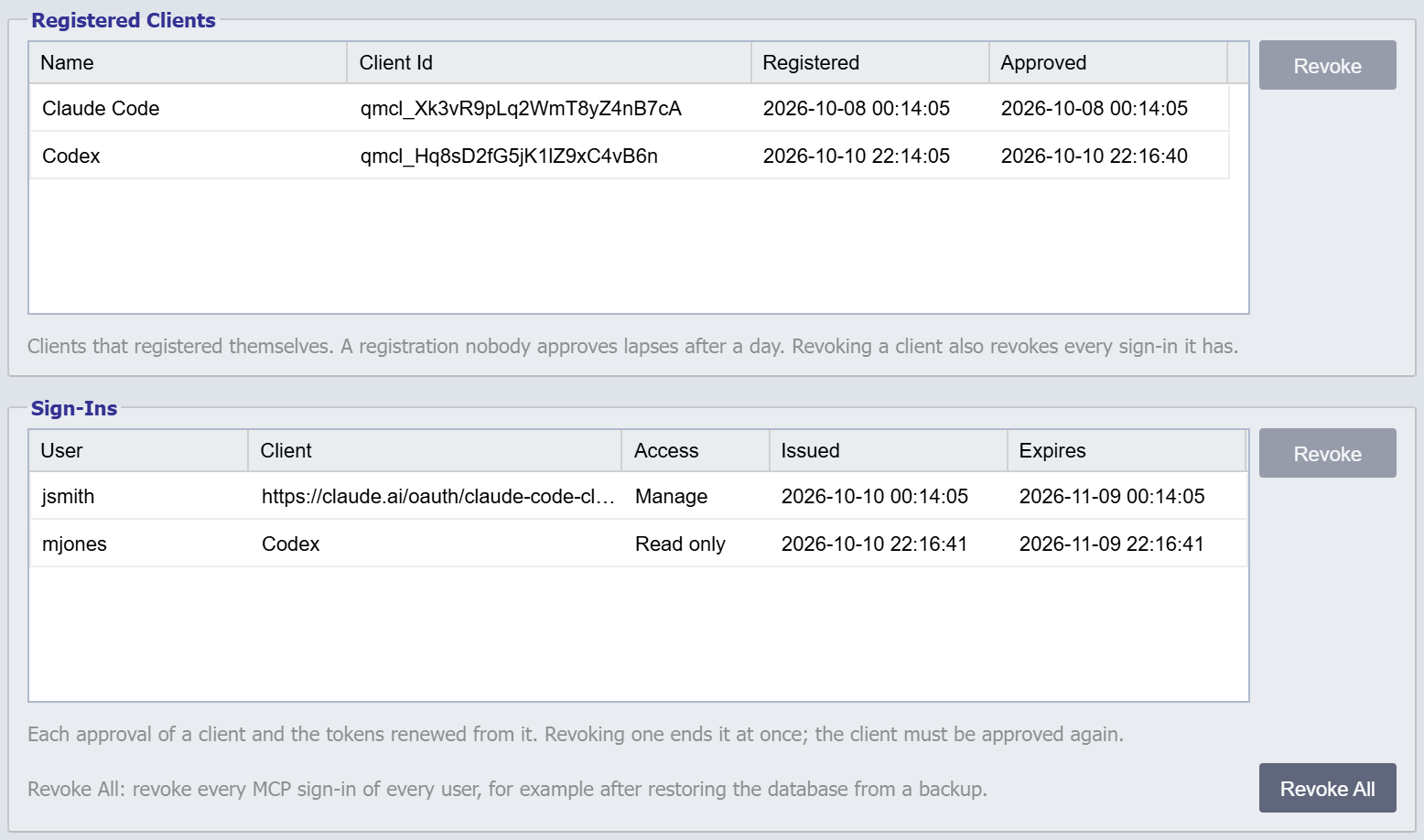
The clients that registered themselves with QIE, with the name each gave itself, its client id, when it registered and when a person first approved it. A client still Waiting for approval lapses a day after it registered. A client described by a metadata document does not register, so it is not listed here; its sign-ins are.
Select a client and click Revoke to revoke it and every sign-in it has. The client must register and be approved again. Revocations take effect at once; they do not wait for Save.
Revoke All revokes every registered client and every MCP sign-in of every user. Every client must register again, and each user must approve it again. A client described by a metadata document is not a registration, so it can sign in again; to stop new sign-ins from one, remove its host from Metadata Document Hosts.
Sign-Ins
Each approval of a client and the tokens renewed from it, one row per approval: the user who approved it, the client, the access granted (Read only, Manage or Full), when its oldest active token was issued, and when its last token expires.
Select a sign-in and click Revoke to end it at once. The client must be approved again.
Revoke All revokes every MCP sign-in of every user. Every client must then be approved again. Use it when tokens may have leaked, and after restoring the database from a backup, because a restore brings back tokens that were revoked after the backup was taken.
Every revocation writes an entry to the MCP audit log (see MCP Audit Log).
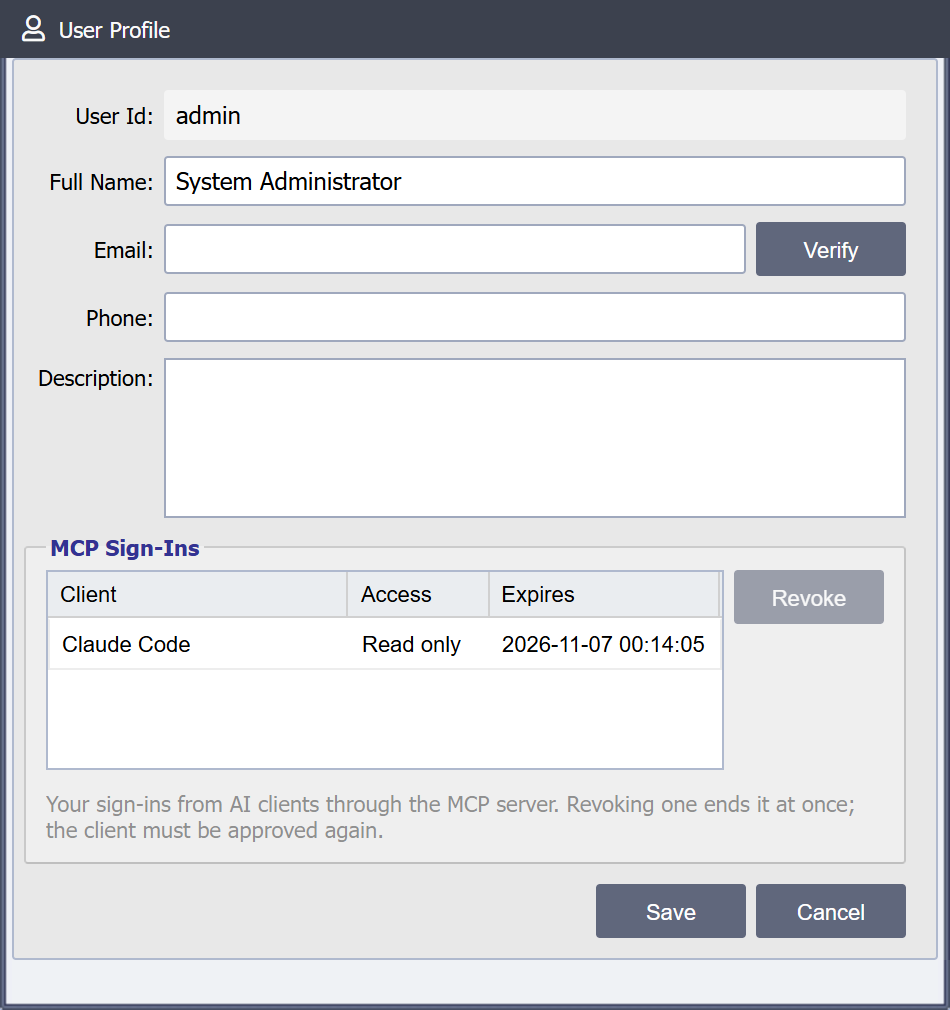
Your own sign-ins
A user whose password QIE checks, administrator or not, can see and revoke their own MCP sign-ins under MCP Sign-Ins on the User Profile dialog (Application -> Edit My Profile). Revoking one ends it at once, without Save.