Since the user id and password were already verified to be correct, let's try to figure out what SQL Server says is the problem. To do that log in to SQL Server Management Studio with "administrator" credentials.
Follow the arrows in this image to open the SQL Server Logs:
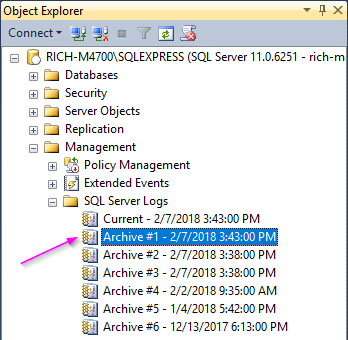
Select the log that corrosponds to the time the login attempt was made:
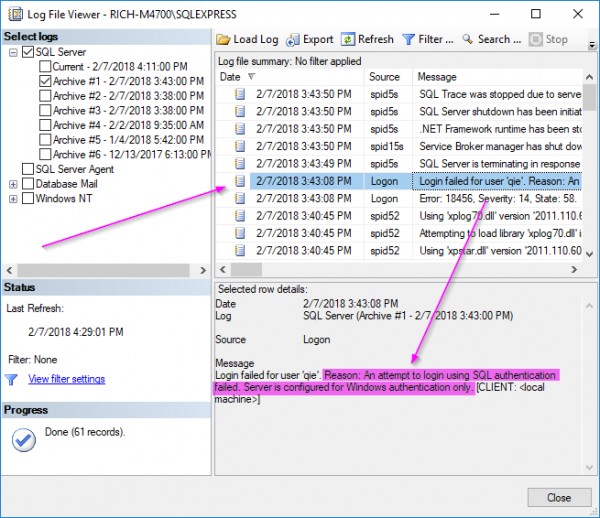
Note the "Reason" highlighted in the details above. To fix this error you either need to switch to a windows authenticated user (see this question: How do you set up a database connection using windows authentication?) or change this SQL Server instance to use "SQL Server and Windows Authentication mode" (see this question: How can I change SQL Server authentication mode?). The later is easier to setup for use with QIE.
Also note the line below the one selected in the above image with the message that starts out as 'Error: 18456, ...'. In this case it has a "state" of "58". The image below has some other examples of failed login attempts.
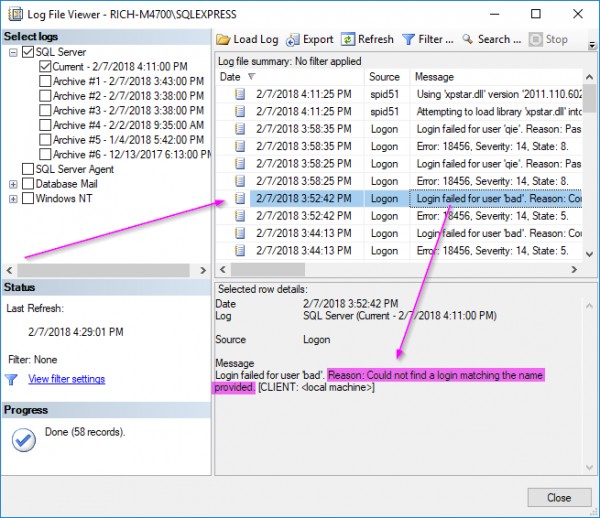
Again note the highlighted reason. The reason is fairly user friendly so that is what I would use first. Again note the lines containing the error state. With the state you can lookup the reason using the table below (reproduced from this link with the additional state of 58 added (state 58): https://msdn.microsoft.com/en-us/library/cc645917.aspx)
| State |
Description |
| 1 |
Error information is not available. This state usually means you do not have permission to receive the error details. Contact your SQL Server administrator for more information. |
| 2 |
User ID is not valid. |
| 5 |
User ID is not valid. |
| 6 |
An attempt was made to use a Windows login name with SQL Server Authentication. |
| 7 |
Login is disabled, and the password is incorrect. |
| 8 |
The password is incorrect. |
| 9 |
Password is not valid. |
| 11 |
Login is valid, but server access failed. One possible cause of this error is when the Windows user has access to SQL Server as a member of the local administrators group, but Windows is not providing administrator credentials. To connect, start the connecting program using the Run as administrator option, and then add the Windows user to SQL Server as a specific login. |
| 12 |
Login is valid login, but server access failed. |
| 18 |
Password must be changed. |
| 58 |
An attempt to login using SQL authentication failed. The server is configured for Windows authentication only. |
See also
How do you set up a database connection using windows authentication?
How can I change SQL Server authentication mode?